
1.6 Allow the UniField web port on Windows 7 Pro Firewall
| Click on the Windows Start menu at the bottom left. In the Search programs and files field, enter firewall 1 without pressing enter. Click on Windows Firewall with Advanced Security 2 | 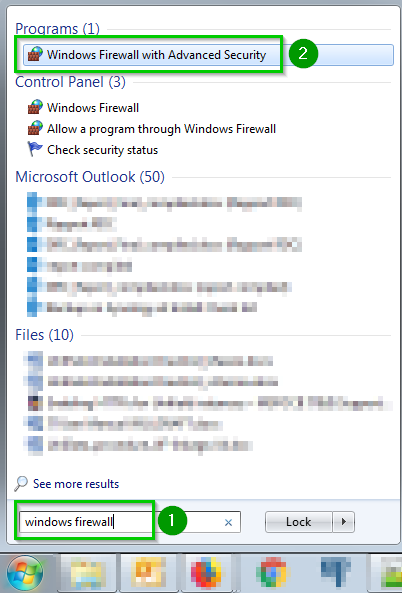 |
| Click on Inbound Rules 1. The inbound rules will now be listed. Click on New Rule… 2 A new wizard will open | 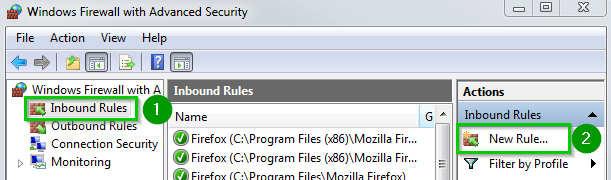 |
| Select Port 1 Click Next 2 | 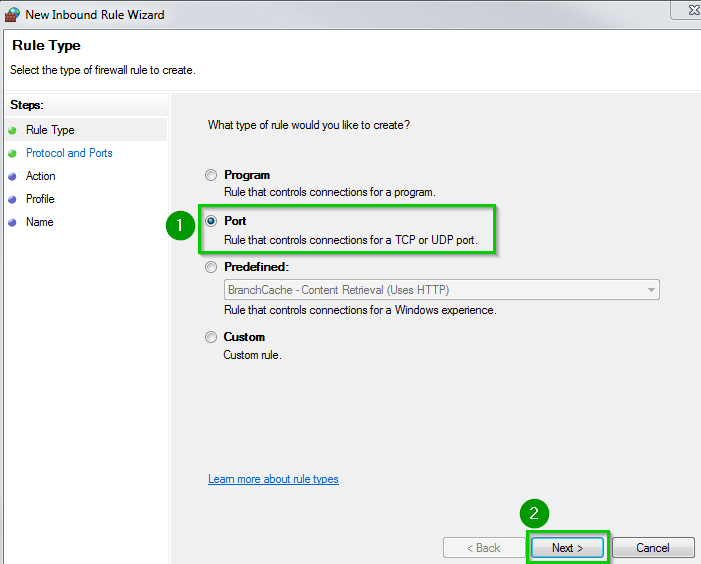 |
| Select TCP 1 Specific local port 2: enter 8061.If you will be using a different port (i.e. 80) set that instead. If you will be enabling HTTPS (section 1.9) add port 443 (separated with a comma).Click Next. | 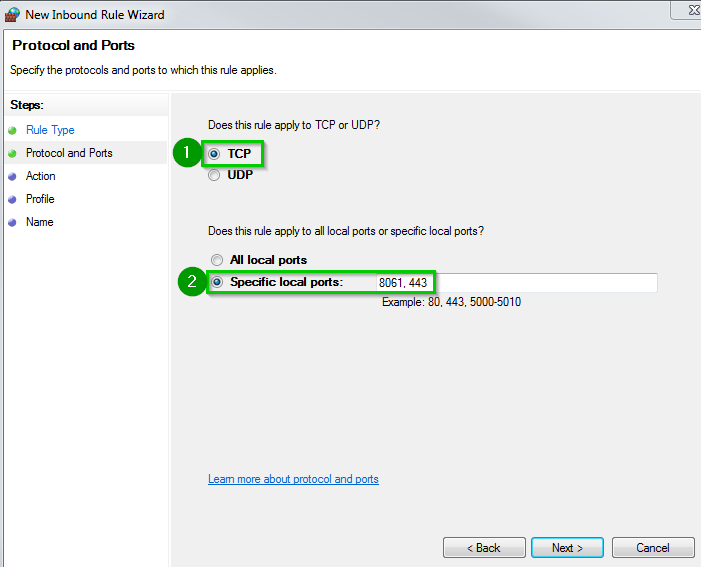 |
| Select Allow the connection 1 Click Next 2 | 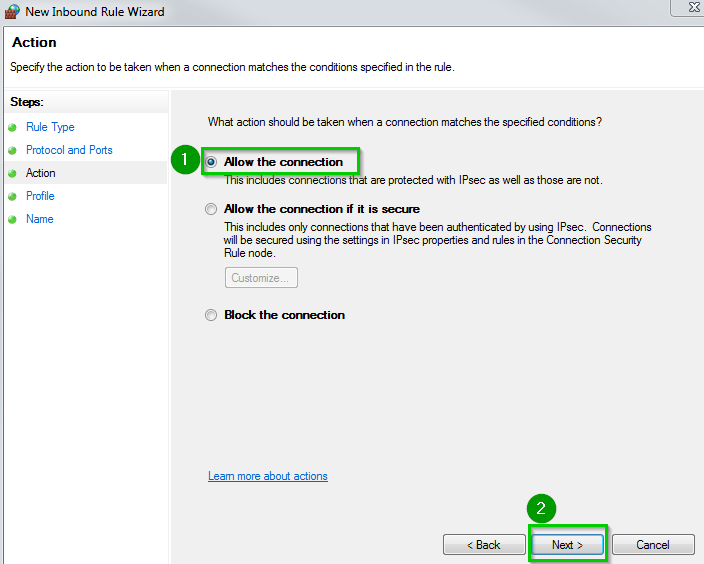 |
| Select the appropriate options 1 regarding your network configuration. By default select Domain, Private and Public. Click Next 2 | 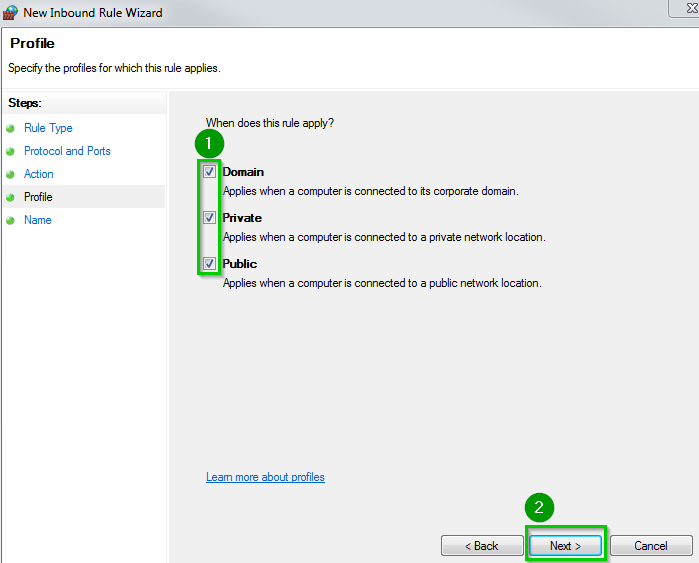 |
Enter a name 1 such as Inbound port TCP:8061 UniField WebClick on Finish 2 | 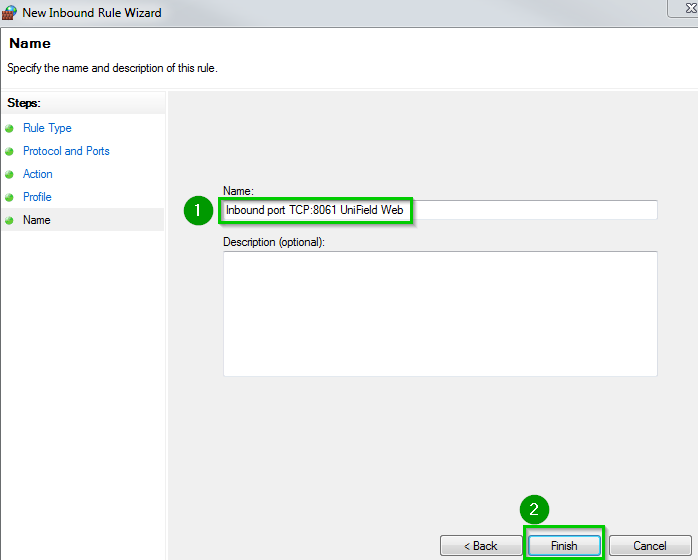 |
| Remote connections for the web access are now accepted by the Firewall. | 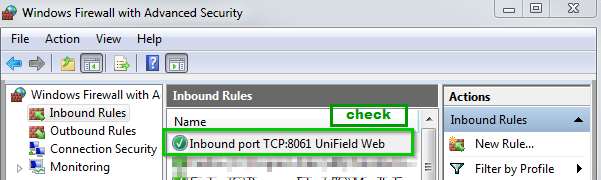 |
