
1.10 Updating the time zone (only if needed)
If you need to you set up a new time zone on your Windows computer there is a need to check and perform the following steps in order for Postgres to take into account your update.
| Check first the current time zone information set by Postgres: File path: D:\MSF data\Unifield\PostgreSQLFile name: postgresql.confline: timezone = 'CET'In our example it is set to: CET | 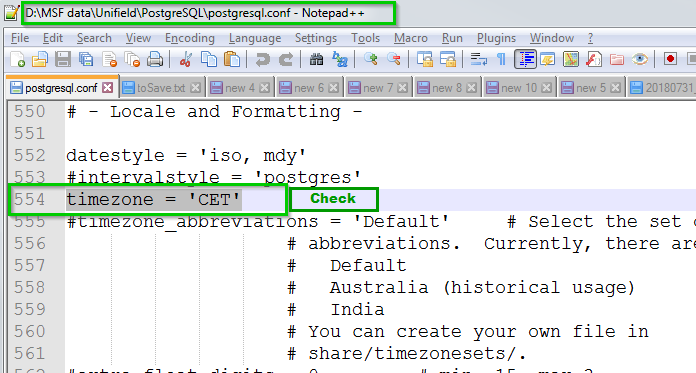 |
Now for the example we would like to set the time zone to (UTC+05:00) Islamabad, KarachiSelect this new time zone on the Windows Time Zone Settings 1 Click on OK 2 | 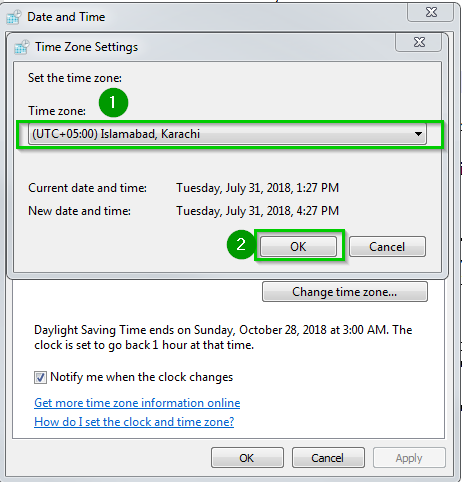 |
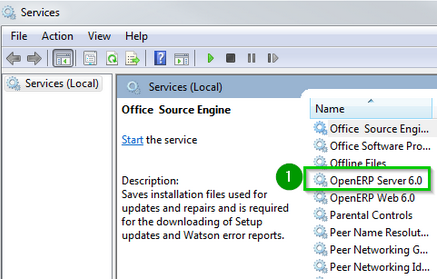
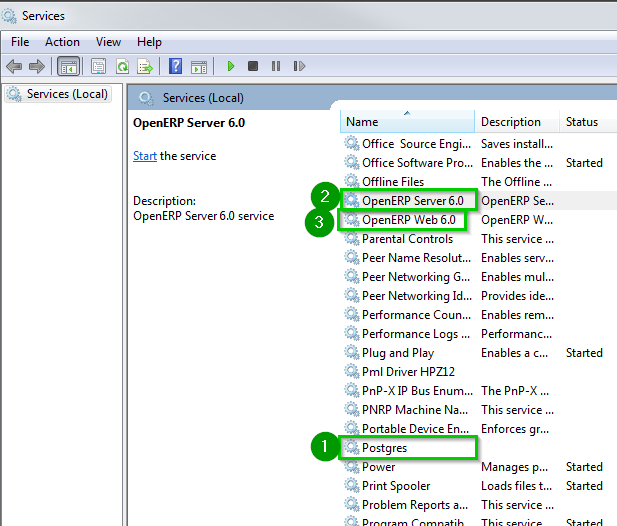
| Stop to the following service:
|  |
| Open pgAdmin 1 Open a SQL query window 2 to check the list of availalbe Postgres time zone Run the following sql query 3 SELECT * FROM pg_timezone_names;Scroll down 4 the list to find KarachiCopy this information to your clipboard. | 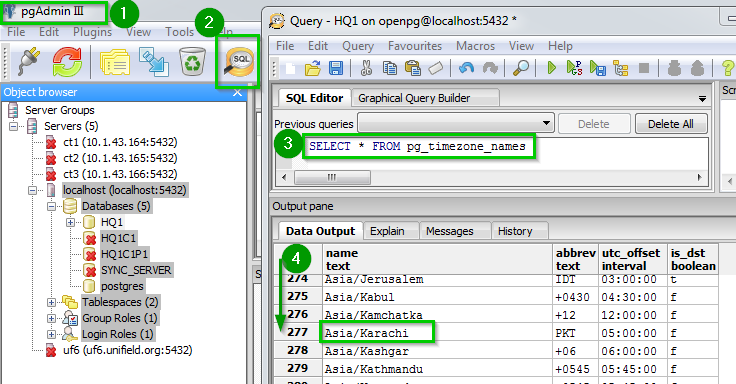 |
Edit your file postgresql.conf at line:timezone = 'CET'Replace ‘CET’ by ‘Asia/Karachi’ Save the file | 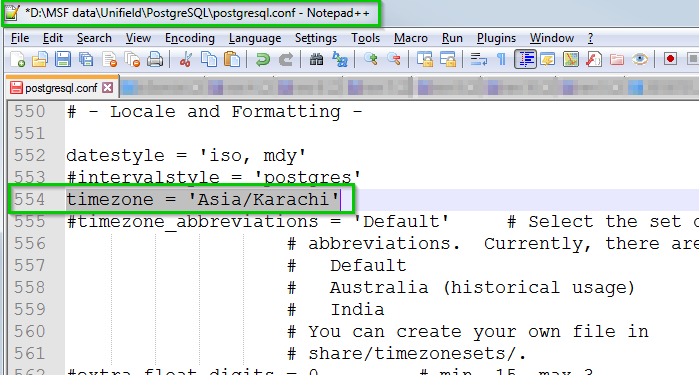 |
| Restart to the following services. The order is very important:
|  |
In few cases pgAdmin cannot find a time zone from its list that matches the (nonstandard) time zone name used by Microsoft.
E.g.: you would like to use the Windows time zone (UTC+01:00) West Central Africa but it’s doesn’t appear in the pgAdmin list of timezone.
As above look at the pgAdmin time zone list that would suit the (UTC+01:00) West Central AfricaIn our case timezone would be 'Africa/Bangui' which is UTC+01:00 -without daylight savings- just like Micosoft’s West Central Africa time is. | 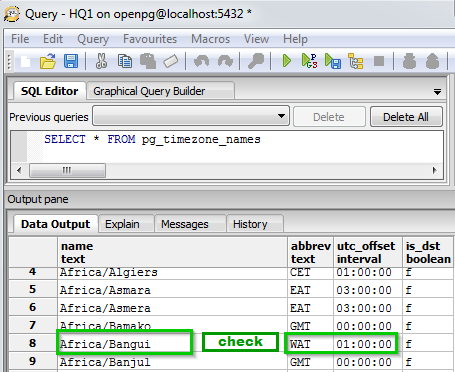 |
Edit the file 1 postgresql.conf the same way as above.Restart the services Postgres and OpenERP Server 6.0 | 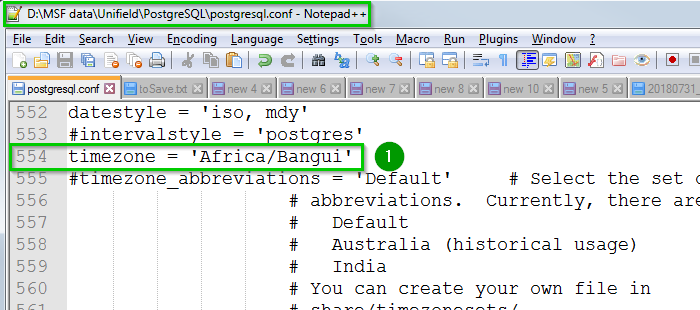 |
