
11.3 Automatic instance backup to the Cloud
It is strongly recommended to send a copy of your backup automatically to OneDrive. Your latest backups (last 7 days) would be available at any time and would increase the speed of the Support Team to analyze any bugs with your latest backup. This off-site backup feature is not to be considered as an official one. It is each OC’s responsibility to put in places their own backups plan according to their policies.
You have the possibility to configure from your HQ only the cloud backups for your HQ and each children instance. There is also the possibility to monitor all children instances cloud backup status.
The initial configuration has already been done for all instances, you would have to set up only for the new instances.
Note that this procedure is only availble for production instances.
Configuration:
| Log in your HQ and click on menu SYNCHRONISATION 1, Backup 2, Cloud Backup Config 3 In this view you have an overview of your HQ and all children instances cloud configuration. Please note the one in red are the instances that are not yet configurred configured. Click on the pencil edit icon 4 to edit an instance. | 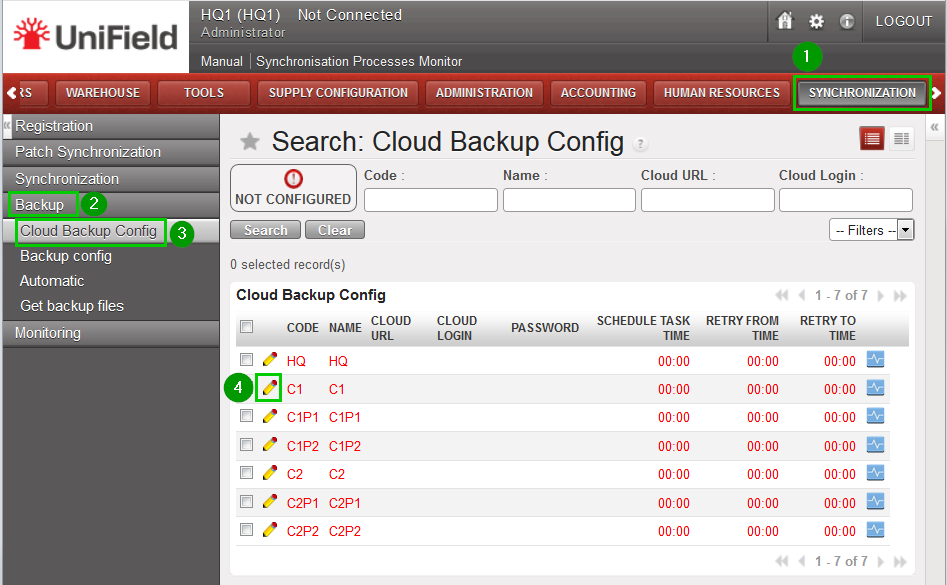 |
| Fill in the information 1 Click on the save floppy disk icon 2 | 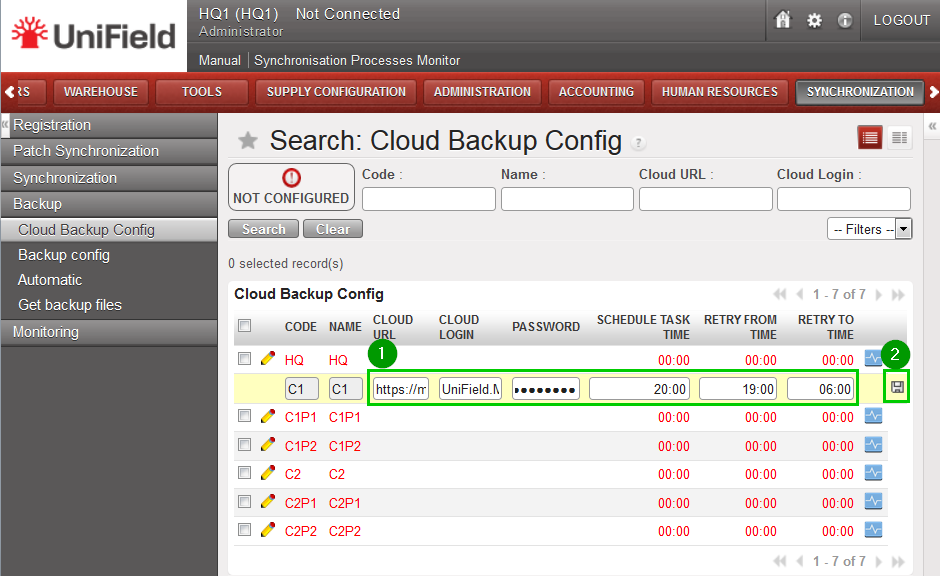 |
| Once saved the line of the instance configured turn into black. Continue the cloud configuration for the instances highlighted in red. | 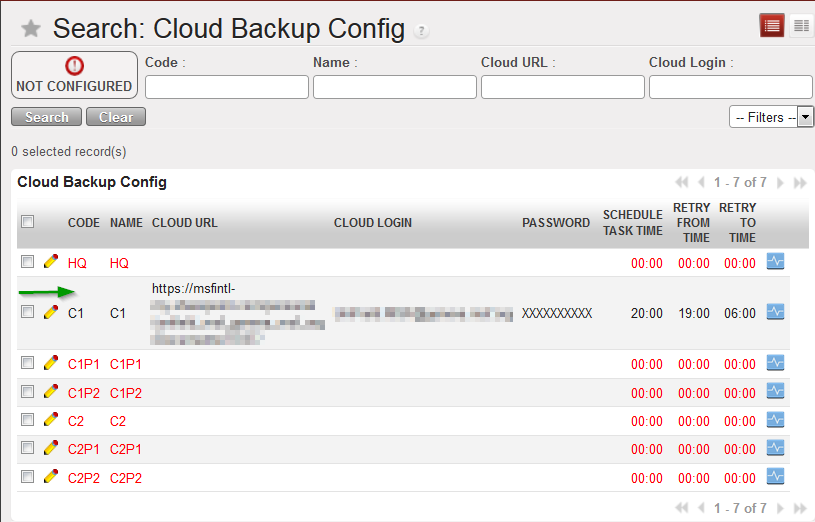 |
| You have the possibility to test the cloud connection by clicking on the blue icon 1 If the connection is ok you will have the following message 2 Once all your instances are configured perform a synchronisation | 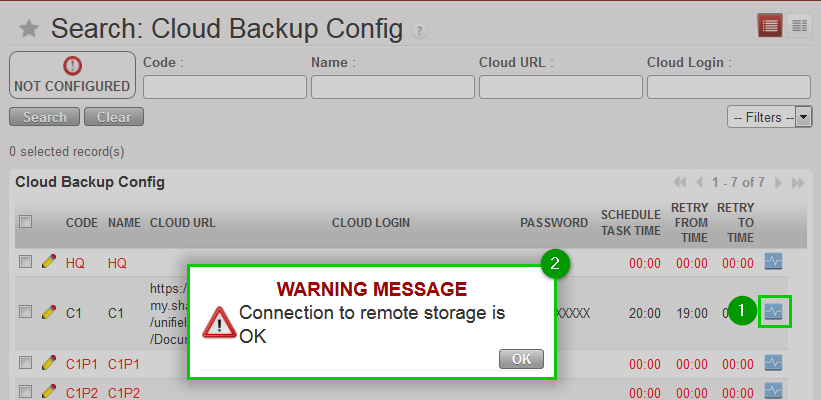 |
| Log in to one of the children instance you just configured at HQ (e.g HQ1C1) Perform a synchronisation to retrieve the updates Click on on menu SYNCHRONISATION 1, Backup 2, Cloud Backup Config 3 All the information 4 about the cloud backup configuration appears in this page Please note that at children instance there is no possibility to update the cloud backup, it’s only done at HQ. | 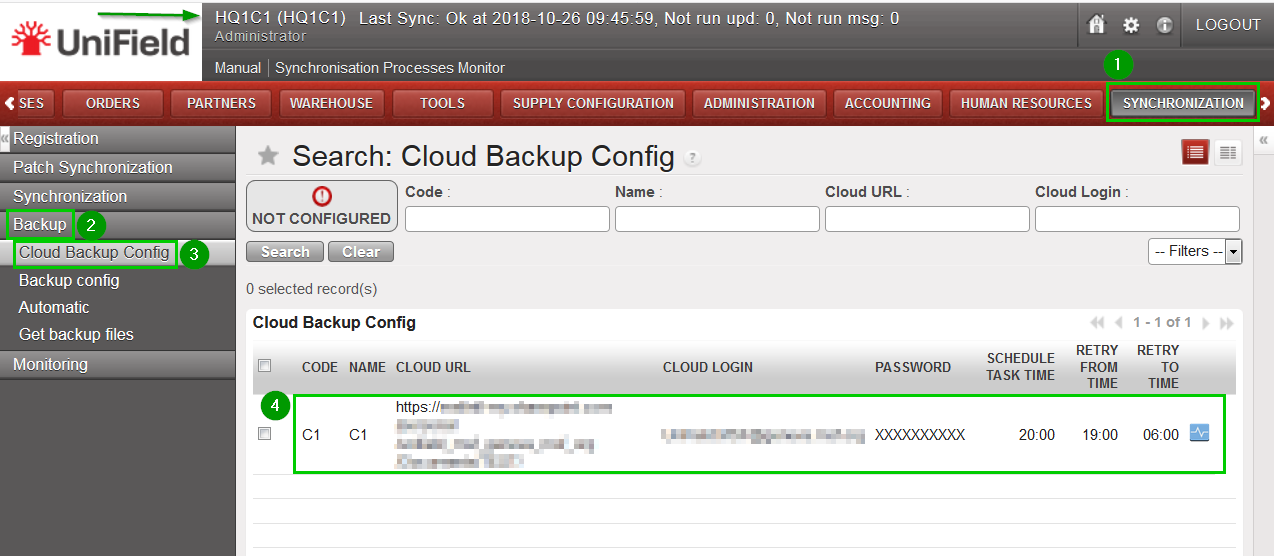 |
Monitoring:
| At HQ level Click on menu ADMINISTRATION 1, HQ Monitoring 2, Version Instance Monitor 3. You will have the list of your HQ and children instances that have backed up in the cloud 4 from their last synchronization | 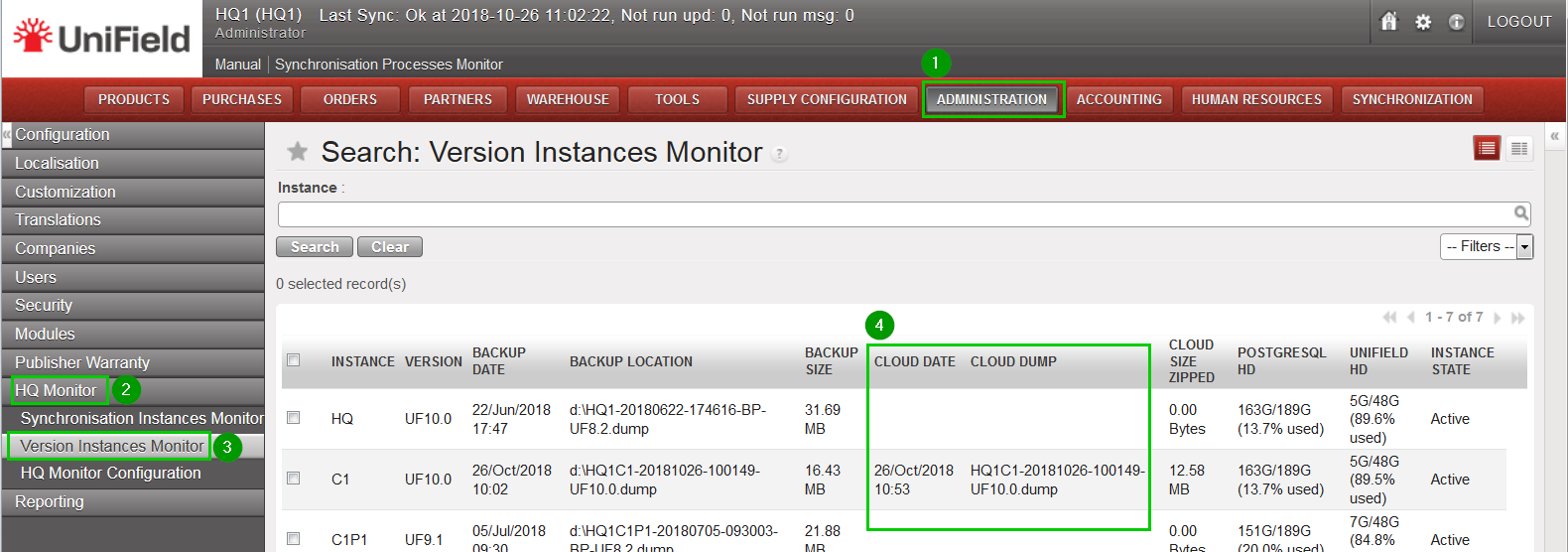 |
| At instance level Click on menu SYNCHRONISATION 1, Backup 2, Backup config 3 All the latest info about the cloud back is under the Cloud section 4 | 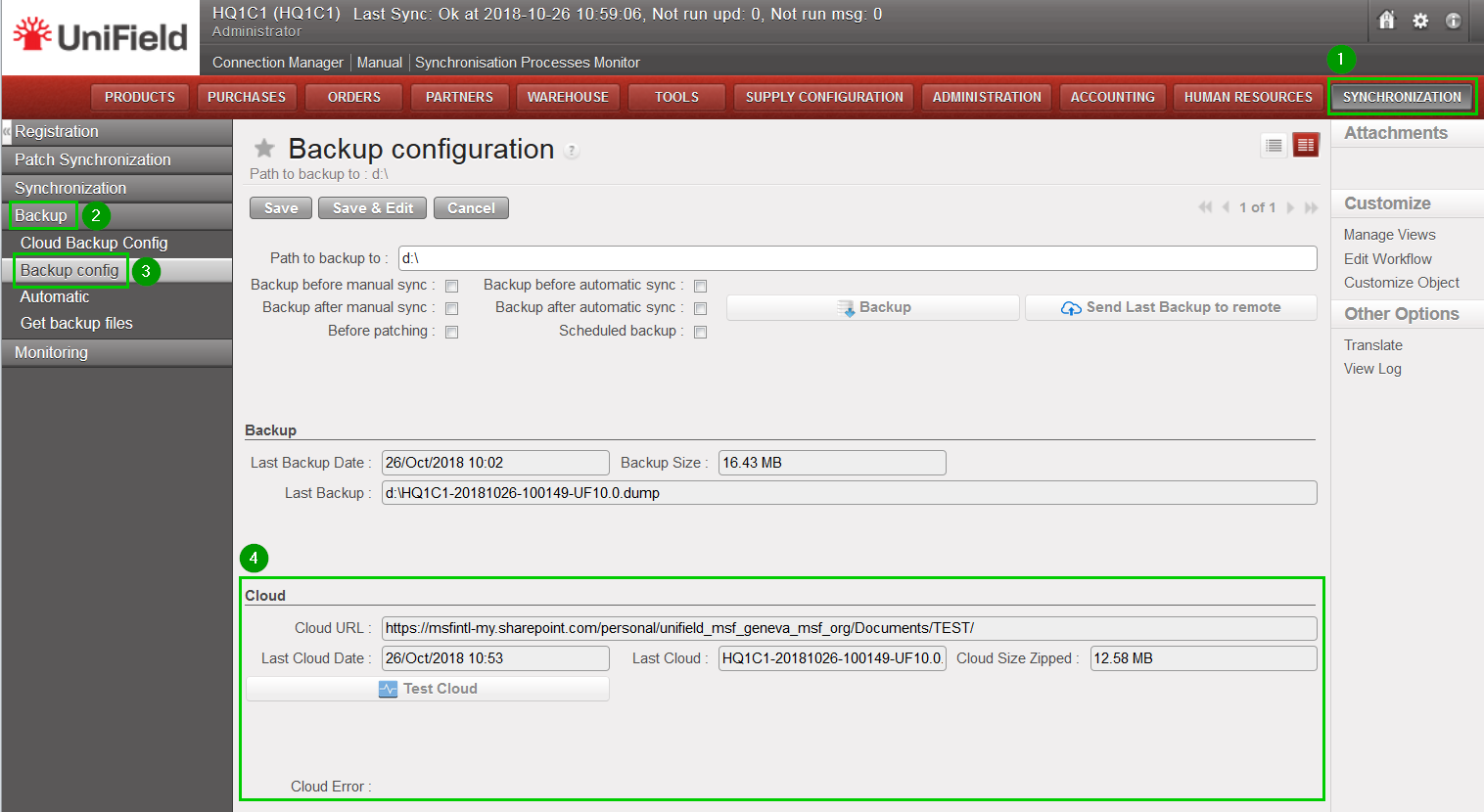 |
