
11.4 External Storage Configuration for Attachments.
Currently all the attachments are saved in the database. This feature allows you to send all your attachments in the File System.
Before configuring and enabling it please have a quick look at your database size. Is it big? Is it because it contains a lot of attachments? If it’s the case you could activate the external storage.
Please be aware that it’s under your responsibility to put in place a backup solution for your attachments in the file system.
Before enabling this option please liaise with your team on site to warn them.
| Click on Menu Administration 1, Configuration 2, Attachment config 3 Fill Path to save the attachments to 4 Set Next migration date by clicking on the calendar icon 5 | 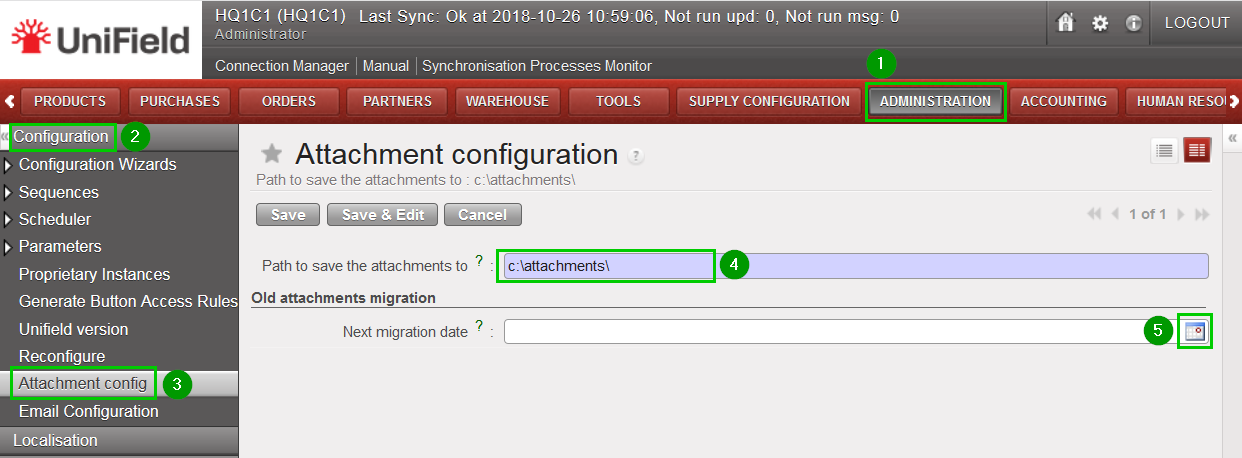 |
Please note the initial migration will copy all your attachments in the File System (only if the migration goes well). In theory once the first migration is done it is not possible to revert it
The backup/management of your attachments will be then of your responsibility.
