
1.3 Installation
1.3.1 Installation with the wizard
| Use Windows Explorer to browse to the directory where the UniField installer is located. Double click on the installer e.g: openerp-allinone-setup-UF10.0-20180914-083009-r1.exeIn case the window User Account Control appears, allow the program from an unknown publisher to make changes. Click Yes. The following window appears: Click on OK 1 | 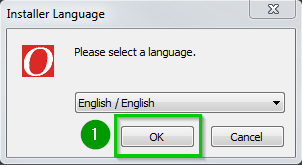 |
| Click Next 1 | 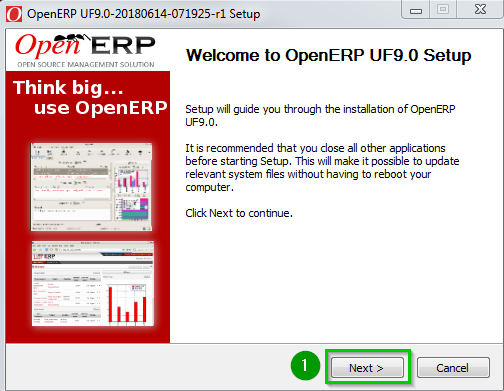 |
| Click I Agree 1 | 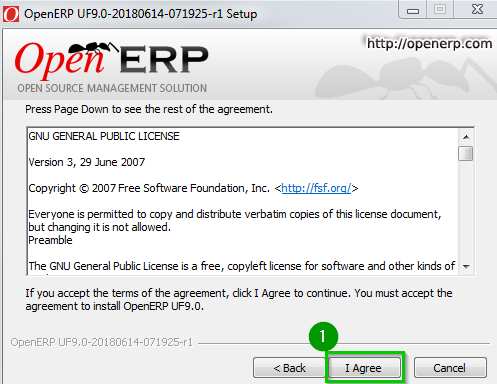 |
| Select 1 All In One as type of install Leave all the boxes checked Click Next 2 | 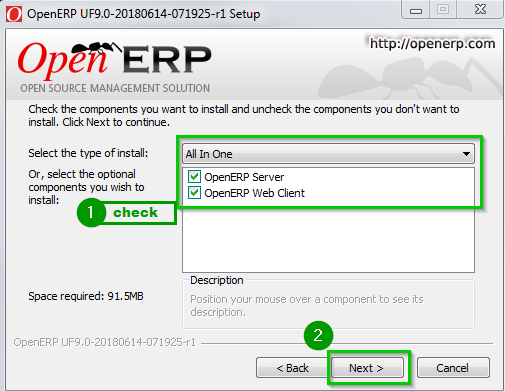 |
| Click on Browse 1 if the standard path does not suit you. Otherwise, Click Next 2 | 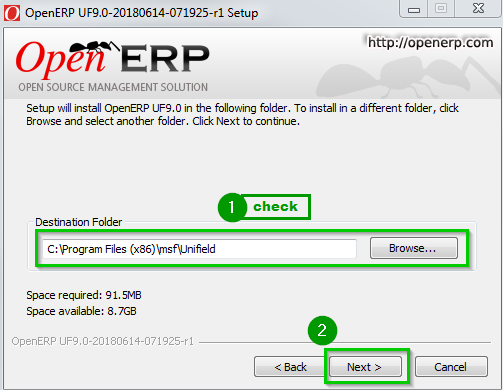 |
| You need to define different passwords 1 to drop backup and restore the database. Click Next 2 | 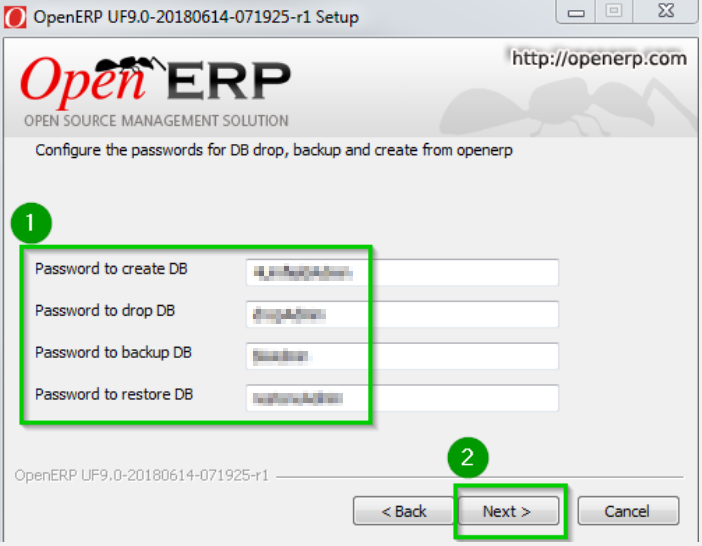 |
| Click on “…” 1 if the standard path does not suit you. Leave all the fields as shown except for the Password. For security reasons, you should not leave this default value; change Password 2 to something that will be remembered. This value will never be changed. Click Install | 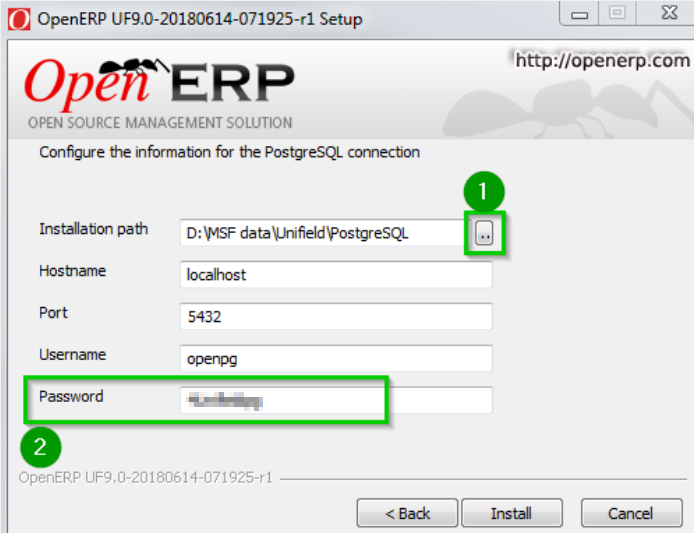 |
| The installation starts running and the following screens will appear during the installation, wait until it is completed | 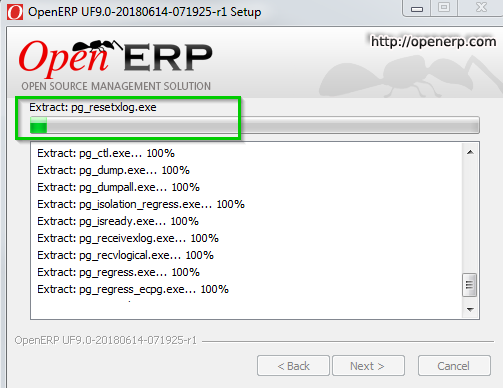 |
When it finishes you will see at the bottom of the text area a Completed notification 1 meaning the installation is now done.Click Next 2 | 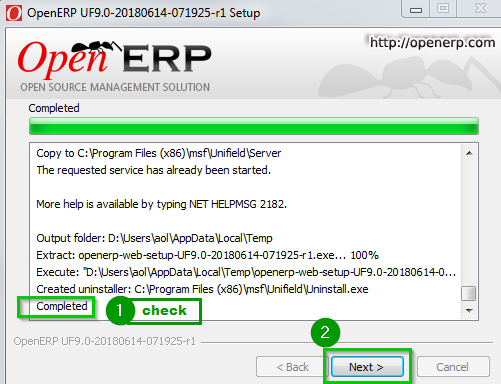 |
| Leave the Connect to OpenERP Web box checked 1. Click on Finish 2 | 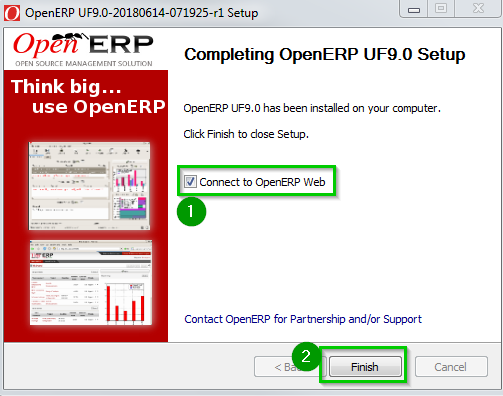 |
| The default browser starts running and connects locally to UniField 1 A warning message 2 is displayed on the homepage to ensure that your regional settings are set to “English (United States)”. If it is already done, you can omit it and proceed. | 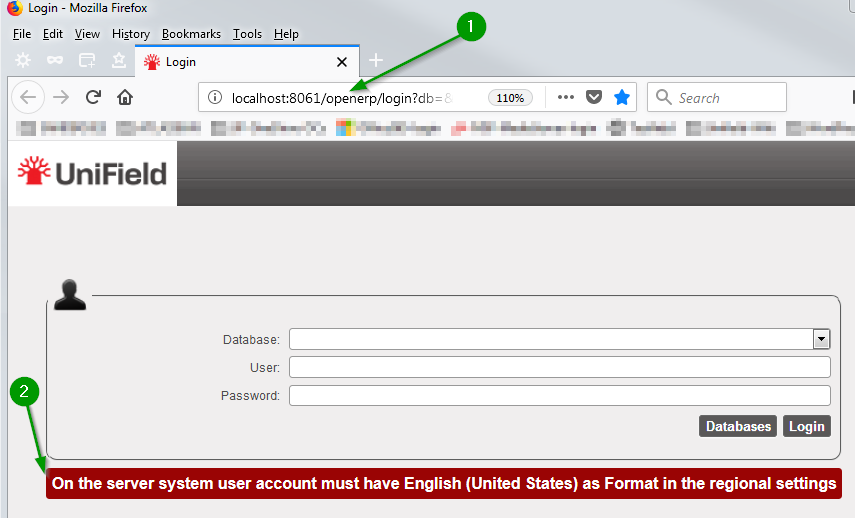 |
UniField is correctly installed and will start automatically when the computer boots up.
On the computer where UniField has been installed, you can later connect to the UniField Web Interface using the address http://localhost:8061
1.3.2 Silent installation
Use the following command for silent installation: openerp-allinone-....exe /S
In this example: openerp-allinone-....exe is the AIO
By default:
- OpenERP is installed into
C:\Program Files (x86)\msf\Unifield - PostgreSQL data is installed into:
D:\MSF Data\Unifield\PostgreSQL - PostgreSQL application software is installed into:
C:\Program Files (x86)\msf\Unifield\pgsql
UniField is correctly installed and will start automatically when the computer boots up.
On the computer where UniField has been installed, you can later connect to the UniField Web Interface using the address http://localhost:8061
