
4.5 Auto-connect Synchronization
It is possible to configure the connection of your instance connected to the synchronization without the need to reconnect it (refer to the connection manager) every time OpenERP starts (standard set up).
This feature is named auto-connect synchronisation and is a specific set-up developed for emergency context to release the workload of the user on the site.
For the set-up the Support Team (ST) and the User would have to perform the correspondent steps:
| ST: [Done during instance creation step1 by coreteam] Create a new user in the SYNC_SERVER side on Administration1, Users 2, Users3. Fill in the information 4:
Add 5 the group Instance Sync | 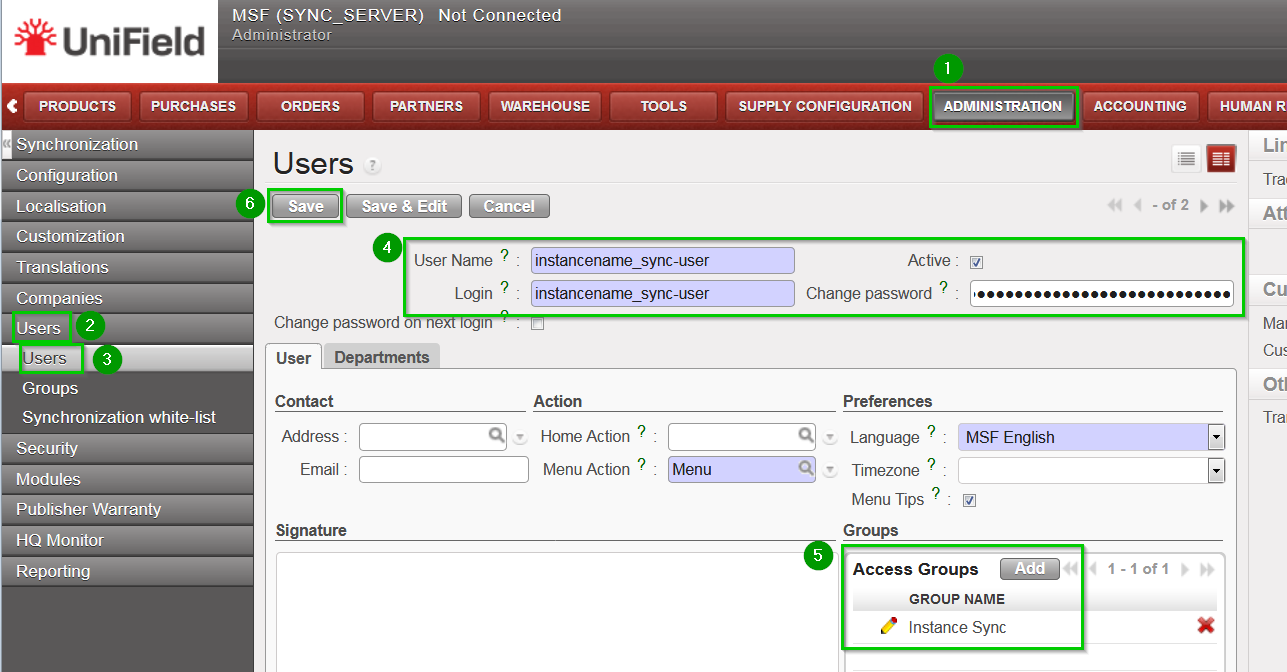 |
| On menu Administration 1, Synchronisation 2, Configuration 3, Instance 4. Click on the Edit icon 5 of the instance. On the User field click on the look up icon 6 Select the newly created user 7 Click on Save 8 | 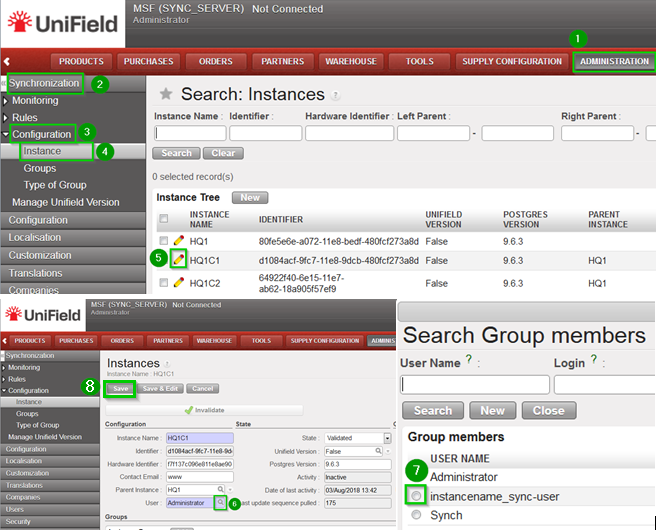 |
| User: [can be done by only UF IT referent or coreteam] Open as Administrator with Notepad the file openerp-server.conf in C:\Program Files (x86)\msf\Unifield\ServerEdit the following lines in the file:
Save the file. | 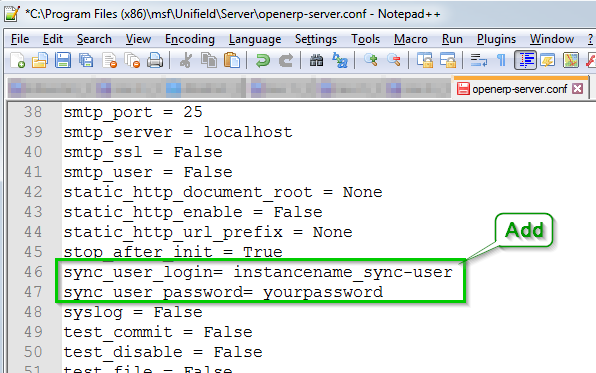 |
| Right click 1 on OpenERP Server service and click on Restart 2 | 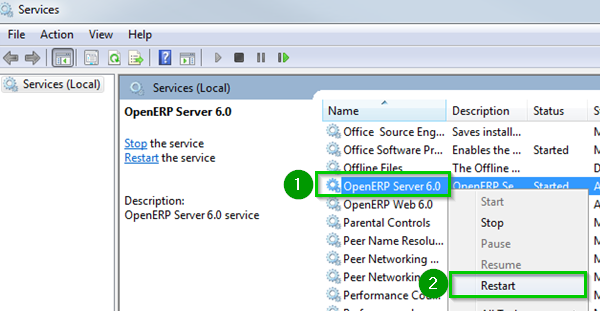 |
| When logged back in your instance you can skip the Connection Manager step in menu SYNCHRONIZATION, Registration, Connection Manager even if the state mentions Not Connected. | 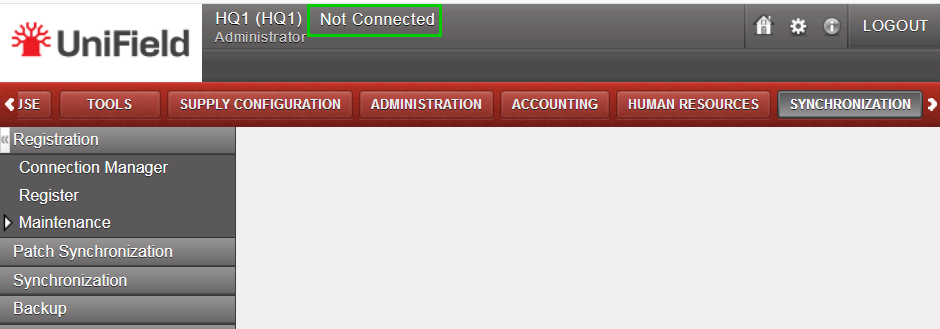 |
| To synchronize: Go to menu Synchronisation, Registration, Synchronization, Manual. Then click on Start All Synchronization in Background. The connection will automatically be made and the synchronization will start. | 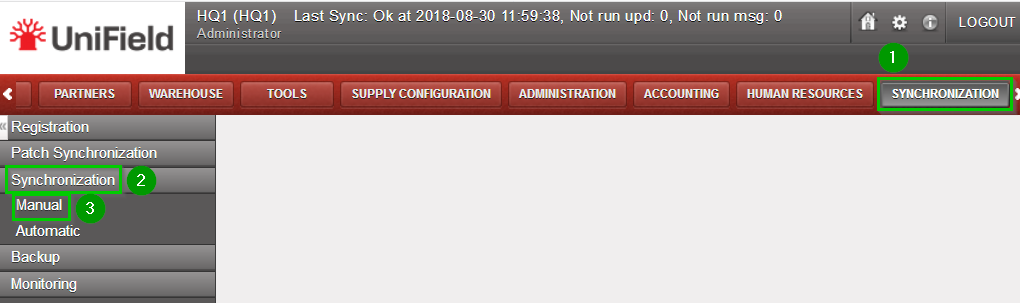 |
