Supply User Manual ENG -> 5. Warehouse -> 5.2 LU-SU4101: Incoming Shipments -> E. How to process a partial reception
E. How to process a partial reception
Although a PO might be fully confirmed, the supplier could decide to deliver the confirmed items in several steps. In this case, you will partially process the Incoming Shipment to register the delivered items/quantities (but keep a back order for the missing ones).
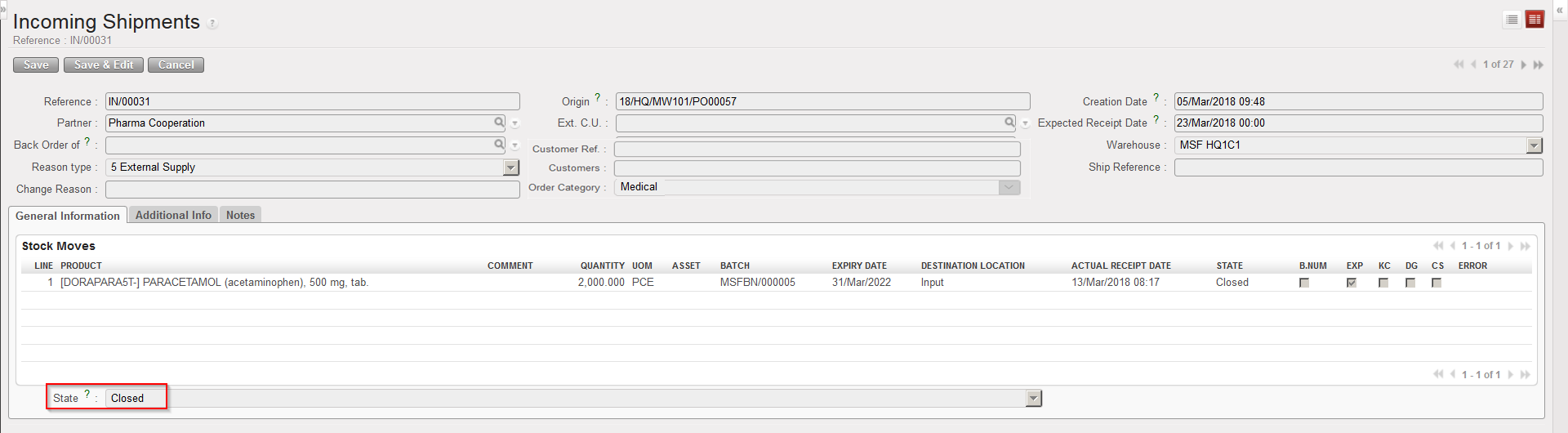
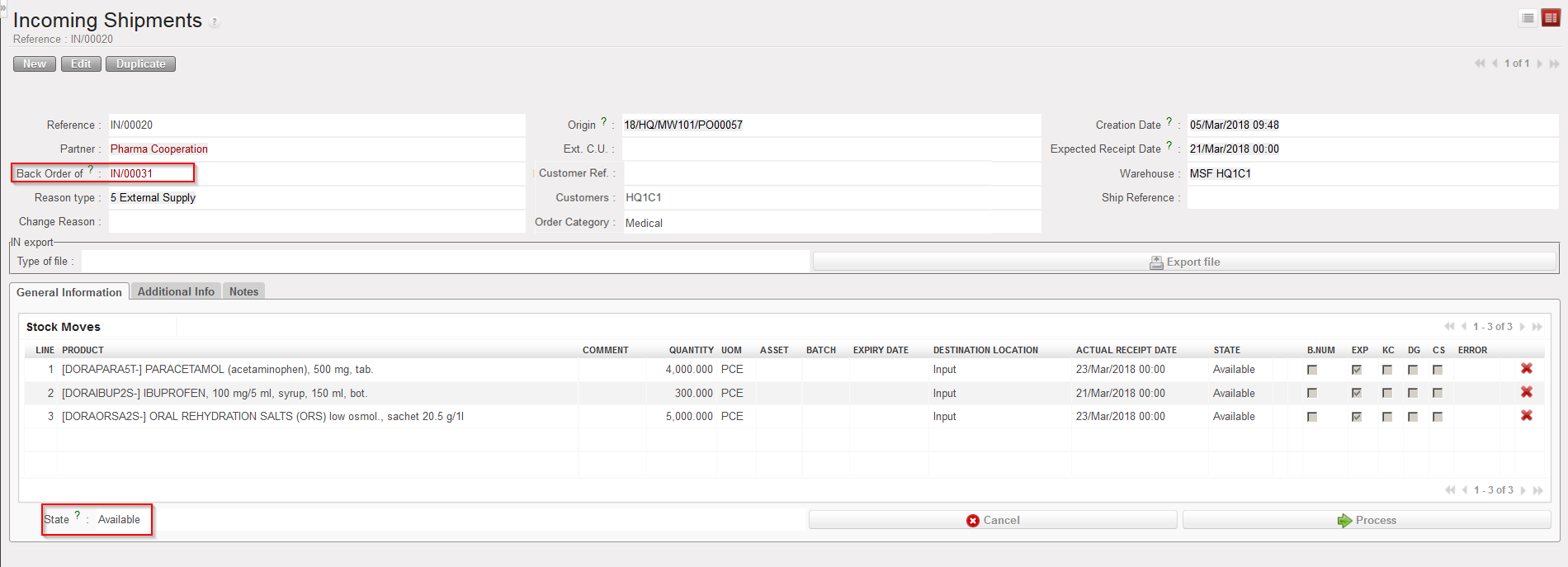
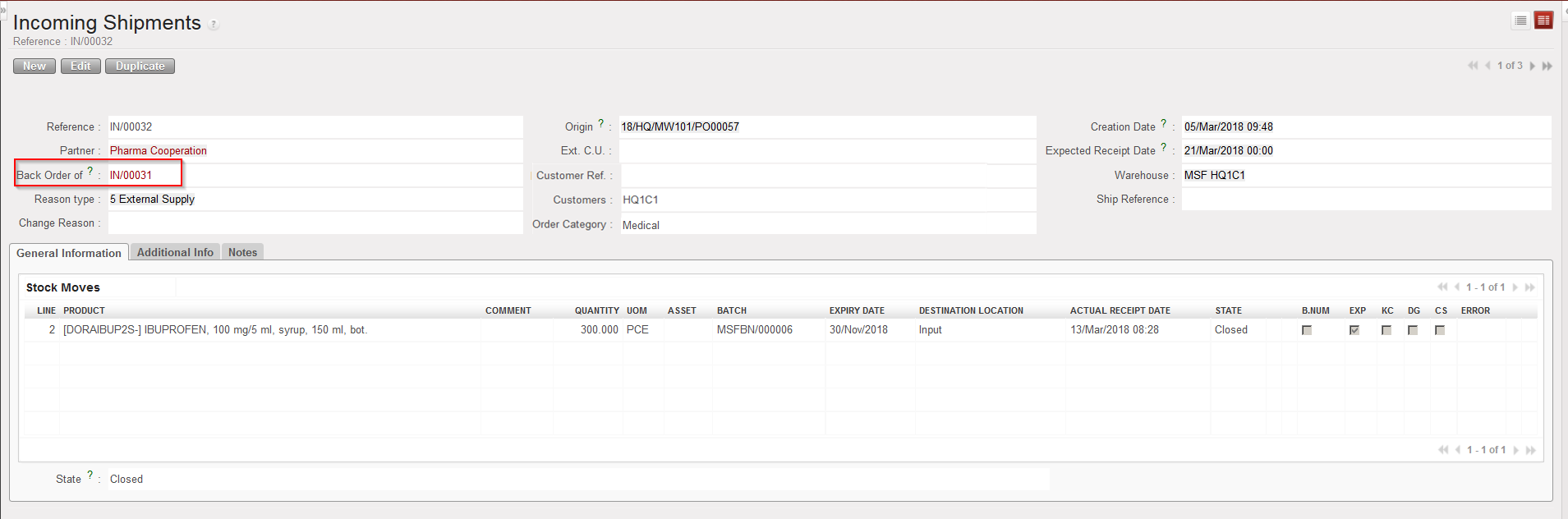
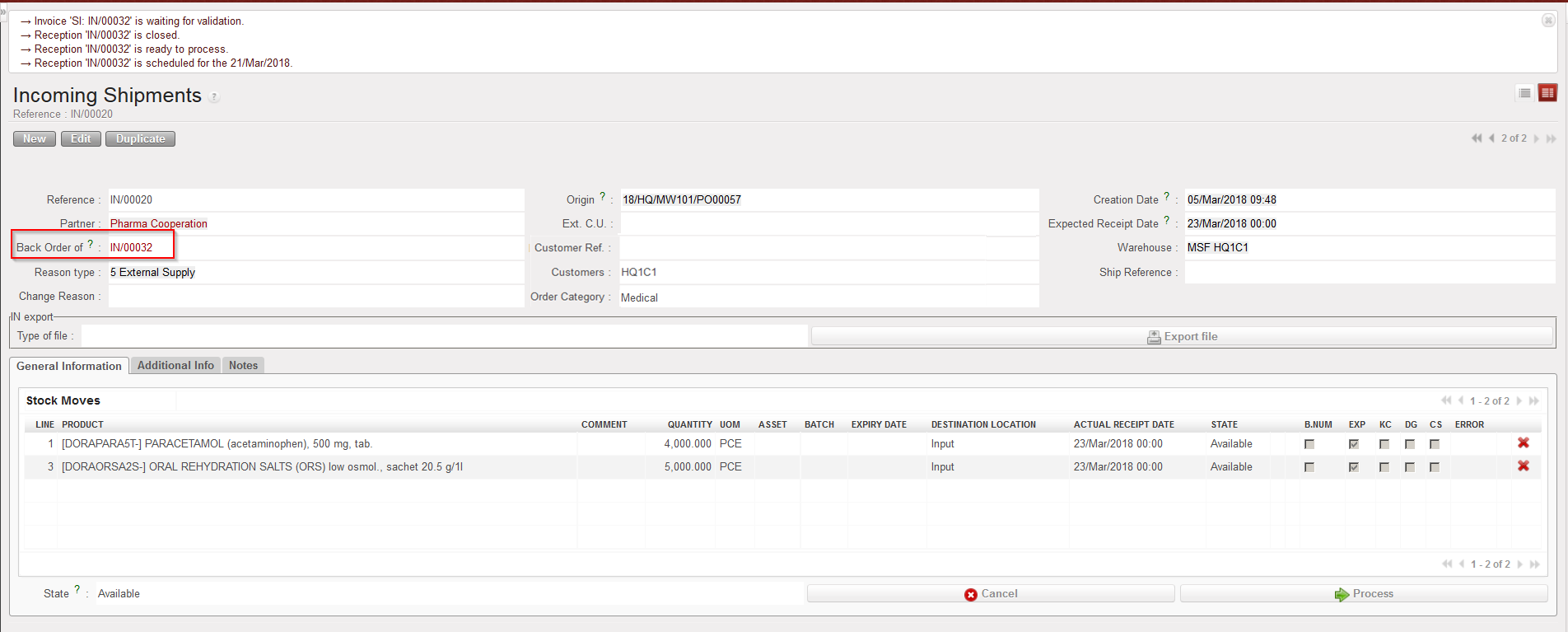
If an Incoming Shipment is partially processed, the system will automatically create a new Incoming Shipment (in state “Closed“) on which the received items/quantities will be registered, while the original IN will stay in state “Available” with the remaining items/quantities on it (the back-order). The original IN will stay open (in state “Available“) as long as all the items have not been received.
Note that several partial receptions could be received on a single IN. In this case, the system will repeat the process described above: create a new IN for the received items (in “Closed” state) and update the original IN (in “Available” state) to keep only the items in back order on it.
Go to: Warehouse / Warehouse Management / Incoming Shipments
- Click on the Incoming Shipment you wish to receive.
- Click on the “Process” button.
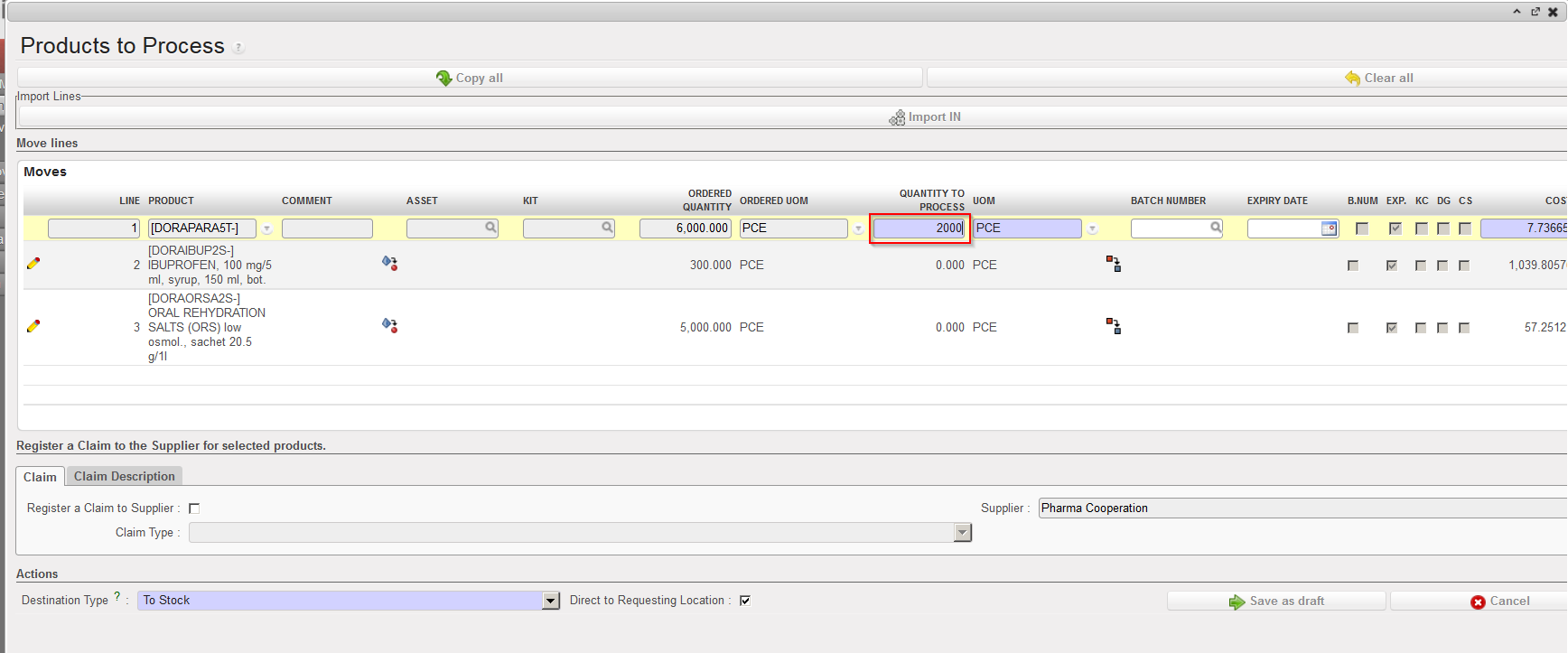
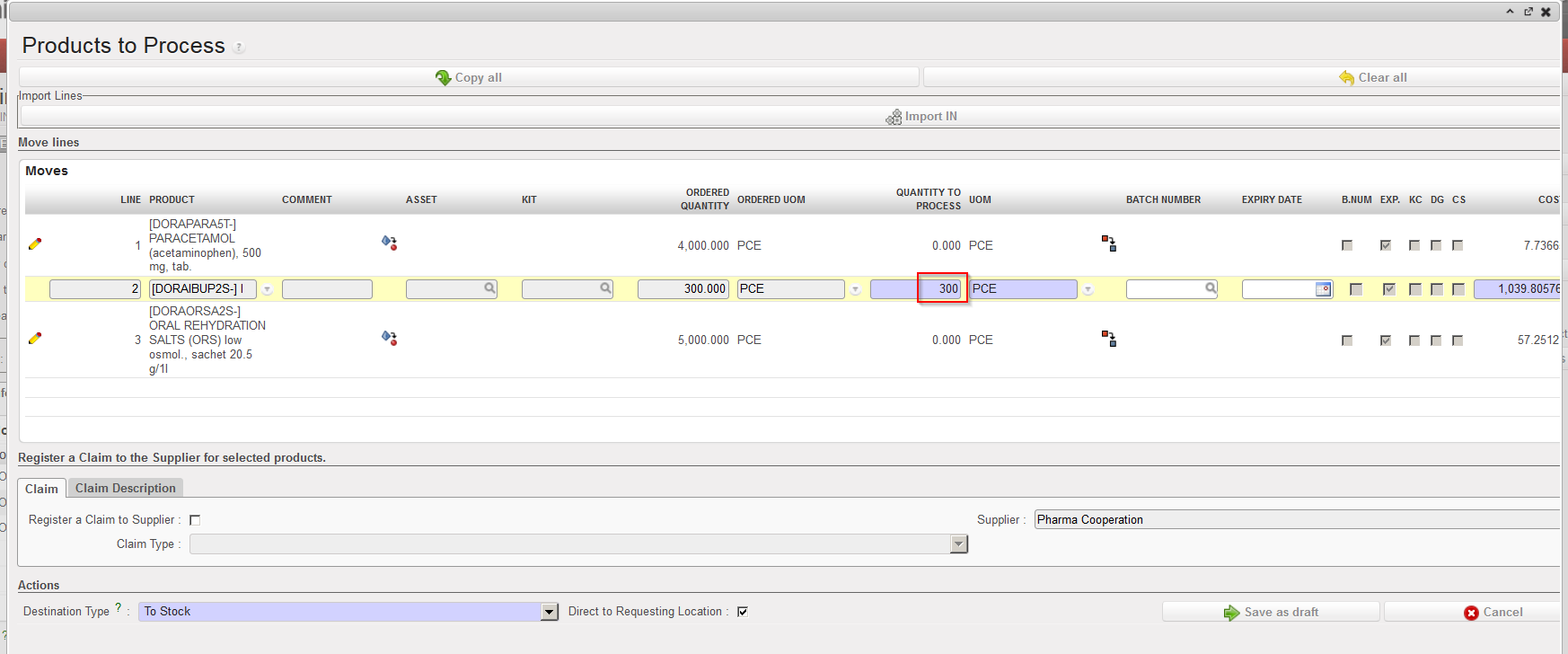
- For the items that you are currently receiving, enter the received quantity using the pencil
 icon and save the line using the floppy
  icon located at the right of the line. Note that you may have to enter and BN or an ED according to the product received.
|
|
|
Partial reception on an Incoming Shipment |
4. Once all product lines currently being received have been updated, click on the “Process” button at the bottom of the screen to register the reception. Since the “Direct to Requesting Location” checkbox is ticked by default, the products will be moved directly to their final destination. However products received for external customers will be received in the “Cross docking” location.
|
|
|
Partial reception on an Incoming Shipment |
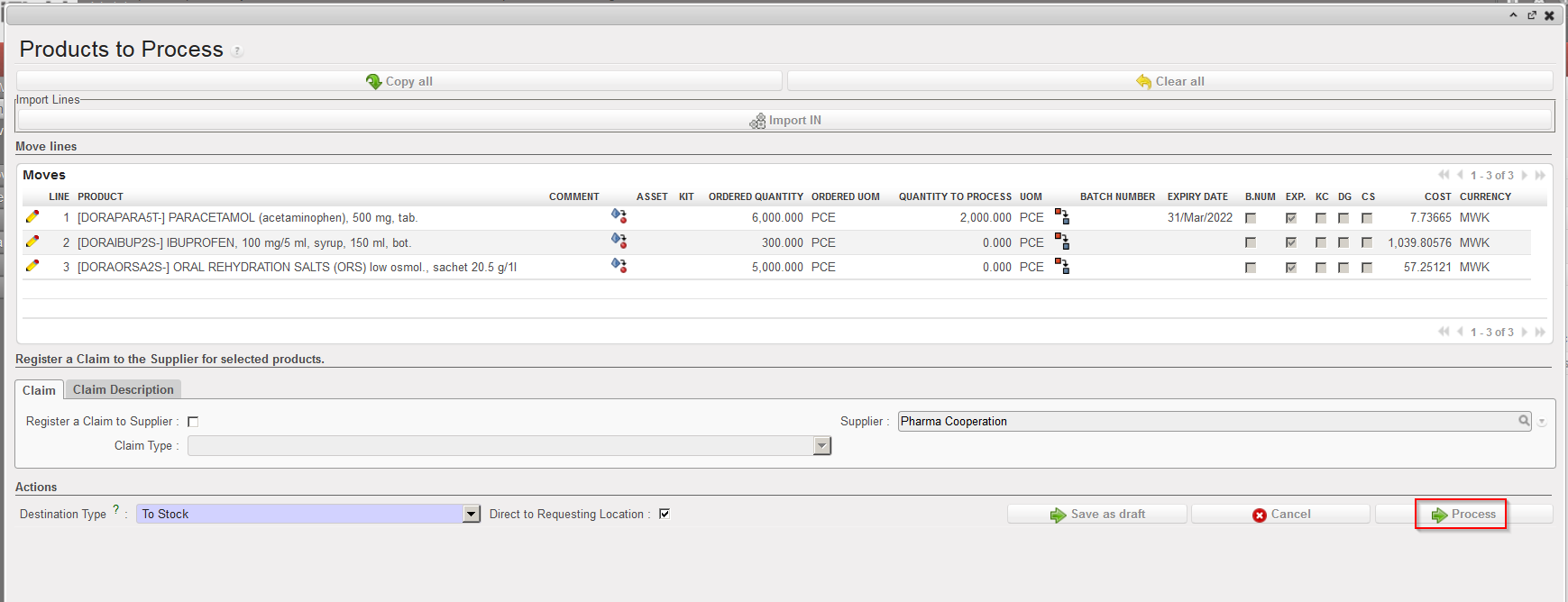
6. Because there are still some products/quantities outstanding on this Incoming Shipment, these are considered back-order (Bo). The system will give to the reception you have just processed the next sequential reference number (i.e. the system will create a new “IN” in state “Closed” for the received items), and the original reference of the Incoming shipment will be updated and remain in state “Available” for the remaining products/quantities to be processed when they will be received.
|
|
|
New Incoming Shipment in state “Closed” created for the received items |
|
|
|
Original Incoming Shipment in state “Available” is updated to keep the items in back-order |
In the export pdf of the IN, note the calculations of the QTY columns:
Qty Confirmed = Qty that was confirmed in the PO
Qty Backorder = Qty confirmed minus qty received from all IN lines linked to that line of the PO/IN from scratch).
Qty Received = Qty received specifically in that IN
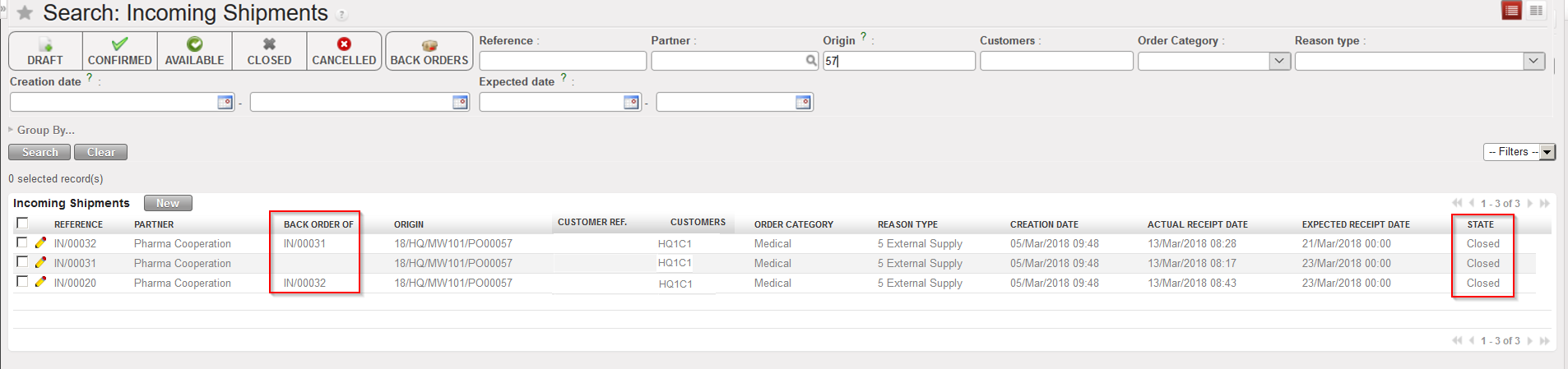
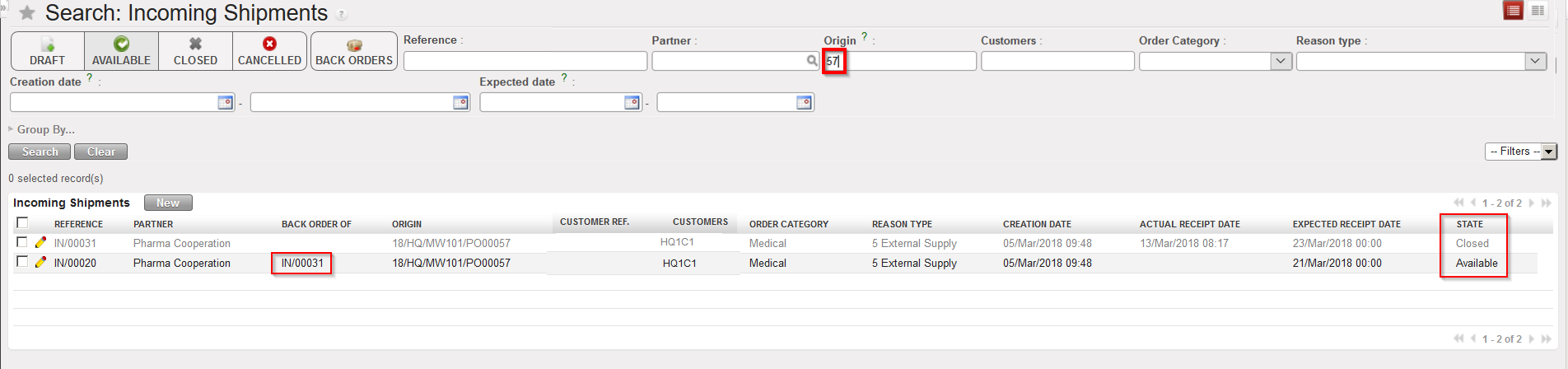
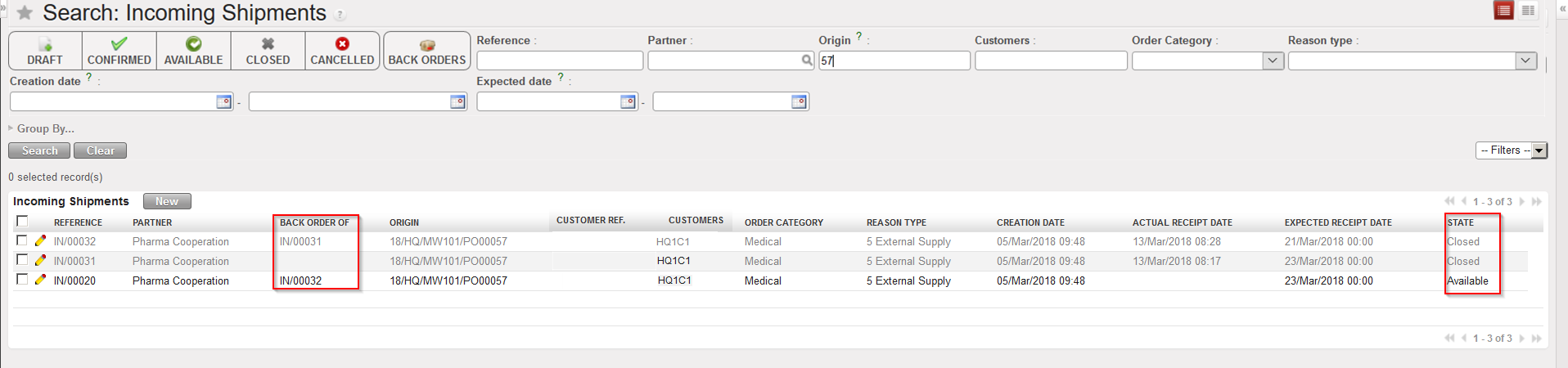
The field “Back order of” on the original IN shows the reference of the partial reception already processed. This information is also displayed on the “Search: Incoming Shipments” screen.
|
|
|
“Search: Incoming Shipments” screen with information related to back order |
Note that if additional partial receptions are processed, the same behavior will be repeated and the back order information will be updated accordingly on the different INs.
|
|
|
Additional partial reception processed on an Incoming Shipment |
|
|
|
New Incoming Shipment in state “Closed” created for an additional partial reception |
|
|
|
Original Incoming Shipment in state “Available” is updated to keep the items in back-order |
|
|
|
“Search: Incoming Shipments” screen showing the back order relationships |
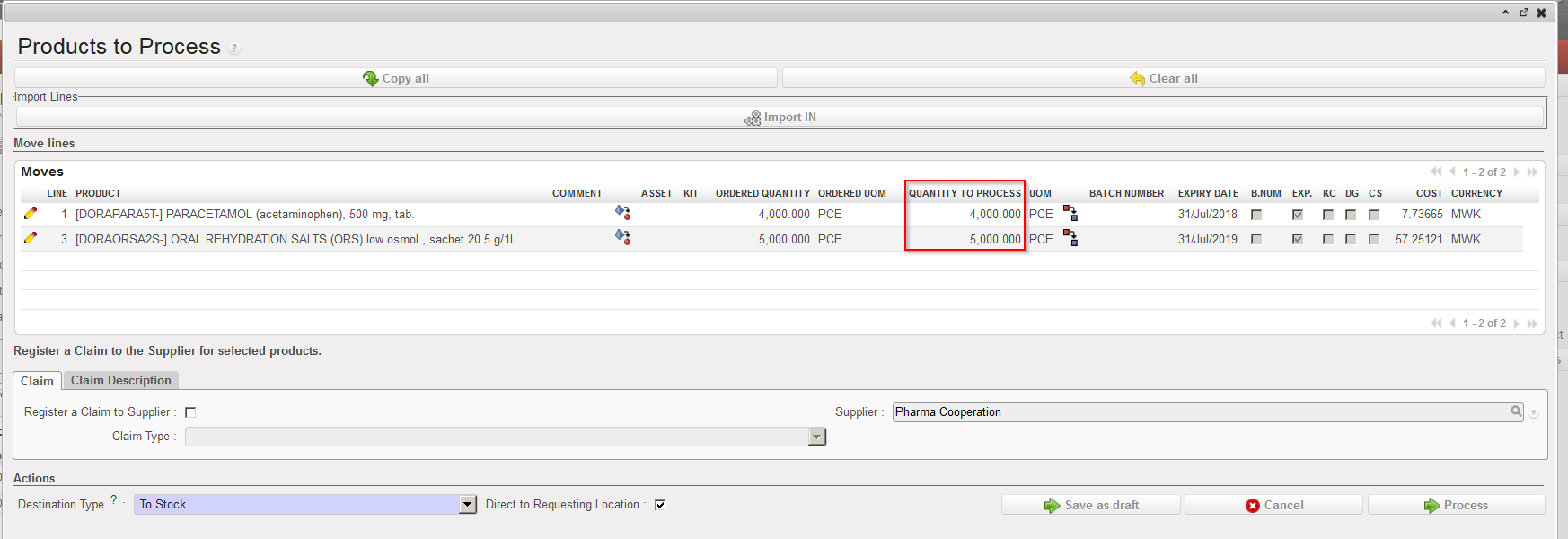
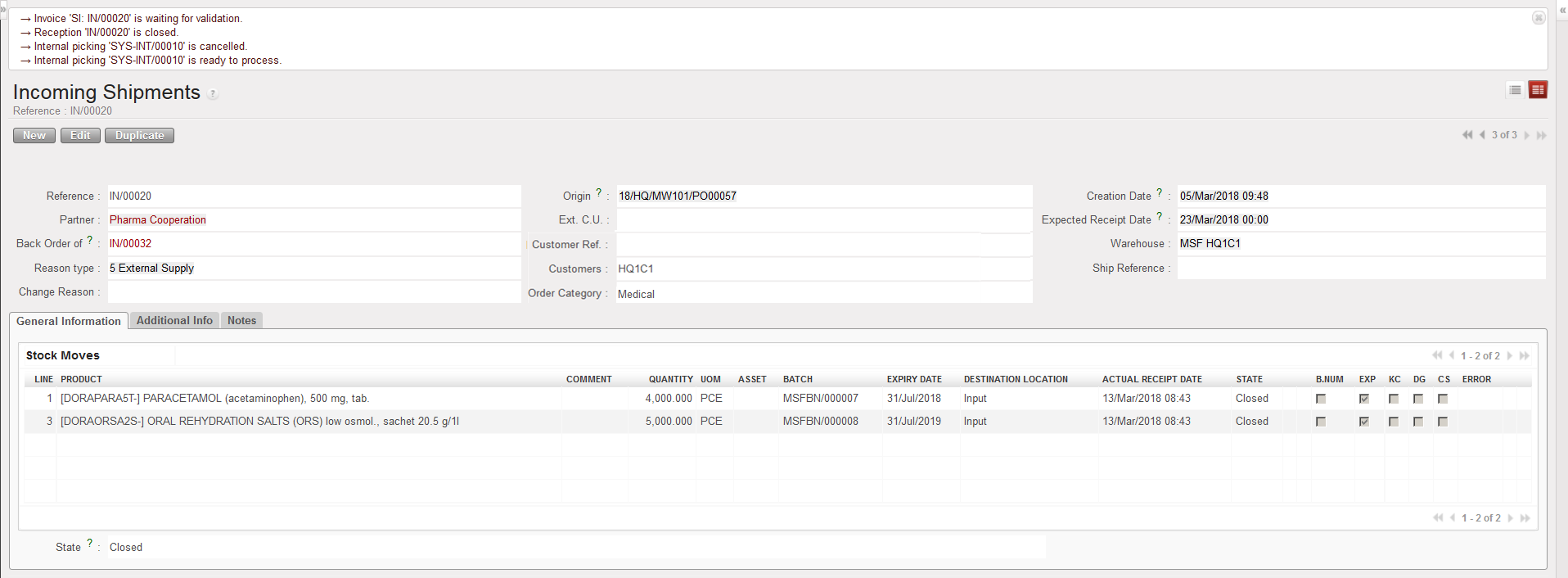
Once the Incoming shipment has been fully received (this may be after several partial receptions), the last processed partial reception won’t trigger the creation of a new IN in “Closed” state, but will simply close the original IN.
|
|
|
Last partial reception processed on an Incoming Shipment |
|
|
|
Last partial reception processed on an Incoming Shipment |
|
|
|
“Search: Incoming Shipments” screen with an IN fully received after several partial receptions |