
Supply User Manual ENG -> 5. Warehouse -> 5.2 LU-SU4101: Incoming Shipments -> H. How to receive products different from the ones ordered
H. How to receive products different from the ones ordered
It happens that suppliers are unable to deliver exactly the products that have been ordered (and confirmed) and instead deliver alternative or similar products (ideally after agreement from the client). As the corresponding PO (or PO-line) has been confirmed, it is no longer possible to amend it to change the products concerned. Therefore, this change will have to be done during the reception process on the Incoming Shipment.
Go to: Warehouse / Warehouse Management / Incoming Shipments
- Click on the Incoming Shipment you wish to receive.
- Click on the “Process” button.
- Check that the products and quantities match with the delivery received from the supplier.
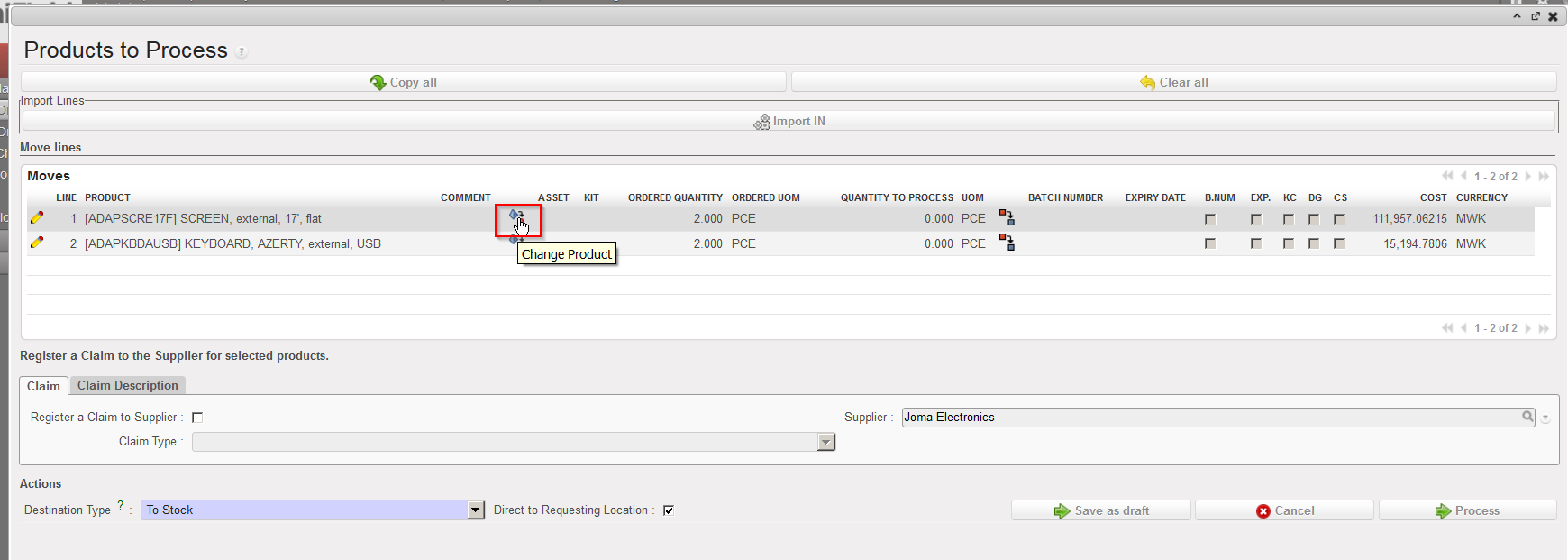
- If one product does not match with a received product, click on the “Change Product” icon
 .
. - Enter the product actually received in the “New Product” field (in the “Change Product of Memory Move” window).
- Enter the reason for the change in the “Change Reason” field (this is a free text).
- Click on the “OK” button.
|
|
|
“Change Product” icon on the “Products to Process” screen |
|
|
|
Changing a product on the “Change Product of Memory Move” window |

8. The system sends you back to the “Products to Process” screen where the product has been changed accordingly.
|
|
|
“Products to Process” screen after product change |
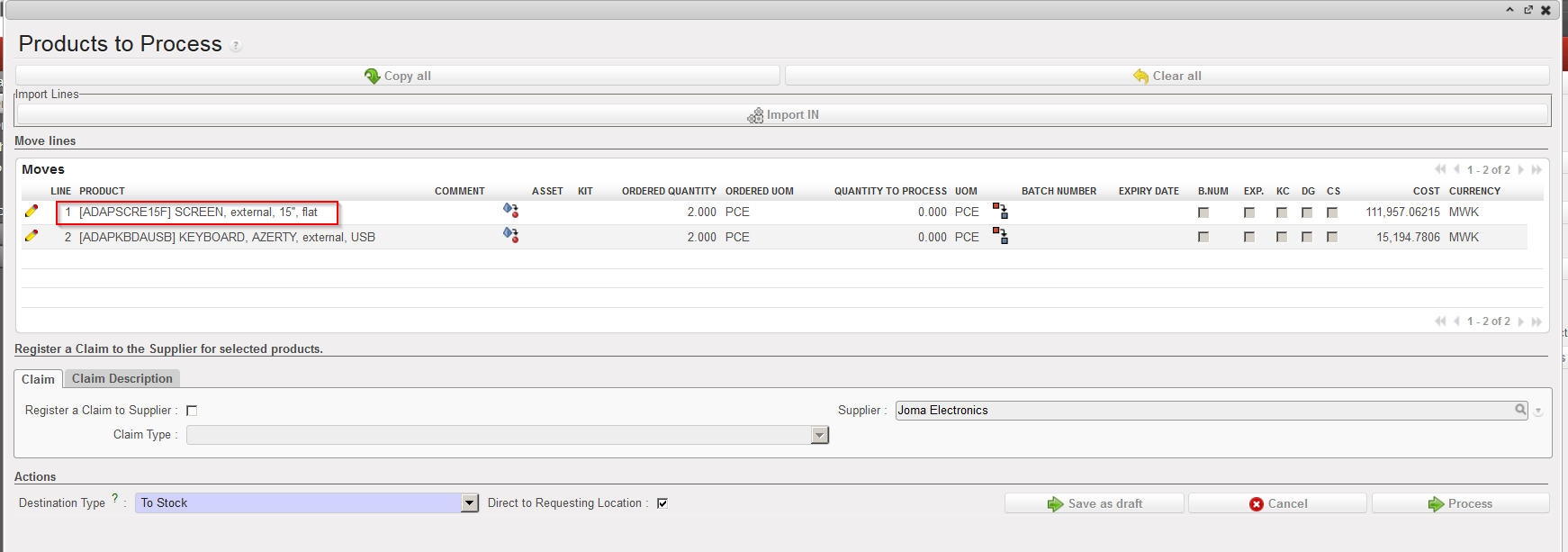
From this stage, you may process the reception normally. Note that several products can be changed if needed.
Note that the corresponding PO won’t be updated and will keep the product which was initially confirmed. By consequence, at the end of the process, you will have a mismatch between the “Closed” PO and the “Closed” IN.
