
Supply User Manual ENG -> 5. Warehouse -> 5.2 LU-SU4101: Incoming Shipments -> K. How to cancel & resource an Incoming Shipment (at header level)
K. How to cancel & resource an Incoming Shipment (at header level)
After a PO (or a PO-line) has been confirmed, there is no more possibility to change the content of the PO (or PO-line). If you want to change the supplier because he cannot provide the goods that you asked for, or if there is some other reason that the PO cannot be fulfilled, you have the possibility to cancel & resource at Incoming Shipment level.
Remember that this functionality is also available on Purchase Orders. As for Purchase Orders, cancel & resource will only be available on INs related to POs which have been created by the OST (from IRs or FOs sourced on order).
Go to: Warehouse / Warehouse Management / Incoming Shipments
- Open an Incoming Shipment whose state is “Available“. In the origin of the IN, you should see an IR or an FO.
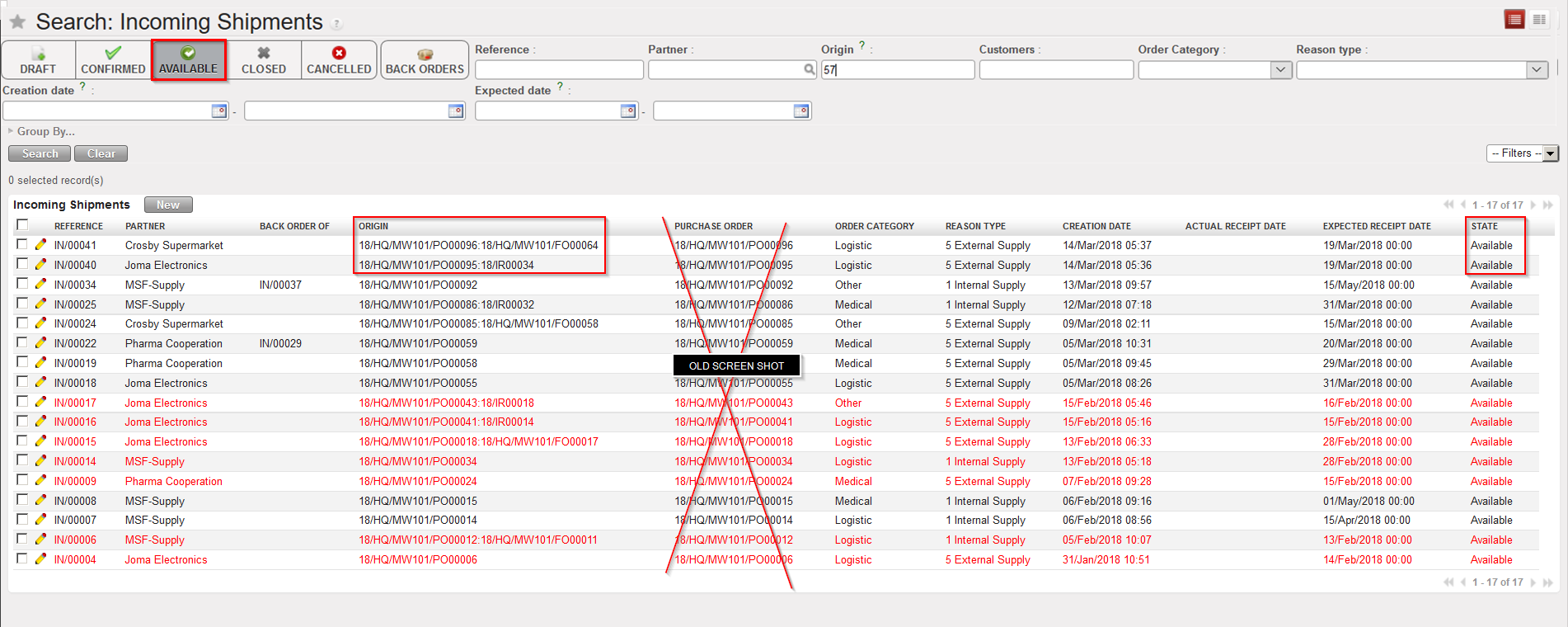 |
| Incoming Shipments related to POs which have been created by the OST, following sourcing of IR/FO on order |
2. Click on the “Cancel & Resource” button (with the red cross) located at the bottom of the main IN screen. Note that this button will only be available if the IN is related to a PO created by the OST, following the sourcing of an IR or an FO.
3. The system warns you that you are about to cancel & resource. Click on “OK” to proceed.
4. On the “Enter a Reason for Incoming cancellation” window, enter a reason (free text) in the “Change Reason” field and click on “Cancel Incoming” to proceed.
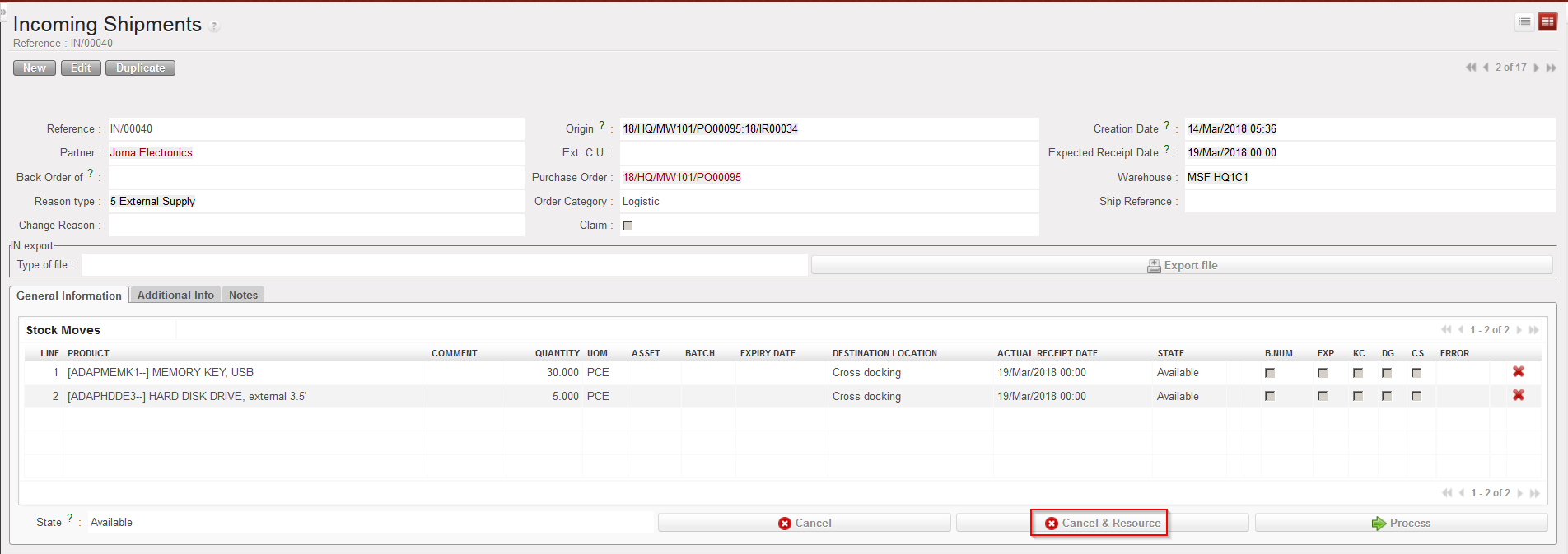 |
| Cancel & Resource an Incoming shipment (at header level) |
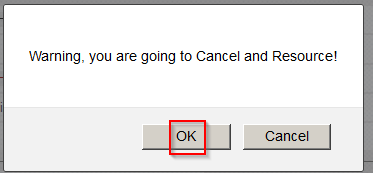 |
| Confirming cancellation & resourcing of an Incoming Shipment |
 |
| Entering a reason to explain cancellation & resourcing of an Incoming Shipment |
The Incoming Shipment switches to the state “Cancelled” and all its lines also switch to the state “Cancelled”. The corresponding PO switches to “Cancelled” and all its lines switch to the state “Cancelled-r” (remember to set the filter to “Show all” if you want to see all the lines of the PO).
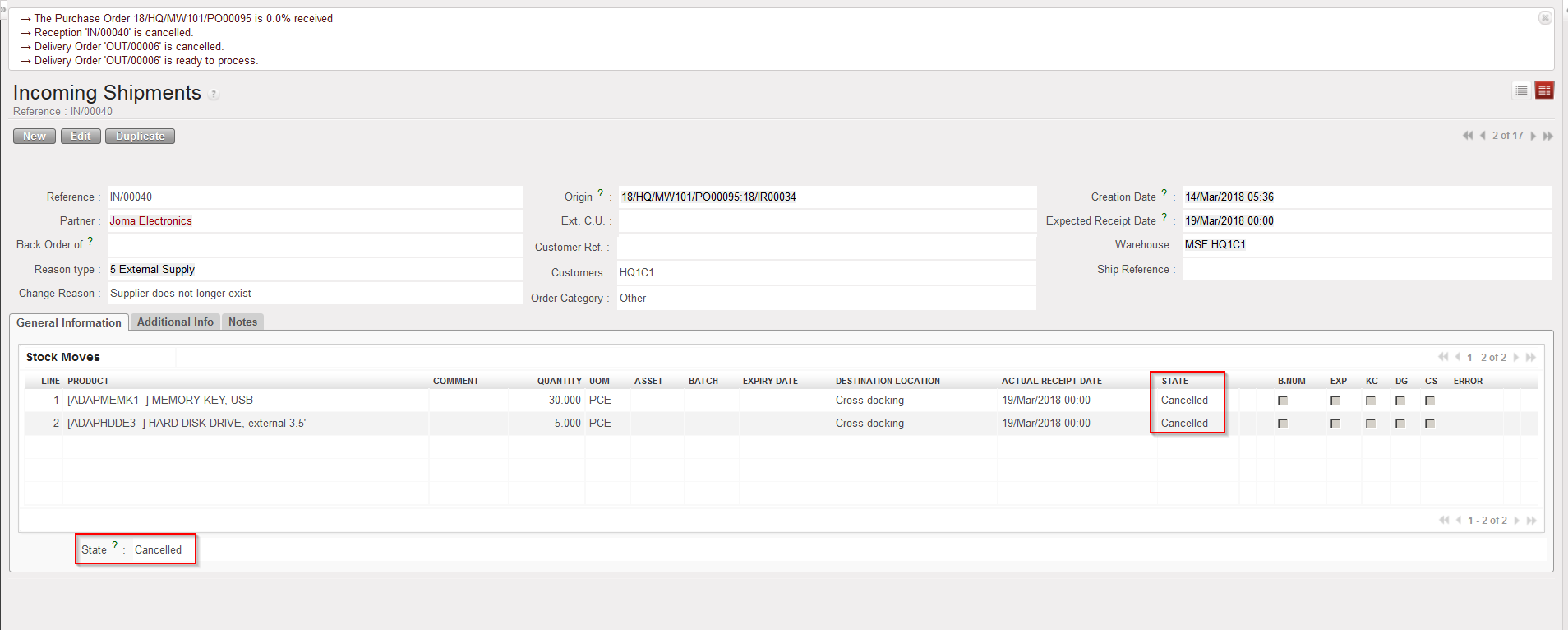 |
| Cancelled & resourced Incoming Shipment |
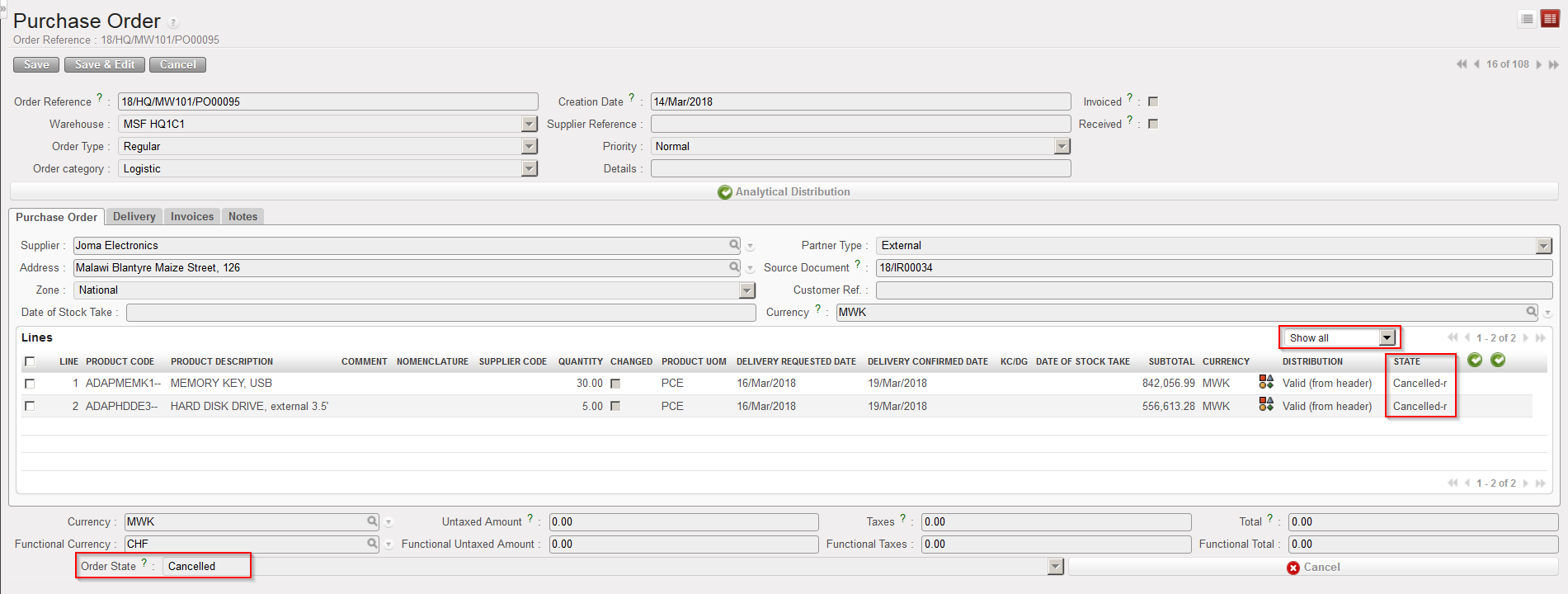 |
| PO following cancel & resource on Incoming Shipment |
The request (IR or FO) which was sourced on order to create the above PO has the state “Confirmed”. The lines corresponding to the ones which were cancelled & resourced on the IN switch to the state “Cancelled-r” while new lines (copy of the “Cancelled-r” ones) are inserted on the IR/FO in the state “Resourced-v“. These new lines can be resourced through the OST. Again, remember to set the filter to “Show all” on the IR/FO if you want to see all its lines (including the cancelled ones).
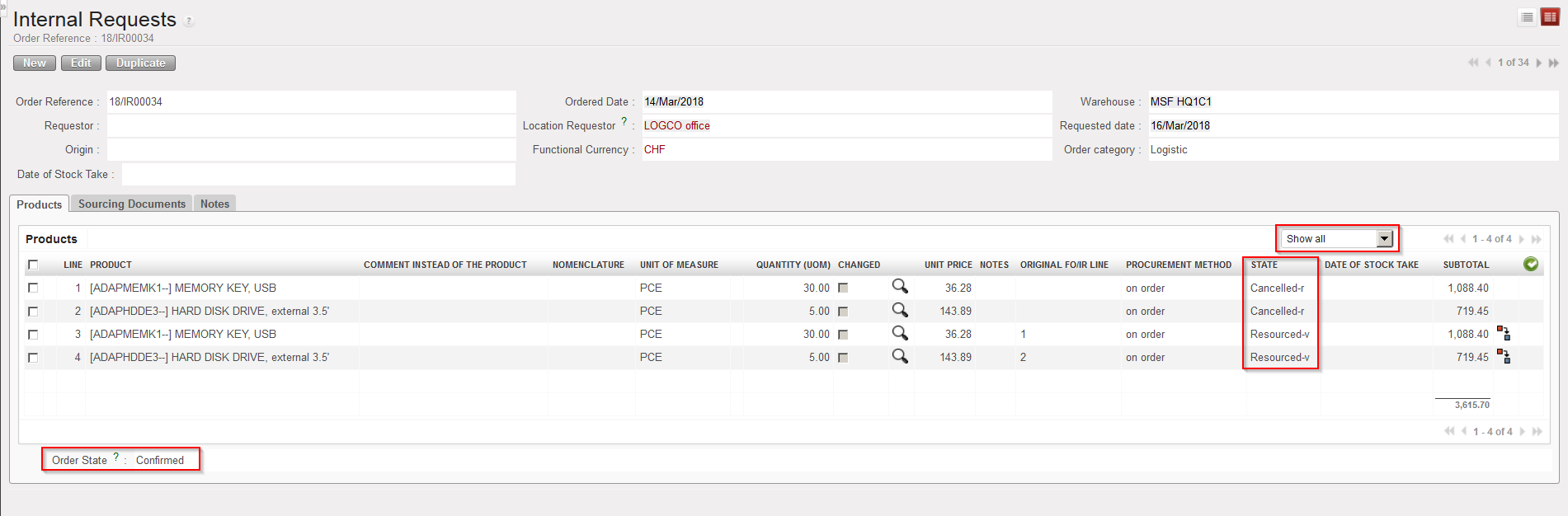 |
| IR following cancel & resource on related Incoming Shipment |
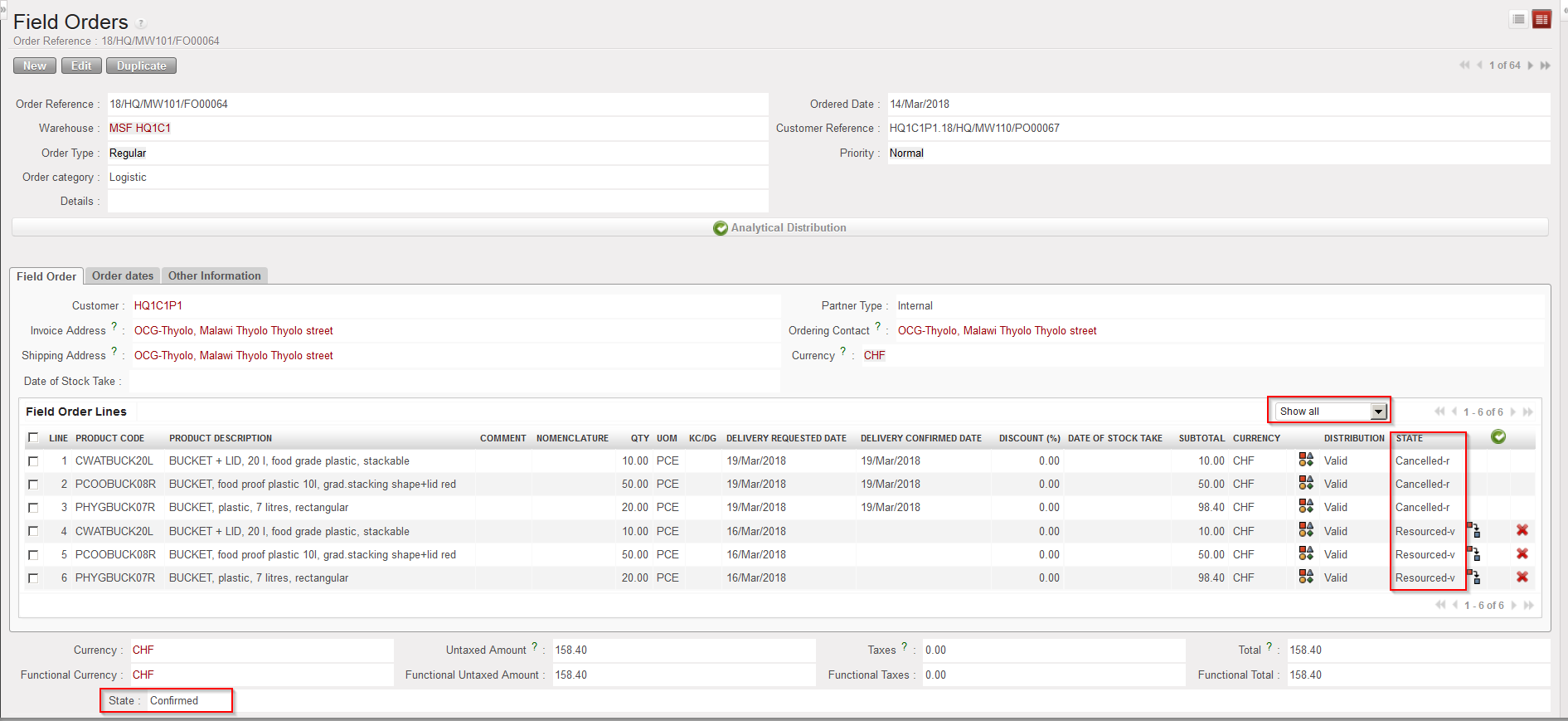 |
| FO following cancel & resource on related Incoming Shipment |
If the sourced request was an IR, the corresponding Delivery Order (OUT) is also cancelled (as well as all its lines). If the sourced request was an FO, the corresponding Picking Ticket (PICK) is also cancelled (as well as all its lines).
Note that if you decide to “cancel” rather than to “cancel & resource” this type of Incoming Shipment
(i.e. IN related to PO created by the OST following IR/FO sourcing), you end-up with:
-IN in state “cancelled” (as well as all its lines)
-PO in state “Cancelled” (as well as all its lines)
-IR/FO in state “Cancelled” (as well as all its lines)
-OUT/INT/PICK in state “Cancelled” (as well as all its lines)
