
Supply User Manual ENG -> 5. Warehouse -> 5.10 LU-SU4203: Consumption Reports -> B. REAL CONSUMPTION REPORTS
B. REAL CONSUMPTION REPORTS
The objective of a Real Consumption Report (RCR) is to register the consumption of goods (i.e. a movement) which would not have been yet recorded. This may typically happen if goods are consumed from a stock but nothing is recorded “in live” in the system. You may decide to record consumptions from this stock once a day, once a week, once a month, …
A good example is a stationaries cupboard from where staffs take items, noting on a paper what they take. This paper (and probably an inventory of the cupboard) can be used at the end of the month to register in the system stationaries consumption from this cupboard before replenishing it. Typically, this cupboard would be declared as an ICU in the system.
Another example is the mechanical spare parts stock. A mechanic can take parts in this stock according to the needs, writing what he takes on a register. This register is then used at the end of the week to register in the system what was consumed from this stock. Typically, this stock would be declared as an intermediate stock in the system.
The objective of a RCR is actually to regularize in the system, a stock situation following consumption which was not registered.
The source location of a RCR will be an internal location (typically an intermediate stock or an ICU) while the destination location will be a customer location (typically an ECU, “MSF Customer” or “Other Customer”).
It is important to understand that this report is actually triggering a stock move from the source location to the destination location. A Delivery Order (OUT-conso) will be created and processed once the RCR is saved and processed.
Note that if you want to avoid the use of Internal Requests, RCRs are an alternative way of registering your consumptions.
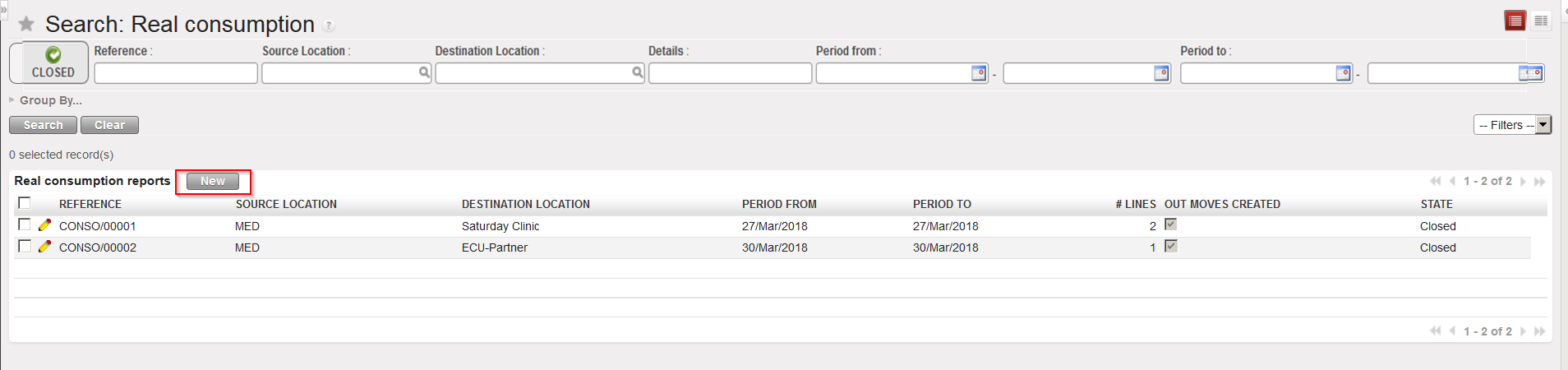
Go to: Warehouse / Warehouse Management / Real consumption
- Click on the “New” button to create a new report.
|
|
|
Creating a Real Consumption Report |
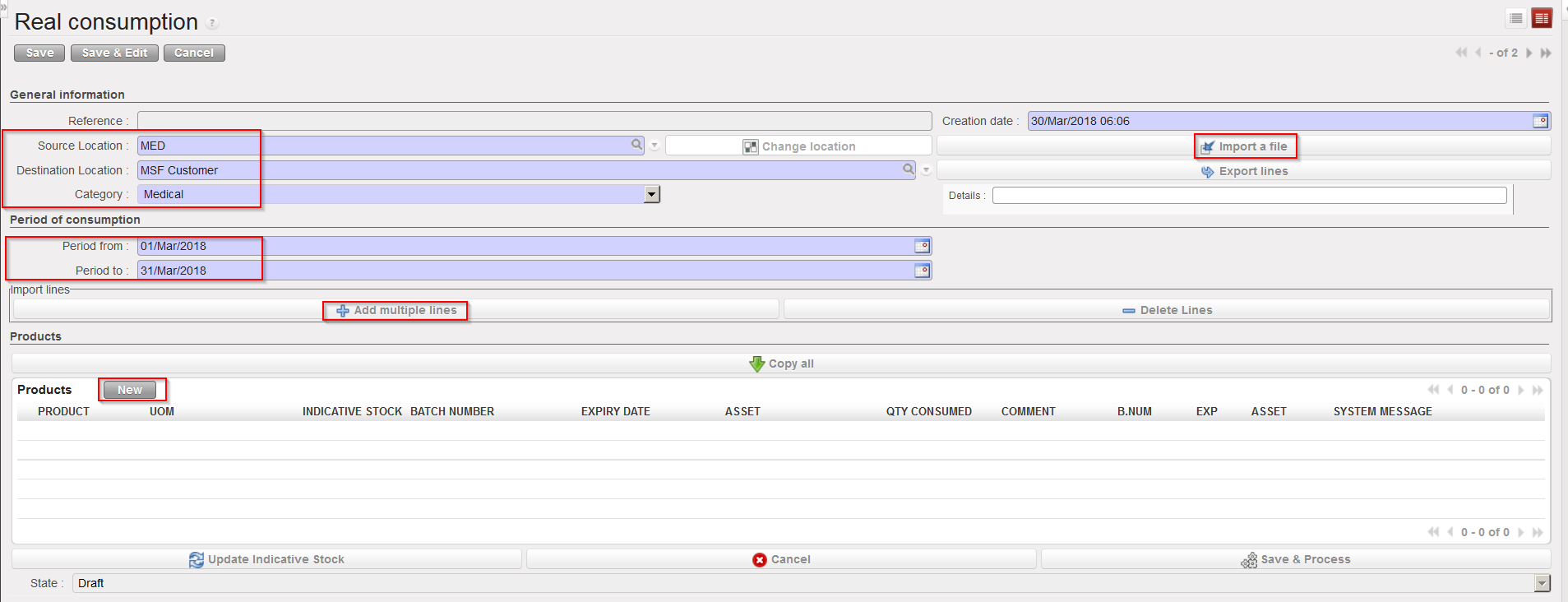
2. The “Creation date” is generated by the system.
3. As “Source Location” enter the name of the location from which the goods have been consumed (it must be an internal location, click on the magnifying glass to choose and select from the listed options).
4. The “Destination Location” enables you to only select External Consumption Units ( “MSF Customer or “Other Customer” can not be selected any more). This “Destination Location” is actually the “who” consumed the goods. You need to create different clients (as ECU) so that you will be able to indicate who consumed each items.
5. As “Category“, enter the category of the products for which you are registering the consumption.
6. In the “Period from” field, enter the date at which the recorded consumption started.
7. The “Period to” date will default to today’s date, as we cannot enter what has been consumed beyond this date. If the end date when the goods were consumed has already passed, it is possible to edit this field and enter a previous date. You should enter here the date at which the recorded consumption ended.
Note that this period may be more or less long. You could decide to record consumption on a daily basis. In this case the “Period from” and “Period to” dates will be the same.
8. Add the products which have been consumed. This can be done with the “New” button located on top of the “Products” table. It can also be done with the “Add multiple lines” button. This allows entering several products at once.
The “Import a file” button allows you to import an Excel file into a RCR (see next section for details).
The “Copy all” button can be used to include all products/batches/quantities currently present in the source location. It should be use with care as it will empty completely the source location. To help avoid any mistake, the “Qty Consumed” is now automatically filled with 0 when this button is used. User will have to fill the “Qty consumed” either manually or via Import.
|
|
|
Header of a Real Consumption Report |
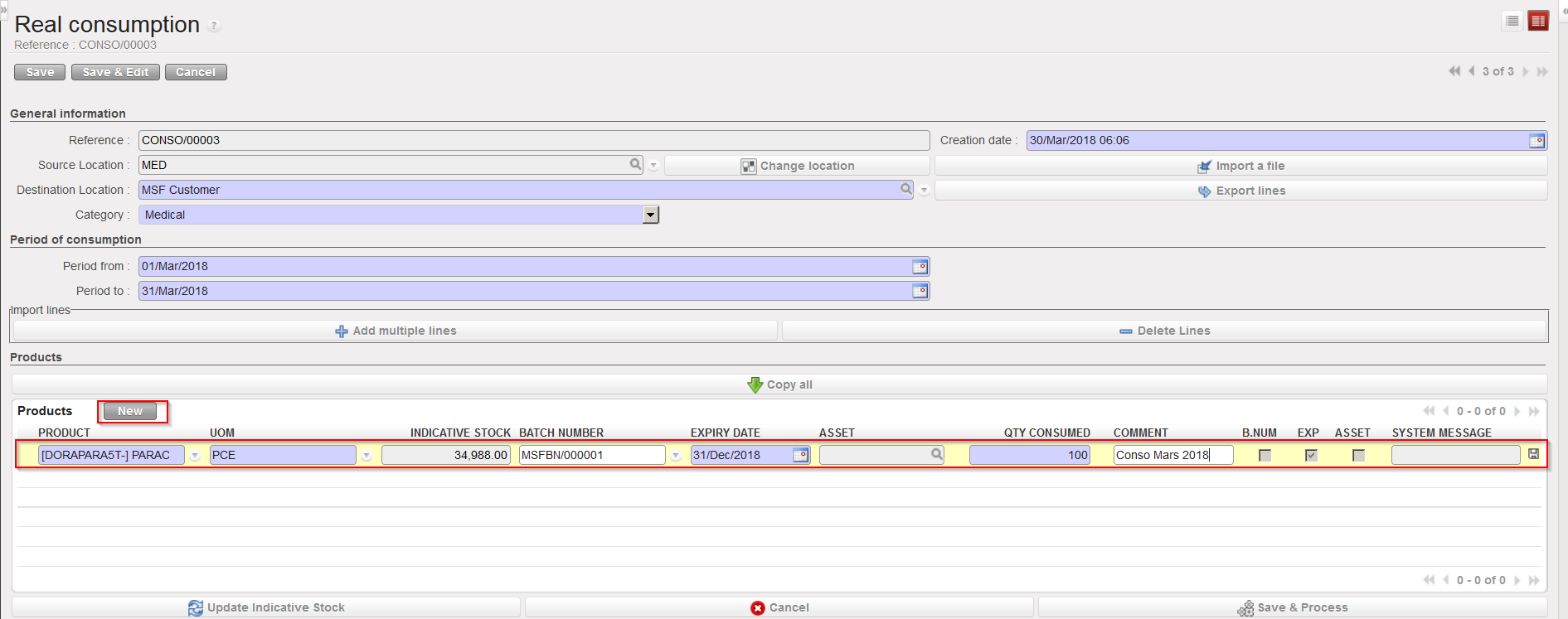
a. To add products manually one by one:
i. Click on the “New” button on top of the “Products” table.
ii. Enter a product in the “Product” field.
iii. Check that the UoM is correct; you will see that the indicative stock quantity (i.e. the actual level of stock currently in the source location/real stock) is displayed.
iv. If relevant, select the batch number and expiry date for your product. If different batch numbers or expiry dates of the same product have been consumed, these should each have a separate line. Note that the FEFO principle is not applied here. The system does not select BN/ED itself. Note that when selecting a batch, the indicative stock is changing and indicates the real stock level for the selected batch in the specified source location.
v. Enter the quantity consumed within the dates specified above (Period from, Period to).
vi. Enter a comment if needed.
vii. Click on the floppy disk icon  at the end of the line.
viii. Enter all other products in the same way.
|
|
|
Inserting a product line on a RCR |
b. To add several products at once:
i. Click on the “Add multiple lines” button.
ii. Click on the “Add” button in the “Add multiple products” window.
iii. Search for the products you need to add using the relevant filter on the “Search Products” window.
iv. Select your products by ticking the product lines check-boxes.
v. After selecting all your products click on “Select” (you may always add additional products after if you click again on “Add“).
vi. Click on “Add products“.
vii. Your products are inserted in the Real Consumption Report.
viii. Update each line with the consumed quantities (and BN/ED if needed).
ix. Click on the floppy disk icon  at the end of the line.
x. Enter additional products if needed.
If you did a mistake and need to delete some lines you can use the “red cross” icon located at the end of the product line.
The “Delete Lines” button allows deleting several lines of the RCR in one step.
Note that if a product is managed by BN/ED, the selection of a batch will be mandatory. You will only be able to select a batch whose “available stock” is positive in the source location (you may analyze stock availability of batch managed products through Warehouse / Traceability / Batch numbers or through Warehouse / Traceability / Batch Location) .The selection of a batch updates the “indicative stock” of the line and indicates the “real stock” for this batch in the source location.
The “Update Indicative Stock” button allows refreshing a RCR and updates the indicative stock column.
The “Cancel” button allows cancelling the whole RCR. Its state will switch to “Cancelled” but you will be able to reset it to “Draft” if needed.
9. When you have added all products for which you want to record the consumption, click on the “Save” button on top of the main RCR screen.
The report is saved in the “Draft” state. This means you can modify, save, cancel or even delete it if necessary. Once it has been processed (i.e. after you have clicked on the “Save & Process” button), the Consumption Report will switch to the state “Closed“, the products will be moved (through an OUT-conso), and you will no longer be able to update, cancel or edit the RCR.
10. When it is confirmed that the entered consumption data are correct (check with your OC guidelines if you need specific validation), you can process your RCR. However, if a significant amount of time has passed between when you created the Real Consumption Report and when you are processing it, situation may have changed in term of products availability. You can click on the “Update Indicative Stock” button to update this indicative stock quantities displayed.
11. Click on the “Save & Process” button. This will create, process and close a Delivery Order (OUT-conso) with these products/batches/quantities. This OUT will have the “Reason type” “3 Consumption Report”. The system will display a confirmation message for this, which means that these products are now no longer in the source location.
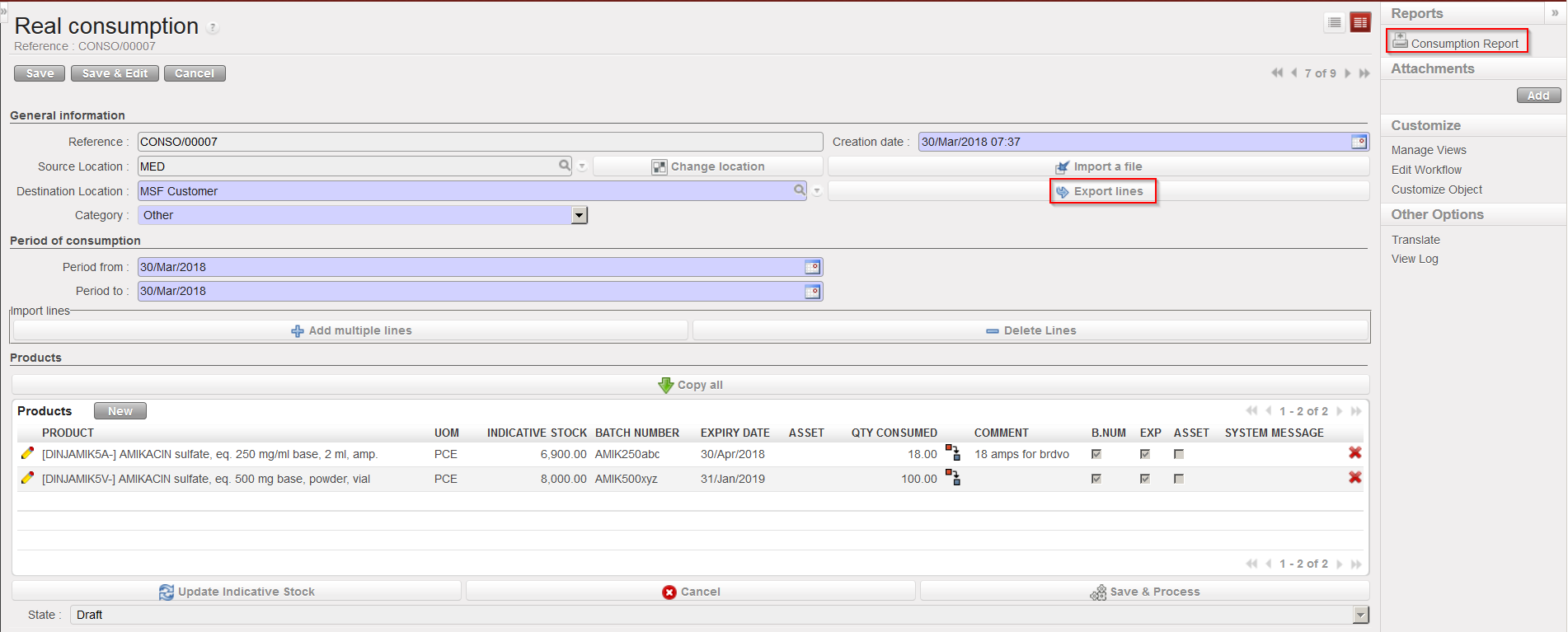
A RCR can be exported and printed via the “Consumption Report” option available in the action menu.
A RCR can be exported to Excel via the “Export lines” button available in the main RCR screen.
|
|
|
Exporting a Real Consumption Report |
You can check the stock levels of the involved product in the different locations thanks to the “Stock by Location” functionality. The “Traceability” menu may also be useful to check if the products are batch managed.
If a Physical (Stock) Inventory is to be carried on a location, it is important for all RCRs to have been created and processed before this is started so that the figures in the system are up to date and reflect (as much as possible) the physical stock levels in this location.
It is possible to use a RCR to send goods to an external partner. However, you will have to configure the partner in a proper way and link it to an ECU on its partner master data sheet.
