
Supply User Manual ENG -> 5. Warehouse -> 5.10 LU-SU4203: Consumption Reports -> D. MONTHLY CONSUMPTION REPORTS
D. MONTHLY CONSUMPTION REPORTS
The main objective of a Monthly Consumption report is to encode the Forecasted Monthly Consumption (FMC) for a selection of products. However, the report will also show the Average Monthly Consumption (AMC) for these products over a specific period as the AMC can help to insert a correct FMC.
The (AMC) is a useful indicator as it informs on the average monthly consumption of a product over a specific time span.
The AMC value is based on the total quantity of the product which has left the instance via a consumption report or outgoing deliveries (both quick and full shipment processes). Any quantities of the product which have left the instance due to loan, donation, loss or discrepancy will not be included in this calculation. If any of the products have been received (returned) back in (via IN – except IN from Scratch) to this instance within this period, this quantity will be deducted from the total consumption figure.
AMC and FMC are used by different replenishment functionalities.
Note that in a Monthly Consumption Report, the AMC is given by the system, while the FMC should be introduced by the user.
A Real Consumption Reports is triggering a movement when it is processed. A Monthly Consumption Report does not trigger any movement but simply informs you on the AMC of products and allow you to enter FMC for those products.
Go to: Warehouse / Reporting / Consumption reports/ Monthly consumption
- Click on the “New” button.
- As “Period from“, enter the date which you want the AMC calculation to start from. This must be the first day of a month.
- As “Period to” the system displays as default the last day of the current month. This can be changed to the last day of a different month (but should be in the past).
- The “Location” is set to “MSF Instance” as the AMC calculation will always be made for the entire instance including all internal locations.
- To add the products for which you want to see the AMC, click on “New” then search for and select the products (if you want to add several lines in one step use the “Add multiple lines” button or import a file via the “Import a file” button).
- The AMC of the selected products is displayed according to the dates you have entered, and is not editable as it is calculated from the product consumption data available in the system.
|
|
|
Monthly Consumption Report |
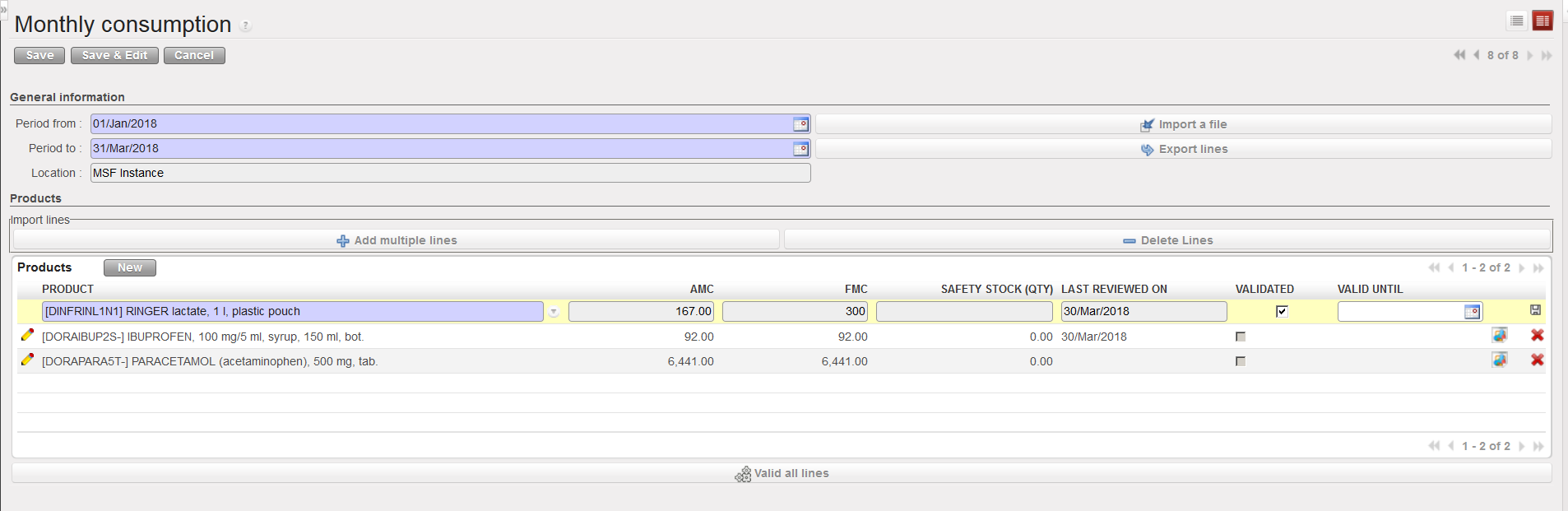
7. The FMC is also displayed, but this field is editable. Initially, the FMC is set to the same value than the calculated AMC, but it may be updated as needed. In the case that you know the consumption is likely to increase over the coming months, you may wish to insert higher value.
8. The “Last Reviewed on” field will display the date when the AMC and FMC of this product were last calculated and validated or will be blank if this is the first time.
9. In the “Valid until” field, enter the date until which the system should use the entered FMC to calculate consumption and re-order levels (e.g. if you know that the entered FMC is likely to be accurate for the next 6 months, enter the appropriate date here).
10. Click on the floppy disk  to save the line and, if necessary, repeat the steps above to add further items.
11. When you have entered and saved all the needed product lines, click on the “Save” button on top of the screen.
12. When the FMC quantities have been validated, click on the “Valid all lines” button to validate these entries.
The “Export lines” button allows you to export a Monthly Consumption Report to Excel.
The “Import a file” button allows you to import an Excel file on a Monthly Consumption Report (FMC and validity). The template to use should be the one you get from the “Export” function.
