
Supply User Manual ENG -> 5. Warehouse -> 5.11 LU-SU4204: Kits Management -> B. HOW TO SUBSTITUTE COMPONENTS OF A KIT WITH ALTERNATIVE PRODUCTS AVAILABLE IN STOCK
B. HOW TO SUBSTITUTE COMPONENTS OF A KIT WITH ALTERNATIVE PRODUCTS AVAILABLE IN STOCK
When a kit is in stock, it may sometimes be necessary to remove one item out of this kit and replace it with another item, for example, because a product in the kit will expire soon and you would like to replace it with another product with a longer expiry date, so that the kit does not expire and can be stored as a kit for a longer period. When substituting a product in a kit, it is always necessary to replace the product which you are removing, so as not to have an incomplete kit.
In order for this substitution to be reflected in the system, there should be a Kit Composition List already created for the kit (see LU-SU2105 in the Products chapter and LU-SU4101 “How to receive a kit and create a kit composition list” in the current chapter). The kit and the substitutions products should all be in stock.
Go to: Products/ Kit Management / Composition List / Kit Composition List
- Find and open the relevant kit for which you will exchange the products by clicking on the pencil icon.
- In the “Kit Composition List” screen, click on the “Substitute Items” button.
|
|
|
Kit items substitution |
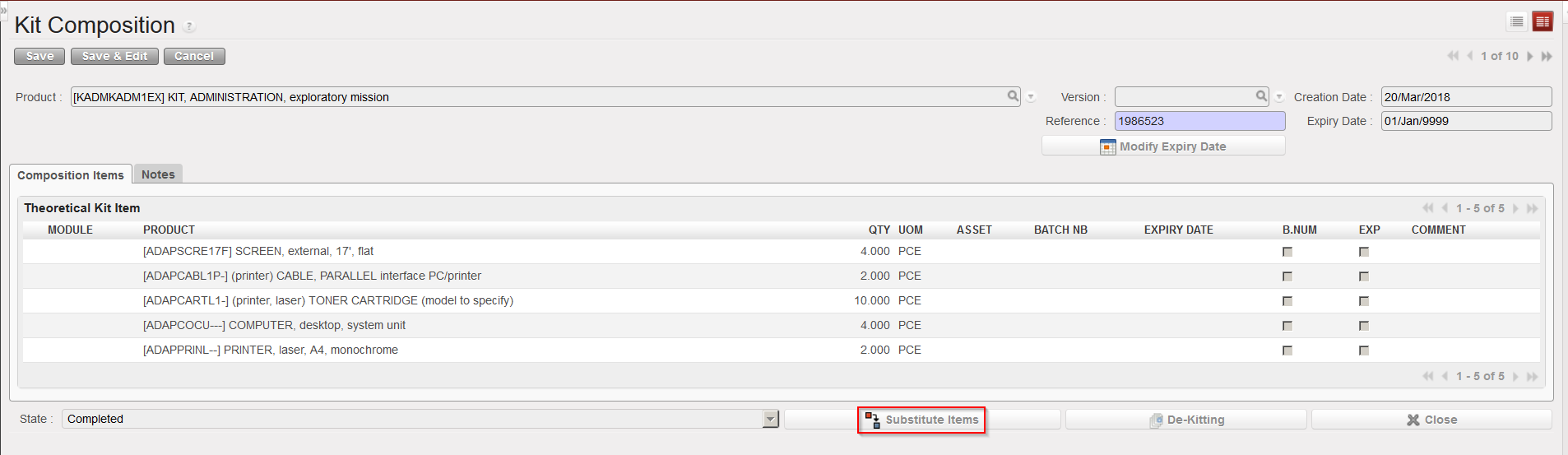
3. In the “Substitute Kit Items” screen, as “Destination Location of Items“, select the name of the location where you would like the products which you are removing from your kit to be sent.
4. In the section “Products to remove from the Kit“, click on the “Add” button and select the product(s) (multiple selection is possible) which you would like to take out of your kit. If there is one product with multiple expiry dates or batch numbers, make sure you select the correct one(s), it is possible also to to remove (substitute) a partial quantity of an existing line .
5. In the section “Products from the stock to the Kit” Click on the “New” button and enter the product name, source location (i.e. where it is currently located), BN/ED/Asset (if relevant), quantity, then click on the floppy disk icon to save this line. Do this for each product which needs to be added. You should be able to see if the product is available in stock thanks to the “Availability” column.
|
|
|
Kit items substitution |
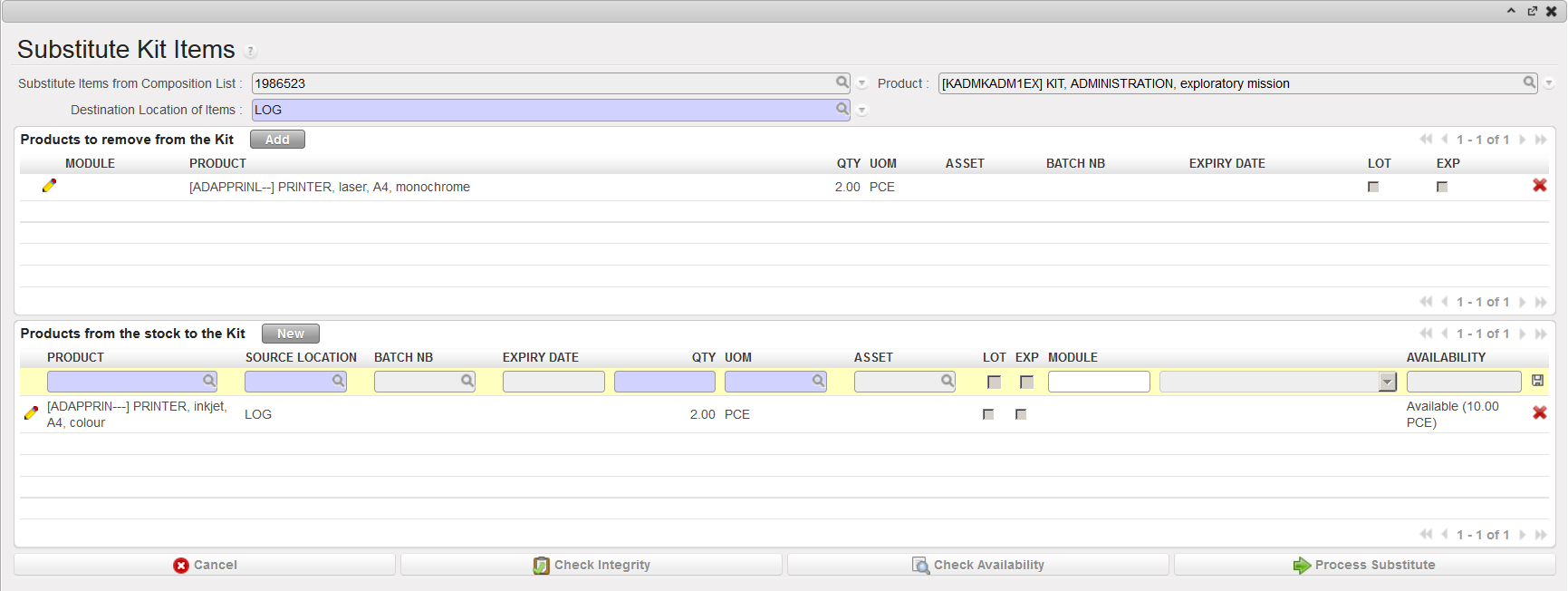
6. Click on the “Check Availability” button to make sure that the needed products are well available in stock.
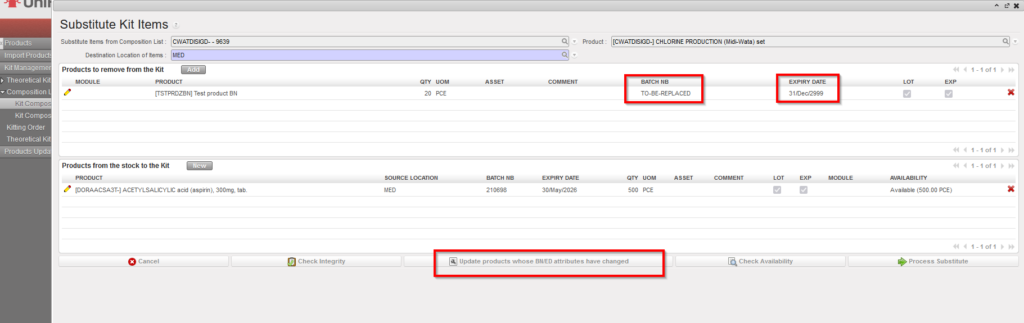
In case of products with BN/ED attributes which have changed. there is a button “Update products whose BN/ED attributes have changed” which appears in KCL processing window. When button is used, any affected products will have their BN/ED info removed, or have default BN/ED info added, Action only updates products in this KCL window.
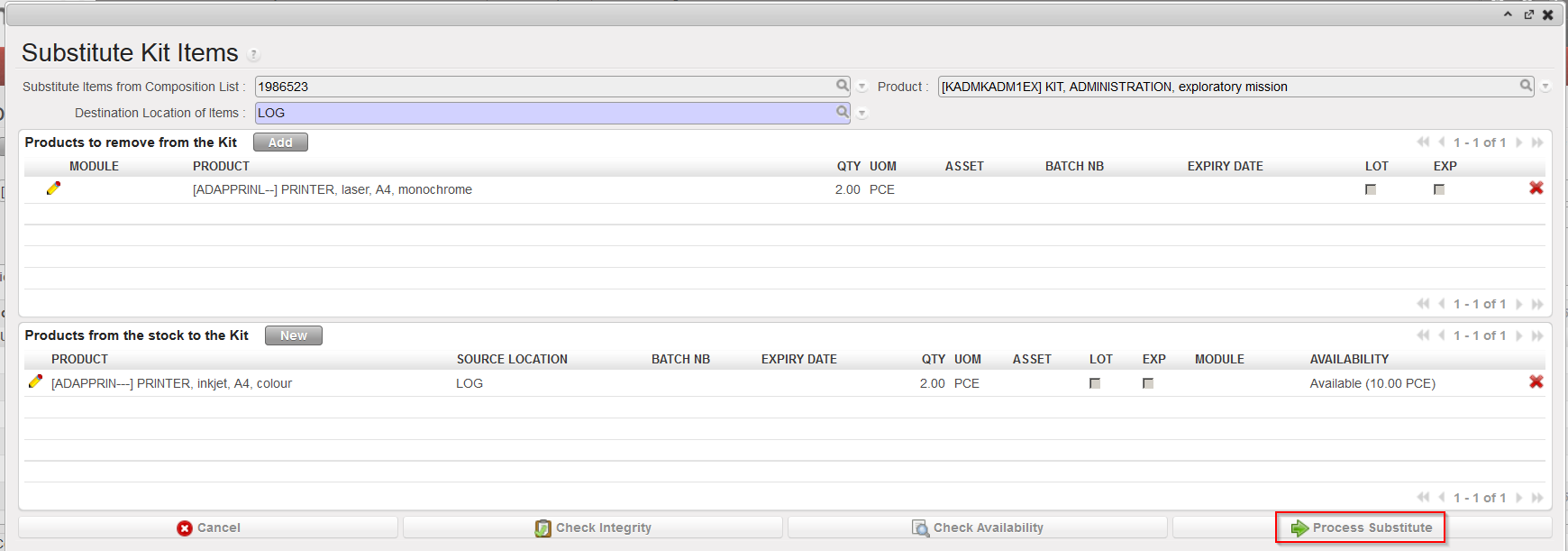
7. Once your substitution is completed, click on the “Process Substitute” button.
|
|
|
Kit items substitution |
|
|
|
Items substituted in kit |

8. The systems informs you on the creation of an Internal Move (INT/KIT) which has been created, processed and closed in order to move the items from kit to stock and from stock to kit. You may click on the message to see the INT/KIT. The system also requires an ED for the kit. If the kit is not perishable, you may enter the date 01/01/9999.
|
|
|
Internal Move INT/KIT created following substitution |
|
|
|
Kit Composition List after substitution |
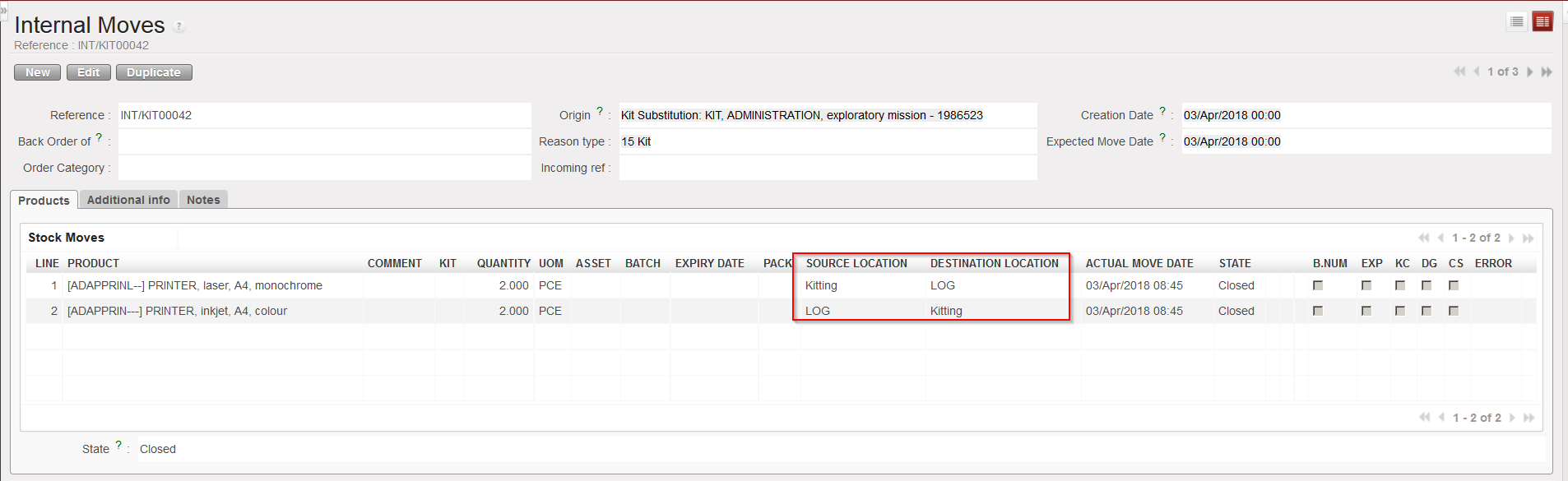
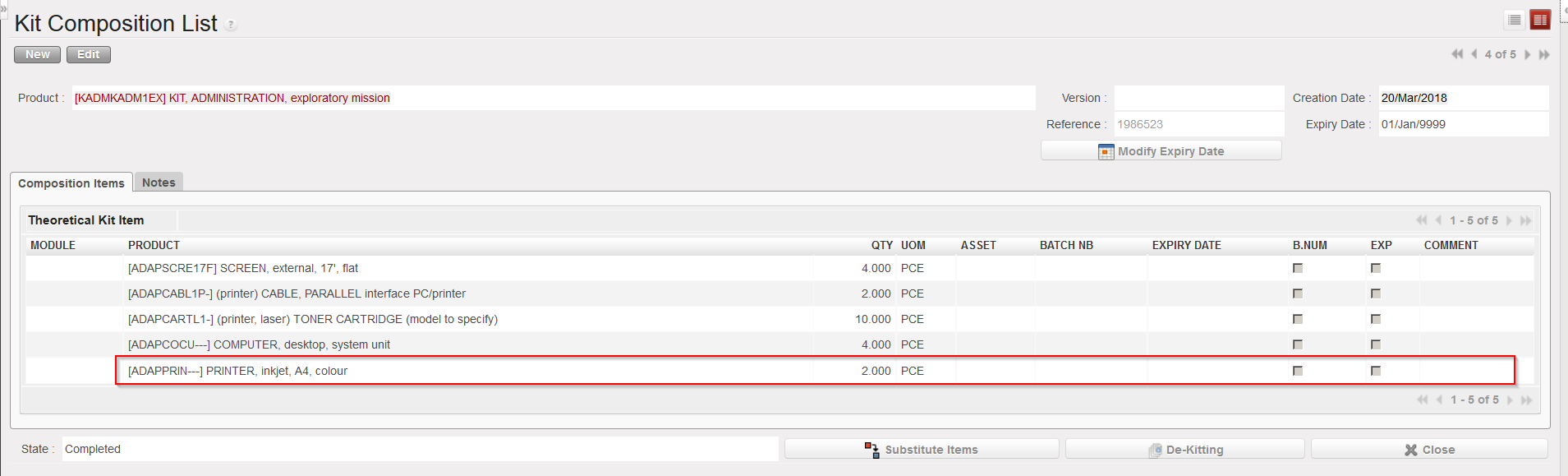
The Kit Composition List is updated with the new products. On the stock level side, items which were in the kit have now been transferred to stock (“LOG” location in this case) while items which were in stock have now been transferred to the “Kitting“ (virtual) location.
