
Supply User Manual ENG -> 5. Warehouse -> 5.16 LU-SU4302: Stock Inventory Reports -> C. EXPORT INVENTORY LEVEL
C. EXPORT INVENTORY LEVEL
The “Export Inventory Level” functionality allows you to export to Excel the stock levels of an instance either by filtering on specific criteria such as product, batch, location or having a full view of your instance stock with all the locations displayed.
Depending on your choice, you will have two types of reports: the “Stock Inventory Global View” report or the “Stock Inventory Location View” report.
The Stock Inventory Global View displays the real stock level of each product/batch in each internal location and the total real stock level in all these locations.
The Stock Inventory Location View displays the real stock level of each product/batch in the selected location and the real stock level of each product (total of all batches) in the selected location.
One significant improvement that has been added to this export is that it can be generated in the past which allow user to have the stock level at a specific date.
Also it is now possible to filter the results in order to have as well the products <= 0 which had movements in the last X months.
Go to: Warehouse / Inventory Management / Export Inventory Level
- Click on the “New” button.
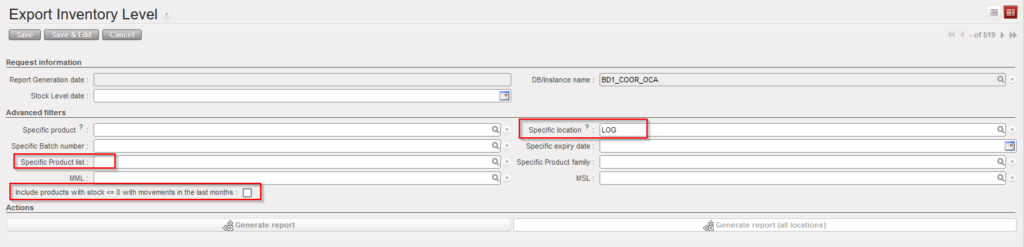
- Complete the parameters. If you don’t specify a location, you can only get the global view report. If you specify a location you can only get the location view report.
- Click on the “Generate report (all locations)” button to get the global view report.
|
|
|
Export Inventory Level – Global View Report |
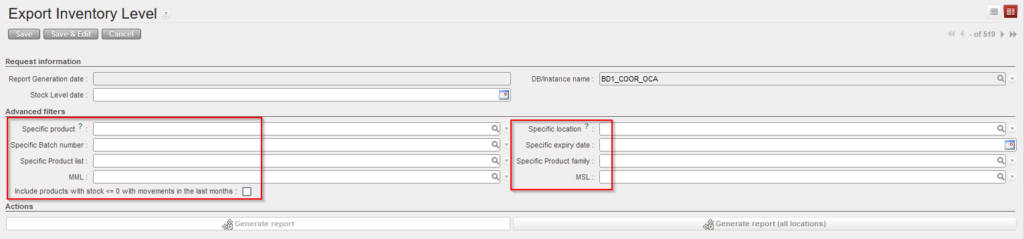
4. Once the report is generated you may open/download it from the action menu.
|
|
|
Export Inventory Level – Global View Report |
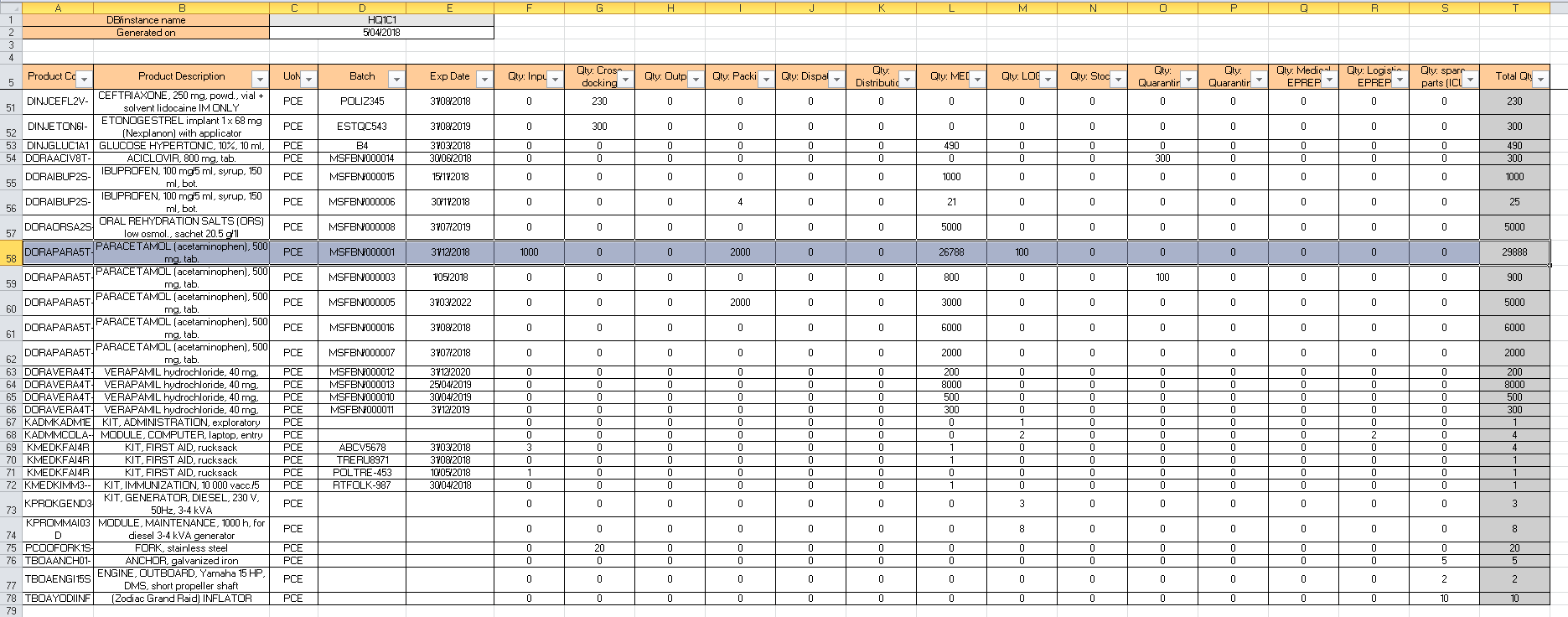
On top of the excel sheet, you can see the instance name and the date of the generation of the report.
The Global View report shows for each product/batch the real stock level in each internal location of the instance. The last column shows the total real stock level in all internal locations.
If a product is not batch managed, you only have one line for this product and the BN/ED columns are empty.
If you generated the Location View report, you will get a similar report but organized differently and focusing on one specific location.
|
|
|
Export Inventory Level – Location View Report |
|
|
|
Export Inventory Level – Location View Report |
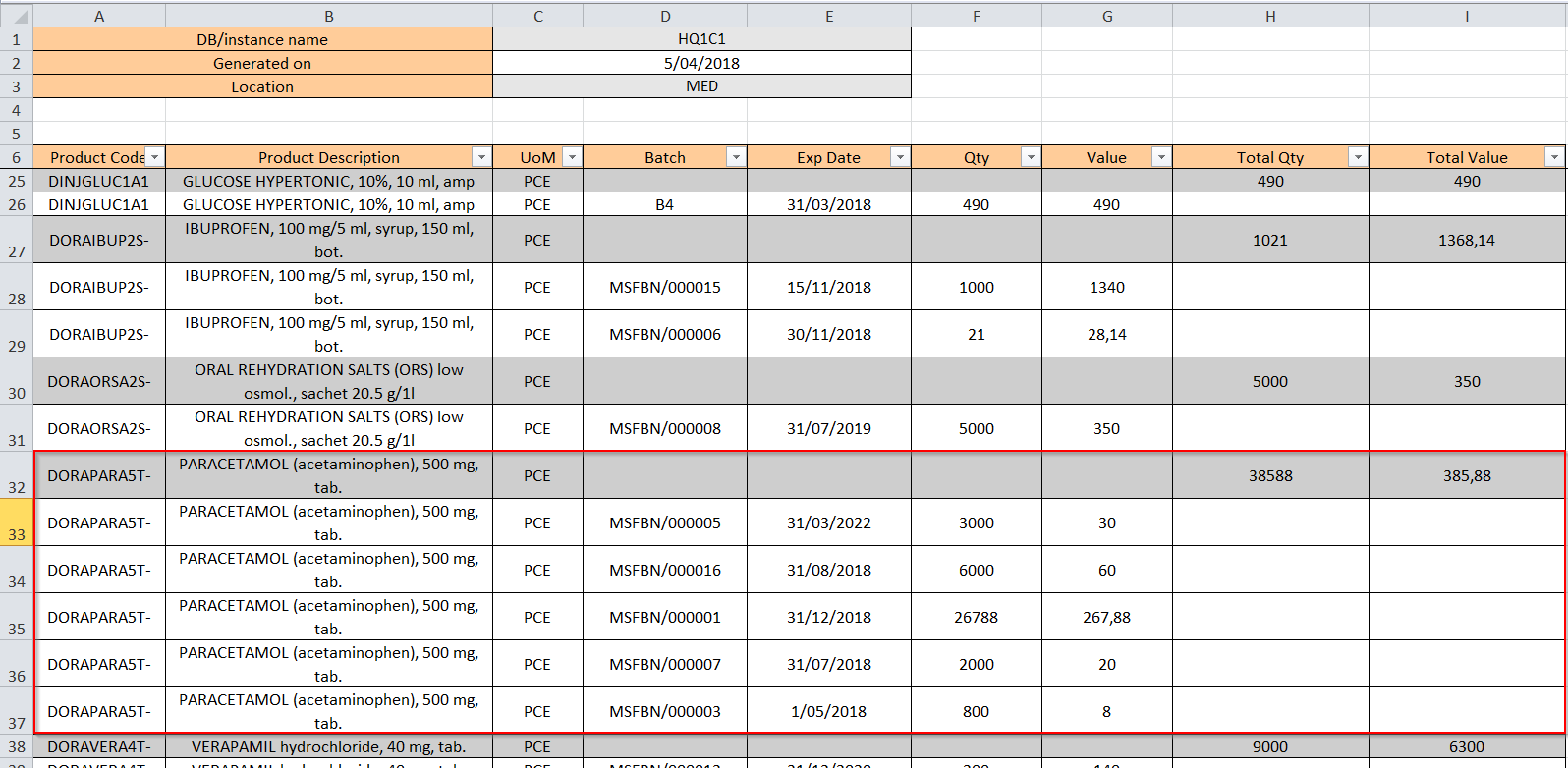
On top of the excel sheet, you can see the instance name, the date of the generation of the report and the selected location.
The Location View report shows for each product/batch the real stock level in the selected location. The grey lines show the total real stock level per product in the selected location.
Please note that if the “Location” filter is chosen and at the same time the “Specific Product list” filter is chosen as well, only the products from the product list in that location will be displayed with quantities in that location (including product <=0 with movements in the last months)., the list will exclude the batches with 0 stocks and which have not moved in the defined value X months.
