
Supply User Manual ENG -> 5. Warehouse -> 5.6 LU-SU4105: Delivery Orders -> G. HOW TO CONFIRM RECEPTION OF A DELIVERY ORDER
G. HOW TO CONFIRM RECEPTION OF A DELIVERY ORDER
The Delivery Order should be confirmed once the shipment has been a confirmed as received by the consignee. The state of the OUT will then switch from “Dispatched” to “Received“.
If the OUT is for an ECU or for an external customer, the confirmation should be done manually.
If the OUT is for another UniField instance, the confirmation will be done by the synchronization once the corresponding Incoming Shipment will be processed on this other instance.
To confirm manually a Delivery Order
Go to: Warehouse / Warehouse Management / Deliveries / Delivery Orders
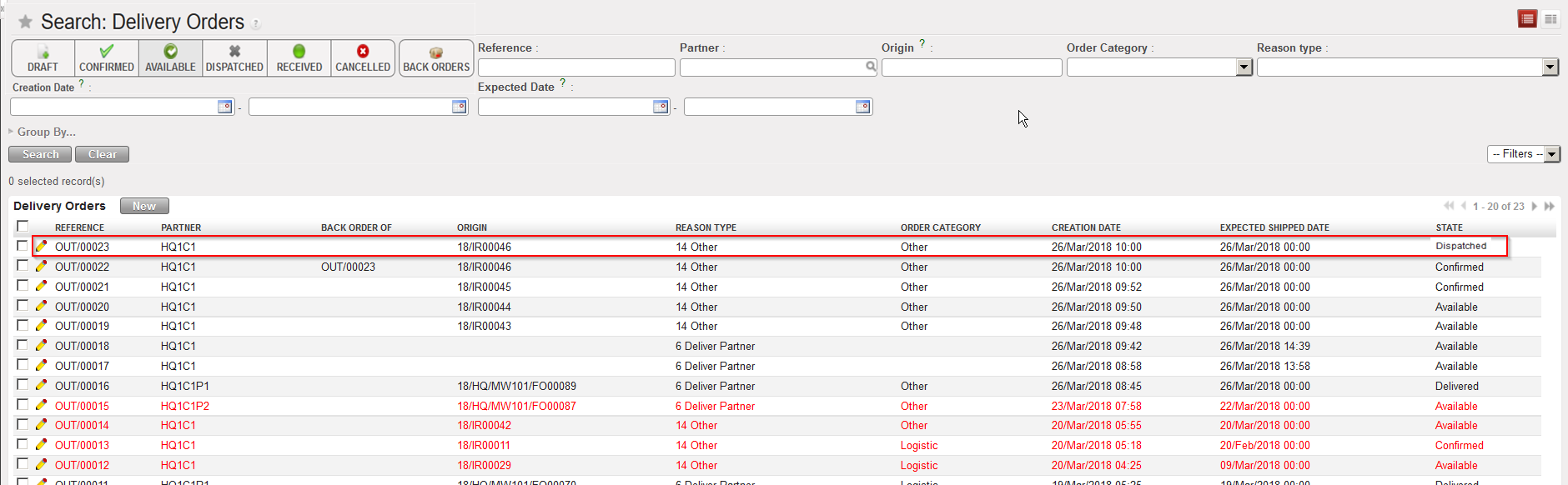
- Open the Delivery Order you wish to confirm (its state should be “Dispatched” and its partner should be either your instance either an external customer).
|
|
|
Dispatched Delivery Order |
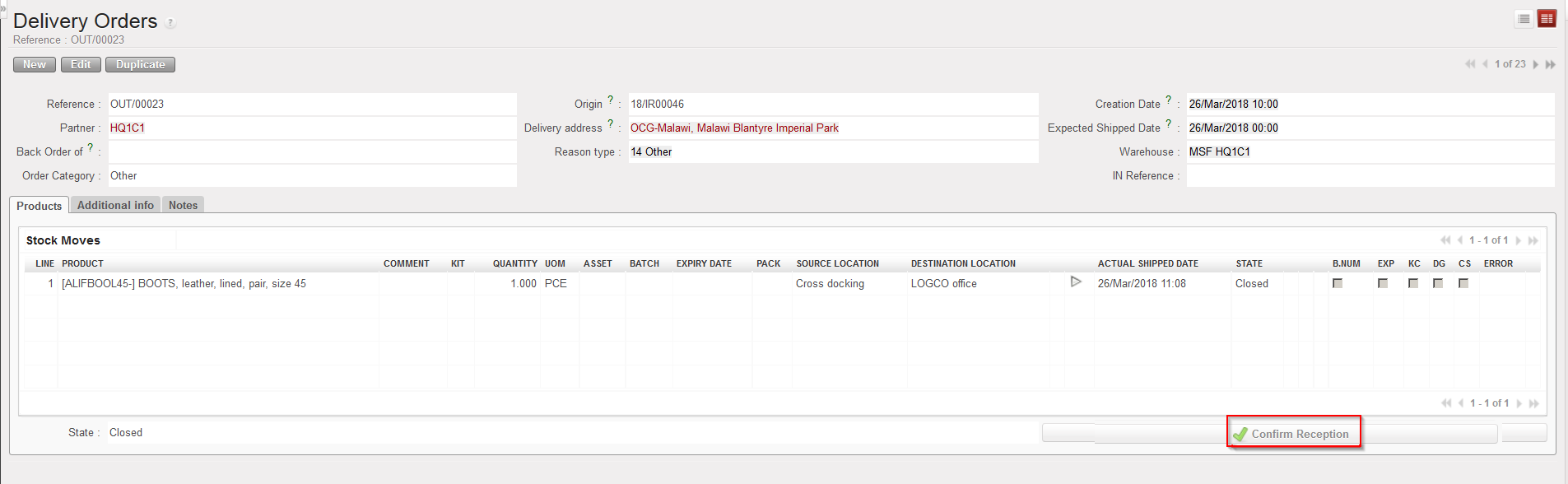
2. Click on the “Confirm Reception” button located at the bottom of the screen
|
|
|
Confirming a Delivery Order |
|
|
|
“Delivered” Delivery Order |
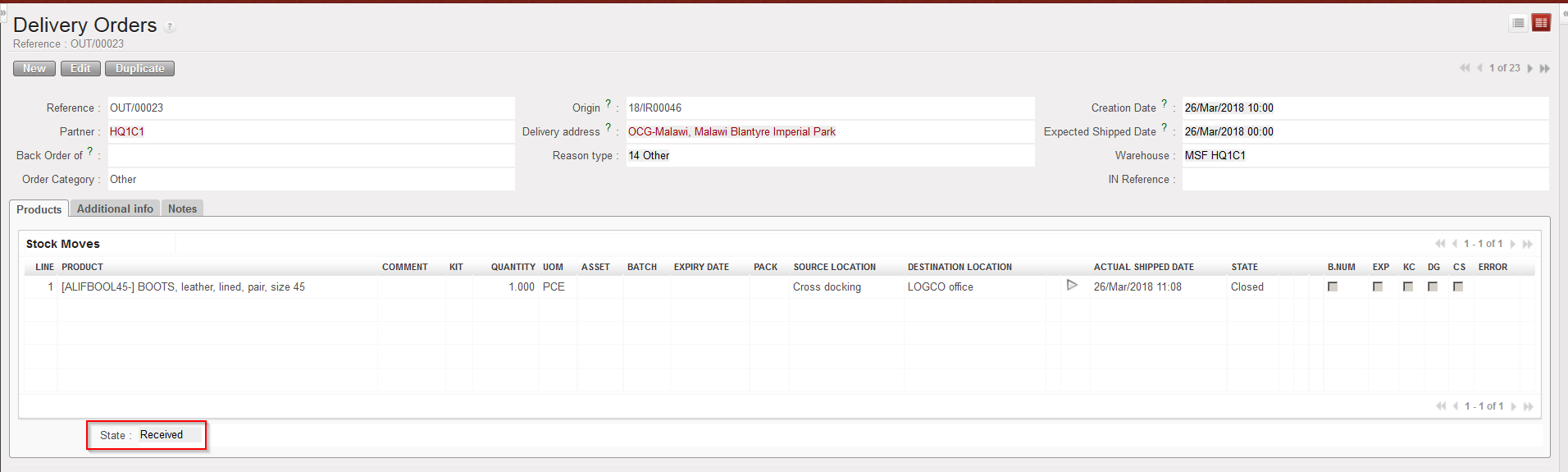
The state of the OUT changes from “Dispatched” to “Received“.
Note that if you try to manually confirm a Delivery Order which should be confirmed by the synchronization, you will get the below message.
|
|
|
Confirming manually an OUT which is for another instance |
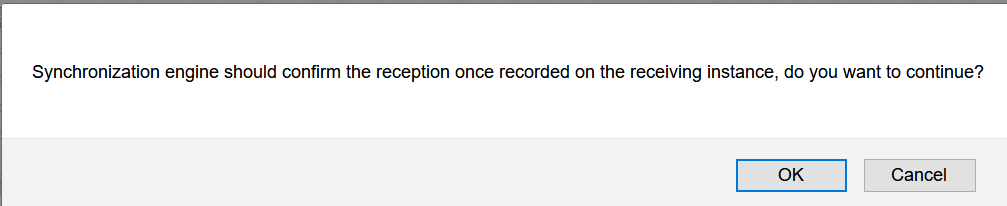
The confirmation may be forced if you click “OK“. However, it is better to let the synchronization confirm the OUT.
