
Supply User Manual ENG -> Products -> 3.8 MML / MSL -> C. How to activate/deactivate MSL Projects
How to activate/deactivate MSL Projects
When Medical Standard Lists (MSL) are added to the MSL Tool, the lists synchronize down to the Coordination and all projects in a specific mission. It is only synched to instances in that mission, and is not synched to any other mission. Each published MSL is identifiable by a reference to its instance (project code). To view active MSLs or to activate/deactivate an MSL,
Go to: Products / MML / MSL Projects
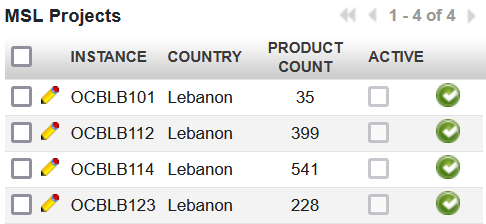
Each MSL is synchronized as Inactive but can be manually activated by the Coordo/Project by clicking on the green check icon. Once activated, a checkmark will appear in the Active column and a red X icon will appear to allow the MSL to be deactivated in that instance. Once activated, the MSL is automatically updated by any change made to it in the MSL tool.
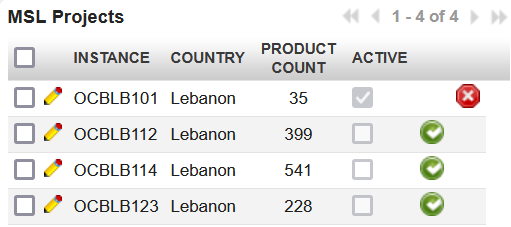
To deactivate an MSL, click the red icon in the line of the instance you would like to deactivate and the check in the Active box will be removed.
If no instances are activated, alerts in documents will only show whether an item is in the MML and the MSL column will be blank.
