
Supply User Manual ENG -> Products -> 3.2 LU-SU2101: General Product Management -> F. How to activate the batch numbers being mandatory for a product
F. How to activate the batch numbers being mandatory for a product
All the batch numbers of a product must be entered in the system database. Most of the UniData/ITC products will have this option enabled. Update of this attribute can only be done at HQ for non local products and only at Coordination for local products (providing some specific user rights) and will be synchronized down to children instances. To activate this option manually follow these steps:
Go to: Products/ Products
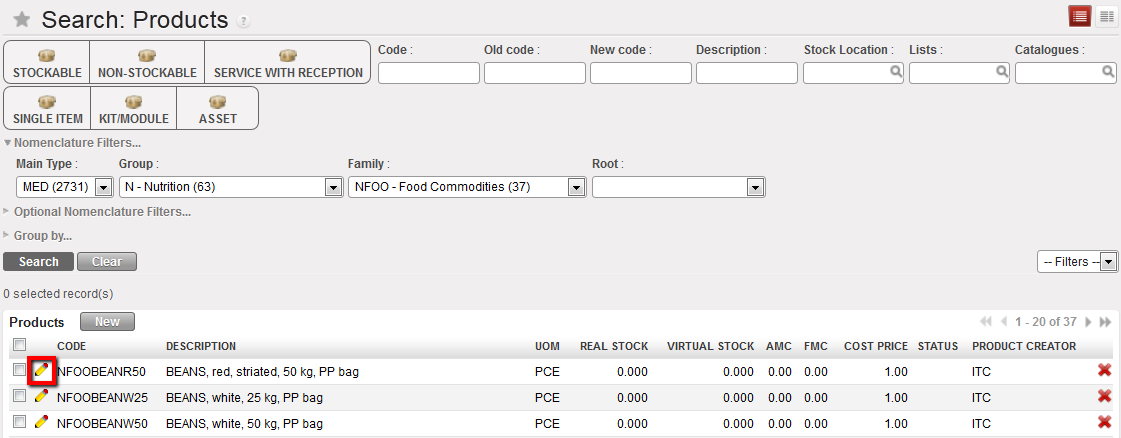
Activating a batch number-1
- Use the search tools to filter values to find the product you want to edit
- Click on the pencil icon
 next to the product line to open it in edit mode
 - In the “Information” tab, click on the “Make Mandatory” button aside the “Batch Number mandatory” check box to enable it
- Click on Save
The system will now require that the specific batch number(s) for this product are recorded in the system during the product reception.

Activating a batch number 2
Please note: This attribute needs to be changed cautiously especially if product is in Stock or is in transaction document.
If product with BN is changed to product without BN then the BN will be erased for existing product in the system (for any Stock; document…) and products quantity will be aggregated in Stock (in case you had several BN for the same product).
If product without BN is changed to product with BN a “False” BN (TO-BE-REPLACED) will be automatically added to the existing product in Stock/document. This “false” BN will have to be updated by the user later.
