
Supply User Manual ENG -> Products -> 3.3 LU-SU2102: Product List -> B. How to create a new product list or sub list
B. How to create a new product list or sub list
To view product lists or sub-lists in the system, Go to: Products / Products / Products List
The product list dashboard displays.
It contains three different areas:
- Searching and grouping options
- Existing Lists or sub lists in the system
- Printing, import and export options once a list has been selected
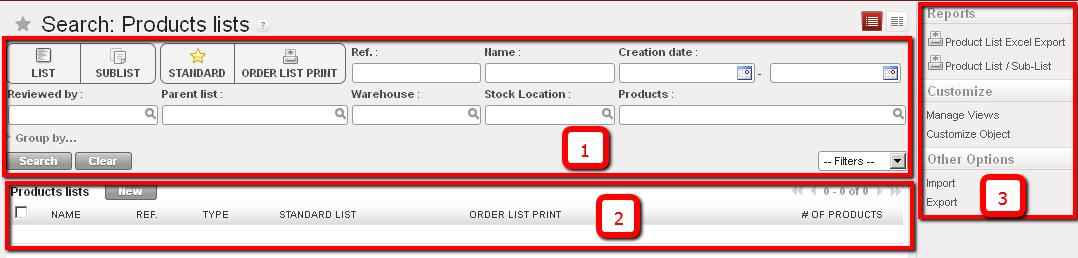
List and sub-list dashboard
To create a new product lists or sub-list:
- Click on the “New” button to begin the creation process.
- Select the type of list you want to create (list or sub list), enter name, reference, description, Creator will be Temporary by default. Here you should select the level at which you are creating the list (HQ, Coordo, Project), for future modification of this list, this will be limited only to the level where the list was created. Select if the list is a standard or an order list. If we are creating a sub list, select the parent list; in this case only products on the parent list will appear; select warehouse and location related to the list.
- You can import a list of products by selecting Add attachment or, add multiple products using the button “Add multiple products” otherwise use the “new button” to individually add new products to the list.
- Click on Save.
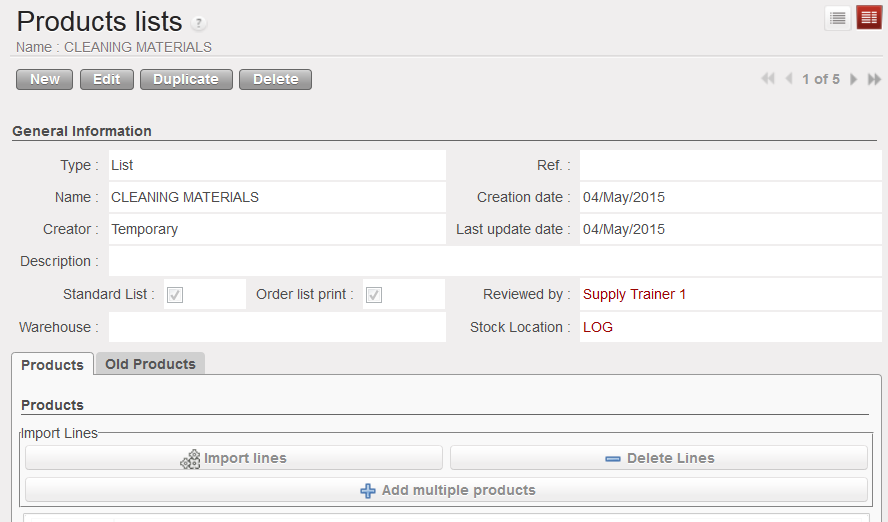
Product list creation
