
Supply User Manual ENG -> Products -> 3.3 LU-SU2102: Product List -> D. How to update a product list via import file
D. How to update a product list via import file
Go to: Products/Products
- In the Products Search view, enter the appropriate values in the filters in order to view as many as possible of the products you want to add to the list.
- Click on Search
- From the results, select the checkbox next to each of the products that you want to add, or click on the checkbox at the top of the products lists to select all the products on the same page (but do NOT progress to any other pages)
- In the Action Menu on the right-hand side, click on Import to list
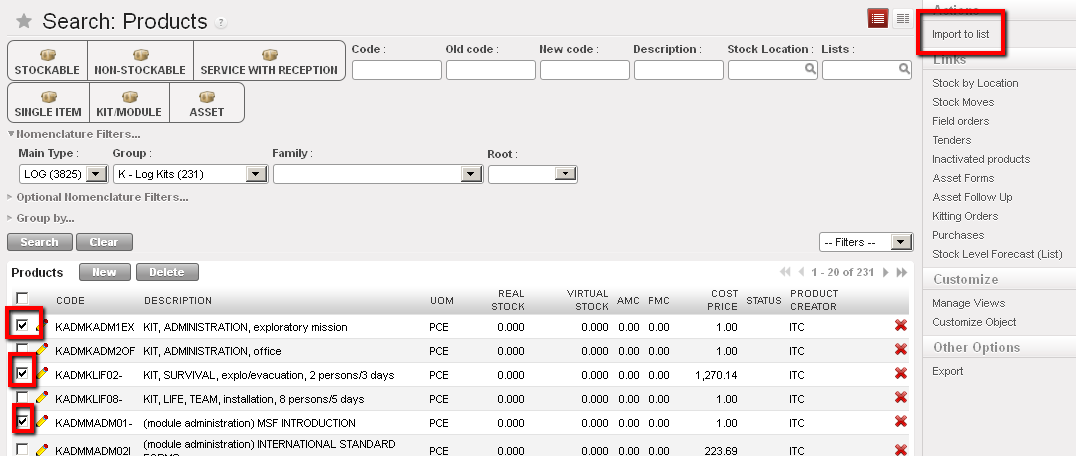
Import to a product catalogue
- The “Import to” list screen will open and display the list of products you have selected
- In the List definition section, select from the options:
- Existing list, if you want to add these products to an existing list
- New list, to create a new list
- Replace list, to replace a list which is already in existence
- If you have selected either the Existing or Replace options, you will need to select the Existing list that you want to add to or replace.
- If you have selected the New list option, enter the Name of the new list
- And Enter the type
- List, if for a list
- Sub-list, if for a sub list which belongs to a “parent” list
- Click on Import products button to import products to list
- In the Product list screen enter all relevant details:
The fields Type and Name will have already been populated according to the information already in the system.
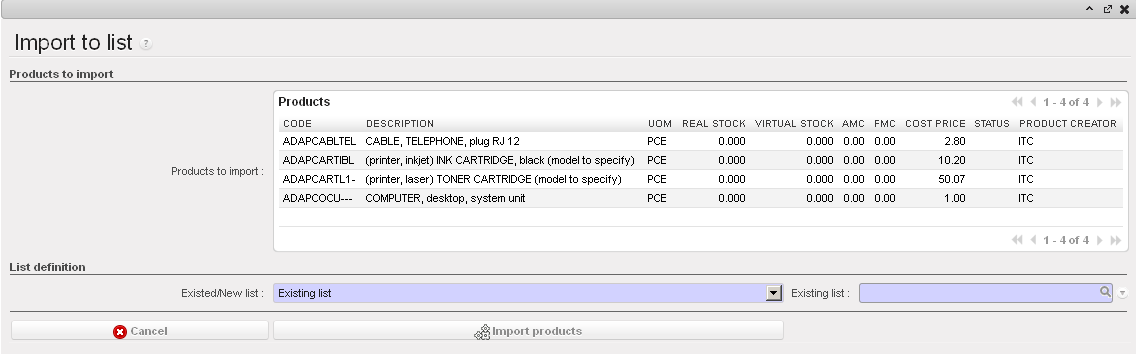
Import product list
