
Supply User Manual ENG -> Products -> 3.6 LU-SU2105: Kits/Modules -> C. How to create a Theoretical Kit Composition
C. How to create a Theoretical Kit Composition
Go to: Products/ Kit Management / Theoretical Kit / Theoretical Kit Composition
- Click on the “New” button to start the process
- Enter the Kit Product created earlier or search for it and select it from the database by clicking on the magnifying glass
- Enter the Version of the kit: The version of the Kit allows differentiating between an old and a new version of the same Kit. It can happen that some items in the Kit are replaced by newer ones or more advanced one and the Kit name doesn’t change. Then instead of creating a new TKCL, a new version of the same Kit is created. Whenever a TKCL is used in the system, the version to use will automatically be asked
- The Creation date will have been populated automatically with today’s date but can be modified
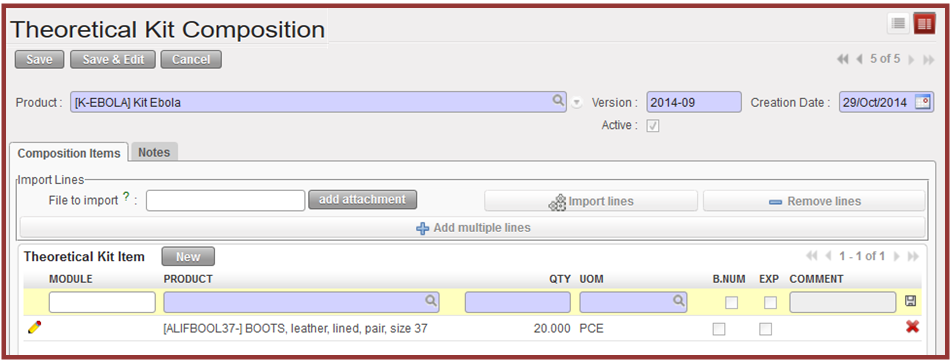
Theoretical Kit Composition
5. Add the products to your kit, either by importing them by clicking on the “add attachment button” and follow the import process, or manually:
5:A Add the products manually steps:
5.1 Click on the New button, a theoretical kit item line will appear
5.2 Enter the number of the module
5.3 Enter the name of your product or search for it and select it by clicking on the magnifying glass.
5.4 Enter the quantity of the product which should be present in each kit, and check that the UoM is correct.
5.5 Click on the floppy disk icon at the end of the line to save the product details and continue, adding all relevant products and their details in this way.
5.B Add the products by importing products from existing TKC:
The new TKC can have products from existing TKCs by importing them directly when you click in Import products from other version, and then these products can be removed or more added directly in the screen.
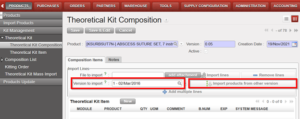
6. Click on the Save button to save your Theoretical Kit Composition
7. When your Theoretical Kit Composition has been completed, Click on the “Mark as Completed” button, and will pass from Draft to Completed status.
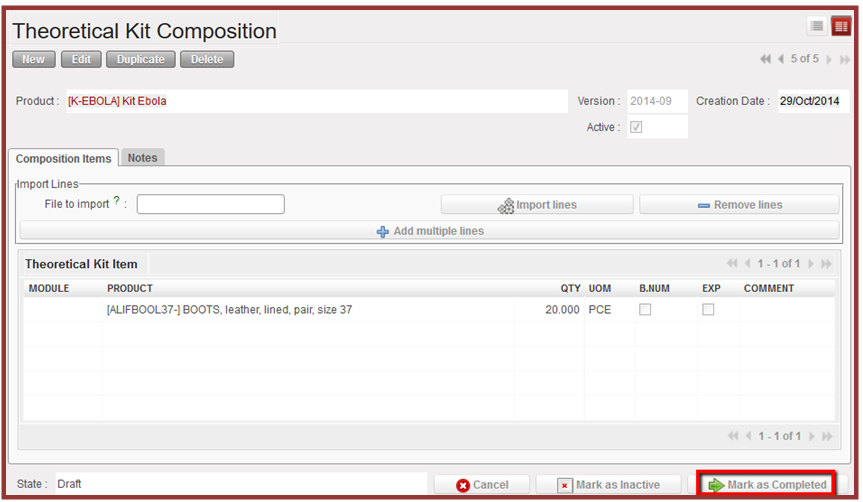
Completion button for Theoretical Kit composition list creation
8. If needed, this version of Theoretical Kit Composition can be exported by clicking on the link “Composition Kit Excel Export” in the Action Menu.
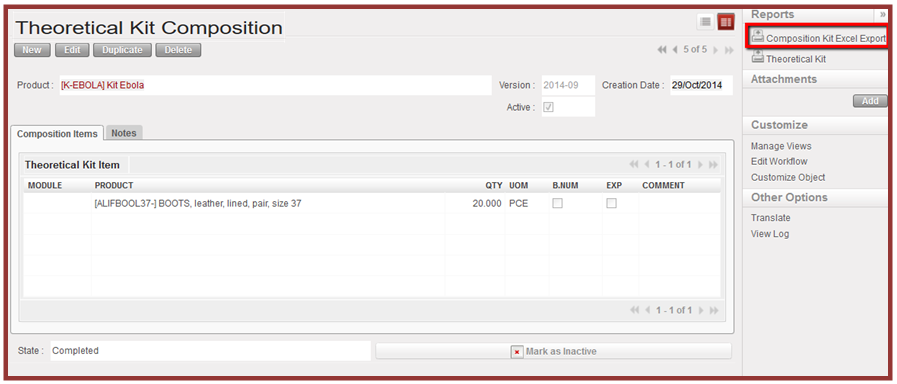
Kit composition list export
A PDF Version is available as well by selecting 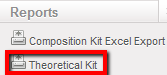
Also if you need to check which items are associated to a TKL, Go to: Products/ Kit Management / Theoretical Kit / Theoretical Kit Item
A list of items will be displayed with their associated theoretical kit reference. Please note that these lines are non-editable.
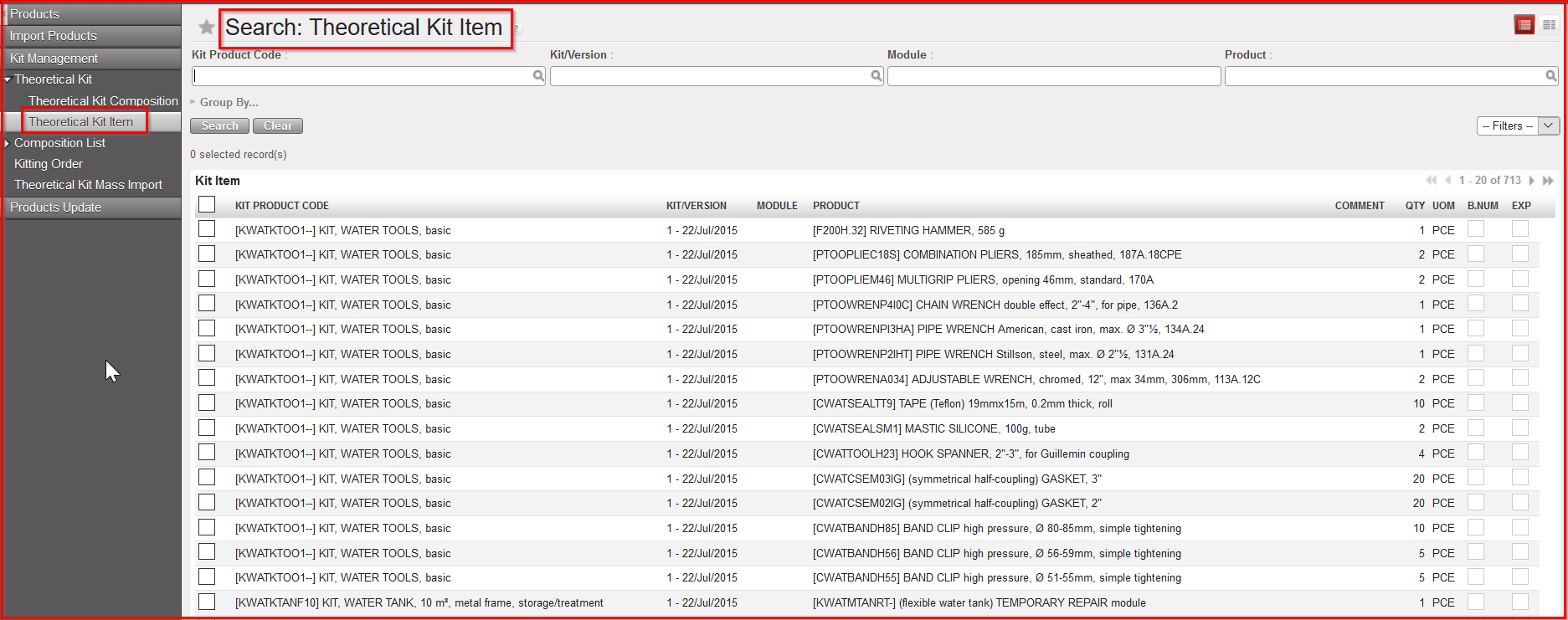
Theoretical Kit Item
