
Supply User Manual ENG -> 4. Procurement -> 4.2 LU-SU3101: Internal Requests (IRs) -> J. b) Export IR Follow-up
J. b) Export IR follow-up
Go to: Orders / Orders / Reporting / Export IR Follow-up
- Click on the “Export IR Follow-up” sub menu.
|
|
|
Export IR Follow-up |
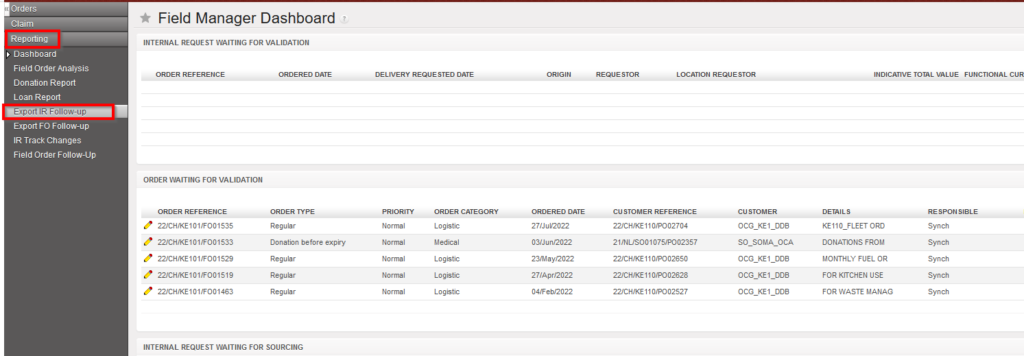
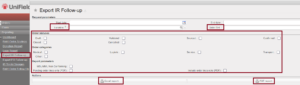
2. A pop up with several filtering option is displayed. User can choose to filter by “Location” (i.e.: Location requestor), “Order reference”, Status of document, order categories and report parameters.
|
Export IR Follow-up |
3. The report can be exported in Excel or PDF via the corresponding buttons.
This report provides valuable information such as Document and line status; Qty ordered vs Qt delivered; Reference of sourced documents (PO; OUT)…
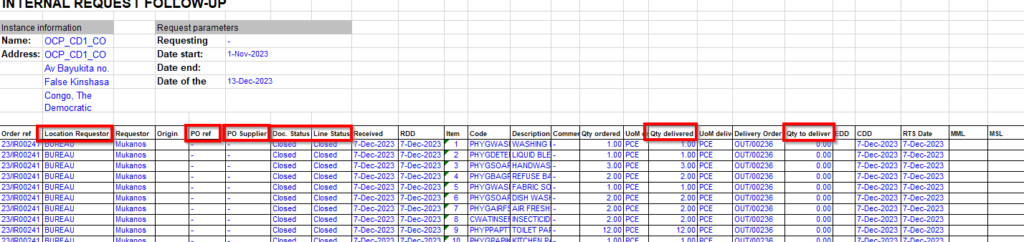
Export IR Follow-up to XLS
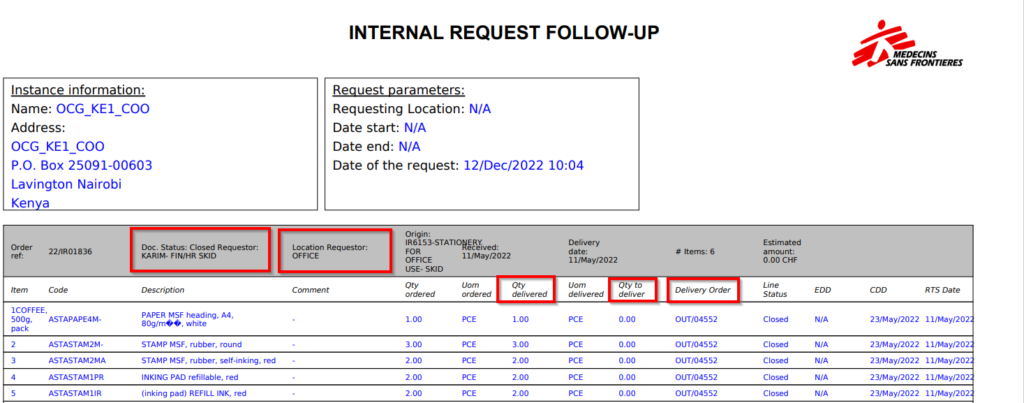
Export IR Follow-up to PDF
Note that the “Sourcing Documents” tab available on the IR will display the references of the related document following the sourcing of the IR.
