
Supply User Manual ENG -> 4. Procurement -> 4.3 LU-SU3102: Orders Sourcing Tool (OST) -> E. How to source multiple lines together.
E. How to source multiple lines together.
The Orders Sourcing Tool also offers the opportunity to source several lines at the same time so that you do not have to source the lines one by one by clicking on the green arrow. If several lines have to be sourced you can use the “(multiple) Source lines” functionality as described in the steps below.
You can sort the lines by clicking on the column’s header.
Go to: Orders / Orders / Orders Sourcing Tool
- Tick the checkbox of all the lines you would like to source together (at the beginning of the product line).
- In the Action Menu on the right hand side, click on “Source lines“.
- In the wizard which appears, you will see all the lines that you selected to source.
a) If you have already edited all the product lines one by one on the OST screen by updating the “PROC.METHOD“, “PO/CFT“, “LOCATION” and “SUPPLIER” fields without clicking on the green arrow 
and nothing needs to be added, you can source them immediately by clicking on the “Source default” button at the bottom of the pop up screen. The “Source default” button will enable you to source lines with different procurement method or different suppliers.
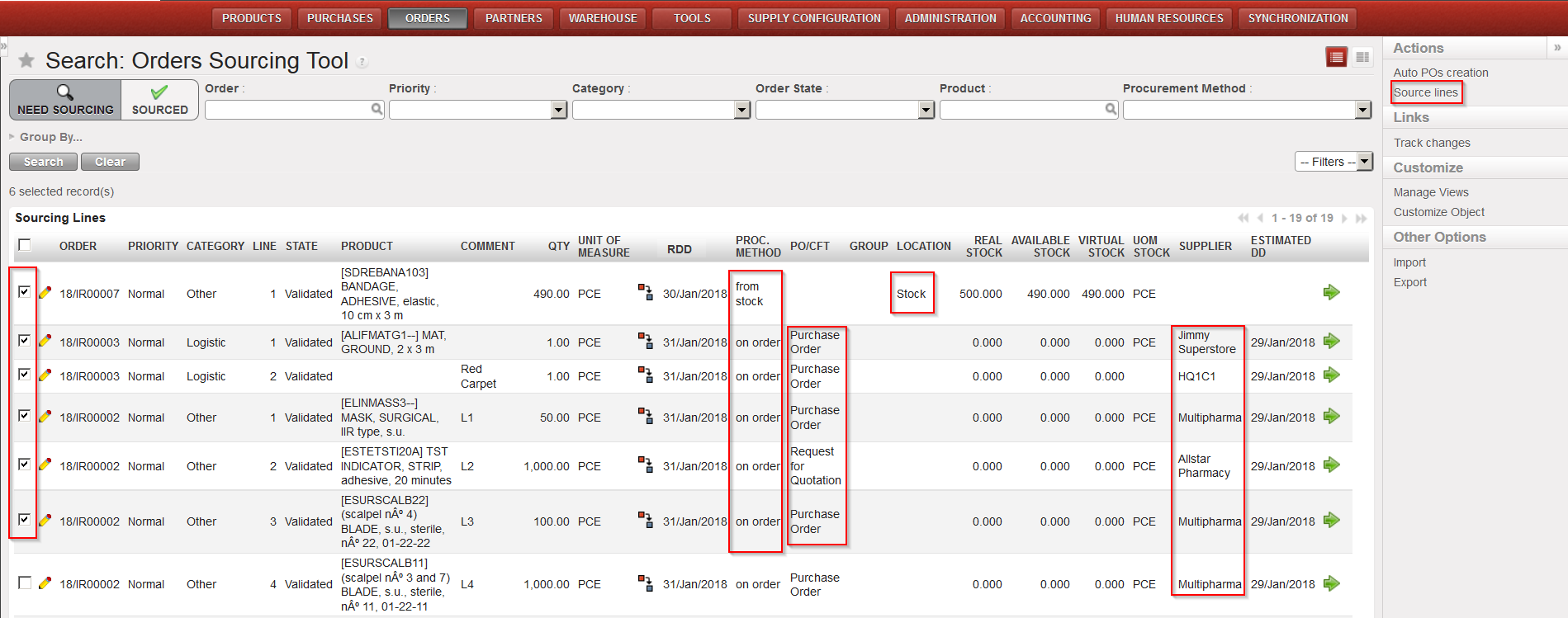 |
| All selected lines updated with different procurement method and different suppliers – Click “Source lines” |
 |
| Click “Source default” |
b) If you need to update the details of the lines on the pop up screen, the information needs to be the same for all the product lines (i.e. same “Procurement Method“, same “PO/CFT” choice and same “Supplier“, if needed).
i.) If you select the Procurement Method “from stock”, you will be able to see if any of the products are in stock from the “Real Stock column”.
ii.) If you select the Procurement Method “on order”, select whether this will be via a:
-
-
-
- Purchase Order, if there is already a known supplier for these products.
- Direct Purchase Order, if there is already a known supplier for these products, and you wish the goods to be delivered directly to another instance.
- RFQ, if you want to inquire for price and availability at a specific supplier.
- Tender, if the supplier hasn’t been identified yet.
-
-
Note that for PO, DPO and RFQ you will need to enter (or search by clicking on the magnifying glass) the name of the supplier for the products. It needs to be the same supplier for all the product lines.
iii.) Finally, click on the:
- “Save and Source” button to save the values entered for every line and to source the lines immediately. All the product lines will be sourced in the same way (from stock or on order).
- “Save” button to only save the values entered, but not to source them yet (so they will stay at the Orders Sourcing stage).
 |
| Select the lines that you want to source and Click “Source lines“ |
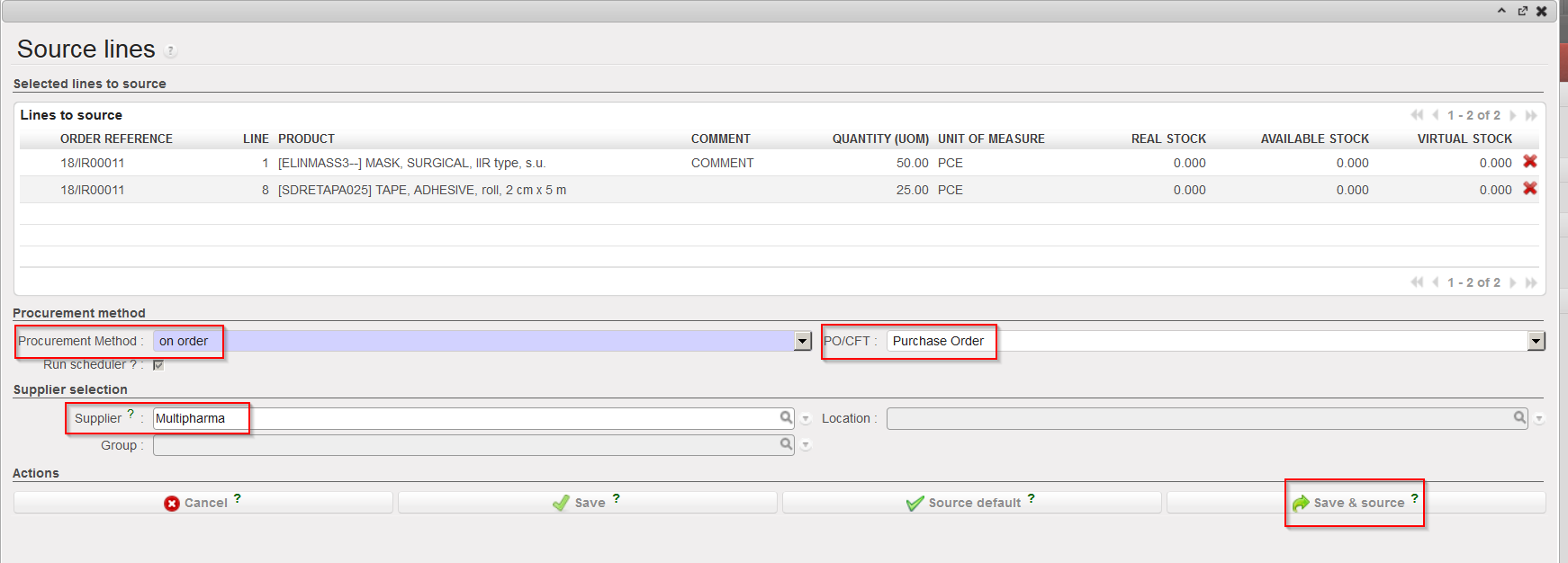 |
| Complete the sourcing method and Click “Save & source“ |
4. The selected IR/FO lines have now been sourced.
a) You could have a message informing you about the documents created or updated.
b) The sourced IR/FO lines have changed status (an possibly the IR/FO itself as well).
