
Supply User Manual ENG -> 4. Procurement -> 4.4 LU-SU3103: Field Orders (FOs) – General -> L. How to follow-up Field Orders
L. How to follow-up Field Orders
Field Orders should be followed-up on a regular basis to ensure that all requests from the field are answered to within the requested time limits, and to avoid having any pending or “forgotten” orders.
The “Field Manager Dashboard” (Orders/Orders) and the general list view of FOs also called “Search: Field Orders” screen (Orders/Orders/Field Orders) already give some basic information: state, percentage picked, customer, customer reference, responsible,…
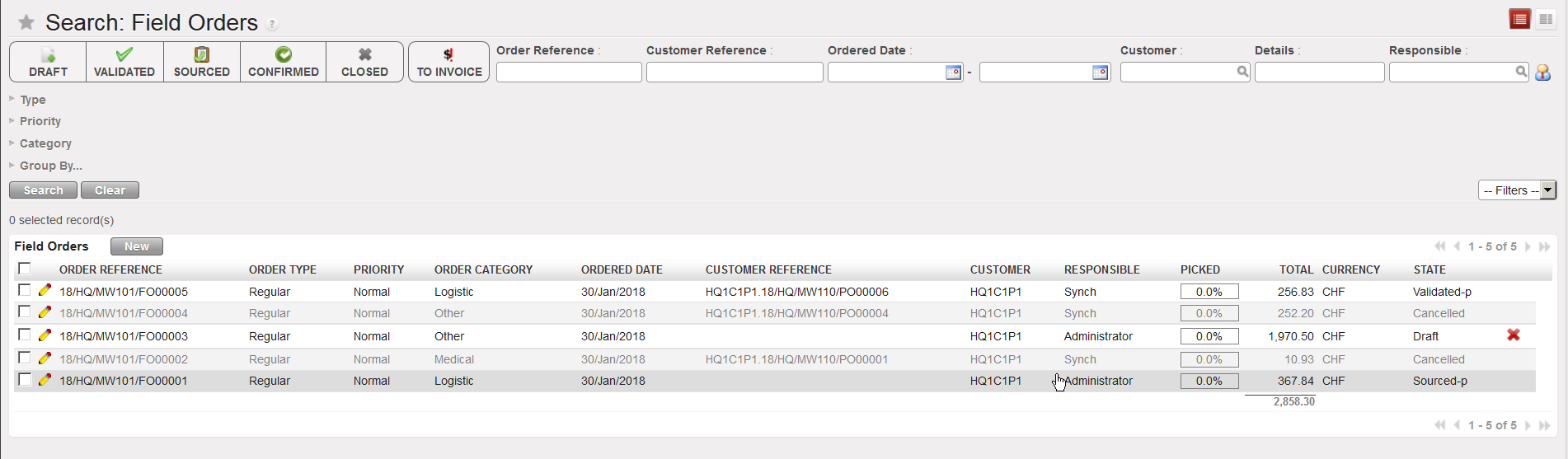 |
| General list view of FOs also called “Search: Field Orders” screen |
The Field Order Follow-Up gives more details of the situation of a specific FO. Note that this report has not been maintained. If available, it is better to avoid using it.
Go to: Orders / Orders/ Reporting / Field Order Follow-Up
- In the pop-up window user can search by “Internal reference” or by “Customer reference“. Search and select the required Field Order.
- Click on “Go to: follow up” button.
- The system will display all the information of the selected order including sourcing and incoming shipment information.
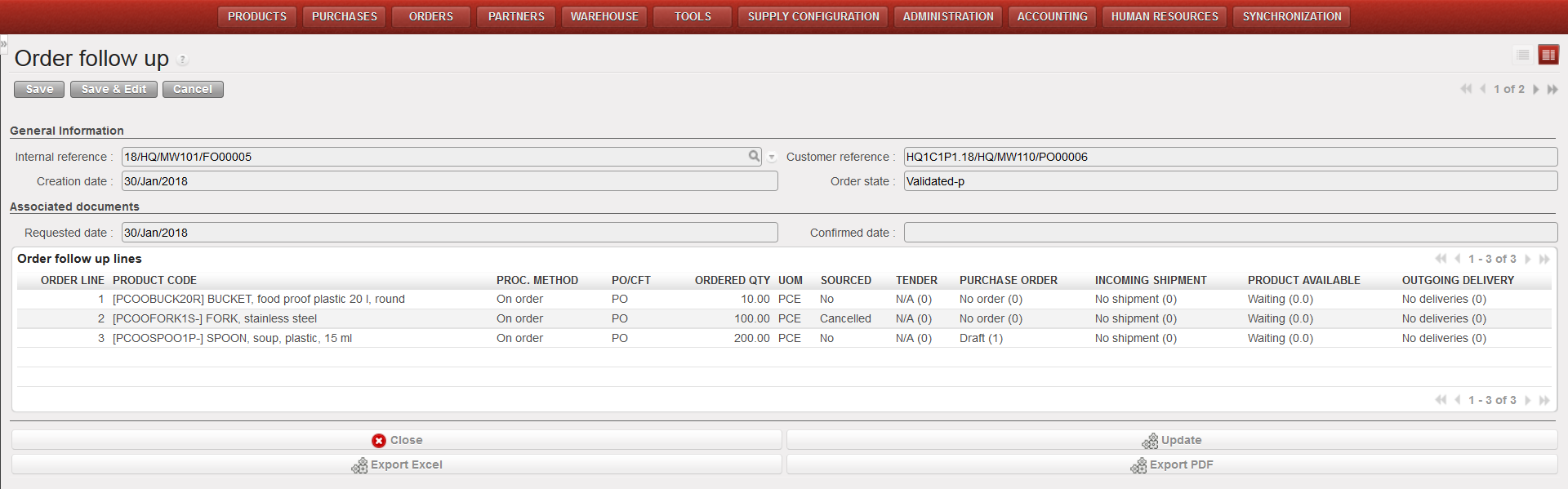 |
| Field Order follow-up |
The report can be refreshed anytime via the “Update” button. It can also be exported to Excel (via the “Export Excel” button) or PDF (via the “Export PDF” button).
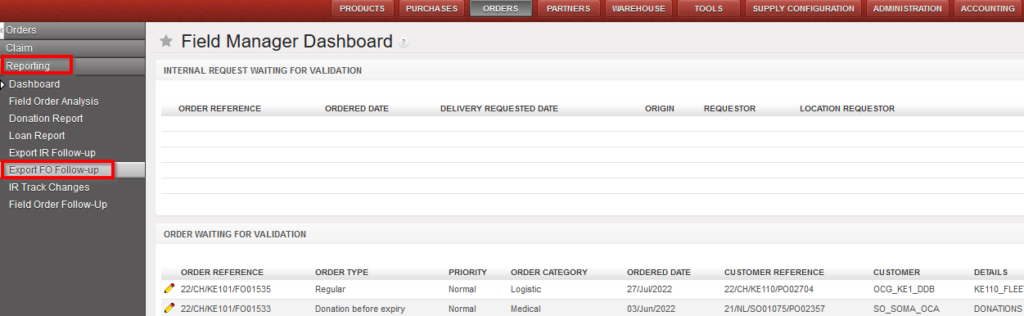
In some case, you will want to check the state of several FOs for a given partner. In this case, you will use the report named “Export FO Follow-up” available in Orders / Orders. The report can be generated in XLS or PDF. This functionality will allow you to follow back-orders towards your clients.
Go to: Orders / Orders / Reporting / Export FO Follow-up
- Complete the fields Start and End date to restrict the output to a time frame.
- Select a “Partner” and/or an “Order Ref.”.
- Check one or multiple “Order statuses” boxes if needed.
- Check one or multiple “Order Categories” boxes if needed.
- Check one or multiple “Order Types” boxes if needed.
- Check the “MSL/MML Non Conforming” box if you only need to see lines not conforming to the MSL/MML
- Check the “pending order lines only (PDF)” if you only need to see the lines which have not been delivered yet to the requestor if needed (please note that this parameter only works for the PDF format).
- Check the “Include order lines note (PDF)” if you want the comment from the FO to be displayed on the PDF export.
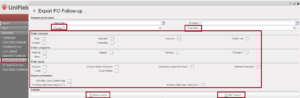
Set of parameters to define in the Export FO Follow-up window

Export FO Follow-up in excel 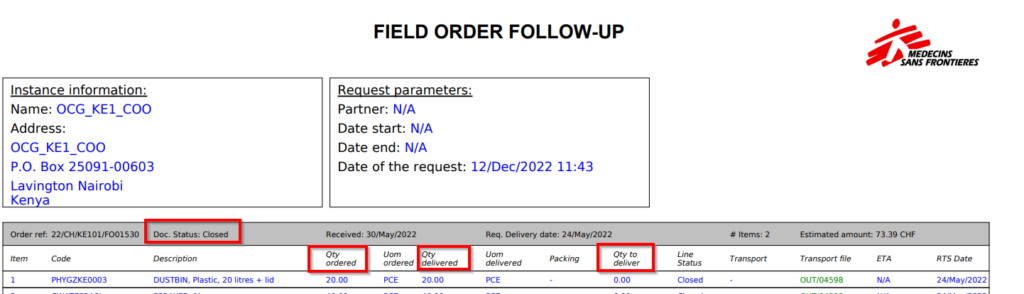 Export FO Follow-up in PDF
