
Supply User Manual ENG -> 4. Procurement -> 4.6 LU-SU3201: Purchase Orders (POs) - Generals -> D. How to import lines on a Purchase Order.
D. How to import lines on a Purchase Order.
It is possible to import all order lines at once instead of having to encode each order line manually. The purchase information (products, quantities, unit price) should be available in an xml 2003 file which will be imported on a PO.
To import the lines, the file should have the exact following format:
Product Code; Product Description; Quantity; UoM; Price; Delivery Request Date; Currency; Comment, Status
 |
| Format of file which can be imported on a PO |
Go to: Purchases / Purchase Management / Purchase Orders
- Open an existing PO or create a new one.
- Click on the “Import lines” button.
- Click on the “Add attachment” button then “Browse” and select the file you want to import.
- Click “Open” on the browse window.
- Click on the “Import file” button to import the file, then click “Update” to follow the progress of the importation. A message will indicate if lines have been imported successfully.
- Click on the “Close window” button.
- The imported lines have been inserted on the PO, save the PO.
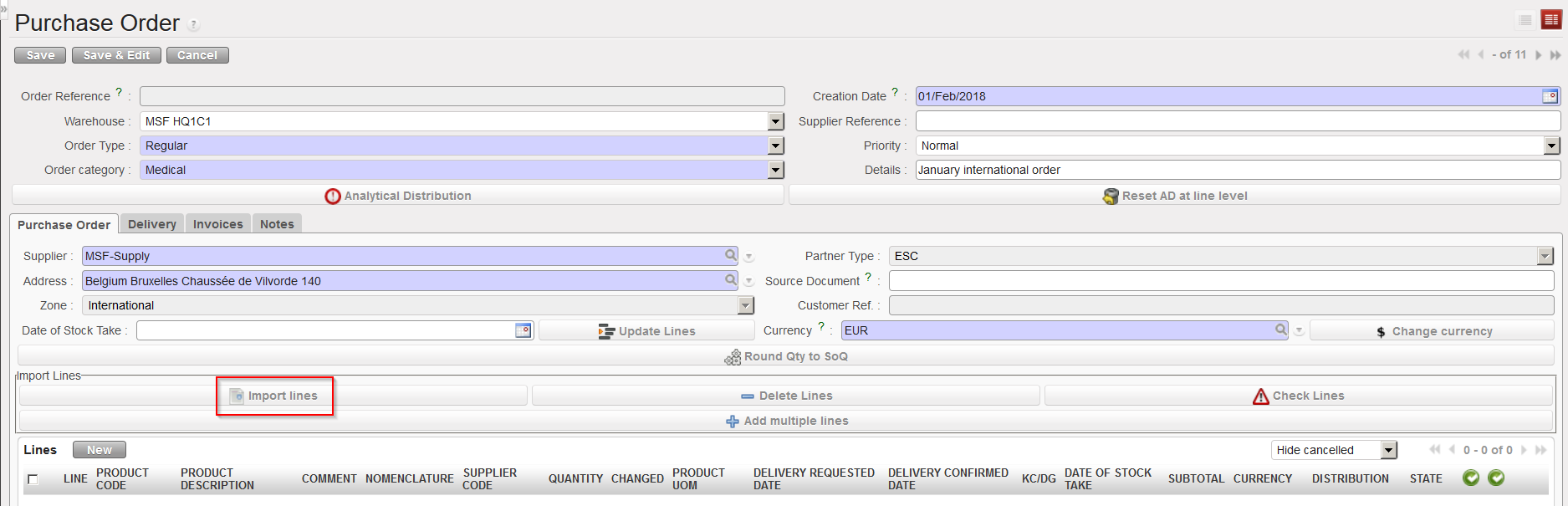 |
| Purchase Order, Import lines |
Note that comments can also be imported in the PO if you populate the “Comment” column of the Excel. These comments will then appear in the “Comment” column of the PO and be editable on the “Nomenclature Selection” tab of the PO-line.
Note that “product by nomenclature” lines cannot be imported from Excel into a PO. You need to enter these lines manually one by one.
To get a template of the correct Excel format needed, you may export an existing PO to Excel as explained below (see How to export lines from a Purchase Order). Note that you will have to delete the column “External Ref” of the Excel generated if you want use it as a template.
