
Go to: Purchases / Purchase Management / Purchase Orders
- Open the PO that you wish to validate (in edit or display mode). This PO should not yet be fully validated but still draft (or draft-p).
- Select the lines that you wish to validate via the check boxes on the left of the PO-lines.
- Click on the green button (Validate) located at the top of the Lines table (next to “STATE”).
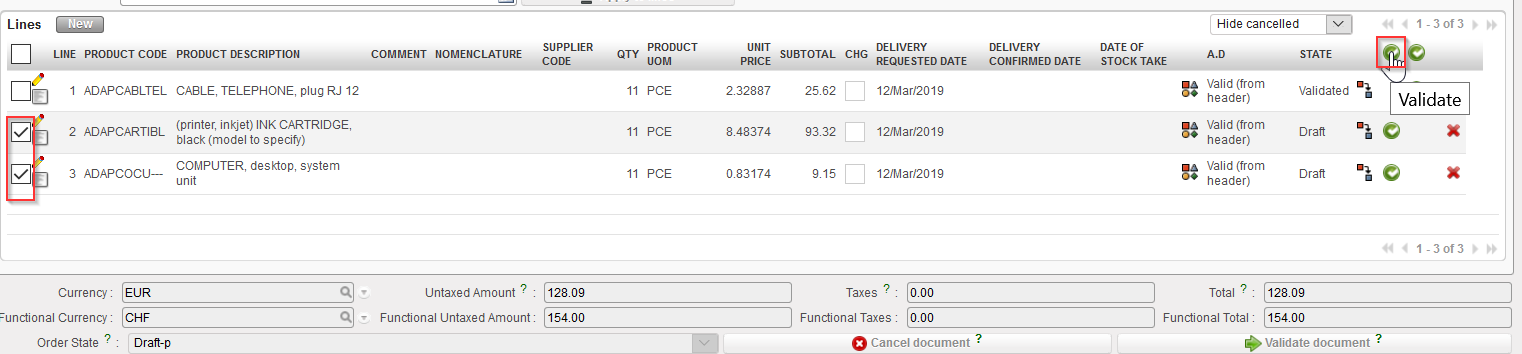 |
| Validating several lines of a PO |
- The PO switches to “Draft-p” (partially validated). The validated PO-lines switch to “Validated” while the other lines stay in status “Draft“.
Note that as long as all the lines of a PO have not been validated, you still have the possibility to validate the PO at header level, to validate 1 (draft) line of the PO or to validate several (draft) lines of the PO.
Once all lines are validated, the status of the PO (at header level) switches to “Validated” and validation at header level or line level is not possible anymore.
Please note that for PO with an ESC supplier:
- the “Stock Take Date” needs to be filled and be earlier than PO creation date, otherwise the PO cannot be Validated.
- If the PO contains NSL products, a message will appear for 2 options: Validation action can be progressed OR it can be canceled.
