
Assuming a PO can be confirmed,
Go to: Purchases / Purchase Management / Purchase Orders
- Open (in edit mode) the PO that you wish to confirm.
- Click on the “Delivery” tab of the PO and enter the “Delivery Confirmed Date” provided by the supplier.
- Transfer this “Delivery Confirmed Date” to all the lines of the PO via a click on the button “Apply to lines“. Then, on the pop up, click “Yes – all lines” if you wish to update all the PO lines or on “Yes – Selected lines” if you wish to apply it to pre-selected lines. Note that you may also enter a different delivery confirmed delivery date on each line of the PO if needed.
- Click on the “Confirm document” button at the bottom of the PO screen.
- A message will appear on the top of the screen informing that a Commitment Voucher has been created (except if supplier is ESC) and that the Reception (incoming shipment) is ready to be processed.
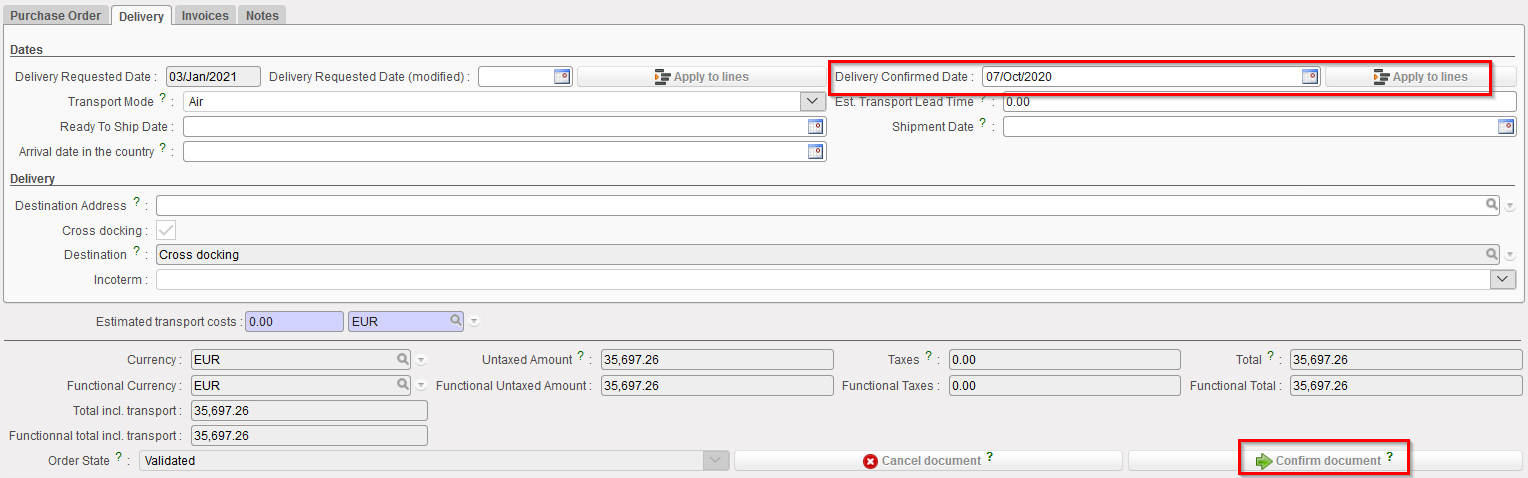 |
| PO – entering the delivery confirmed date and confirming the order |
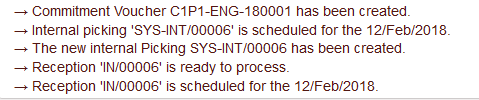 |
| Message received after confirmation of the PO |
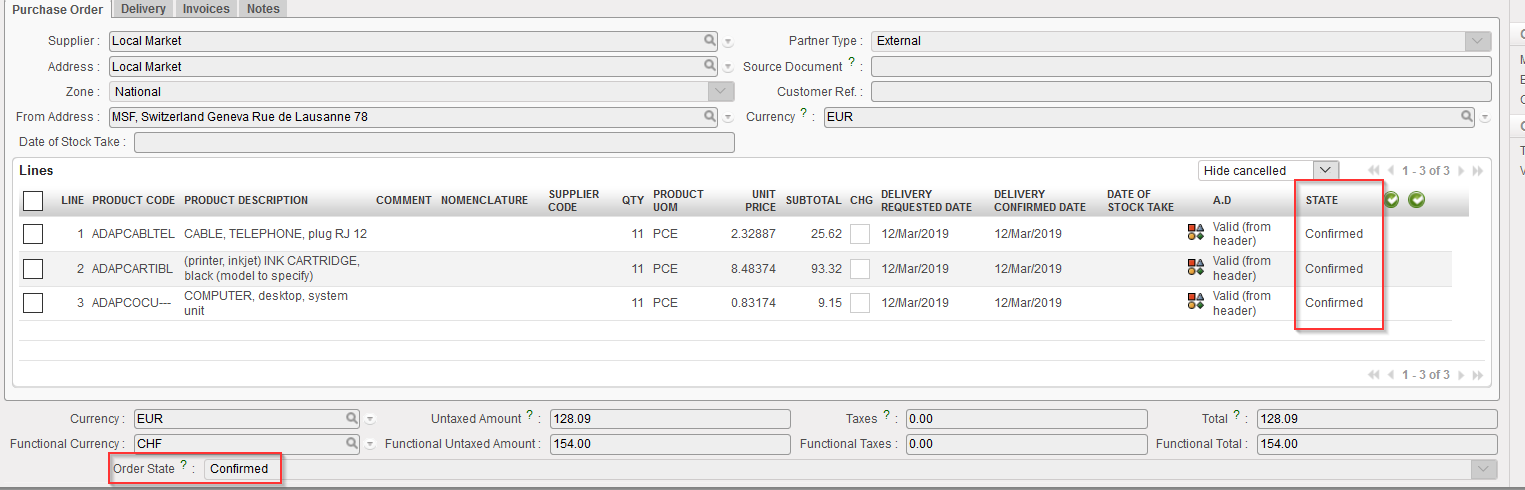 |
| All lines of the PO are confirmed and the PO is confirmed at header level |
Note that if you try to confirm a PO which has been sent to an internal partner, you will receive a (non blocking) warning message. Confirmation should not be done manually but via synchronization. The PO will be confirmed automatically when the corresponding FO on the supplier side will be confirmed.
 |
| Warning message given by system when trying to confirm a PO which should be confirmed via synchronization |
