
Supply User Manual ENG -> 4. Procurement -> 4.6 LU-SU3201: Purchase Orders (POs) - Generals -> Q. How to Cancel a Purchase Order.
Q. How to Cancel a Purchase Order.
Sometimes, you may need to cancel an entire PO or a specific PO-line. Note that POs created by OST can be cancelled or cancelled & resourced while POs created from scratch can only be cancelled.
To cancel an entire PO, click on the “Cancel” button at the bottom of the PO screen and confirm via a click on “Cancel only” on the pop-up screen. The example below is for a PO created from scratch.
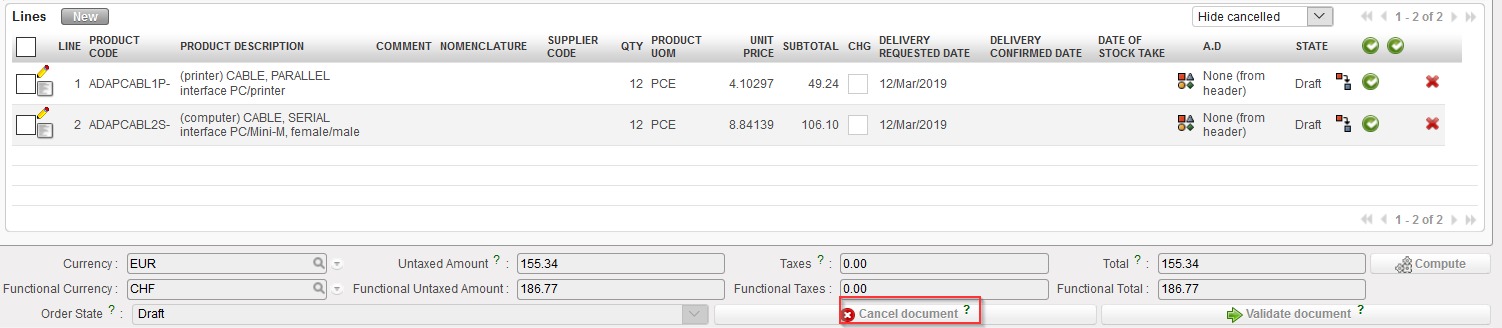 |
| Cancelling a PO |
 |
| Confirming the cancellation of a PO |
The PO switches to state “Cancelled” and all its line also switch to the state “Cancelled“. You have to use the filter located on the top of the “Lines table” to see them.
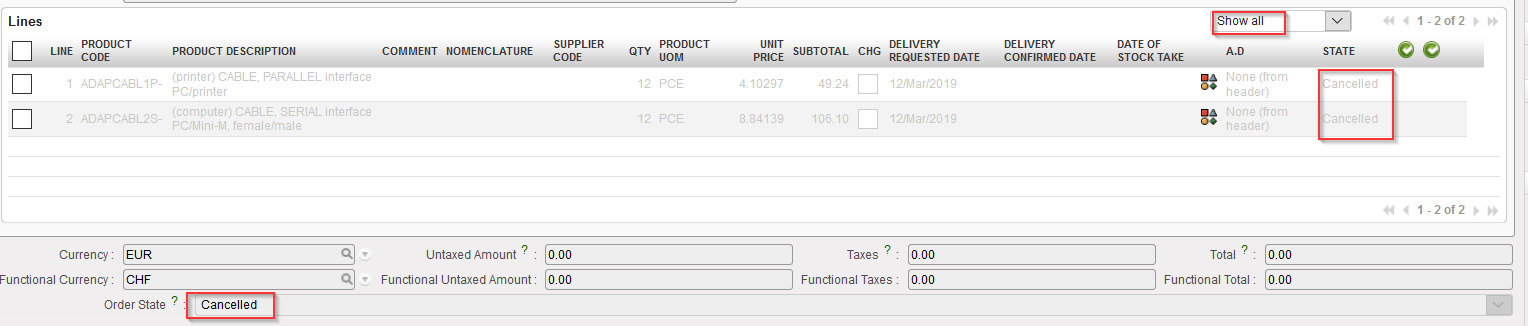 |
| Cancelled PO |
You may also cancel POs created by the OST. The process is the same. Click on the “Cancel document” button at the bottom of the PO screen and confirm via a click on “Cancel only” on the pop-up screen. The example below is for a PO created by the OST. Note that in this case you have the choice between cancelling or cancelling & resourcing.
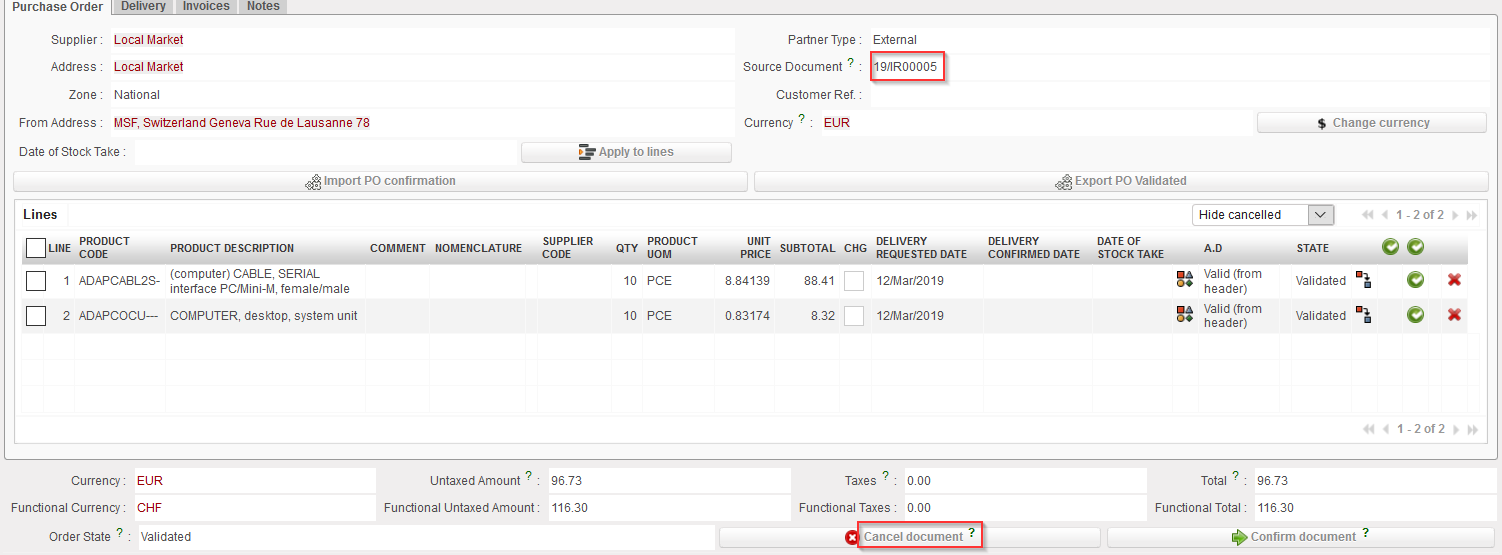 |
| Cancelling a PO created by OST |
 |
| Confirming the cancellation of a PO |
The PO switches to state “Cancelled” and all its line also switch to the state “Cancelled“. You have to use the filter located on the top of the “Lines table” to see them.
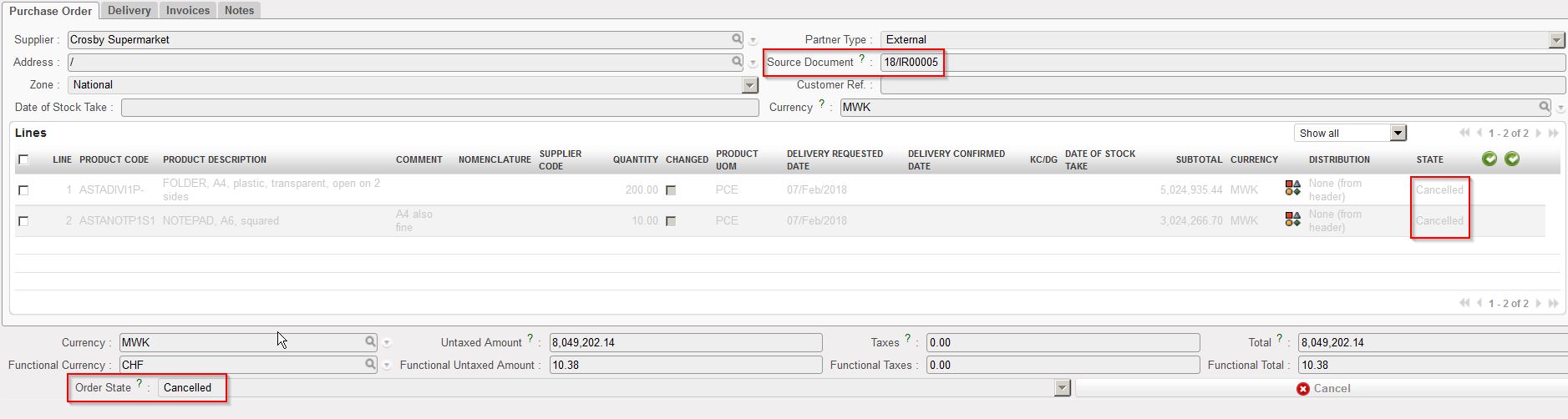 |
| Cancelled PO |
A validated PO can also be cancelled except if the PO supplier is an internal partner supplier (another instance). In this case, the cancel button won’t be available at the bottom of the PO screen and the cancellation should be done on the supplier instance.
