
E. a) If the RFQ was generated from a Tender
Go to: Purchases / Purchase Management / Requests for Quotation
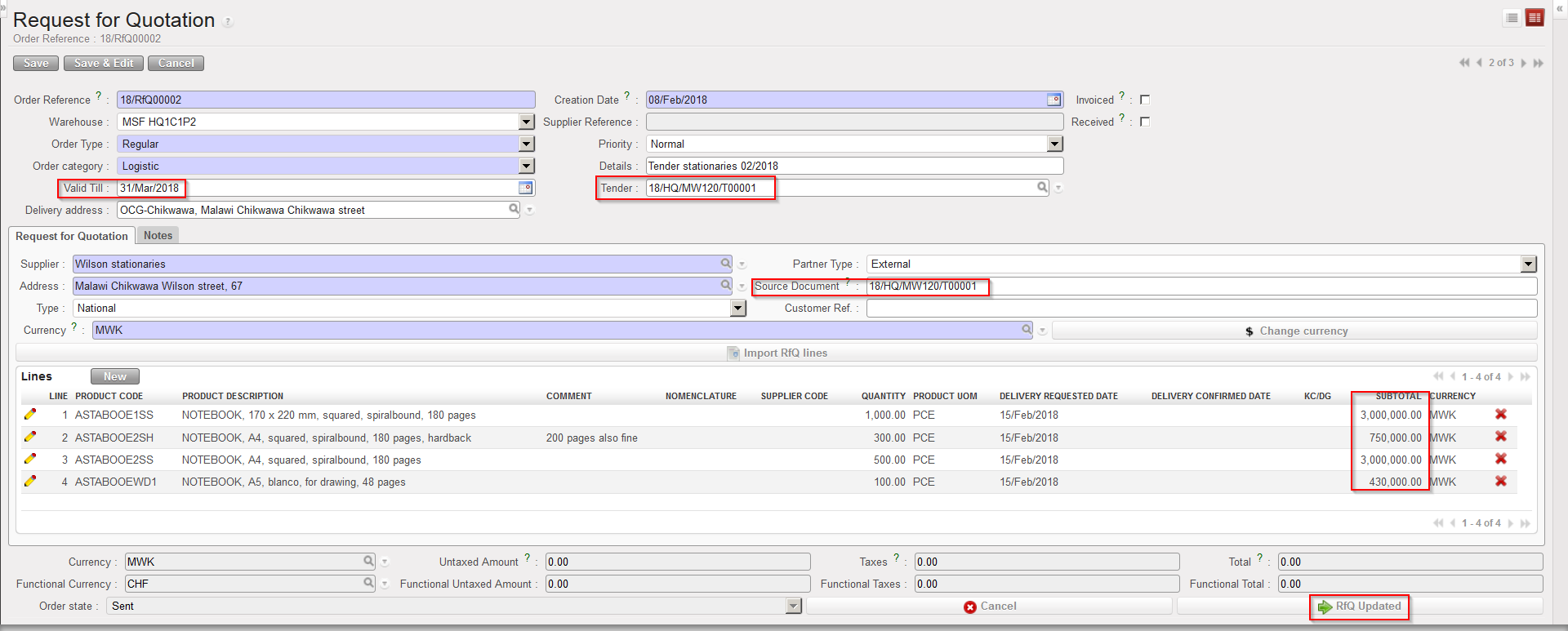
- Use the search tools to search for the Requests for Quotations linked to the appropriate Tender.
- For each linked Request for Quotation, click on the pencil icon on the left side of the screen.
- In the “Lines” table, click on the pencil
 in front of each line to open the “Purchase Order Line” screen and update the unit price. Save the changes by clicking on the “Save & Close” at the top of the “Purchase Order Line” screen.
 - Enter the “Valid Till” date of the quotation on the RFQ header.
- Click on the “RFQ Updated” button at the bottom of the screen.
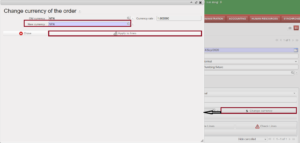
- Optional to update currency if needed
 |
| Updating an RFQ |
Note that the “Valid Till” date is mandatory before clicking on “RfQ Updated“.
