
E. b) If the RFQ was created from scratch
Once the RFQ has been created and sent to the supplier, you can enter the supplier’s answer.
Go to: Purchases / Purchase Management / Request for Quotations
1.Select the Request for Quotation to be updated by clicking on the pencil  at the left of the appropriate row.
2. In the “Lines” table of the “Request for Quotation” tab, click on the pencil at the left of the product line you want to update.
3. Update the price provided by supplier in the “Unit Price” field.
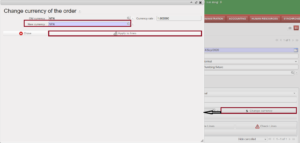
4. Optional to update currency if needed
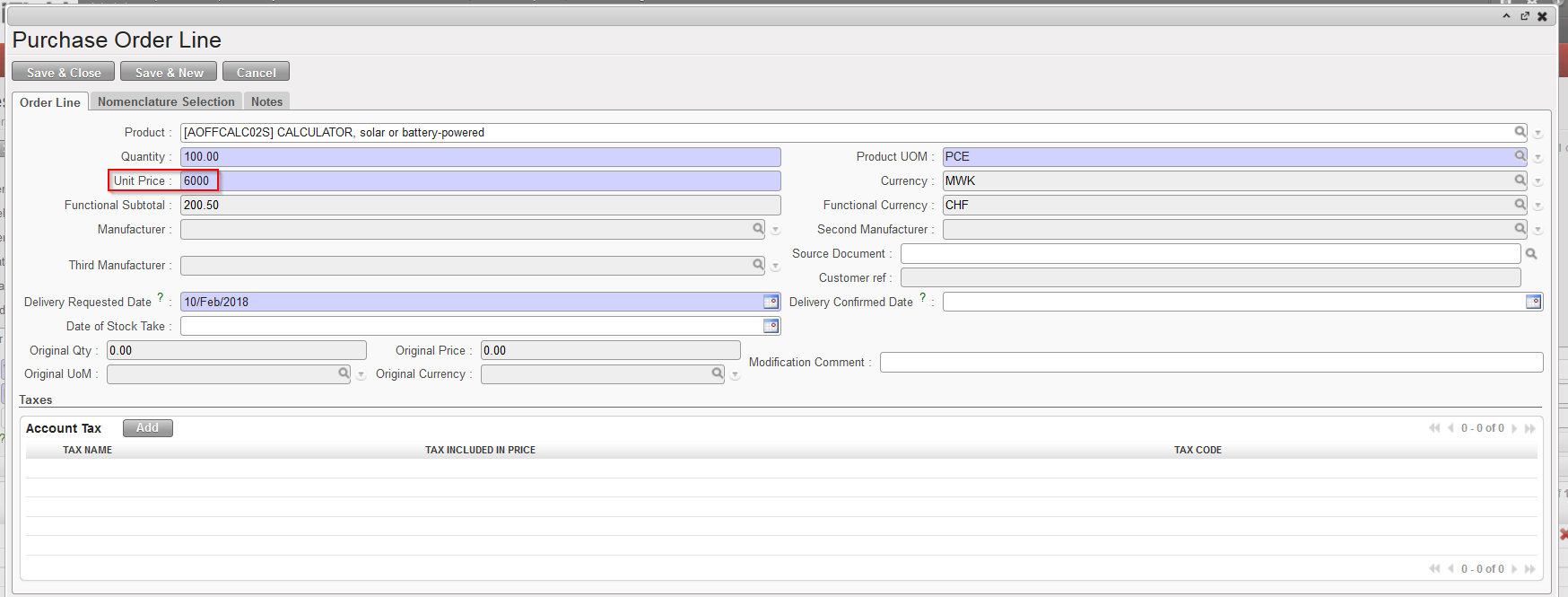 |
| Updating an RFQ line |
4. Click on “Save & Close” to return to the main Request for Quotation screen and update another line if needed.
5. When all product lines prices have been updated, in the header, enter the expiry date of the quotation in the “Valid till” field.
6. Enter any additional information in the “Notes” tab if needed.
7. Save the changes by clicking on the “Save” button.
8. Click on “RfQ Updated“, the state of the RFQ switches to “Updated“.
Unlike the RFQs related to a Tender, it is still possible to change the product on the RFQs created from scratch when updating it. However, when cancelling a RFQ from scratch, there will be no resourcing process possible but the RFQ could still be reset to Draft even after cancellation.
