
Supply User Manual ENG -> 4. Procurement -> 4.10 LU-SU3401: Procurement Advanced Features -> E. How to replace a kit with its components on a Purchase Order (or Field Order)
E. How to replace a kit with its components on a Purchase Order (or Field Order)
In some cases, it may be necessary to explode a kit into its components on a PO or an FO. One example of when this would be necessary is if an order is placed to an ESC, and, instead of confirming the kit, ESC confirms they have certain products or modules.
Therefore, after the PO has been validated, but before confirmation, the kit product should be exchanged for the relevant items which the ESC has confirmed they can provide.
For Field Orders, the process is the same, except that the process of replacing the kit with components should be done when the FO is in draft status, before it is validated.
Remember, a Theoretical Kit Composition List in status “completed“, is needed to be able to replace the Kit with its components on the PO or FO.
Go to: Purchases / Purchase Orders (or Orders / Orders / Field Orders)
- Search for and open the relevant (draft or validated) PO or (draft) FO.
- Identify amongst the product lines, where is the kit which you wish to replace, and click on the
“Replace with kit components” icon:
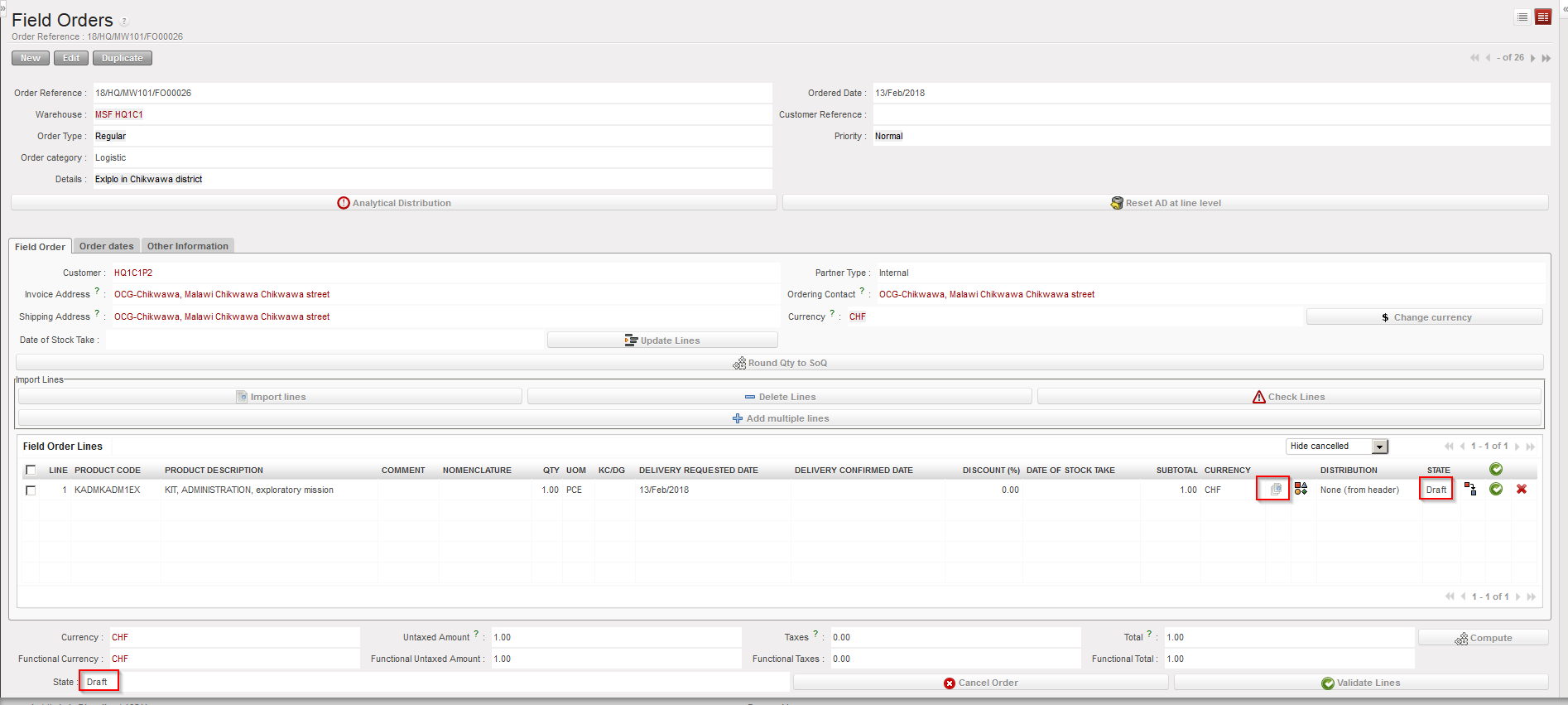 |
| Replacing a kit with its components on an FO |
- The “Replacement Items Selection” screen appears. Select a theoretical kit (and version) which will be used as template for the replacement (alternatively you may also enter the replacement items one by one via the “New” button).
- Click on the “Import Items from Theoretical Kit” button, and the components of the selected kit/version will appear as replacement items. Check all the details are correct and modify if necessary.
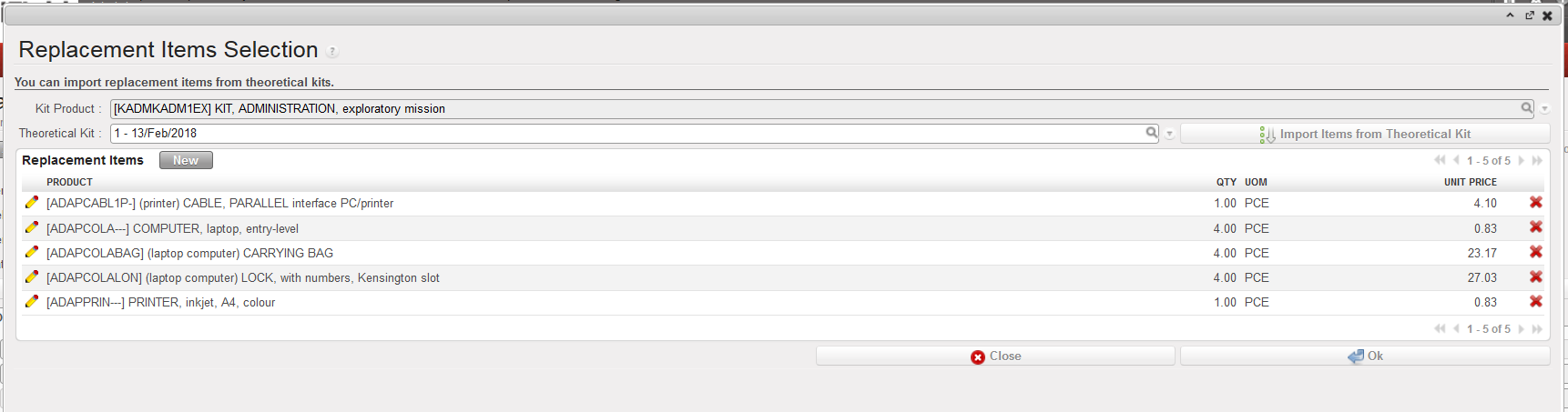 |
| Replacement Items Selection screen |
3. Click on “OK“.
4. The kit has been replaced by its components.
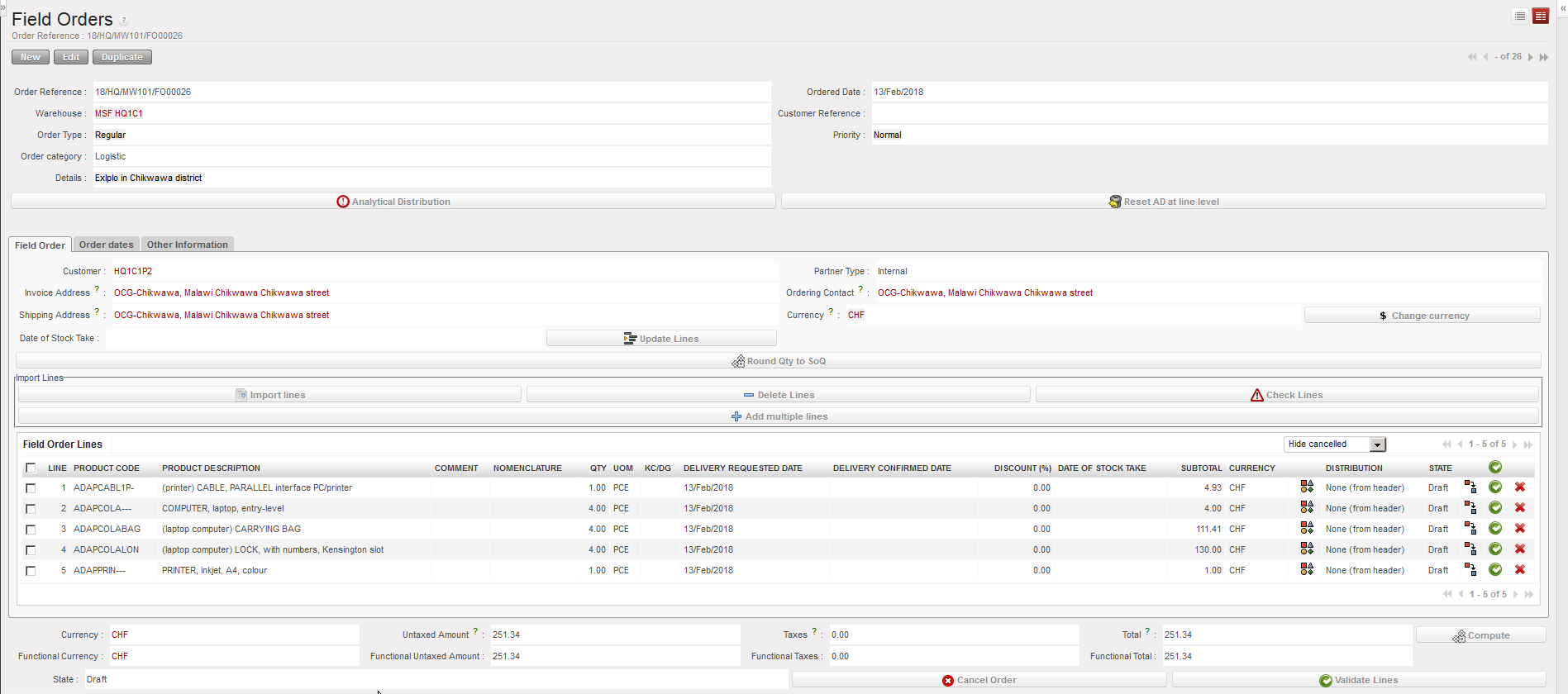 |
| Kit replaced with its components on an FO |
