
Supply User Manual ENG -> 4. Procurement -> 4.10 LU-SU3401: Procurement Advanced Features -> J. How to configure a PO customized default text
J. How to configure a PO customized default text
This option enables users to add a customized text/message to be displayed at the end of a PO print out (PDF).
At PO header level a tick box, “Show PO Default Message” should be checked to activate this option. Checkbox can only be ticked when PO is in “Draft” or “Validated” status.
In order to configure this message, user need to go to:
Go to: Supply Configuration / Orders / PO customized text
- Enter a message in the text frame.
2. Click on Save
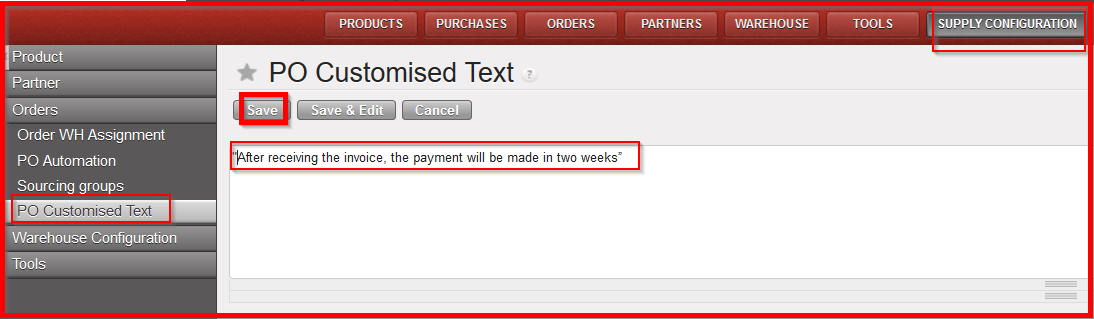 |
| PO customized text |
3. Open a new Draft PO and fill in the basic information
4. Check the box “Show PO default message”
 |
| PO default customized text checkbox |
5. Click on “Purchase Order” on the right hand action menu (to print out the PDF)
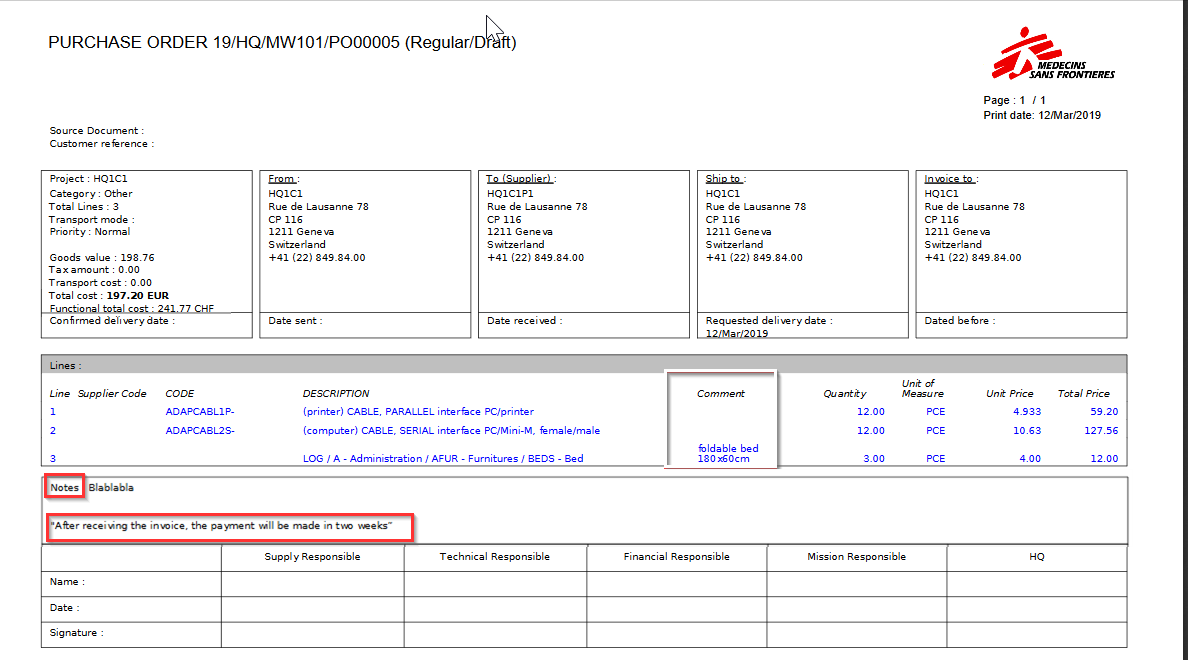 |
| PO PDF Print Out |
