Supply User Manual ENG -> Products -> 3.1 Products in UniField -> A. Product in Unifield
A. Product in Unifield
Products are the central axis in UniField. Every single operation pivot around products. From the point at which an order is created in the system until the same product is consumed by a customer or beneficiary, a variety of documents will be generated in UniField in order to facilitate the movement and help trace products along the supply chain.
A product requires parameters, classification, and attributes in order to trigger different processes throughout the product’s life cycle and as it passes along the supply chain. This information is key master data; its structure and composition within UniField will assist in improving efficiency and visibility within the MSF Supply Chain.
The right to create and modify products in UniField is restricted according to user rights at different levels as it should be done with great care to ensure full functionality of the system. The majority of products will be created/updated via the UniData interface, but some products may still need to be created/updated by OCs (to check with UniData and OC procedures).
This chapter is essential to understand and manage the supply chain efficiently.
Products are the central element of UniField, and all the other aspects of UniField revolve around them. The Supply Chain process is triggered when a product is requested by a requestor e.g. in a project. The system will draw information about the product from the UniField database including specific details such as expiry dates, batch numbers and any other data related to that product. It is very important to keep the product information up to date as this is a key source of data for the whole system.
The system will display the mandatory fields for the product in blue, depending on the characteristics of the product (category, nomenclature, etc).
Each of the different types of product and characteristics are described in detail in this chapter; users should familiarize themselves fully with this Chapter before progressing to other Supply Chapters.
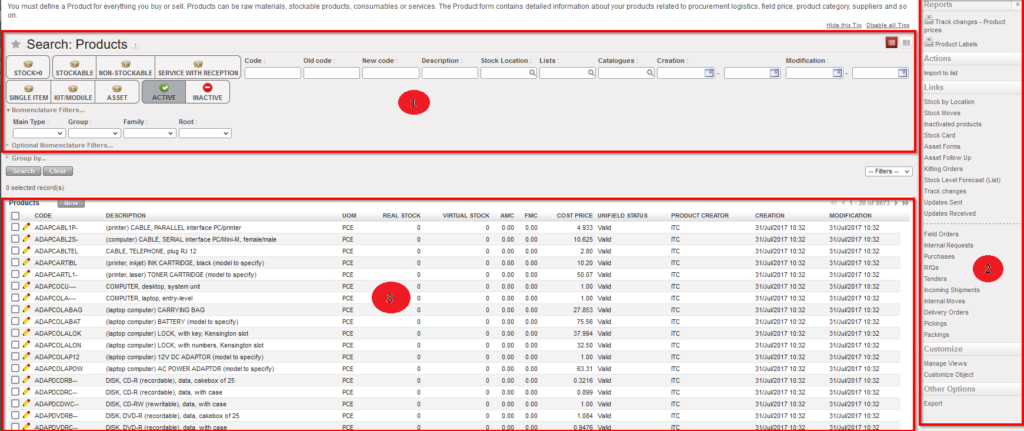
Products dashboard view
The product dashboard view is divided into three main areas as shown in the image above:
1.Search area
This has several search fields to filter for one or more specific products. The search can be generated by entering the values of the product you wish to see either by clicking on the relevant filter buttons (e.g. by clicking on the “Service with Reception” button), or by entering information in the relevant filter fields (e.g. Code, Description etc) then clicking Search.
2. List view of selected products
Under the Search Area, the system will display a list of products. The list of products displayed will correspond to the values which were entered as search criteria in the Search Area. If no search has been generated, a complete list of all the database items will be available, in the alphabetical order of their code. Only 20 product lines are displayed by default on the screen, but users can view the next page of products by clicking on the next arrow in the top right hand corner of the search list results, or increase the limit of products to display per page (see image below). The search list displays basic information about each of the products – code, description, unit of measure, real stock, virtual stock, AMC (average monthly consumption), FMC (foretasted monthly consumption), cost price and status. You can also see whether a product is Unidata or local.

Controls to view next page
3. The “Actions” and “Links” menu
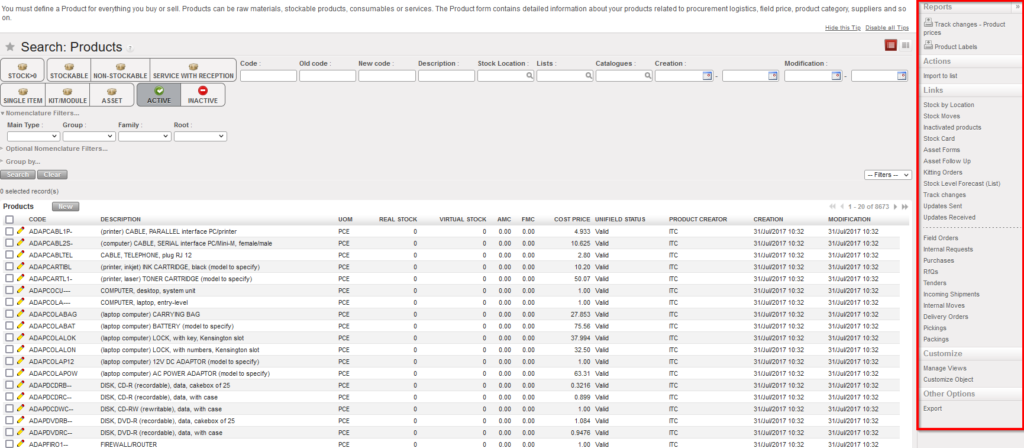
They are located at the right hand side panel and will be displayed automatically when a product has been selected (e.g: its checkbox has been ticked); it can also be displayed by clicking on the arrow icon
at the top right hand side of the screen. In this menu, the system will display a set of complementary tools, actions and links to facilitate analysis of the product selected, such as stock views, stock level forecasts and any other various documents.