
B. a) Mission Stock report
The MSR is a powerful report to look at stock levels, value of these stocks, consumption rates and pipes.
If the report is launched on a project instance it allows you to analyze these data on this instance.
If the report is launched on a coordination or on the HQ instance it allows you to analyze these data on this instance but also on one of the “children” instances (i.e. a project instance if launched on a coordination or a coordination/project instance if launched on the HQ) or globally (i.e. tantalizing the data) if you select the “full view” option.
It may be useful for a coordination to know all stock levels within the mission (i.e. stock levels in capital stock levels on projects or total stock levels).
A similar analysis can also be interesting to get at HQ level as it may be useful to know stock levels on all instances globally (all coordination and projects). This can facilitate inter-missions supply, help in case of emergency or allow analyses on global OC stocks.
Note that from a coordination instance you can see stock levels on all projects linked to this coordination (children), but the opposite is not true. You cannot see from a project stock levels in capital or on other projects (parent or brothers). However, the MSR can also be very useful to use at project level in order to analyze stock levels on this specific (project) instance.
In the below example, we focus on the use of the MSR at coordination level (not HQ, not project).
Go to: Warehouse / Inventory Management / Mission Stock Report
|
|
|
Mission Stock Report |

The initial screen informs you on when data were last updated (see the field “Last update“). Mission Stock Report data are updated thanks to the synchronization mechanism and to some programs which are running in the background.
If you want to refresh the data, select the instance on which you are running the MSR (coordination in this example) in the “Report” field and click on the “Update (in background)” button.
Be aware that this update can take some time, reason why this update is most of the time running automatically in the background at specific times. If you want to do a complete refresh, make sure that the same operation is firstly done on all project instances linked to your coordination (children) and that all instances are synchronized after these updates.
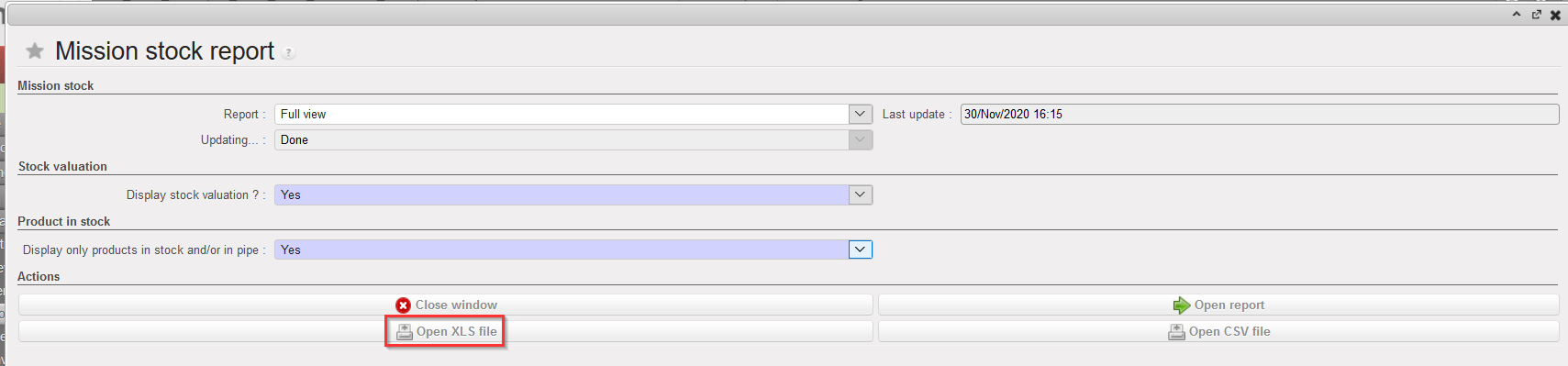
Via the above screen, you may choose what you want to see on the report:
- In the “Report” field, select which stock levels you want to see (choose the coordination if you want to see the stock levels in capital, a project if you want to see the stock levels on a specific project or “Full view” if you want to see the total stock levels on the whole mission).
- In the “Display stock valuation” field, select “Yes” if you want to see, on top of the stock levels, the valorization of these stocks. As unit price, the cost price of the relevant PMD sheets on the instance where the MSR is launched will always be used to value the stocks (even if from a coordination, you analyze the stocks of a project).
- In the “Display only products in stock and/or in pipe” field, select “Yes” if you only want to see on the report products with stock levels > 0 and/or products with pipe > 0 (otherwise, all products existing on the instance will appear on the report).
Finally, you should click on one of the following buttons:
- “Open report” will produce an on-screen report.
- “Open XLS file” will generate the same report on an Excel file
- “Open CSV file” will generate the same report on a CSV file.
If we launch the report on coordination with the following parameters and ask to get the XLS file, we get the below result.
|
|
|
Mission Stock Report |
|
|
|
Mission Stock Report – Excel file |
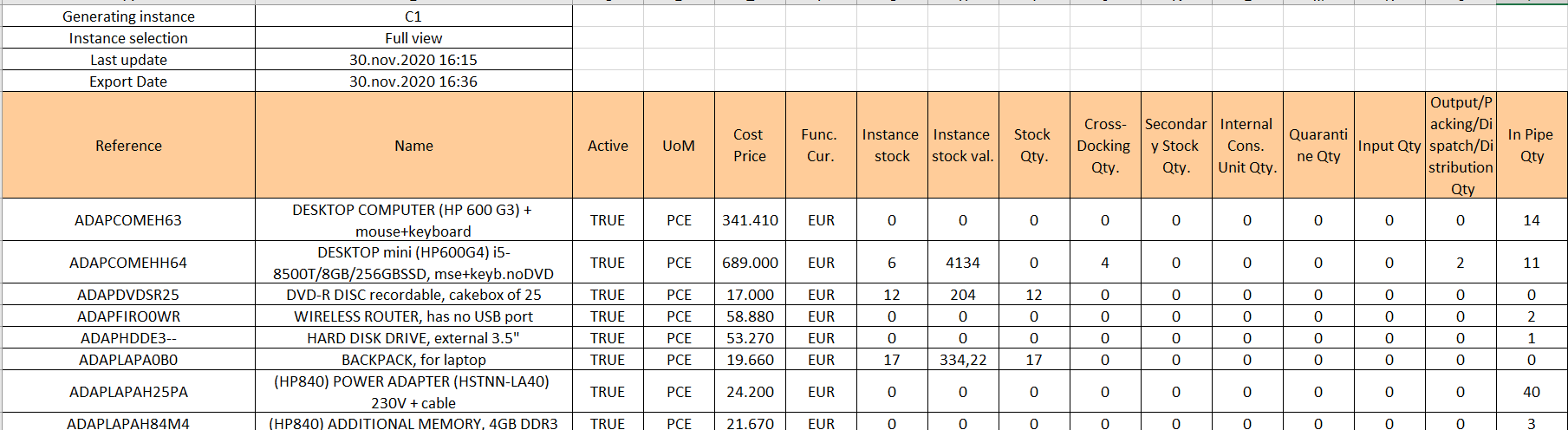
A report is produced in Excel according to the parameters entered. Use filters and “freeze panes” in Excel to be able to use the report in the best way. On top of the Excel sheet, you see the “Generating Instance” and what was selected in the parameter “Report“. The “Last update” cell will indicate the last time the update was launched for the report while the “Export Date” will indicate the date of the current export.
The following information is available in the report:
- Product code (Reference)
- Product description (Name)
- Unit of measure (UoM)
- Active (True or False)
- Cost price (in functional currency, taken from the PMD sheet on the instance where the MSR was launched)
- Functional currency
- Instance stock (total real stock level on the instances internal locations)
- Instance stock val. (value of the instance stock, cost price used)
- Stock Qty.(total real stock level on the instances internal locations excluding cross docking, intermediate stocks and ICUs)
- Cross-Docking Qty (total real stock level in cross docking on the instances)
- Secondary Stock Qty. (total real stock level in intermediate stocks on the instances)
- Internal Cons. Unit Qty. (total real stock level in ICUs on the instances)
- Quarantine Quantity (total stock level in Quarantine (analyse+before scrap))
- Input Quantity (total stock level in the Input location)
- Output/ Packing/ Dispatch/ Distribution quantity (total stock level in these 4 locations)
- In Pipe Qty (total quantity currently being ordered, Validated/ Confirmed PO-line and IN “Available”)
Instance stock = Stock Qty. + Cross-Docking Qty.+ Secondary Stock Qty.+ Internal Cons. Unit Qty.+ Quarantine Qty.+ In input + Output/Packing/Dispatch/Distribution qty.
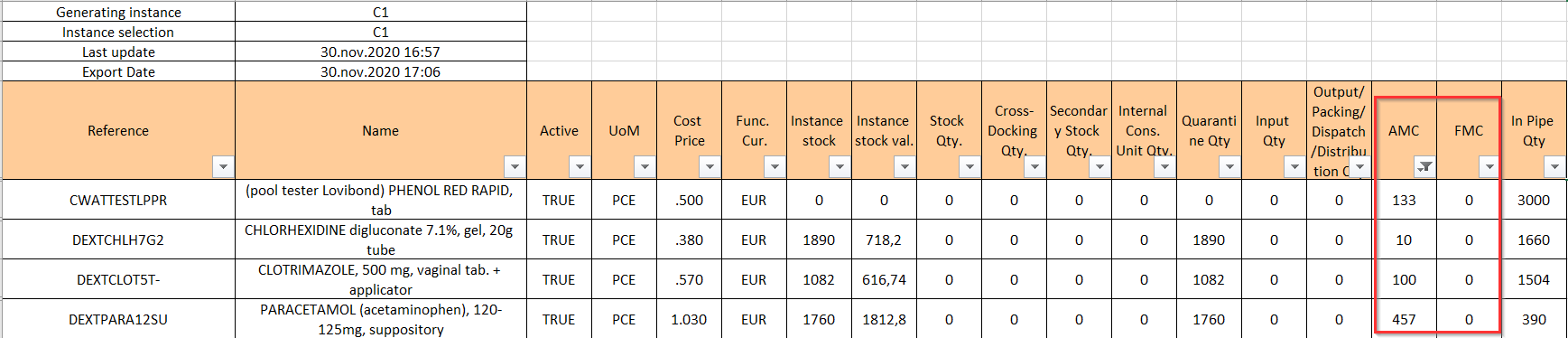
If you launch the MSR on a single instance (being your instance or one of your children instance), you will see 2 additional columns: AMC and FMC. Obviously, these consumption rates are meaningless if the report is launched in full view as they will most probably be different on the different instances.
- The AMC is the same as the one appearing on the PMD sheet. This AMC is calculated over the 3 past completed months. This means that if the report is launched on the 11/04/2018, the AMC is calculated based on the consumptions recorded between the 01/01/2018 and the 31/03/2018.
- The FMC (if any) is copied from a Monthly Consumption Report
|
|
|
Mission Stock Report – Consolidated XLS file |
Note that the “In Pipe Qty” could be misleading if you look at it on a MSR launched in full view as a PO created on a project and addressed to coordination could trigger the creation of a PO on the coordination (following the sourcing of an FO on order) which will be addressed externally. If these 2 POs are validated/confirmed, the quantity will be counted twice (doubled) in the pipe.
