
Supply User Manual ENG -> 5. Warehouse -> 5.8 LU-SU4201: Internal Moves -> B.HOW PRODUCTS MOVE THROUGH THE UNIFIELD LOCATIONS)
B. HOW PRODUCTS MOVE THROUGH THE UNIFIELD LOCATIONS
For processing day to day transactions, it may not be necessary to know the technical aspects of Internal Moves, but the following table may be useful to understand how each transaction in UniField will move products from one location to another. In the pick/pack/ship full shipment process, products will usually initially be in a stock (e.g. “LOG” or “MED”) or in cross docking.
The picking process will transfer them from this location to the “Packing” location. The packing process will transfer them from the “Packing” location to the “Dispatch” location“. Finally, the shipping process will transfer them from the “Dispatch” location to the “Distribution” location and from the “Distribution” location to a customer (partner) location.
| Source location | Destination location | Remark | |
| Picking | Stock or Cross docking | Packing | When sub PICK is “Closed” |
| Packing | Packing | Dispatch | When PPL is “Closed” |
| Shipment | Dispatch | Distribution | When shipment is “Shipped” |
| Shipment | Distribution | MSF Customer/Other Customer | When shipment is “Closed” |
Stock levels of each product in each location can be analyzed thanks to the “Stock by Location” functionality.
Go to: Products / Products / Products
- Using the filters and a checkbox, select the product for which you want to see the stock levels.
- In the action menu, select the option “Stock by Location”.
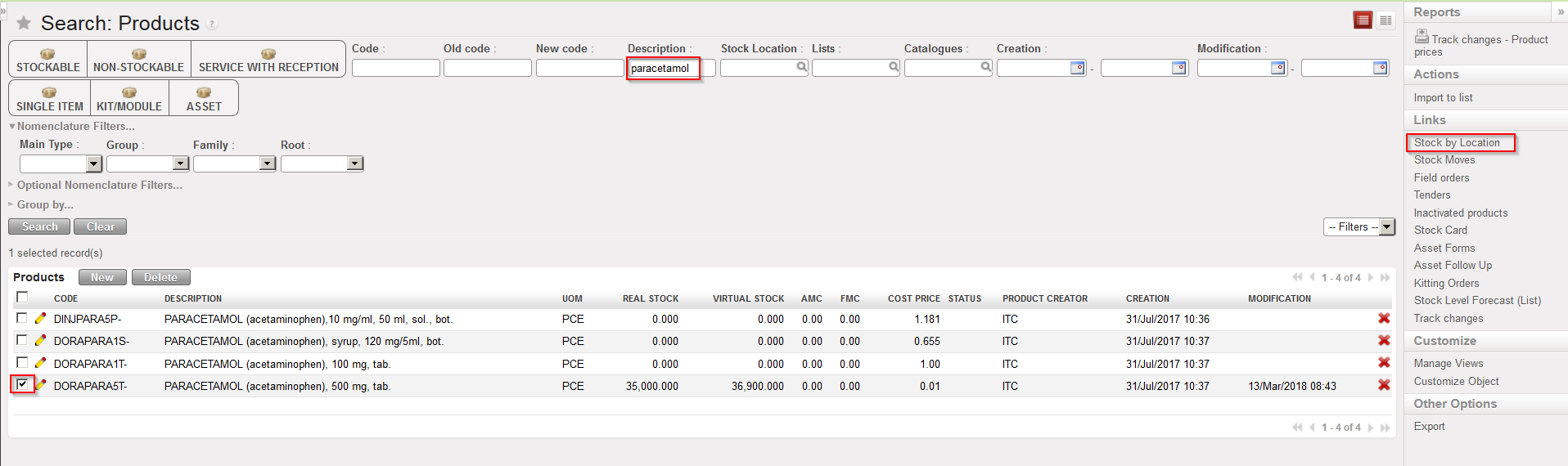 |
| Opening the “Stock by Location” screen for a specific product |
3. The “Stock by Location” screen appears. The “Instance Full View” is shown. Note that you may see here real and virtual stock levels. Click on the “Expand all” button to see all locations from the “Instance Full View”.
 |
| “Stock by Location”, Instance Full View collapsed |
4. The “Instance Full View” is expanded. All locations belonging to this view appear and real and virtual stock levels in all these locations are showed.
 |
| “Stock by Location”, Instance Full View expanded |
During the pick/pack/ship full shipment process, if you check this “Stock by Location” screen step after step, you can see your products moving through these locations as stock levels are changing at each step.
Note that on top of the “Instance Full View“, you may choose to show the “Partners Location” view which will show locations related to supplier and customers.
Another option is to select the “Virtual Locations” view which will show locations related to inventories, services, non-stockable products, …
