
Supply User Manual ENG -> Products -> 3.5 Assets -> B. How to complete an Asset Form
B. How to complete an Asset Form
The process described below should be carried out as soon as the asset is received in capital, to ensure continued system follow up. In most cases this process should be initiated automatically by the system at point of reception. (See LU-SU4101 Incoming shipments, “How to Receive an Asset”)
To complete an Asset reception form, go to: Products/ Assets /Asset Forms
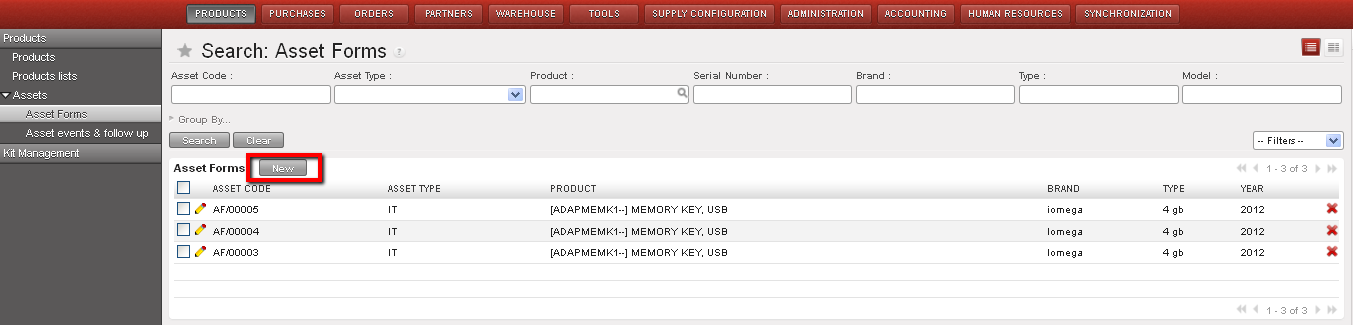
Asset Record list view
- Click on the “New” button to open a new form
1.1 Asset Code: the system generated a unique asset code for the item.
1.2 Asset Type: It will be generated once the product list is added (either IT, Transport, Medical, Telecommunication or General) (see step 2)
1.3 Add any relevant details to the Asset Description
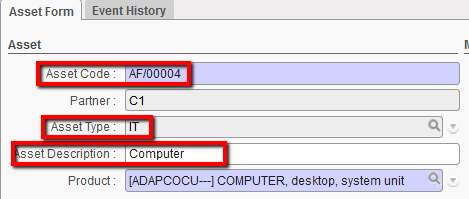
Asset form creation-1
2. Enter which product the asset represents. You can either type this (code or description) directly into the field, or, if you would like to see all items which are classified as assets, click on the magnifying glass to open a search & list view window. Note that the system will have already filtered products to only show products marked as assets. Enter any other relevant filters, search and select the relevant product.
If you cannot find the product representing your asset, you may need to check that it corresponds to the asset criteria, and if this the case, request for the product master file to be updated to reflect this.. Notice that when you have entered the Product, the Asset Type will have been generated according to the product nature.
In the MSF Codification Section, the Product Code, Description and Nomenclature will have pulled through for the relevant product.
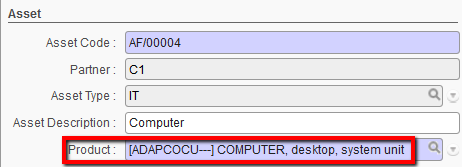
Asset form creation-2
3. HQ Reference and Local Reference: Depending on who is responsible for the initial registration of the asset, these fields can be filled with any useful information which will help to track the asset (e.g. the number / reference of asset sticker on the item).
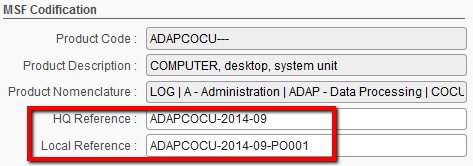
Asset form creation-3
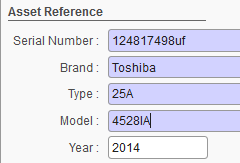
4. In the Asset Reference section, enter the Serial Number of the asset. This is the Manufacturer’s number to help identify the physical asset
5. Enter the brand and model of the asset
6. Enter the year of the asset if relevant
Asset form creation-4
7. Enter any relevant comments in the Comments field
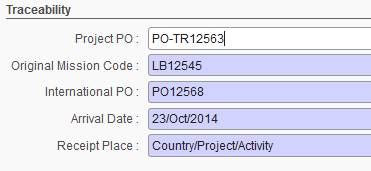
8. In the Traceability section, enter any Project PO reference
9. Enter the Original Mission code
10. Enter the International PO reference
11. The Arrival date, will have been populated with today’s date but is editable so this should reflect the date when you received the asset
12. Enter details of the Receipt Place (Country/Project/Activity)
Asset form creation 5
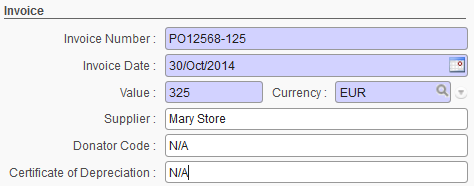
13. In the Invoice Section, enter the Supplier Invoice Number (this should be related to the International PO) and Invoice Date. If no invoice has been received yet, enter a value and then update it when the invoice has been received.
14. Enter the Value & Currency of the amount and the currency in which the invoice was made
15. Enter the name of the Supplier (the one on the International PO)
16. Enter the Donator Code for the name of the donor if funded on external funding (Finance should be able to provide this)
17. Enter the reference of the Certificate of Depreciation, this is for the reference (from Finance) if the value of this asset is to be depreciated (see finance regulations on how assets are managed)
Asset form creation 6
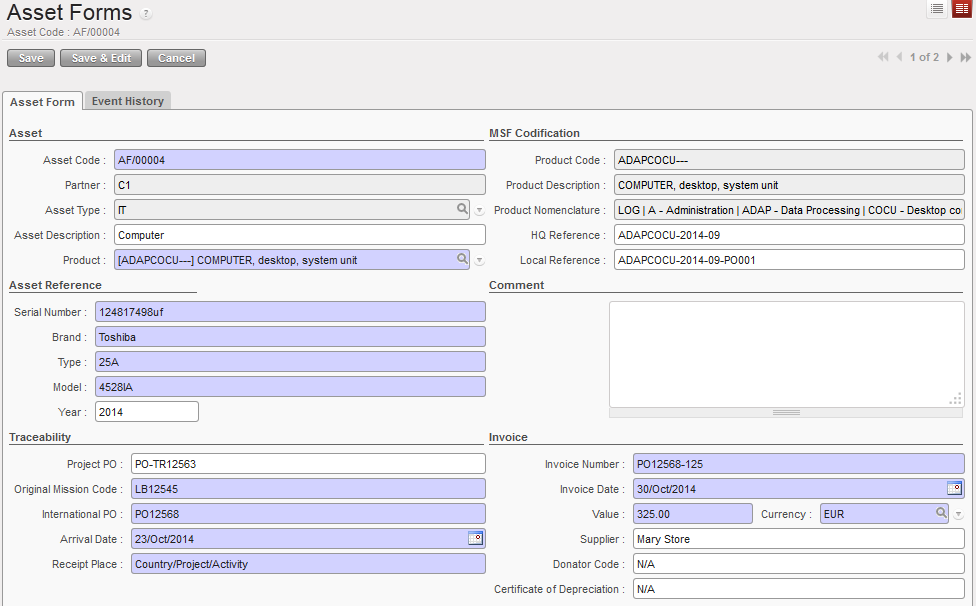
18. Click on Save to save your new Asset Form
Asset form creation 7
You can print an asset form by going to the Reports menu and select Asset Form
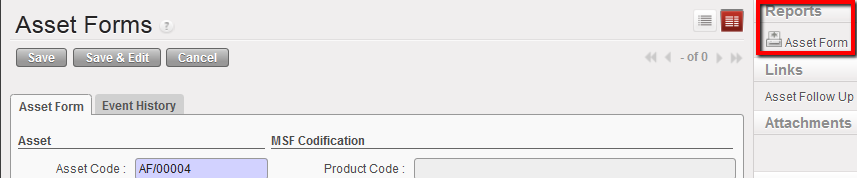
Asset Form report
