
Supply User Manual ENG -> 5. Warehouse -> 5.12 LU-SU4205 Replenishment Rules -> B. HOW TO CONFIGURE A LOCATION
B. HOW TO CONFIGURE A LOCATION
Go to: Warehouse /Replenishment Rules/ Configuration
Configuration sub menu options: Location Config, Inventory Review Config, Replenishment Parent Segment, Replenishment Segment, Product List Consistency Report
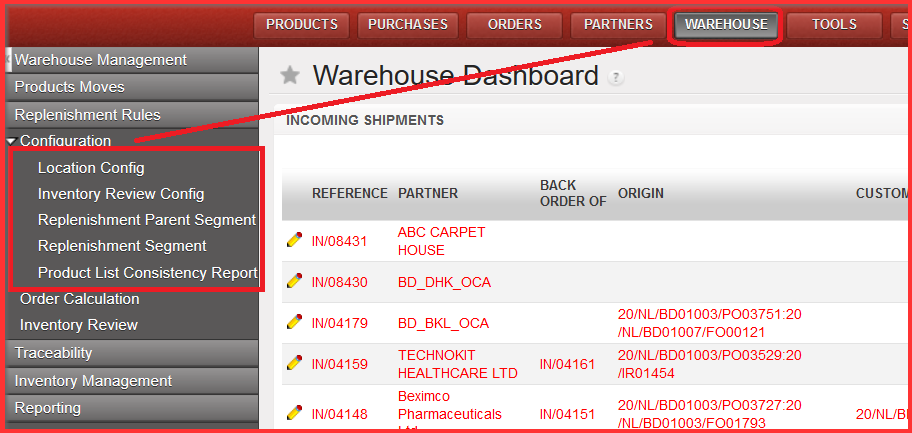
Go to: Warehouse / Replenishment Rules / Configuration / Location Config
1.Click on button “NEW” to create a new record.
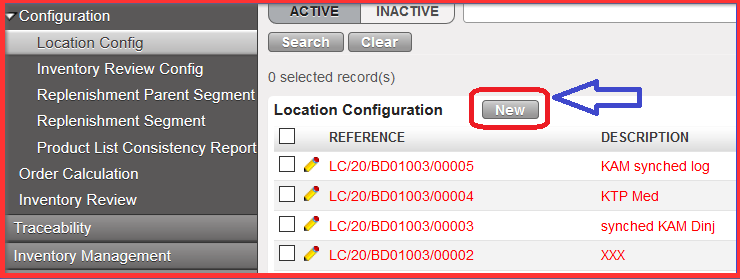
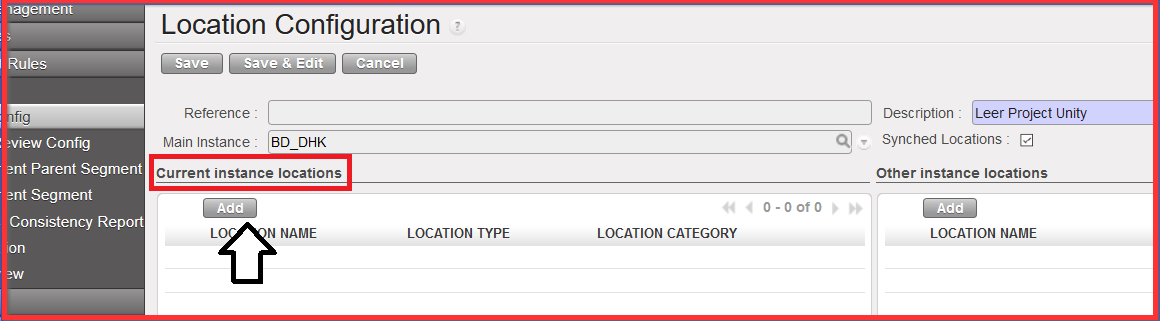
2. Click on “Add” under the “Current Instance location” part to choose a Stock location from your main instance.
This is the location which belongs to “Main Instance” (automatically populated at creation of Location Configuration) where the RR is created. This location must exist in the system and be a real instance.
|
|
|
Main Configuration Location – Current instance locations |
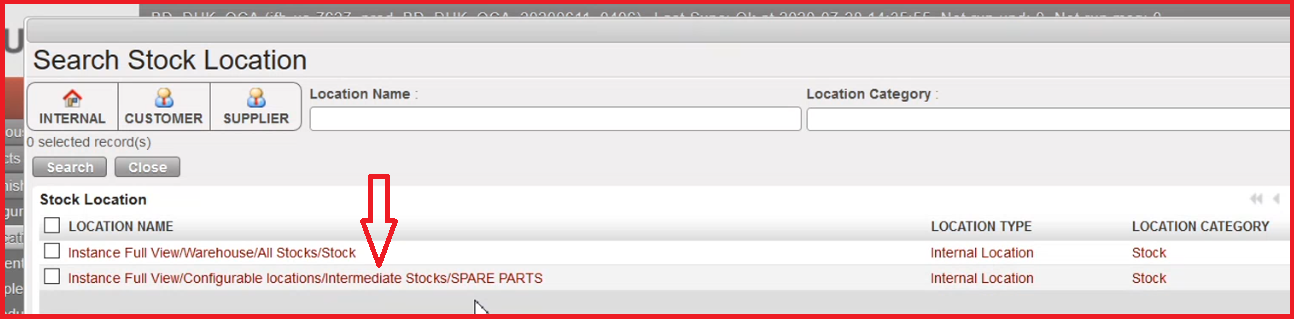
3. Select the Stock Location
4. Fill the “Description” field with a meaningful name
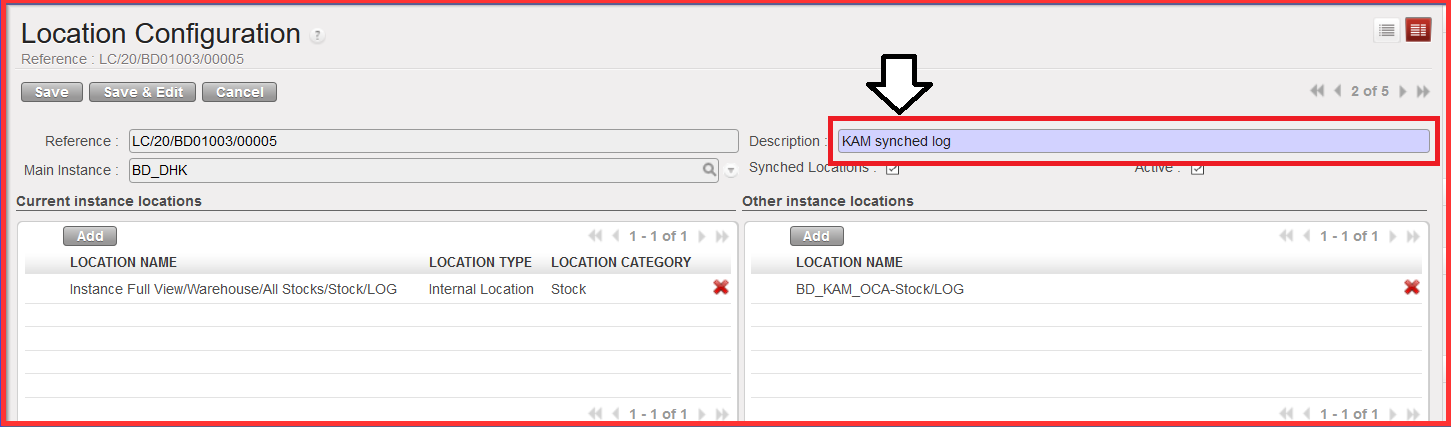
5. Click on “Add” on the “Other instance locations” section in case you need to configure location form another instance as well (OPTIONAL).
Indeed this action will be available only if the “Synched Locations” checkbox is ticked (automatically by default). Synched Locations are linked to “Other Instance locations” which are subordinated to Current Instance Locations (i.e.: project instances linked to COO). This means that this option is only available at COO level.
|
|
|
Main Configuration Location – Other instance locations -Synched locations ticked |
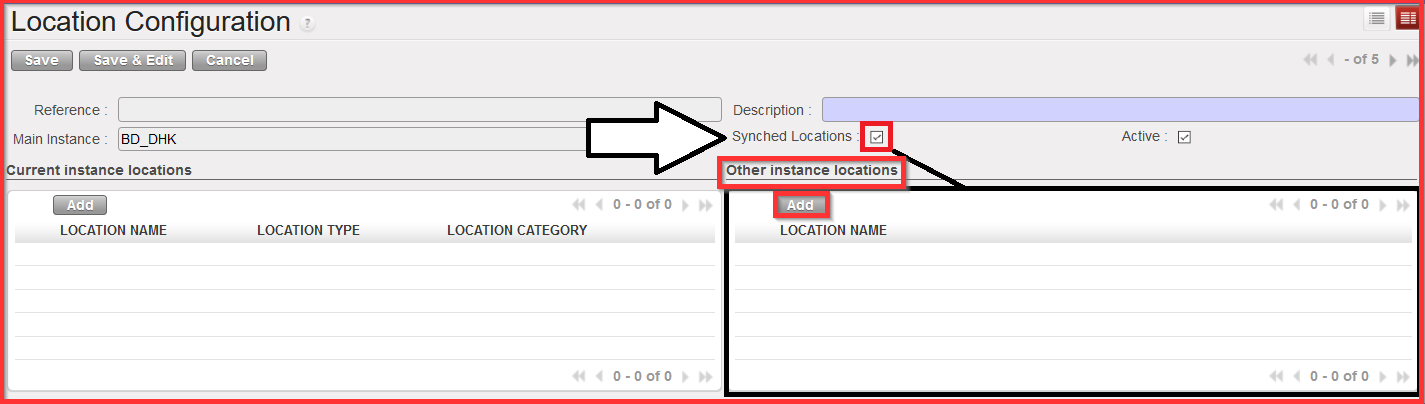
NB: If you untick “Synched Locations” checkbox, “Other Instance locations” won’t be available anymore.
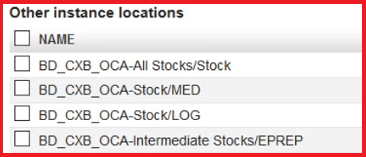
6. Choose the other sub-instance locations (you can choose from the predefined list of locations – see a picture example below) or create new one. (OPTIONAL).
7. Click on “Save” and see the message “Inventory Review Config has now been created” which is the next configuration step

