Supply User Manual ENG -> 5. Warehouse -> 5.6 LU-SU4105: Delivery Orders -> B. HOW TO CONVERT A PICKING TICKET INTO A DELIVERY ORDER (Simple Out Delivery / OUT); B.1. HOW TO CONVERT A DELIVERY ORDER (Simple Out Delivery / OUT) INTO A PICKING TICKET
B. HOW TO CONVERT A PICKING TICKET INTO A DELIVERY ORDER (Simple Out Delivery / OUT)
In the below example, an FO has been sourced from stock. As a consequence, a PICK has been created. This section explains how to convert this PICK into an OUT.
Go to: Warehouse / Warehouse Management / Deliveries / Picking
- Locate and open the Picking Ticket you wish to convert (it should be a main PICK).
- Check the content of the Picking Ticket, including source location and availability of the products.
- Click on the “Convert to Simple Out” button at the bottom of the page.
|
|
|
Picking Ticket |
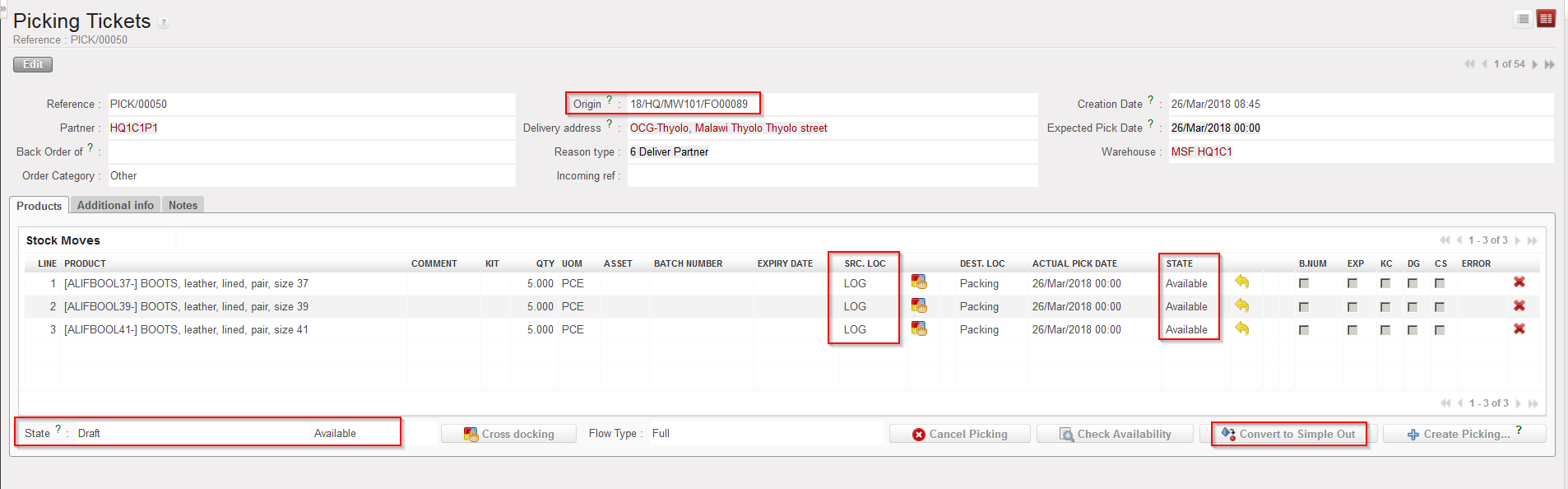
Note that in the above example, the Picking Ticket is “Available” and all its lines are “Available“.
Note that in the above example, the destination location of the products is “Packing“.
|
|
|
Delivery Order |
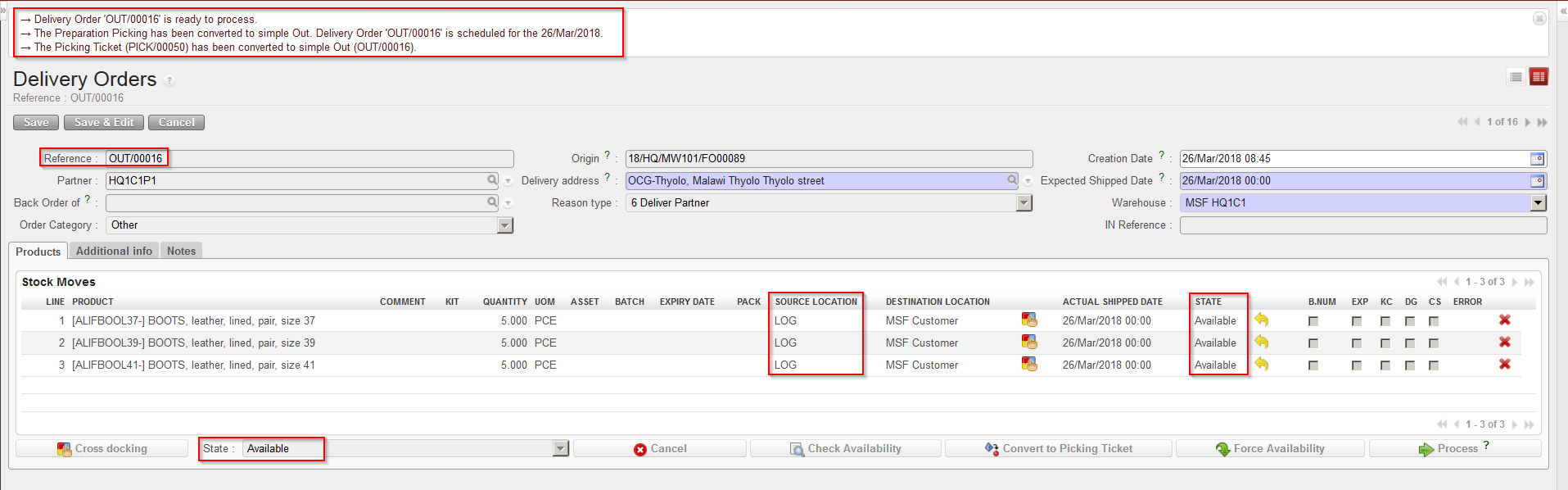
The Picking Ticket has been converted into a Delivery Order. Note that the source location did not change while the destination location changed from “Packing” to “MSF Customer” (in the above example, because the customer is another UniField instance). The Delivery Order has the state “Available“. Product lines keep the state “Available“.
The “Reason type” will not be changed in this OUT.
If the PICK/OUT has been created from an “Regular” type FO, the “Reason type” will be “Deliver Partner”. “Donation before Expiry” if it has been created from “Donation before Expiry” FO. “Standard Donation” if it has been created from “Standard Donation” FO. “Loan” if it has been created from “Loan” FO.
The example used above is quite simple as the objective was to illustrate the conversion principle. But you may have more complex situations with FOs partially validated, FOs partially sourced, FOs sourced partly from stock and partly on order, POs partially validated or partially confirmed, IN partially received, picking process already initiated, PICK partially picked, cancellation or cancel and resource used during the process,… These different situations will have various consequences on the conversion from PICK to OUT.
B.1. HOW TO CONVERT A DELIVERY ORDER (Simple Out Delivery / OUT) INTO A PICKING TICKET
In the below example, an IR has been sourced from stock. As a consequence, a OUT has been created. This section explains how to convert this OUT into an PICK.
Go to: Warehouse / Warehouse Management / Deliveries / Delivery Orders
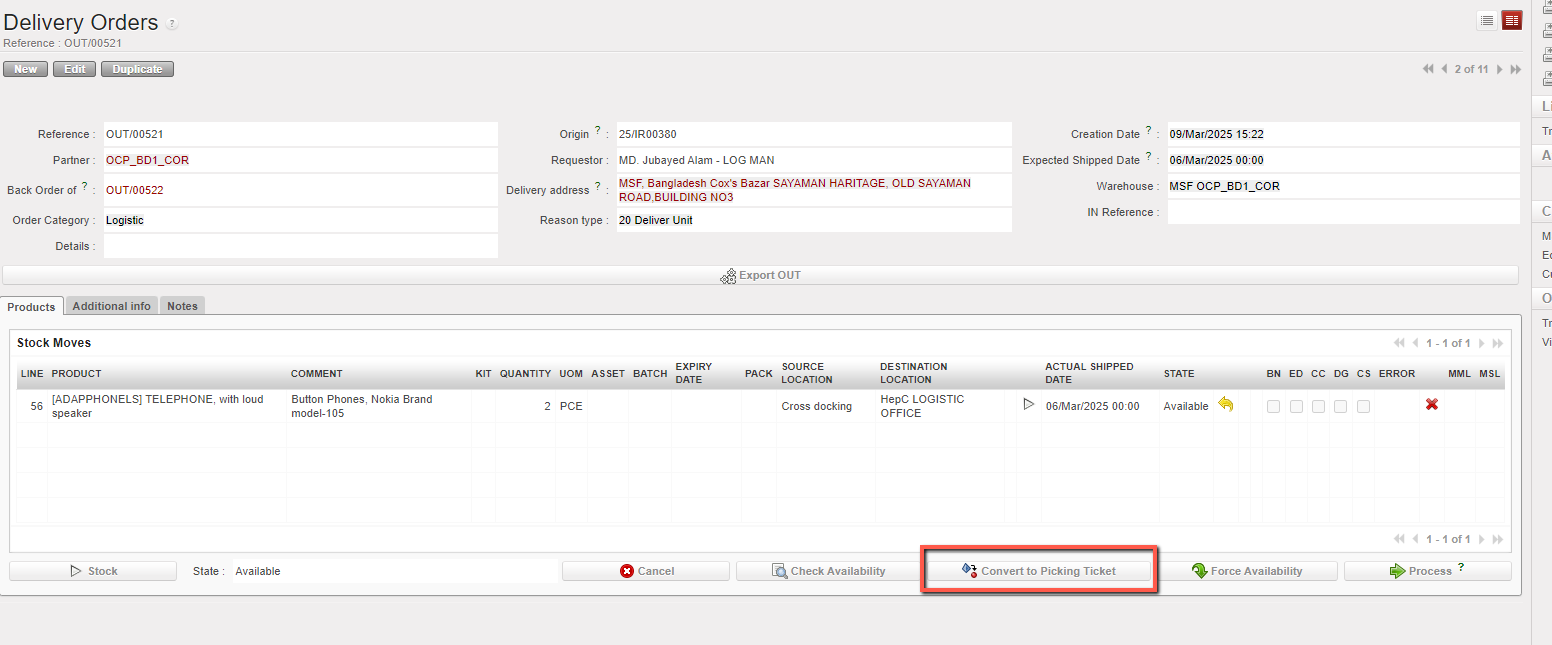
- Locate and open the Delivery Order (OUT) you wish to convert
- Click on the “Convert to Picking Ticket” button at the bottom of the page.
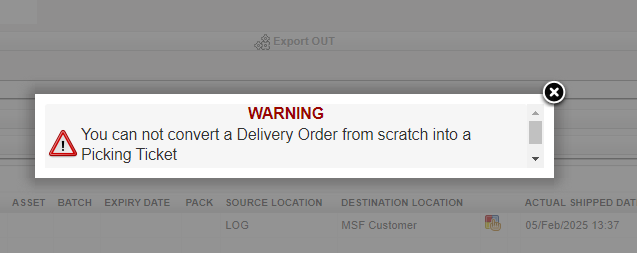
If the OUT is created from scratch “Convert to Picking ticket” option is blocked by the system with a warning message