
Supply User Manual ENG -> 4. Procurement -> 4.7 PURCHASE ORDERS (POs) - SPECIFICS -> B. How to create a Direct Purchase Order (DPO)
B. How to create a Direct Purchase Order (DPO)
A Direct Purchase Order is a PO for which the goods should not be delivered not to the instance where the DPO was created (usually coordination), but directly to the instance (usually project) which needs the goods (usually requested to coordination via a regular PO). A DPO cannot be created from scratch but must be created by OST. Suppliers allowed on DPO are external suppliers or ESC (but not internal partners). Note that the sender of the DPO and the receiver of the goods should be in the same mission.
When “DPO” is received at project level, Unifield enables to a status update of DPO at coordination level to related IN. The status update is linked to “IN” fully and partially. This means that both the CV (Commitment Voucher) and Supplier invoice is created for DPOs by the same triggers as for (normal) POs. Project creates PO to Coordination level. After the Synch, COO validates “FO” and sources “FO” to “DPO” (external supplier). After the validation and confirmation of DPO, instances are synched. Project level processes “Available Shipped IN” and SYNCH. Supplier Invoice is created, OUT from stock to stock is created and closed. “IN” from the other supplier to other supplier is created and Closed
You should start from a situation where you have a validated FO. This FO may have been created from scratch (pushed–FO) or via synchronization (pulled-FO created from a PO synchronized from the requesting instance).
Go to: Orders / Orders / Orders Sourcing Tool
- Source the FO on order to a DPO.
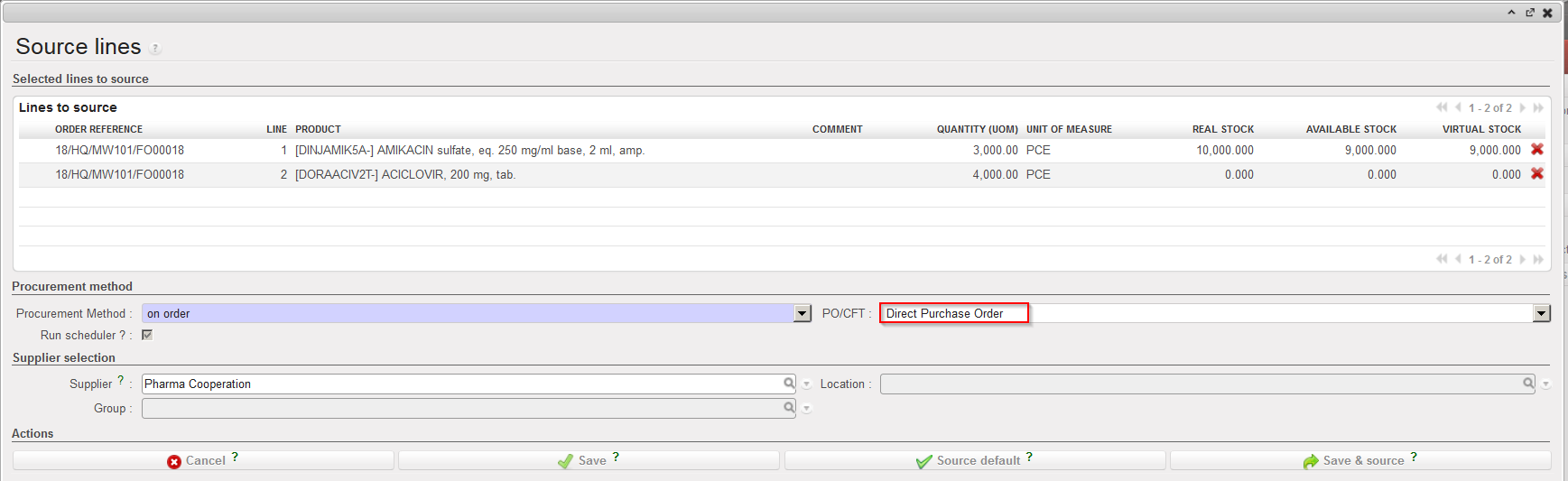 |
| Sourcing an FO to a DPO |
Go to: Purchases / Purchase Management / Purchase Orders
2. Find your Direct PO (it will be in “Draft” status).
3. Check that the order type is “Direct Purchase Order“.
4. Check the other header information and update if needed (order category, priority, details,…).
5. Check that the supplier is correct.
6. Check the FO indicated in the “Source Document” field.
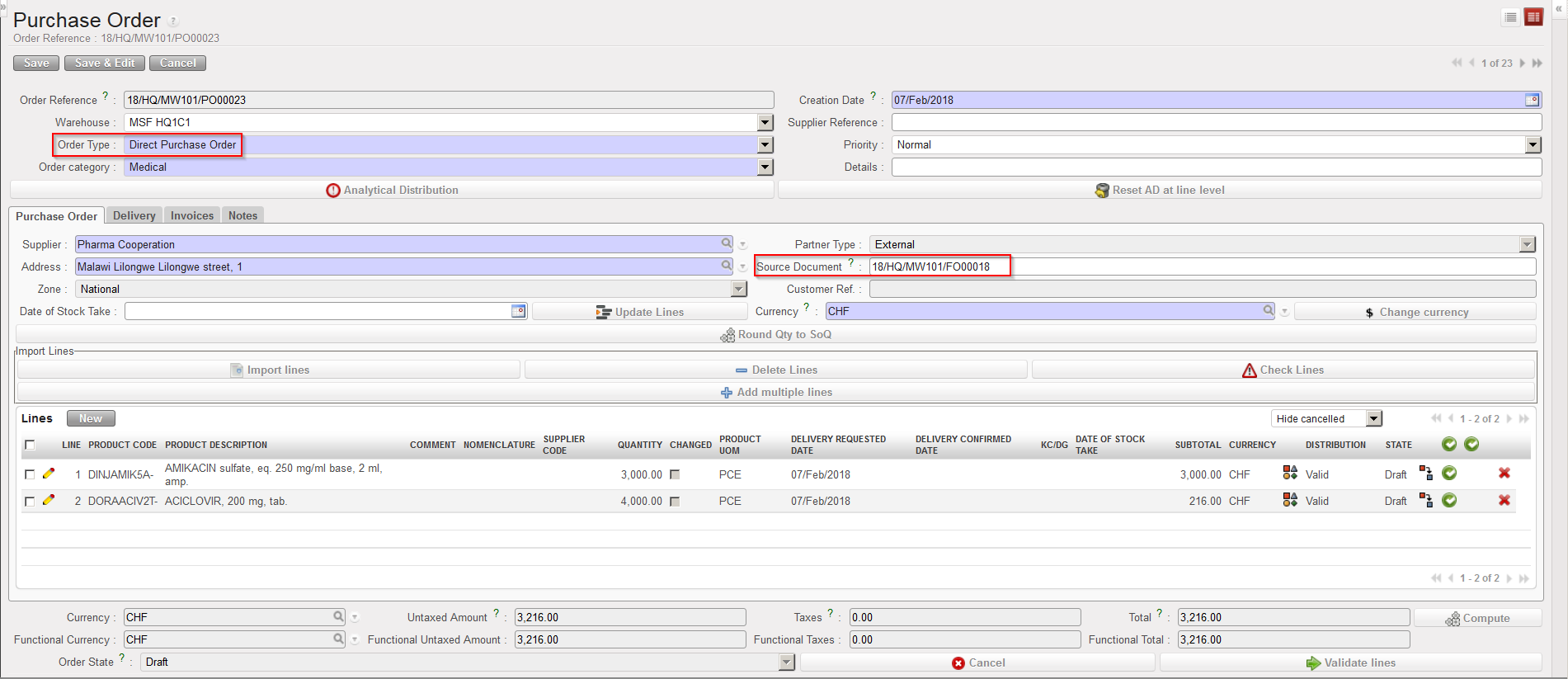 |
| DPO created by the OST |
7. Click on the “Delivery” tab and check the details of the “Destination partner” (i.e. instance -usually project- where goods should be delivered directly).
 |
| DPO – Delivery tab |
The next steps are exactly the same than the ones for a regular PO (validation, confirmation,…).
We will see in the Warehouse chapter how DPOs are received.
Note that a draft invoice will be created as soon as the DPO is confirmed on the instance where the DPO was created, but no IN (incoming shipment) will be created on this instance. The incoming shipment will be available at the receiving location in the state “Available shipped“. Following reception of this IN, the DPO should be closed manually.
