
Supply User Manual ENG -> 5. Warehouse -> 5.15 LU-SU4301:Traceability -> B. HOW TO CREATE BATCH MASTER DATA VIA FILE IMPORT
B. HOW TO CREATE BATCH MASTER DATA VIA FILE IMPORT
If many batch master data have to be created manually, it might be easier to prepare an Excel file and import these batches in the system. Note that only “Standard” batches can be created via import.
Go to: Warehouse / Traceability / Batch numbers / Import Batch Numbers
- Click on the “New” button.
- A file template may be generated by clicking on the “Or download a template”
 button.
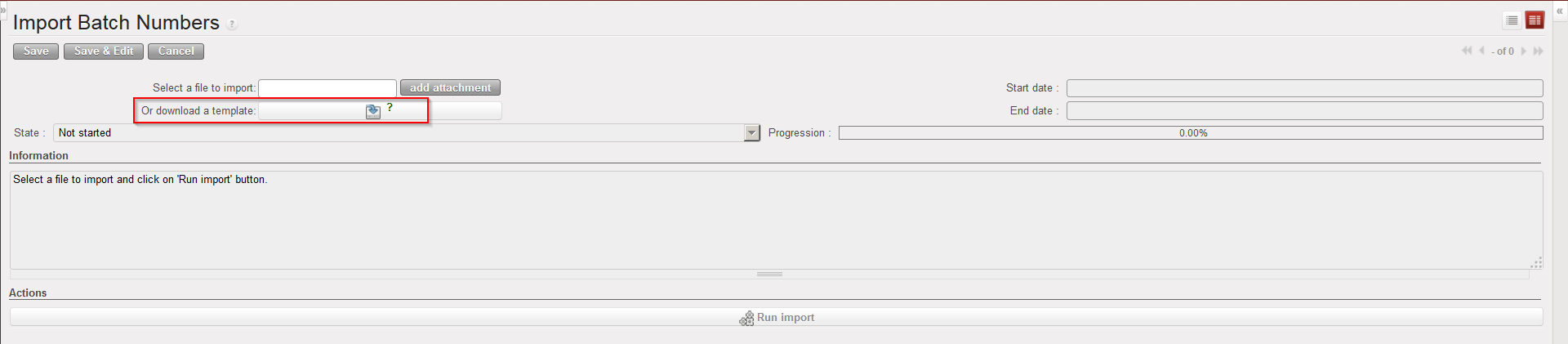 |
| Generating template for batch master data import |
3. Prepare your file. Each line should include batch number, type (Standard), expiry date and product code.
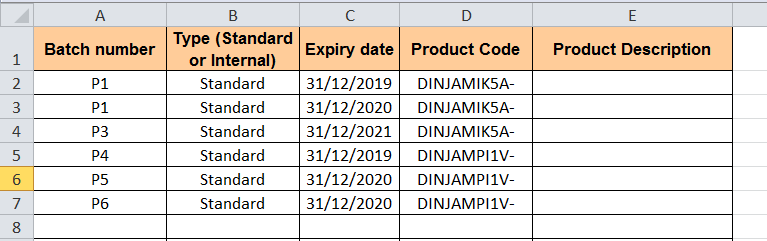 |
| Example of file for import of batches master data |
4. Click on the “add attachment” button and select the file to import on your computer.
5. Click on the “Run import” button.
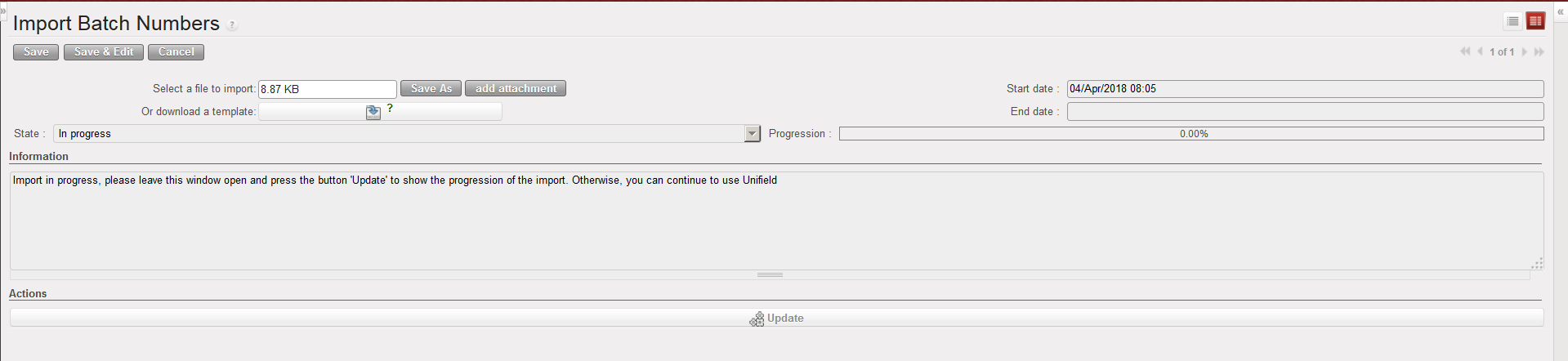 |
| Batches master data being created via import |
6. Once the file has been uploaded, you can see the created batches master data via Warehouse / Traceability / Batch numbers. Note that you need to untick the “Real” Filter as no real stock exists at this point for these new batches.
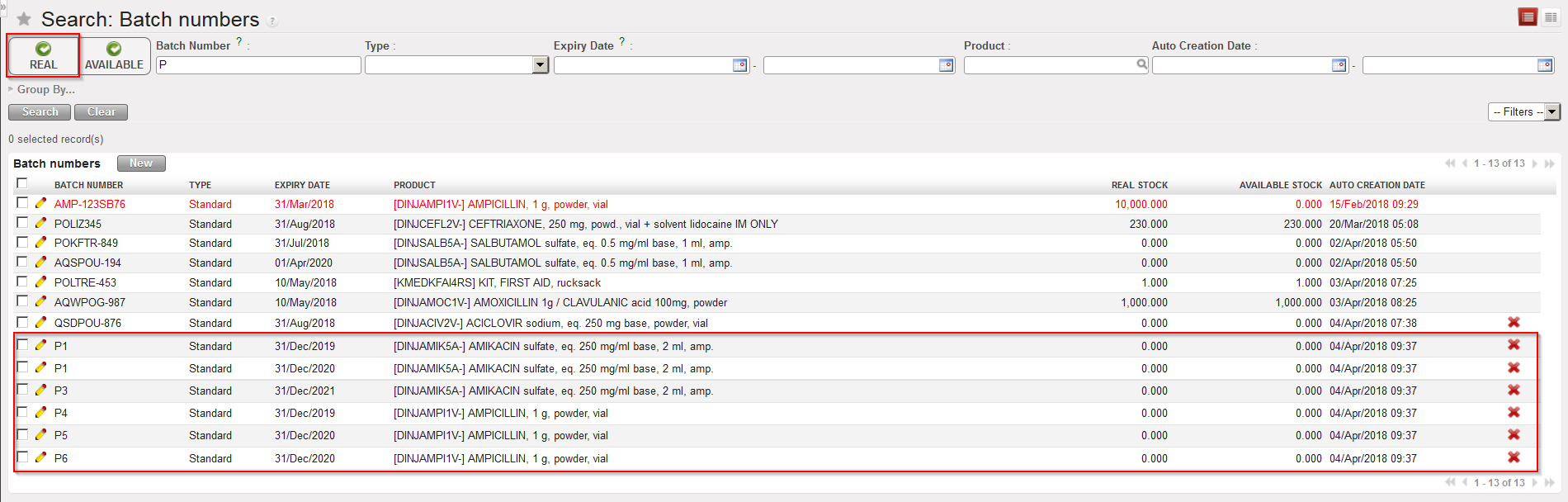 |
| Batches master data created via import |
