
Go to: Purchases / Purchase Management / Purchase Orders
- Open the PO that you wish to confirm (in edit or display mode). This PO should be in status “Validated” or “Draft-p” (meaning partially validated) and the line you want to confirm should be in status “Validated”.
- If not yet done, enter a “Delivery Confirmed Date” on the line you wish to validate and save this line.
- Click on the green button (Confirm) located at the right of the line you wish to confirm.
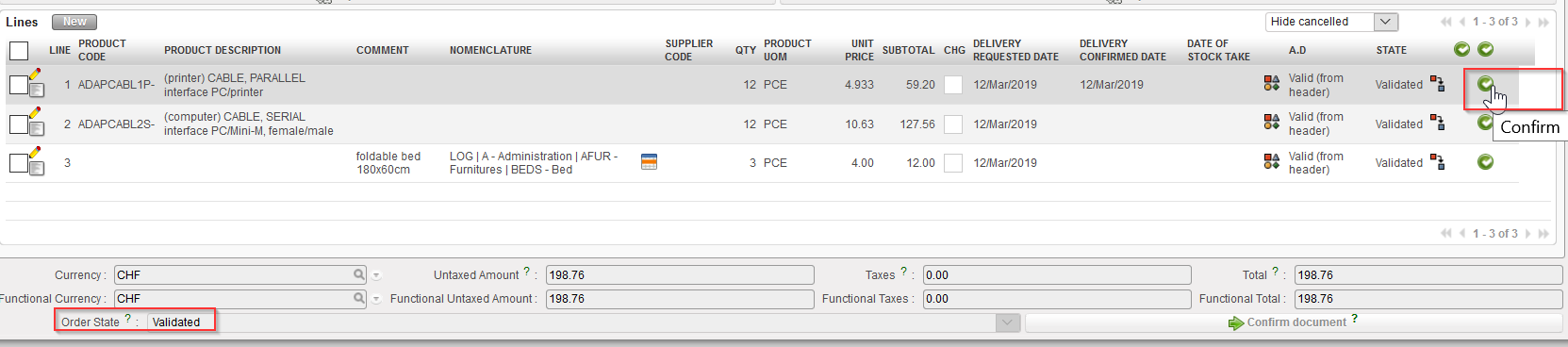 |
| Confirmation of 1 line of a PO in status “Validated” |
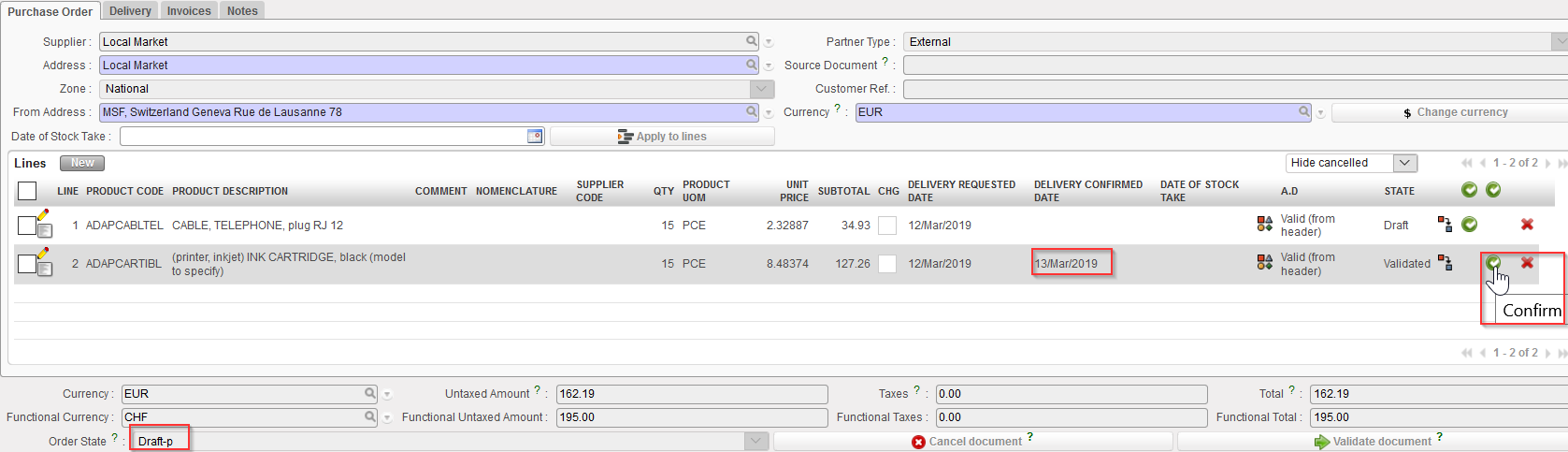 |
| Confirmation of 1 line of a PO in status “Draft-p” |
- The confirmed PO-line switches to “confirmed” while the other lines don’t change status. The PO itself (at header level) could change status (or not) according to the situations.
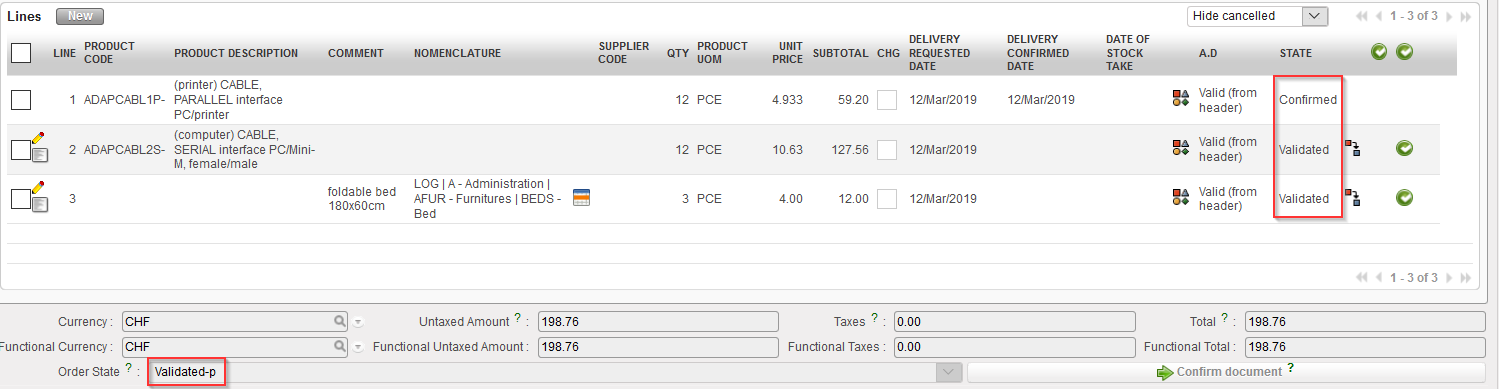 |
| The “Validated” PO on which 1 line was confirmed is now in status “Validated-p” |
 |
| The “Draft-p” PO on which 1 line was confirmed stays “Draft-p” |
