
C. a) From a Tender
Just as for the Tenders, most of the RFQs will be automatically created. They will be generated from the “Generate RFQs” button at the bottom of the Draft Tender. You will have as many RFQs created as suppliers.
Go to: Purchases / Purchase Management / Tenders
- Open your Tender.
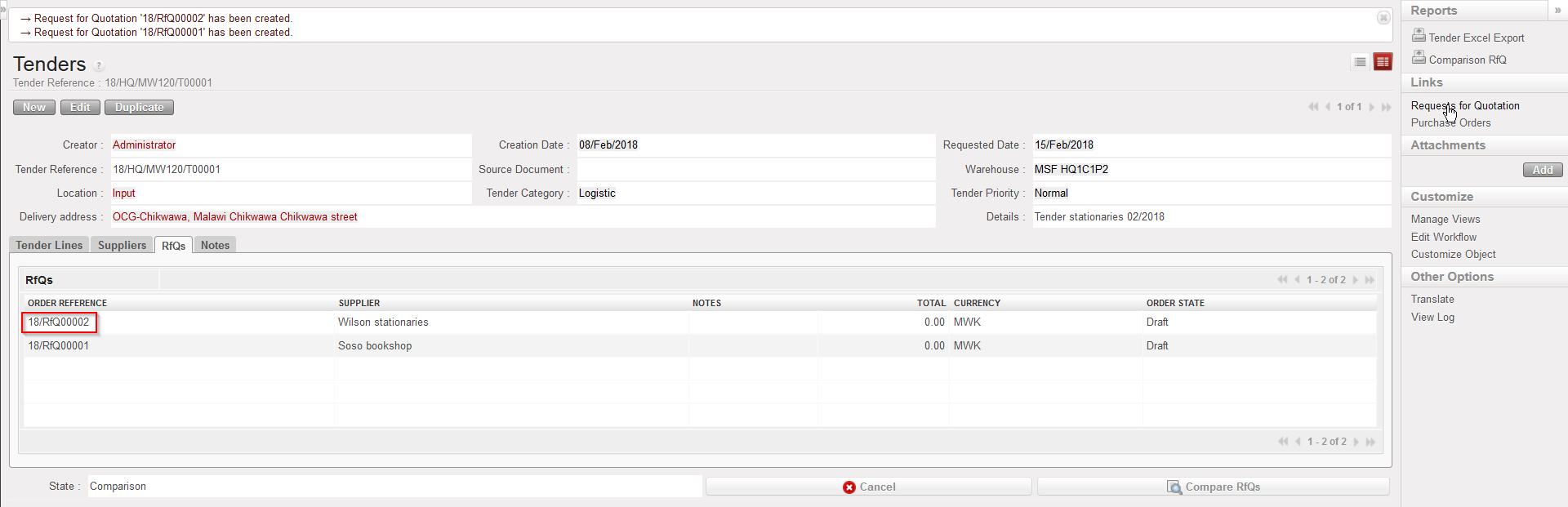
- Click on the “Generate RFQs” button. (System generates as many RFQs as suppliers have been selected). A message will appear confirming the creation of RFQs.
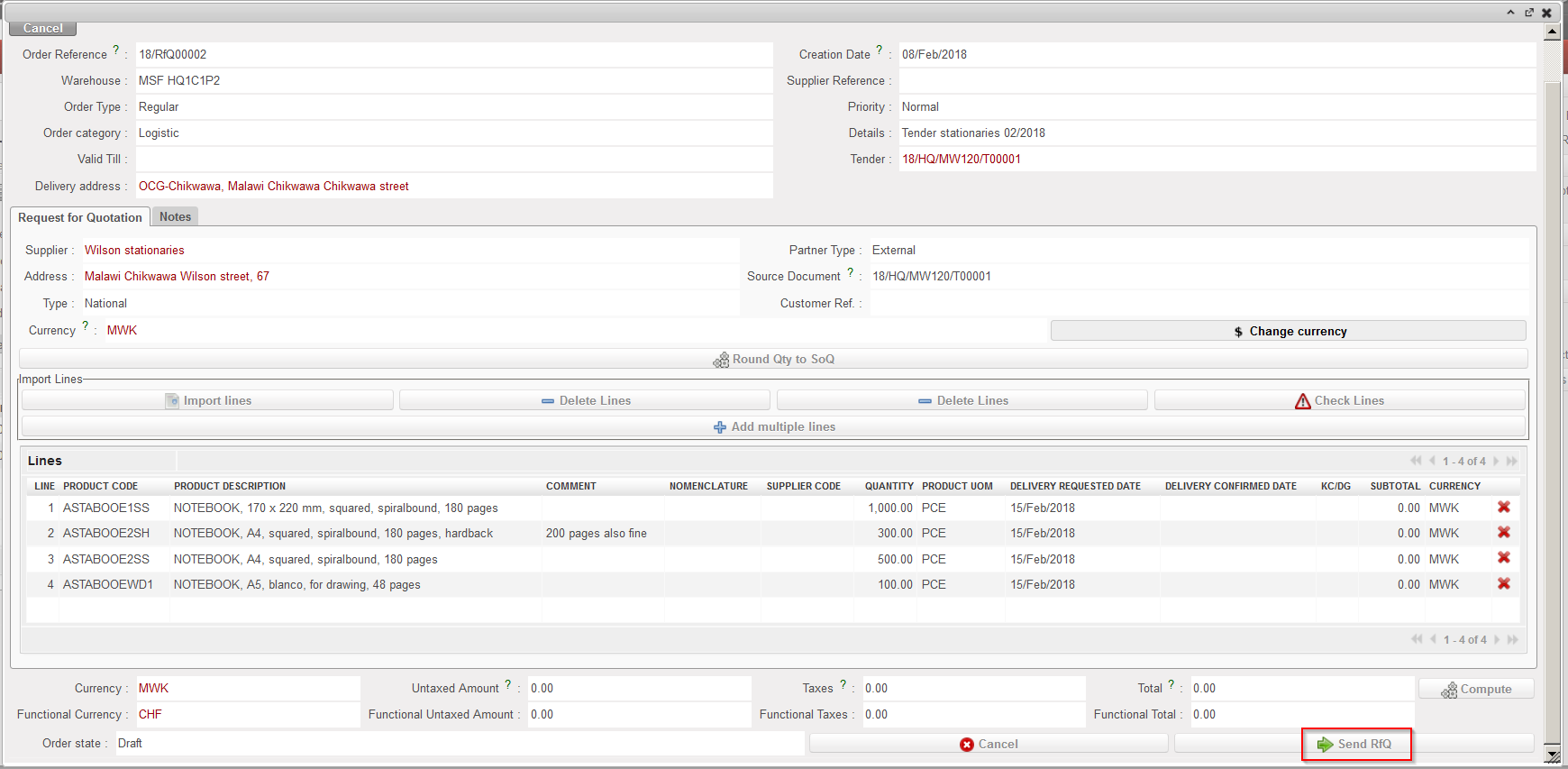
- Click on the “RFCs” tab to see the list of RFQs created. Click on the appropriate RFQ line to open the corresponding “Request for Quotation” screen. Click on the “Send RfQ” button at the bottom of this screen to send the RFQ print out to the supplier. A PDF version of the RFQ appears for printing. As a consequence the state of the RFQ switches from “Draft” to “Sent“.
 |
| Adding supplier to Tender |
 |
| Sending RFQ to supplier |
