
Supply User Manual ENG -> 4. Procurement -> 4.4 LU-SU3103: Field Orders (FOs) – General -> C. How to create a Field Order manually
C. How to create a Field Order manually
An FO will be created manually when an instance (usually coordination) initiates the order on behalf of another instance (usually project). These FOs are also referred as “Pushed FOs“.
Go to: Orders / Orders / Field Orders
- Click on the “New” button.
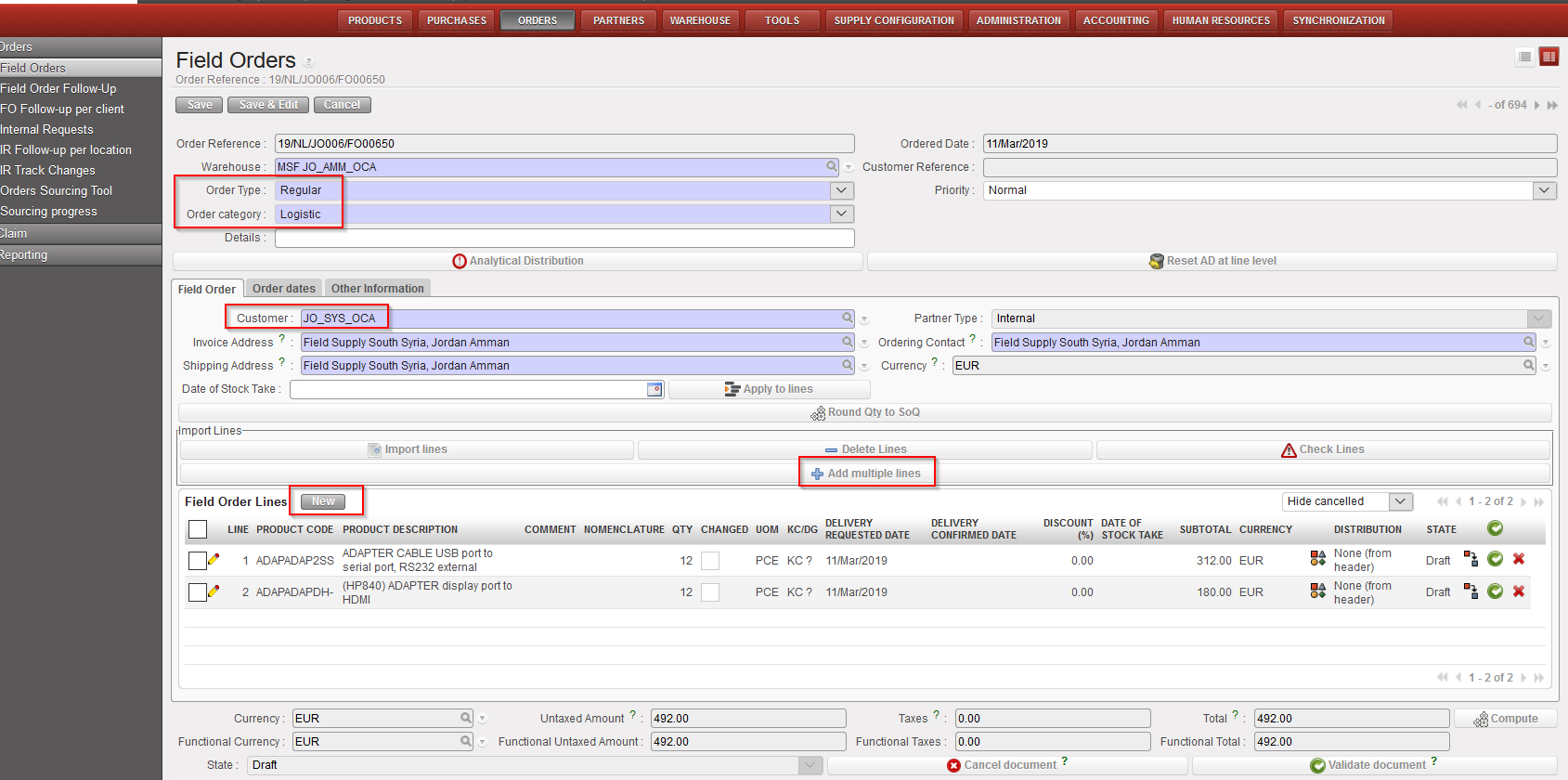
- Leave the “Order type” field to “Regular“.
- Select an “Order category“.
- In the “Details” field, the info transferred from customer’s PO if any, and you can edit or add the order name or any details of the Field Order and will be transferred to following documents including Pick (or OUT if converted).
- Select a customer (usually a project but could be any other internal or external customer) in the “Customer” field (please note that even ESC can now be selected as Customer).
 |
| Field Order |
6. Insert product lines manually by clicking on the “New” button in the “Field Order” tab (“Field Order Lines” table) to add products one by one or on the “Add multiple lines” button to add several products at once.
-
- “New” button: enter (part of) the product’s code or (part of) the description in the “Product” field and select the product you need or click on the magnifying glass icon to open the “Search Products” screen. Search and select the product you need by its name, nomenclature or any other filter available.
- “Add multiple lines” button: click “Add” on the pop-up screen and search for the products you want to add from the “Search Products” screen. Use the relevant filters: Nomenclature, Description, Code, Lists, Catalogues,… Select the products you need by ticking the boxes at the left of the corresponding products lines and click on “Select” to add them in the list of products you want to include in your FO. Once you have all the products you need click on “Add products“. Note that quantities can already be entered on the “Add multiple products” pop-up screen.
NB: We will see later that it is also possible to import product lines from an Excel file (via the “Import lines” button).
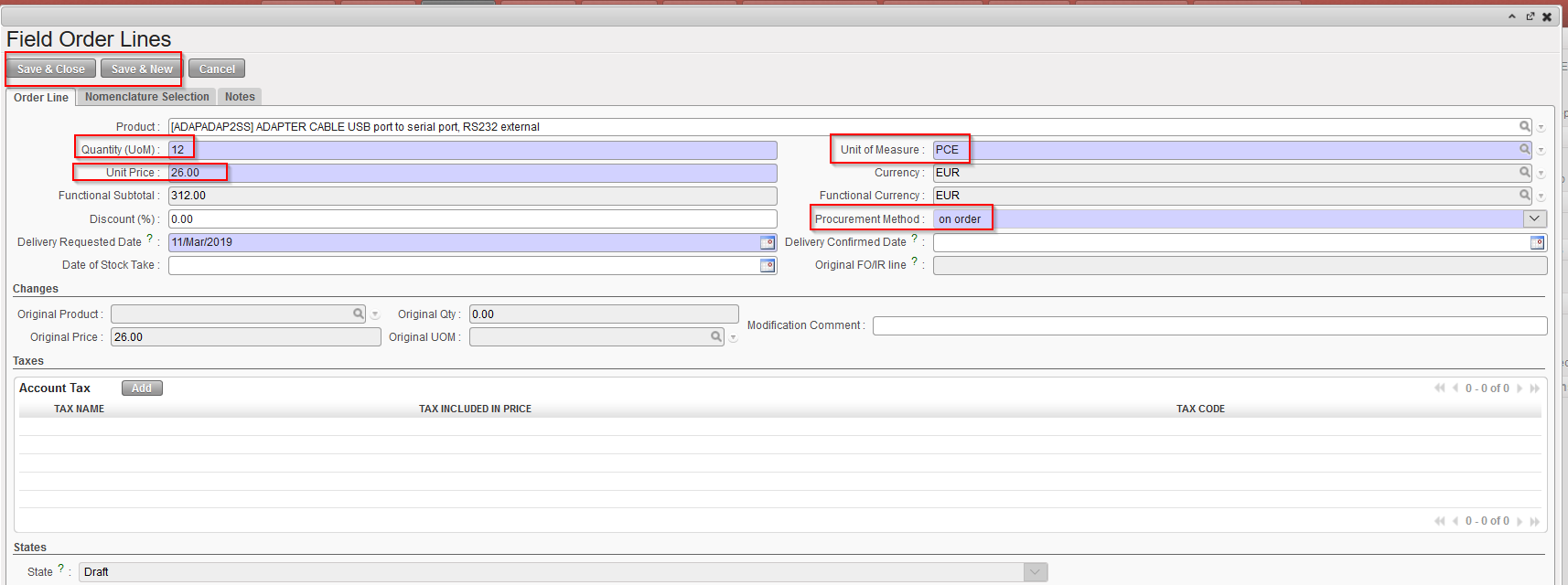
6.1 If you used the first option, once the product has been selected, in the “Field Order Lines” window, enter the required quantity in the “Quantity” field and the UoM (if needed) in the “Unit of Measure” field.
6.2 Enter a “Delivery Requested Date“.
6.3 Enter the Unit Price if the one proposed by the system (coming from the PMD sheet) is not appropriate
6.4 If you already know the procurement method (from stock/ on order), you may update it in the “Procurement Method” field.
6.5 Click on “Save & New” to save your line and add additional product lines to the Field Order, or on “Save & Close” to save your line and go back to the main Field Order screen.
 |
| Field Order Line |
7. Optionally, you can click on “Round qty to SoQ” (see below LU-SU3401 Procurement Advanced Features).
8. In the “Order Dates” tab, enter the “Delivery Requested Date” and transfer it to all lines if needed via the “Update Lines” button (note that this date can also be entered at line level).
9. Click on the “Save” button to save the Field Order, the initial status will be “Draft“.
