Supply User Manual ENG -> 5. Warehouse -> 5.13 LU-SU4206: Inventories -> C. HOW TO CREATE A PHYSICAL INVENTORY
C. HOW TO CREATE A PHYSICAL INVENTORY
An important review of this functionality has been introduced in January 2018 (with the release UF7.0).
Physical Inventories which were done before this date can still be viewed through Warehouse / Inventory Management / Previous Physical Inventories, but this menu should not be used to create new inventories. According to you user rights you will have/not have access to this menu.
All Physical Inventories should be done through the menu Warehouse / Inventory Management / Physical Inventories.
Physical inventories (stock counts) done in the warehouse need to be recorded in the system to ensure the adequacy between physical stock levels and system stock levels.
The Physical Inventory functionality is a step by step transaction which provides all necessary features to properly support such a count.
This section explains first briefly how to do a basic Physical Inventory. At the end of the section some advanced features related to the functionality are explained. Be aware that all features available on PI are not explained in this manual.
Go to: Warehouse / Inventory Management / Physical Inventories
- Click on the “New” button to create a new inventory. At this stage of the process, the PI has only one tab named “Products“.
- Enter Inventory “Details“.
- Select the “Location” in which you are counting the items.
- Enter the name of the “Responsible” for this inventory.
- To add product lines you may
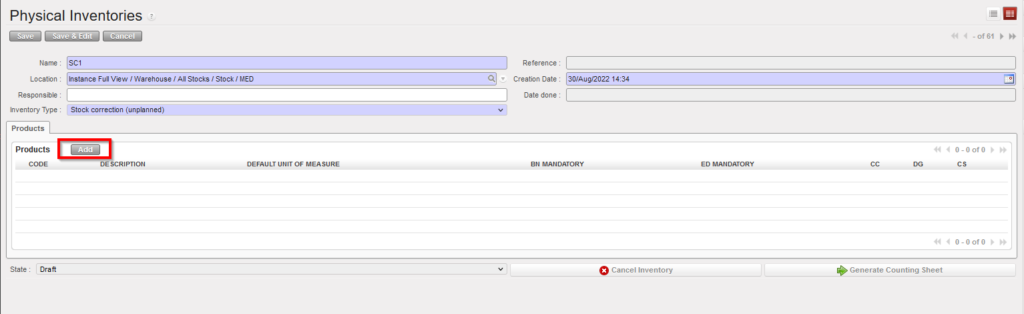
a) Use the “Add” button and select products in the “Search Products” screen.
b) Use the “Products Selection” button to include products in the PI according to various criteria.
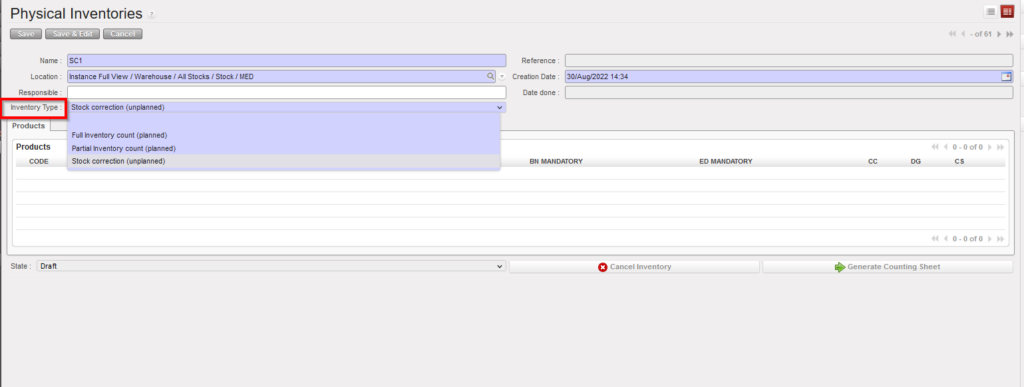
c) Use the mandatory drop-down list “Inventory Type” with below options:
- Full inventory count (planned),
- Partial inventory count (planned)
- Stock correction (unplanned).
 |
| Including products on a Physical Inventory |
If 3rd option is selected “Stock correction (unplanned)”, only the “Add” button displays to allow products to be added. The button “Products selection” is not displayed.
Drop-down list values of (Inventory Type) options can be changed as long as no products have been added yet.
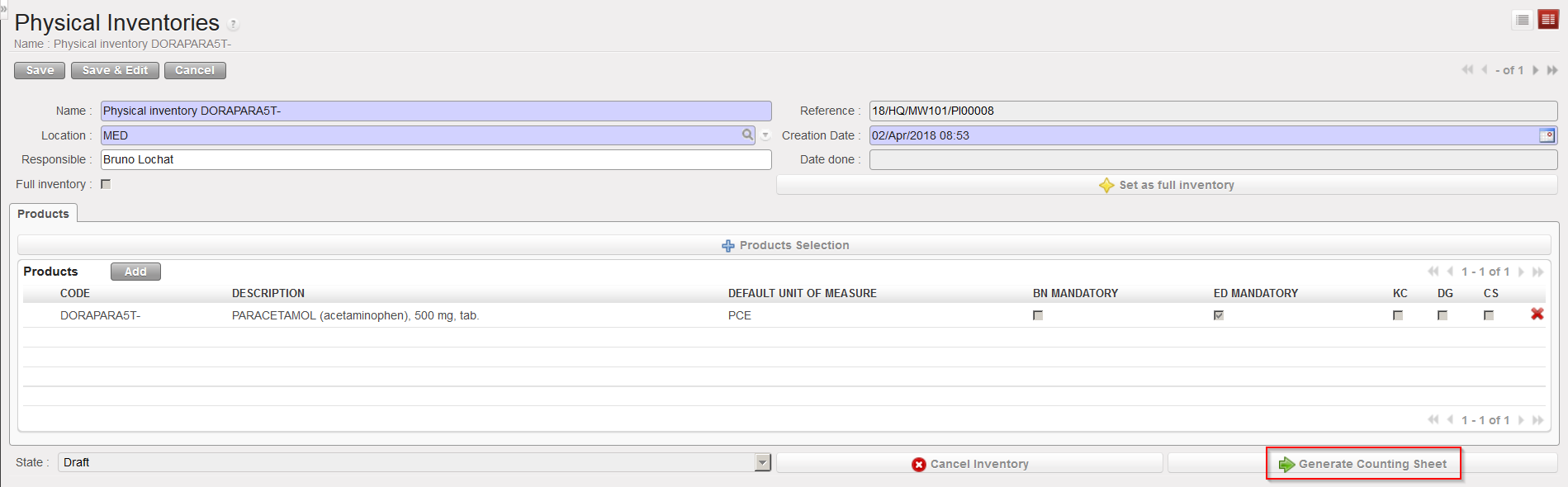
6. Once all needed product codes have been included on the PI, click on the “Generate Counting Sheet” button.
 |
| Generating Counting Sheet |
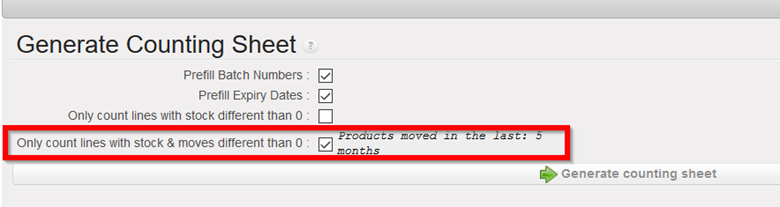
7. On the “Generate Counting Sheet” screen, you may decide if you want to include (print) in the counting sheet
-
- BN
- ED
- Only items which have a stock level <> 0
- Only count lines with stock & moves different than <> 0
In case of blind inventory – the B/N option is completely blind; it is not prefilled. There is just a product. On that case Unifield enables a standard number of 3 lines which are displayed per BN/ED product. This means whether there is “1” BN/ED for a product or “10”, there will always be 3 lines per BN/ED product shown (on screen and export). The user can see three lines if the box is not ticked prefilled B/N (batch no.) or ED (expiry dates).
Its possible to specify system should add products with movements in the last X months. and the same number of months specified to add products can be used to filter and display also the batches of the added products based on this timed selection. Where user has added products specifying products with movements in the last 5 months, this would be the default option ticked in the 4th checkbox on the “Generate Counting sheet” pop-up and only batches which have been moved in the last 5 months will be displayed in the counting sheet.
If the 4th checkbox is unticked, the original product selection remains unchanged, so all products with movements in the last 5 months will be displayed, but all of their batches will be displayed even those which were last moved several years before.
If the 3rd checkbox “only count lines with stock different than 0” is ticked, the 4th checkbox cannot be ticked. All previous displays of the Counting Sheet are still possible.
In the case of multiple additions of products were performed, the system will propose the greatest number of months used during the additions.
Tick/untick the check boxes according to your needs and click on the “Generate counting sheet” button.
 |
| Generating Counting Sheet |
8. The PI switches to the state “Counting“. This means that the counting is currently ongoing in the warehouse. The tab “Products” (which was already present before) shows the products which have been selected. A second tab named “Counting sheet” has now appeared. According to the selection done at the previous step, this tab shows which products/batches should now be counted in the location.
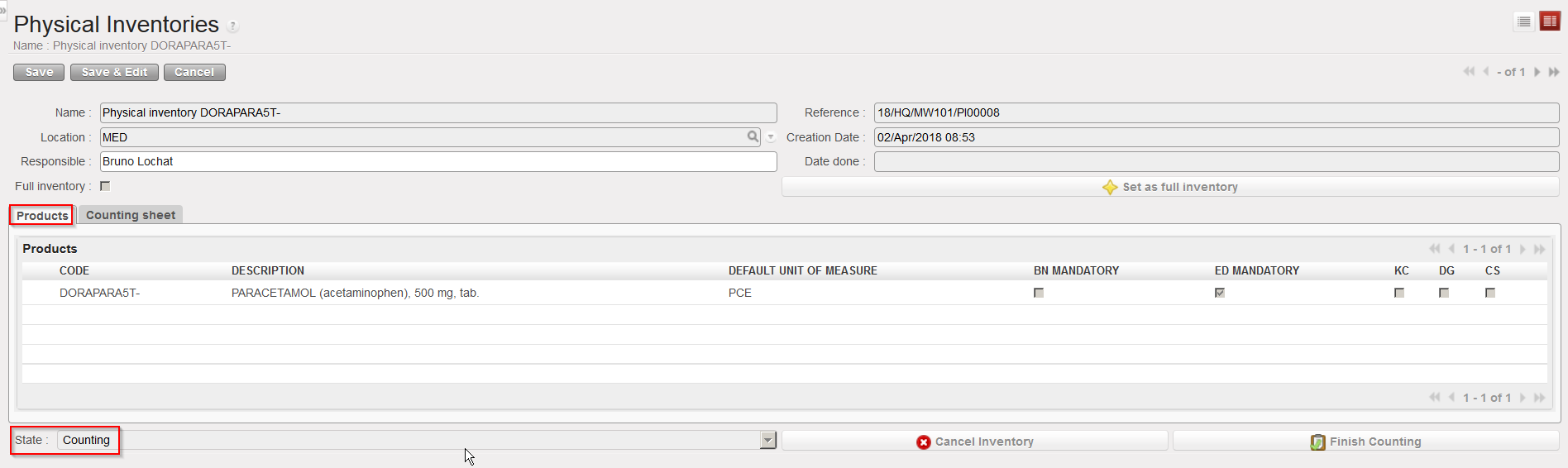 |
| Physical Inventory in state “Counting” – “Products” tab |
 |
| Physical Inventory in state “Counting” –”Counting sheet” tab |
9. On the “Counting Sheet” tab, the buttons “Export pdf counting sheet” and “Export xls counting sheet” allow to export the counting sheet in PDF or excel, with the objective to facilitate the counting process in the warehouse.
10. Products/batches counted may be included on the PI in two ways:
A) Manually, using the pencil icon in front of each line to edit it and /or the “New” button located on top of the “Counting lines” table
B) Via file import, using the “add attachment” and “Import xls counting sheet” buttons in order to upload the filled counting sheet (with the count) that was exported in excel at the previous step.
At import of Counting Sheet, System will check Product / BN / ED, duplicate lines, and match imported Prod/BN/ED, add new lines, etc.
When Counting sheet contains value not recognized for UoM, or for ED import is blocked and a clearer warning message is displayed.
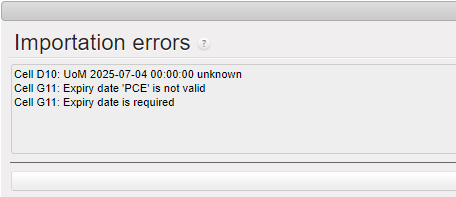
11. The state of the PI is still on “Counting” but you may now see on the “Counting sheet” tab for each counted product/batch, the quantity which has been counted in the warehouse. Click on “Finish Counting“.
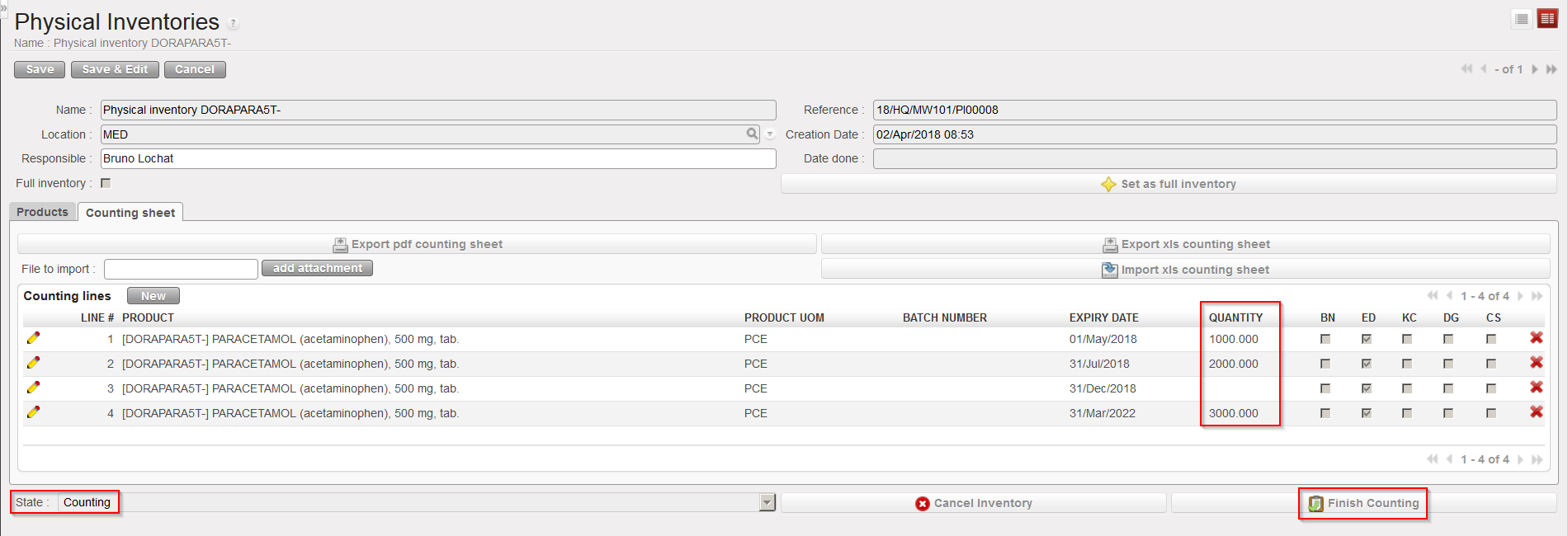 |
| Physical Inventory in state “Counting” – Counting sheet uploaded |
12. The PI switches to the sate “Counted“. Click on “Generate discrepancies“.
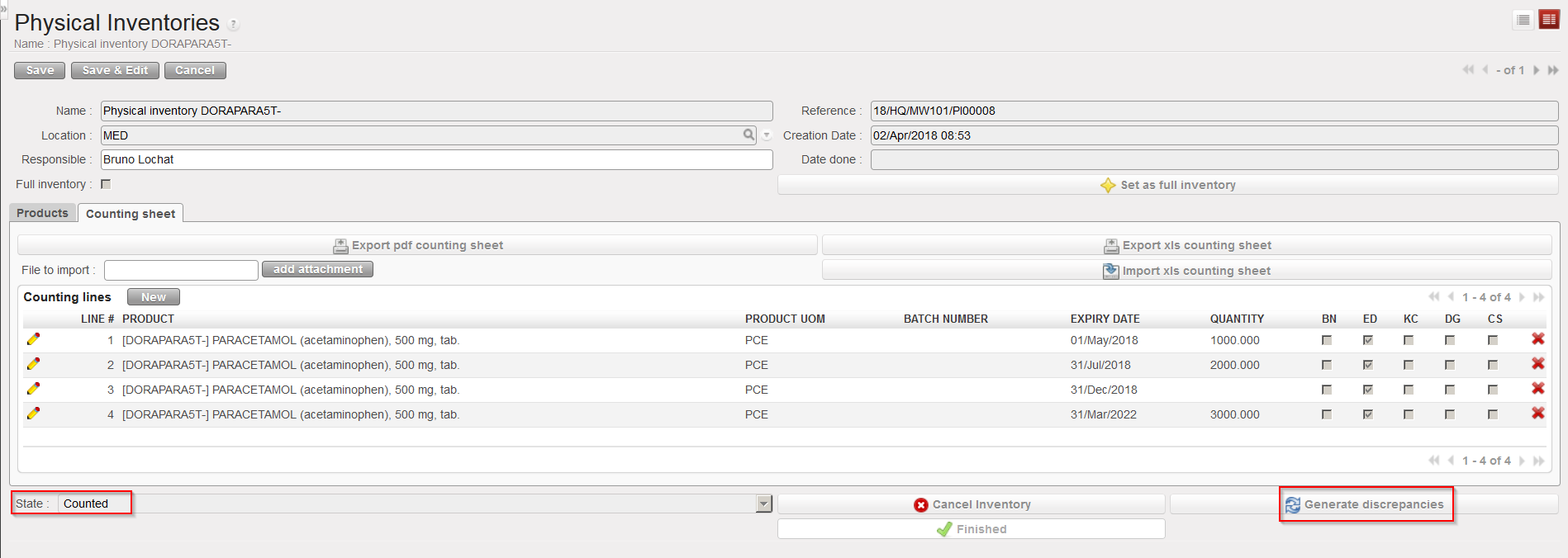 |
| Physical Inventory in state “Counted” – Generating discrepancies |
13. A discrepancy report is generated and is available on the “Discrepancy report” tab. This report shows discrepancies between the theoretical (system) quantities and the counted (physical) quantities. Each line of the discrepancy report must be edited in order to input the “ADJUSTMENT TYPE” which is mandatory in order to progress to next status of Physical Inventory. If the “Adjustment Type” selected is “Discrepancy” then it will be possible to add a ““SUB REASON TYPE” and this can be added at a later stage before the Physical Inventory is set to “Closed”. “COMMENT” can also be added before Physical Inventory is set to Closed.
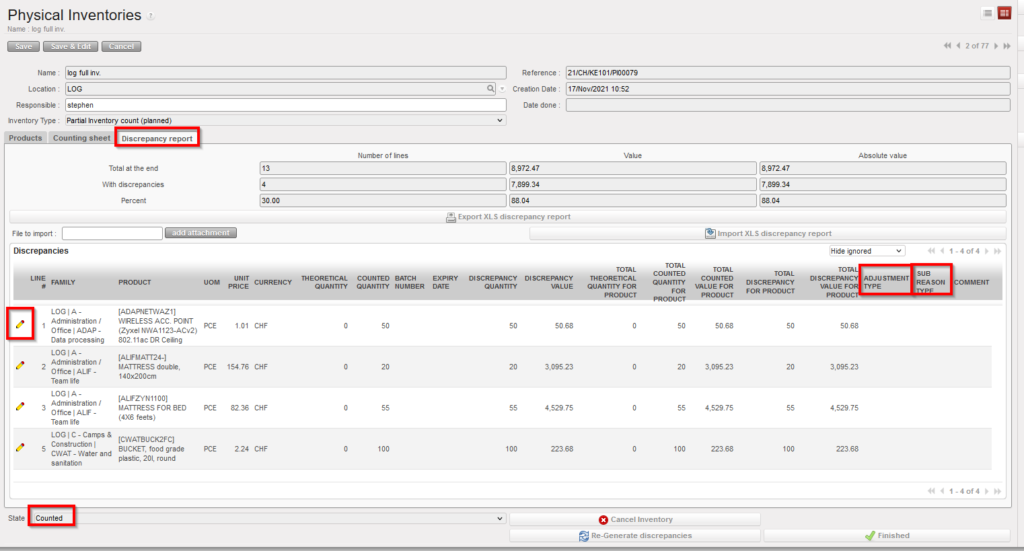 |
| Physical Inventory in state “Counted” – “Discrepancy report” tab |
14. Once all counted lines and discrepancies have been analyzed and explained, if you are confident about what was inserted in the PI, you should get validation from your supervisor and click on the “Finished” button. The PI switches to the state “Validated“. The PI is ready to be confirmed.
15. Click on “Confirm Inventory” to confirm the PI.
16. The PI switches to the state “Confirmed“. An additional tab called “Posted Inventory” appears, listing all movements which have been created by the PI. Click on “Close Inventory“.
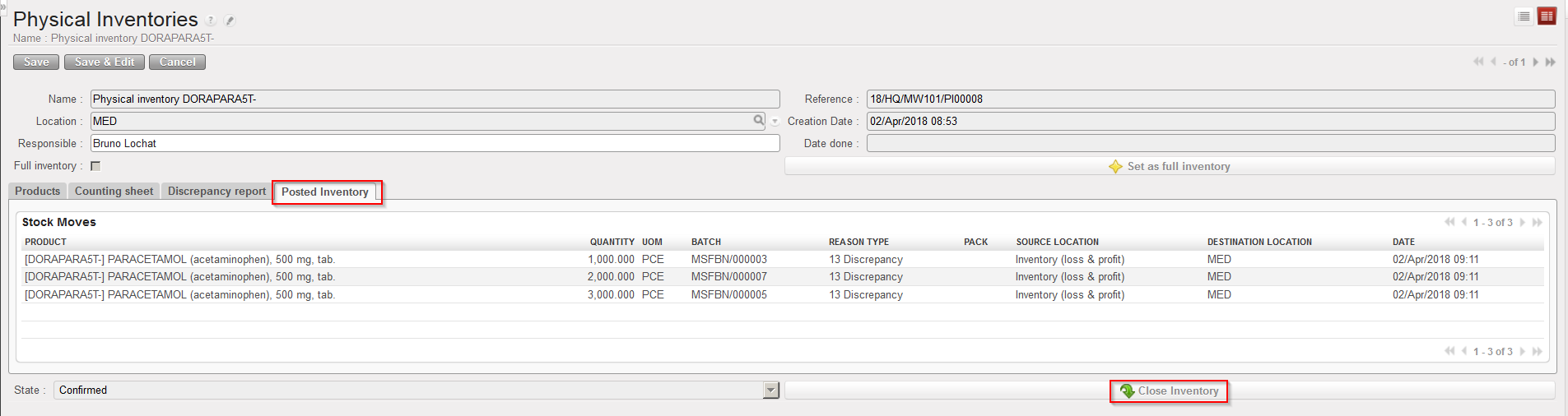 |
| Physical Inventory in state “Confirmed” – Closing the Inventory |
17. The PI switches to the state “Closed“.
To end this section, we briefly comment some extra features which exist on the Physical Inventory functionality. However, it is not possible to go in all details here.
The “Set as full inventory” button allows making a full inventory (also called blanked count). The counting sheet will be empty and counters will have to count in the warehouse without any system guidance. This feature was developed to support full warehouse counts.
If you select the products to be counted via the “Products Selection” button, you may choose between:
- Including the products which are currently in the location
- Including the products which have recently move in/out of the location (and “recently” can be defined in month(s) between 1 and 12)
The selection of products done via one of these 2 options may also be further restricted by selecting:
- All the concerned products
- Products with a specific nomenclature
- Products belonging to a specific list
- Products which are KC/CS/DG
You may cancel a PI at any stage of its process (excepted when it is “Closed“).
When the discrepancies report is generated, if some products/batches included in the counting sheet have not been counted you may choose between:
- Ignoring them (i.e. their stock level won’t be touched)
- Counting them as zero (i.e. their stock level will be set to zero)
On the “Discrepancy report” tab you have the options to:
- Hide ignored
- Show all
- Show ignored only
This allows showing/hiding ignored products/batches.
Some KPIs are available on the discrepancy report (number of lines, discrepancies value,…).
The discrepancy report can be exported/imported to/from excel. The import function is only used to import adjustment types and comments.
When the PI is in state “Counted” or “Validated“, a button allows to “re-generate the discrepancies“. This is actually a refresh button which can be useful in case you did a wrong choice on the ignore/count to zero options.
When the PI is in state “Validated“, you still have the option to click on “Recount“. This will delete the discrepancy sheet and reset the PI to the state “Counting“, allowing you to repeat the count if needed (but not to select additional products or to re-generate the counting sheet).
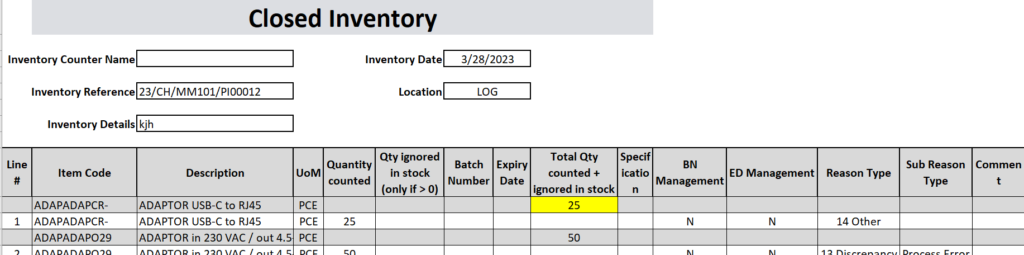
When the PI is in state “Closed” you can export a report called “Closed Inventory” via “Action menu”, similar to the Discrepancy report but with additional information: any counted qty which does not result in a discrepancy will also appear in this report.