
Supply User Manual ENG -> 5. Warehouse -> 5.11 LU-SU4204: Kits Management -> C. HOW TO DE-KIT A KIT
C. HOW TO DE-KIT A KIT
If a kit will no longer be used in its current state (i.e. as a kit), and you wish to use its components individually, you should use the de-kitting functionality. This may be the case if, for example, you decide to use the components of your kit, either to be dispatched, or to create a different kit, or for easier management. For the de-kitting to happen, the kit should already have an existing Kit Composition List (See LU-SU4101 “How to receive a kit and add a kit composition list”), and should be in an internal stock location (e.g. LOG, MED, Internal Consumption Unit).
After de-kitting, the products can be seen as individual products in stock and the kit as a product will not appear any more in the warehouse.
Go to: Products/ Kit Management / Composition List / Kit Composition List
- Find and open the relevant Kit Composition List to de-kit by clicking on the pencil icon.
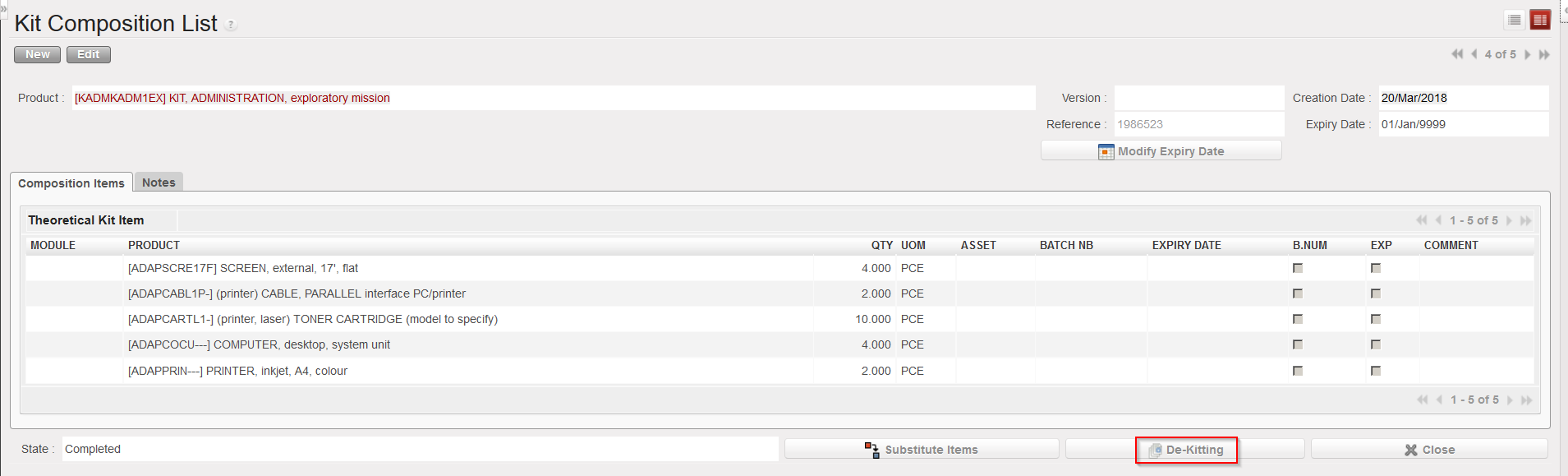
- On the “Kit Composition List” screen, click on the “De-Kitting” button.
|
|
|
De-kitting a Kit Composition List |
3. On the “De-Kitting” screen, enter the “Source Location of Kit” (i.e. location where the kit is currently stored, where its stock level is > 0).
4. Enter the “Destination Location of items“, to indicate where the system should place the components of the kit after de-kitting.
|
|
|
De-kitting a Kit Composition List |
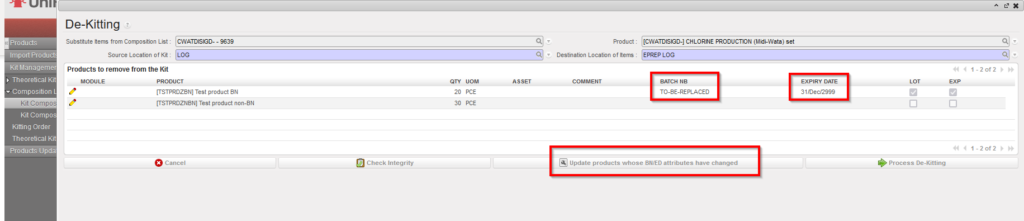
5. In the section “Products to remove from the Kit“, you will see all the components of the kit, and any component for which information is missing (e.g. batch number, expiry date) will be displayed in red, with a description of what is missing at the end of the line.
In case of products with BN/ED attributes which have changed. there is a button “Update products whose BN/ED attributes have changed” which appears in KCL processing window. When button is used, any affected products will have their BN/ED info removed, or have default BN/ED info added, Action only updates products in this KCL window.
6. Click on the “Check Integrity” button to check all relevant information is present.
7. Click on the “Process De-kitting” button.
|
|
|
Kit Composition List after de-kitting |
|
|
|
INT/KIT Internal Move after de-kitting |
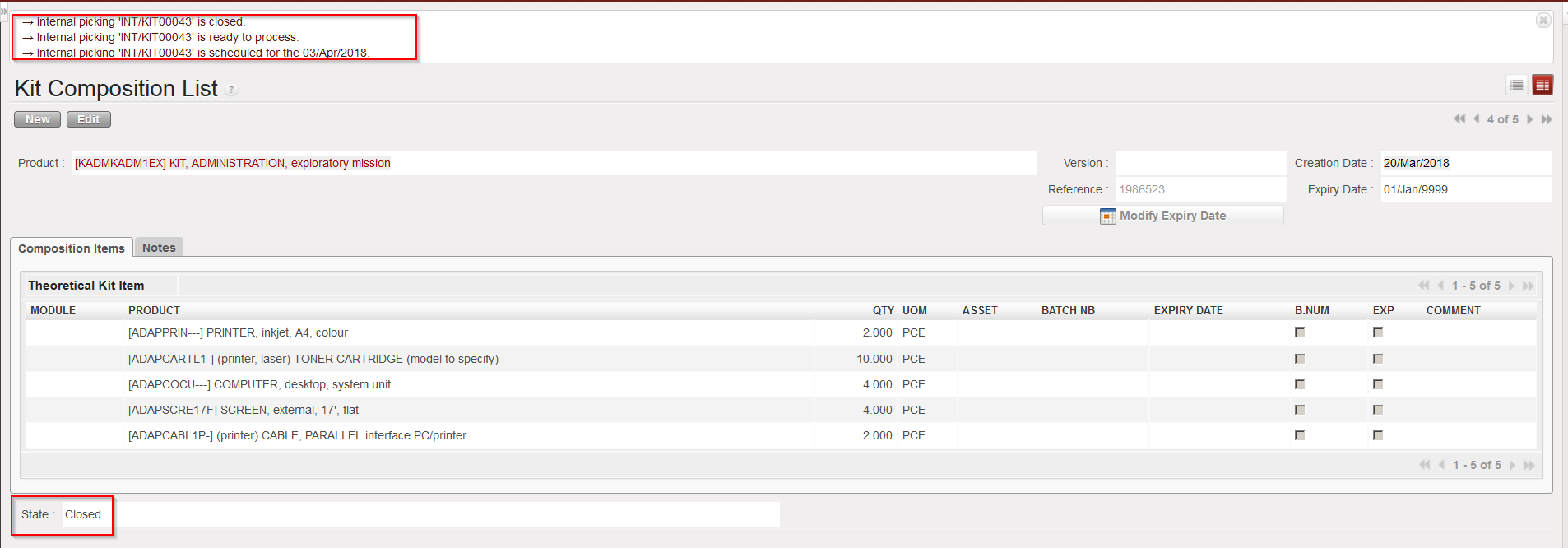
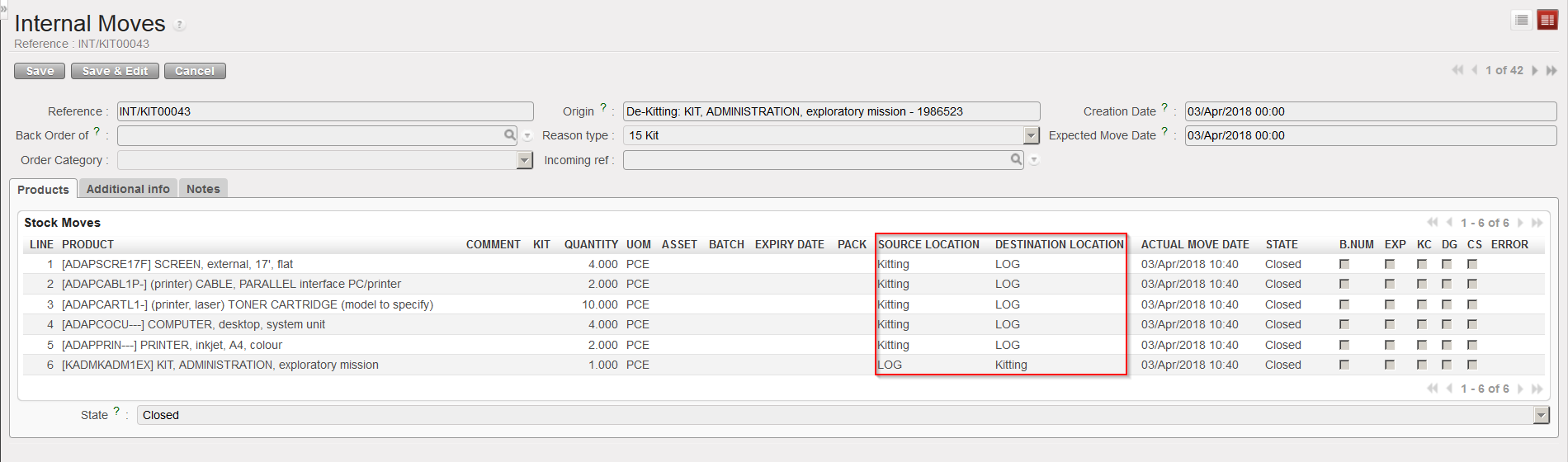
The Kit Composition List switches to “Closed“. An Internal Move with reference INT/KIT is created, processed and closed to move the kit from the stock to the “Kitting” (virtual) location and the kit components from the “Kitting” (virtual) location to the stock.
