
Supply User Manual ENG -> Products -> 3.5 Assets -> C. How to record an asset event
C. How to record an asset event
Every status or move of the asset is considered an event and should be recorded in the system in adherence with each OC’s asset registration guidelines.
Go to: Products/ Assets /Assets events & follow up

Asset Event list view
- Click on the “New” button to create a new Asset event
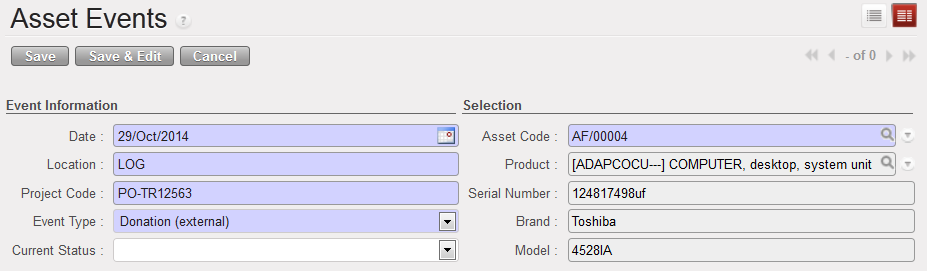
- In the Asset Event record, the date will have been populated with today’s date, but it is possible to edit this, so enter the date when the event took place (which should correspond to the date on any other relevant document e.g. Incoming Shipment date)
- Enter the Location where the event took place
- Enter the Project Code for which the asset is being used / allocated to at the time
- For Event type select from these options:
- Reception, when the asset is being received. This is mandatory if you are receiving a product which is categorised as an asset.
- Start Use, when the asset is starting to be used
- Repairing, when the asset is not in use and has been sent to be repaired
- End Use, when the asset is no longer being used
- Obsolete, when the asset is no longer useful or there are more relevant versions available
- Loaning, when the asset is being loaned to another internal entity
- Transfer (internal), when the asset is being transferred to another MSF entity
- Donation (external), when the asset is being donated to an external entity
- Other, to record any event not covered above (e.g. for disposal if assets are destroyed etc )
- Select the Current status of the asset:
- In Use, if the asset is being used currently
- Stock, if the asset is in stock
- Repair, if the asset is being repaired
7. In the Selection section, enter the Asset Code, or click on the magnifying glass to open a window listing all current asset forms. Use the filters at header level if necessary to find and select the relevant asset
8. When you have entered the Asset Code, the remaining fields (Product, Serial Number, Brand and Model) will pull through. Check that these correspond to the physical asset.
9. In the Comment section, add any relevant remarks, (e.g. if you are loaning the asset, who are you loaning it to and any relevant references etc)
10. Click on the Save button
Assets follow up
