Procedure To Decommission an Instance

PROCESS – Production instance decommission


This document will guide you on the process to follow when decommissioning a production instance (e.g. end of project / mission).
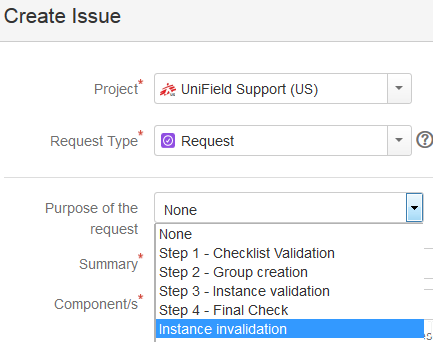
This step needs to be performed in Jira.

A ‘Request’ type ticket will be created for this step.

Please select the corresponding step

under the “Purpose of the request” field.

  • Prerequisite before requesting an instance validation:
    • Finance:
      1. Last registers are closed and have 0 balance
      2. All periods are closed (last production period included)
      3. No more unreconciled entries (In OCA we can let unreconciled entries. In this case, it is compulsory to write the agreement of this by the finance referent in the JIRA ticket)
      4. No drafts or open invoices/refunds/stock transfer vouchers, etc.
      5. All entries are hardposted
      6. No draft HQ entries
      7. Last Vertical Integration has been proceeded
      8. No more Commitment Vouchers in validated status
      9. No more Cost Center is target to this prop instance
      10. No data fixes to do after decommissioning
      11. For coordo instance, never do a FY Mission closure in a coordo instance that you will deactivate without waiting to do the HQ FY closure. When deactivating a coordo instance in the middle of the year, you need to check that the previous fiscal year is “HQ closed” and the current fiscal year is still “Open” and not “FY mission close”
    • Supply:
    1. All order and stock transactions are closed or cancelled (IR, PO, FO, IN, Pick, Pack, Ship, Out, Internal move, Consumption Report.)
    2. Stock in all locations has 0 in quantity (export stock levels to check this). It may be necessary to do FO Donation> OUT to send products out, or otherwise Physical inventory to set to 0 (check with OC procedures for recommended process)
    3. Double synch to and between regular internal partners (I.e. Coordo if project, or other projects/coordo etc) to check no order is in synch pipeline.
    • N.B.: It is assumed that when the instance is decommissioned, this is communicated to all relevant missions, and that these missions will undertake the cleaning of the partner records (I.e. deactivation of intermission/intersection/internal partners) as part of their regular Supplier maintenance process.
  • OCs to create a request in Jira for the instance invalidation:
    • Support team to ask confirmation from the OCs functional Finance and Supply
    • Steps to perform:

Step 1 (OC): In HQ instance, reallocate the CC target of the instance to invalidate to another instance

Step 2 (OC): In HQ instance, launch a sync

Step 3 (Support Team Finance): In HQ instance, deactivate the prop instance and launch a sync

Step 4 (Support Team): In instance to decommission, launch a sync and ensure it receives in prop instance deactivation

Step 5 (Support team): In server’s instance to decommission:

  • Disconnect connection manager and untick silent upgrade
  • Untick Auto Sync
  • Untick Auto Back up
  • Do a last back up and put it in OneDrive folder “Decommissioned Instances”.
  • Assign back to the IT ref to do a last back up on their side, drop the instance and dispose of the server

Step 6 (Support Team): In the sync server, invalidate the instance +  close the request

END
PROCEDURE – Production instance creation

This document will guide you on the process to follow when creating new production instance for its validation. The aim is to have a proper 4 eyes follow up and validation during the instances creation process and avoid unexpected behavior in production due to manual errors.

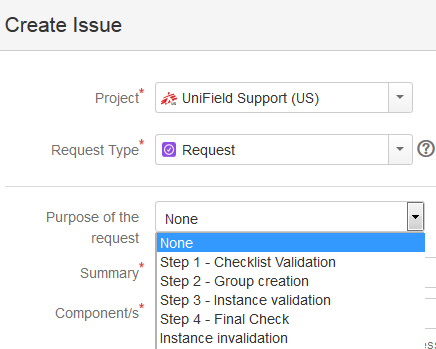
All the following steps need to be performed in Jira. A ‘Request’ type ticket will be created for each steps.
Please select the correspondent step under the “Purpose of the request” field.

  • Step 1 :
    • OCs to create a request for the checklist validation (attaching the checklist validation Excel file in SharePoint here).
    • Support Team (Finance) to validate the checklist
    • OC Finance referent to create prop instance in draft, Cost Centers (when not yet done) and do the mapping Cost Centers / Instances (add CC in the coordo prop instance and set the targets)
    • Support Team Finance to check prop instance mapping + close the request
  • Step 2 :
    • Support team IT to create a request for the groups creation
    • Support Team (IT) to create the groups in the SYNC_SERVER
    • For each new mission, create the 2 following groups
      • OCX_HQ_MISSION_XXX and add the instance HQ
      • OCX_MISSION_XXX
    • Close the request
  • Step 3 :
    • Support team IT to create a request for the instance creation in the Support Team server VM3
    • Support Team IT to create the “ocxxxxxxx_sync-user” in Keepass and in the SYNC_SERVER
    • Support Team IT to create the auto install file
    • Support team Finance to validate the auto install file (codifications, CC for fx/gain…)
    • To update UFautoinstall file into C:\Program Files (x86)\msf\Unifield
    • Support Team IT to launch auto instance creation and Validate the instance in the SYNC_SERVER + launch the initial sync. It will take a while. See automated instances creation procedure: https://doc.unifield.org/12-5automated-instances-creation/
    • When initial sync is finished, close the request and proceed to step 4
  • Step 4 : Support team IT to create a request ticket for the final checks of the instance.
    • Support Team Finance to check :
      • Products master data
      • Partners: Internal (check it is in Functional Currency and add its country) + Intermission (Check it is created at HQ and synced to the instance)
      • Prop instances + target CC
      • Company
      • Users/Groups
      • User Rights
      • Finance Master data
        • Periods/FY
        • GL Journals
        • CoA
        • Analytic Journals
        • CC
        • CC target FX gain/loss
        • Currencies + rate
        • Expats Employees
  • Check there is no “Hidden Menu

Sometimes when creating instances, the module (menu option) “Hidden menu” appears. This menu should not be visible for users, so it is necessary to remove it . To remove this module, follow the internal procedure (as done in ticket US-13588).

      • Not runs
    • Support Team IT to disconnect connection manager, do a back up and share it with OC IT ref in OneDrive Backups Temp folder
    • Support Team IT to then untick silent upgrade, set auto sync to false, set auto back up to false. Only when the instance is restored in production and linked with the sync server, the instance can be dropped from VM3
    • Support team IT to generate the SSH Key
    • Support Team to send to the IT referent:
      • The SSH key with the Continuous back up procedure link https://doc.unifield.org/continuous-backup/
      • The sync user login/password to the IT referent. IT referent will then use it when restoring the back up in the dedicated server when setting up the XML-RPC connection on the connection manager
    • Support Team to ask the IT referent to create a new ticket for the hardware id update

END

Disaster Recovery Procedure for UniField Servers

Disaster Recovery Procedure for UniField Servers

This document provides a framework of planning for the risks of server outages. It outlines the steps and systems for preventing server disruptions, as well as protocols for responding to outages and recovering lost data. Below are the main objectives of the document.

1) Objectives

    • To help OCs develop or integrate this procedure to their Disaster Recovery Plan in order to adequately prepare for an unforeseen disaster
    • Help ensure rapid recovery after a disaster that has impacted Unifield servers, thus minimising impact on field operational activities.
    • Provide instructions, procedures, and emergency contact information to use in a disaster situation
    • Identify processes to follow to ensure server restoration after a critical event.
    • Identify current risks and recommend action steps for prevention

2) Points of Communication

Fire, theft, floods, botched system upgrades or simply human error: any of these could take down your unifield server. If this happens, do not attempt to restore the instance on your own but immediately create a jira ticket or send an email to the following points of contact in the unifield coreteam.

Name

Title

Email

Specific Roles and Responsibility in Disaster Recovery

Raffaelle HAGEN

Head of Support and Development

raffaelle.hagen@geneva.msf.org

Initiates, validates, and oversees the disaster recovery process

Awfa AbdulGhany

ERP Support Officer

awfa.abdulghany@sits.msf.org

Implements server recovery procedure by:

-Determining the appropriate recovery point from backups.

-Liaises with dev to check backups for integrity and initiates data recovery processes for lost data.

Rafkat Iskakov

ERP Supply Support Manager

rafkat.iskakov@brussels.msf.org

-Ensures that all supply users are notified of the incident through their respective supply referents.

-Validates supply recovery points for cases where supply data is lost and helps define next steps for business continuity

Estibaliz Montaru

ERP Finance Support Manager

estibaliz.montaru@geneva.msf.org

-Ensures that all finance users are notified of the incident through their respective finance referents.

-Validates finance recovery points for cases where data is lost and helps define next steps for business continuity

3) Response

Do not restore the instance from the last backup you have. Instead, create a jira ticket or send an email to raffaelle.hagen@geneva.msf.org and awfa.abdulghany@sits.msf.org . Please include the following information:

    • Description of what happened to the server
    • Share the date of the last updated local backup you have.

Actions/Steps we will take after we receive your ticket or message.

Please note that the following actions are in chronological order:

a) Disable sync for the instance on the sync server.

b) Determine the appropriate recovery point from backups by:

    • Comparing the latest copy of the instance backup we have on our continuous backup server to the last local backup you have. If the backup dump on our continuous backup server is more updated than the local dump you have, we will provide you with the dump and give you the green light to restore the instance. Do not let users use the server until we give the greenlight.
    • If the local backup dump you have is more updated than the one on our continuous backup server, we will request for a copy of the local backup dump you have. Wait for the greenlight from us as we check the dump for integrity.

c) Check backups for integrity and initiate data recovery processes for lost data.

    • Users will not be allowed to access or use the instance until the data recovery processes are completed.
    • The Finance and Supply ERP Managers will communicate to the respective OC referents the non-synched data that has been lost (cannot be recovered as it was not pushed to the sync server). Together with the OC referents, they will determine next steps for business continuity.
    • A data fix will then be prepared for the lost data that was synched to the sync server (data re-created from the sync server).
    • We will then apply the data fix to the restored dump, the coordination instance and HQ instance plus any other impacted project instance. Wait for the official green light from us before allowing users to access and resume working on the instance.

4) Preventative & Recommended Guidance

Disasters happen, some unexpected like fires, theft, floods but others we can anticipate. The only preventative and recommended guidance we advise is backup! Data backup is the foundation of disaster recovery planning.

Backup Strategy

As good practice do not keep the local backup of your instance on the server. The continuous backup feature ensures UniField pushes backups each time an instance synchronises. These are, however, dependent on internet connection. Please DO NOT CONSIDER this feature as an agreed offsite backup solution. Backups are still under the responsibility of each OC. Therefore, each OC ought to be vigilant with proper backup strategy and solutions to their servers.

We also recommend that you:

    • Backup your instance before any system upgrades.
    • Backup the instance before upgrading or making changes to any third-party applications on the server.
    • Backup before and after migration of an instance.
    • If in doubt, just back up the instance

Procedure To Migrate a UniField Instance

Procedure To Migrate a UniField Instance

Requirements:

  • Latest AIO (All in One)
  • Latest database dump
  • Pgadmin3 or 4 Installer
  • Notepad++
  • SSH Key (Find it in C:/Program Files (x86)/msf/ of the old server)

Please note:
The AIO installation requires administrative rights as it is going to install:

  • OpenERP Server
  • OpenERP Web
  • The database PostgreSQL and all the dependencies, such as Windows C++ 2005 Redistributable.

Other Important Considerations:

  • Once UniField is installed, the web port (default: 8061, but possibly 80 or 443) needs to be open on the firewall to accept inbound connections.
  • Some outgoing ports (port 8069 or 22) must be opened on the firewall to be able to synchronize and push backups via rsync; refer to user manual this section
  • It is not necessary to migrate the WAL or Postgresql folders from the old server to the new one because:

i) You will be required to generate fresh base backup after migration to ensure continuous backup config is working in the newly migrated server.

ii) For PostgreSQL folder, AIO installation will take care of that.

Migrating the Instance

Step1: Perform a sync on the soon to be old server just before the migration.

Step2: After sync is complete, disable synchronization by:

  • Disconnecting the instance in the connection manager and remove auto connect config from the openerp-server file. Change sync user to False and sync password line to False as below:
sync_user_login = False
sync_user_password = False

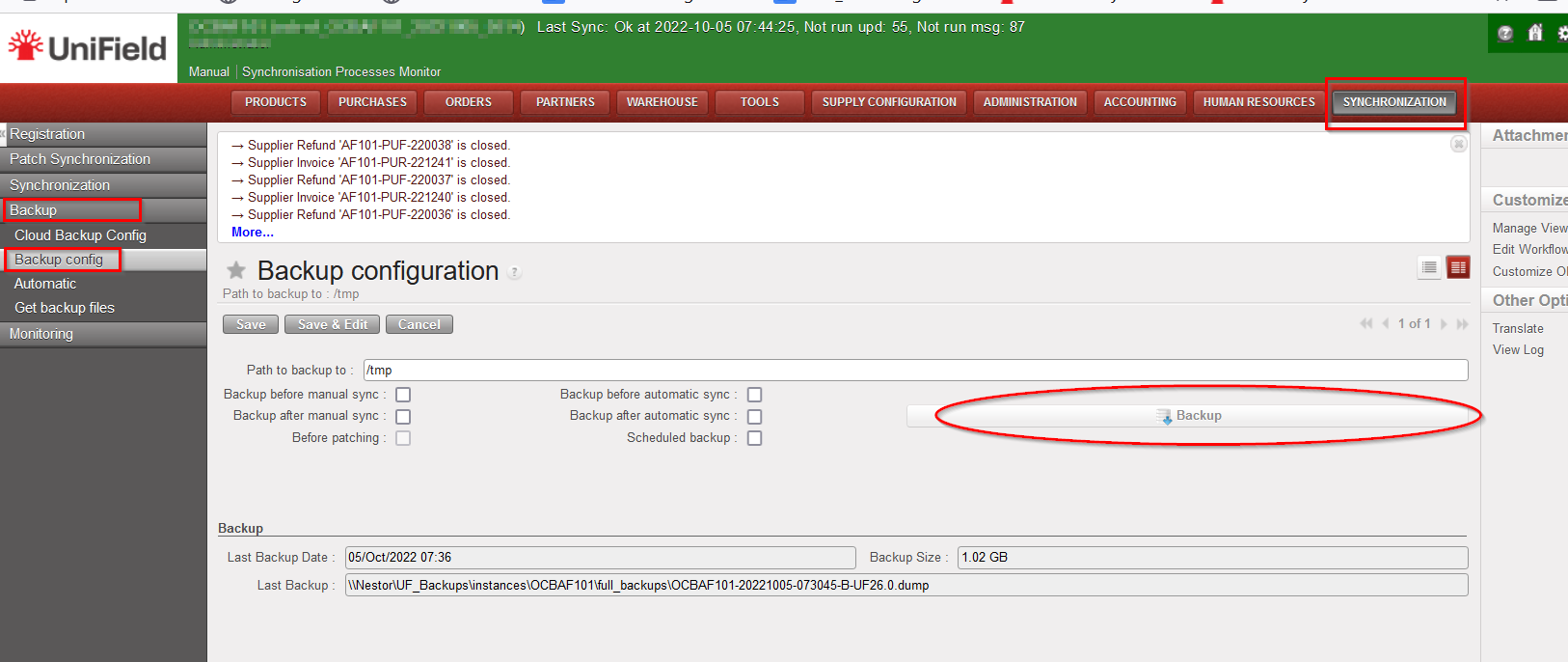
Step 3: Extract the latest dump by manually clicking backup as below.

Graphical user interface, text, application, table

Description automatically generated

The dump will be downloaded to the backups folder defined in the “path to backup to:”

Step 4:

Transfer the dump and SSH_CONF folder to the new server. Place the SSH_CONF file in C:/Program Files (x86)/msf/

Step 5:

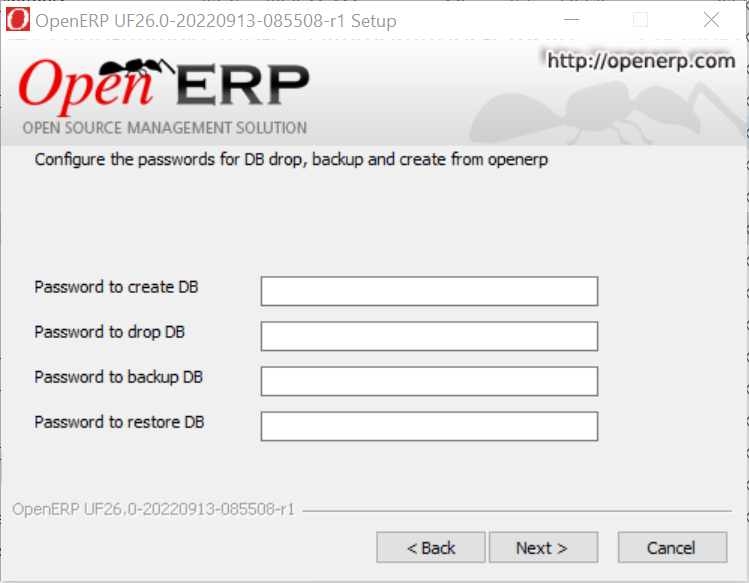
Install pgadmin, notepad++ and run the latest AIO set up. During the AIO installation, do not forget to update the following passwords from the defaults, they differ per OC

Graphical user interface

Description automatically generated

After AIO installation is complete, UF application will open on your chosen default browser.

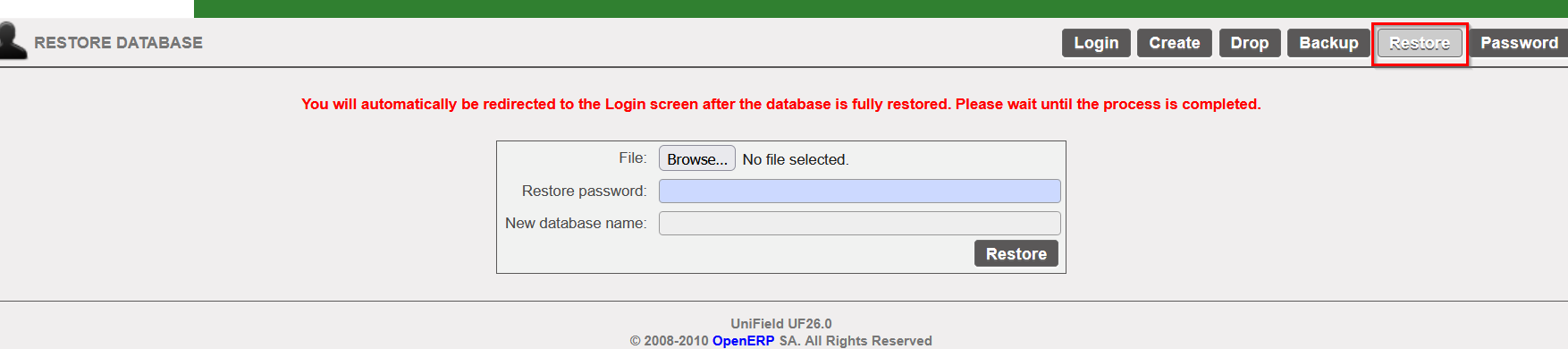
Step 6: Restore the dump.

Graphical user interface, text, application

Description automatically generated

Step 7: Hardware id update

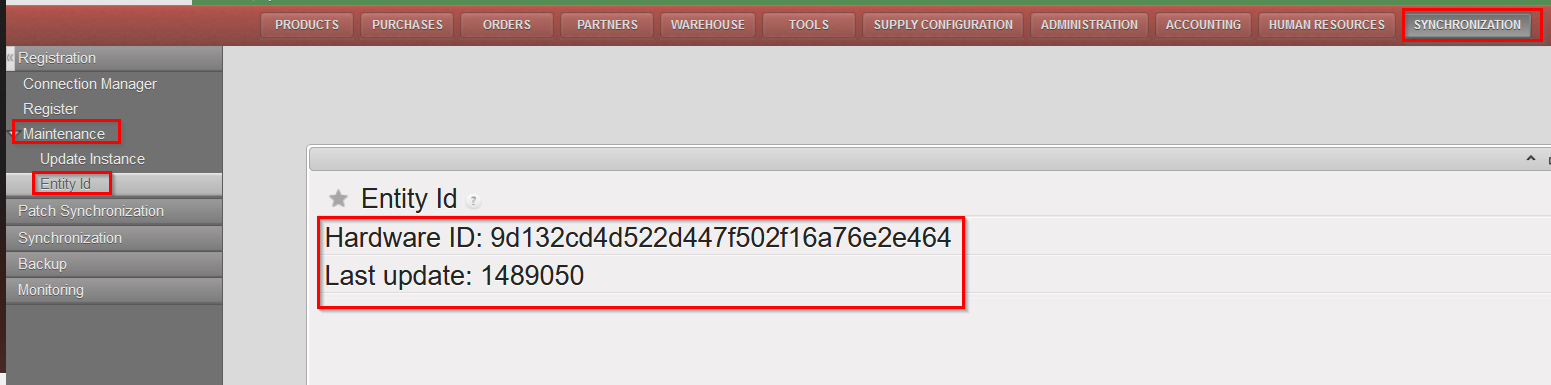
Login to the restored dump, extract the new hardware id and last update sequence. To do this, go to Synchronization menu ->Maintenance -> Click entity Id as below.

Graphical user interface, application

Description automatically generated

Create a jira ticket to request the hardware id update for the newly migrated instance. Do not forget to copy-paste the hardware id and last update in the description when creating the ticket.

Last checks and conclusions:

  • After hardware id update, sync the instance to make sure the update was done correctly.
  • Update the continuous backup on the newly migrated server by editing the pg_hba and postgres.conf files and generating a fresh base backup. Please refer to how to do continuous backup config in the IT user manual here.

13. Annexes.

13. Annexes.

Section referenceName of the documentPath location in SharePoint
2.3 Installation checklistInstallation_Checklist_OCX_XX1_to update.xlshere
2.8.1 Import Group Types grouptype.csvhere
2.9.1 Import cost centersaccount.analytic.account_to update.csvhere
2.9.2 Create Proprietary instancesProp instances_to update.csvhere
2.9.6 Import Analytic Journalsaccount.analytic.journal.csvhere
2.9.7 Import GL Chart of Accountsaccount.account_to update.csvhere
2.9.8 Import GL Journalsaccount.journal.csvhere
2.9.9 Import Product Nomenclaturenomenclature.csvhere
2.9.10 Import Product Categoriesproduct.categories.csvhere
2.9.11 Import ProductsCreate Products v4.9.xlshere
2.9.12 UniData products creationprocedure_UniData_V4.pdfhere
2.9.13 Configure Destination/GL accounts linkdestination.GL.link.csv
Destination_GLaccountlink_example.csv
here
here

12. IT Frequently Asked Questions

IT Frequently Asked Questions

I get an error message when I try to synch: “Error 17: Authentication Failed, please contact the support”
You are trying to sync an instance that was restored on a new machine. You need to validate this instance on the sync server side. You need to contact the support to update your identifier on the sync server.
Why openerp processes still use a lot of memory even if nobody works in Unifield?
Unifield is coded with Python language. This language manages the memory usage as a pool of memory (a reserve of memory) When Unifield needs memory, Python will reserve the memory needed. At the end of the process, Python will keep this reserve for the next process.
Here is an example: If you confirm a PO of 100 lines, you may need 200Mo of memory. If Python already has a reserve of 200Mo nothing will change regarding the memory used. After this, if you confirm a PO of 300 lines, you may need 600Mo of memory. In this case Python will reserve 400Mo more. At the end Python will keep this reserve. Now if you confirm again a PO with 100 lines, Python has enough memory and nothing will change in the memory usage. There is a maximum level that Python can reserve and it is define in a conf file. Normally it’s about 80% of the total memory.
How to tune for performance if you use a SSD drive?
If your computer uses a SSD drive, you may follow this procedure to tune performance on PostgreSQL. You will find the procedure “Tuning PostgreSQL Server performance on SSD drive.pdf” in the ownCloud section of the UF IT system documentation here (procedure provided by OCB)
Why there is so many postgres.exe processes in the task manager?
For postgreSQL it’s close to what Python does for the memory. PostgreSQL use a pool of connection so when Unifield needs something from the database, it will use an existing connection if there is one free, if not, he will create a new one. So at the end even if you don’t work with Unifield, you will see several process ‘postgres.exe’ in the task manager.
There is also a maximum number of process defined in the conf file, for Unifield it’s 100.
This is an extract of an FAQ on postgreSQL:Why does PostgreSQL have so many processes, even when idle?
As noted in the answer above, PostgreSQL is process based, so it starts one postgres (or postgres.exe on Windows) instance per connection. The postmaster (which accepts connections and starts new postgres instances for them) is always running. In addition, PostgreSQL generally has one or more “helper” processes like the stats collector, background writer, autovacuum daemon, walsender, etc, all of which show up as “postgres” instances in most system monitoring tools. Despite the number of processes, they actually use very little in the way of real resources. See the next answer.
Why does PostgreSQL use so much memory?
Despite appearances, this is absolutely normal, and there’s actually nowhere near as much memory being used as tools like top or the Windows process monitor say PostgreSQL is using.
Tools like top and the Windows process monitor may show many postgres instances (see above), each of which appears to use a huge amount of memory. Often, when added up, the amount the postgres instances use is many times the amount of memory actually installed in the computer!
This is a consequence of how these tools report memory use. They generally don’t understand shared memory very well, and show it as if it was memory used individually and exclusively by each postgres instance. PostgreSQL uses a big chunk of shared memory to communicate between its backends and cache data. Because these tools count that shared memory block once per postgres instance instead of counting it once for all postgres instances, they massively over-estimate how much memory PostgreSQL is using.
Furthermore, many versions of these tools don’t report the entire shared memory block as being used by an individual instance immediately when it starts, but rather count the number of shared pages it has touched since starting. Over the lifetime of an instance, it will inevitably touch more and more of the shared memory until it has touched every page, so that its reported usage will gradually rise to include the entire shared memory block. This is frequently misinterpreted to be a memory leak; but it is no such thing, only a reporting artefact.

11.7 Continuous Backup

11.7 Continuous Backup

Since UniField version 14.1 (Jira ticket US-5918) there is an option to enable the “continuous backup” feature. This improves and optimize the way backups are sent to the OC’s specific OneDrive repository. Indeed the amount of data transferred is considerably reduced as only continuous backup are sent (except the first time for the base backup).
Please note that once activated the feature replaces the “Automatic instance backup to the Cloud” procedure. At the end of the process your backup are still sent to the same OC’s specific OneDrive repository.
Please DO NOT CONSIDER this feature as an agreed offsite backup solution. Local backups are still under your responsibility.
Note that Continuous Backup is only for production instances. Sandboxes cannot use this feature.

How does it work ?

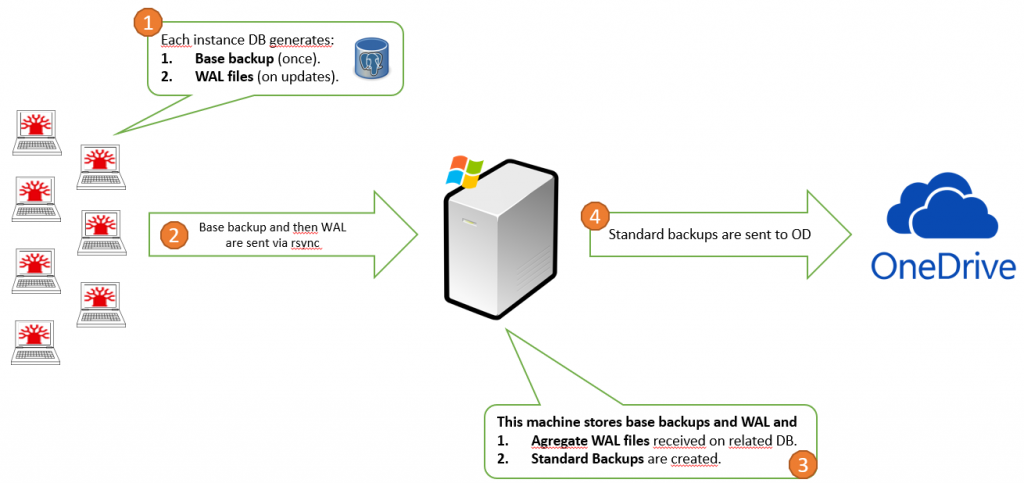
The PostgreSQL native tool is used to generate the backups. In a nutshell, a base backup is first generated and additional WAL files are generated locally on each instances.
Then it is sent to a dedicated Windows machine in which it stores the base backup and aggregates the WAL files. WAL files are basically the incremental back up produced every day.
The Windows machine then dumps the aggregated DB and sends it to OneDrive.

Below a graph showing how it works:

How to Configure.

Note that the configuration can be done by the Support Team but we encourage each OCs IT referent to get the knowledge to be able to do it when restoring a newly created instance or when migrating an instance.

The process for newly restored instances or migrating instances is the same.

Instance authentication to the Continuous Backup Windows Server is done via SSH key. This key is generated by the APM Support Team (coreteam IT) and there is one key per instance.

The IT coreteam generates a zip file containing the private and public keys and send it to the OC IT Referent by email when a new instance is created.

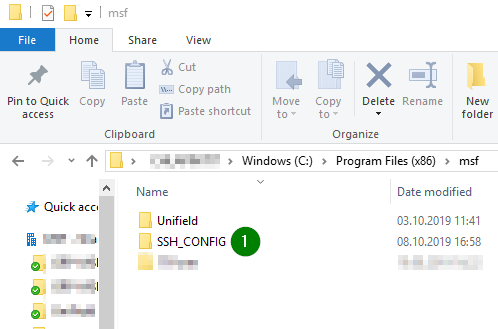
1. Unzip the file ssh_config.zip and place the file SSH_CONFIG in C:\Program Files (x86)\msf
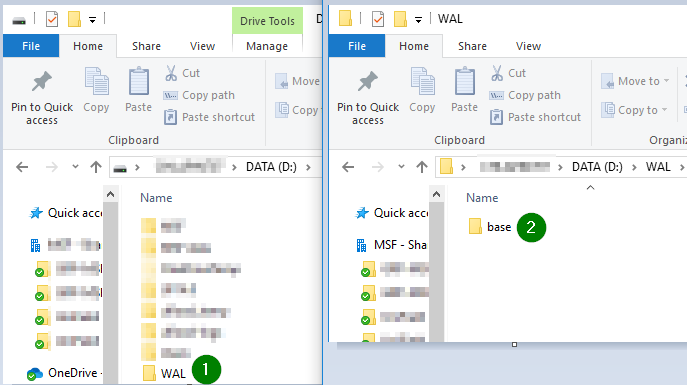
2. Choose a directory to store the WALs archive.
D:\WAL is usually the case but according to the server configuration defined by OC, so it can be placed in the C D:\WAL.
In our example, it is in the D drive.
Note that the base back up is placed in a sub folder D:/WAL/base. Once sent, this sub folder is empty.
All additional WALs are put in D:\WAL
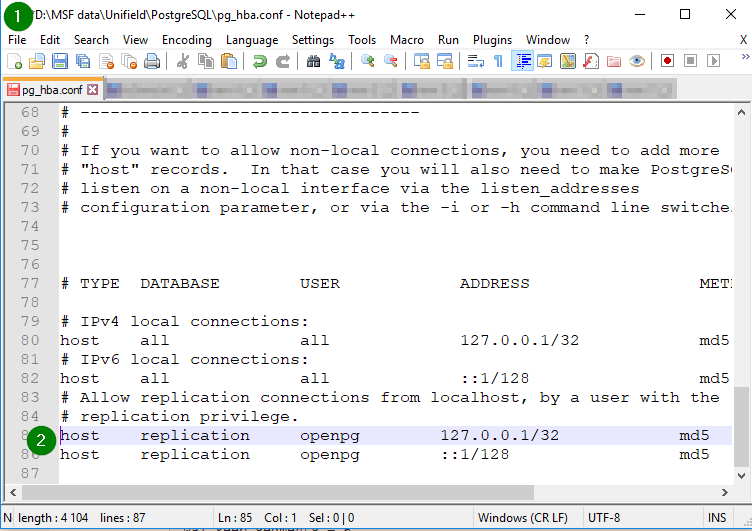
3. Edit pg_hba.conf in D:\MSF data\Unifield\PostgreSQL
(or in the C drive if MSF data is placed in the C drive)
Add or un-comment (#) these 2 lines to allow UF to request a base backup

host replication openpg 127.0.0.1/32 md5
host replication openpg ::1/128 md5


NB: If both lines of host replication are already uncommented, there is no need to touch them.
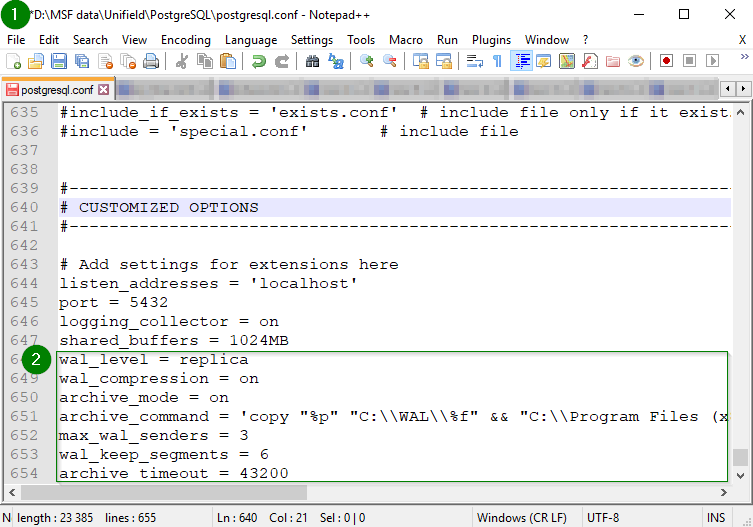
4. Edit postgresql.conf in D:\MSF data\Unifield\PostgreSQL
At the end of the file, add:

wal_level = replica
wal_compression = on
archive_mode = on
archive_command = '"C:\\Program Files (x86)\\msf\\Unifield\\Server\\rsync\\7za.exe" -bd -bso0 -ssw -w"D:\\WAL" a "D:\\WAL\\%f.7z" "%p"'
max_wal_senders = 3
archive_timeout = 43200

In case your WAL folder is in your C drive, then add:

wal_level = replica
wal_compression = on
archive_mode = on
archive_command = '"C:\\Program Files (x86)\\msf\\Unifield\\Server\\rsync\\7za.exe" -bd -bso0 -ssw -w"C:\\WAL" a "C:\\WAL\\%f.7z" "%p"'
max_wal_senders = 3
archive_timeout = 43200


NB: you have to edit the lines to add to the file depending of where is based your MSF data and WAL folder using C or D.
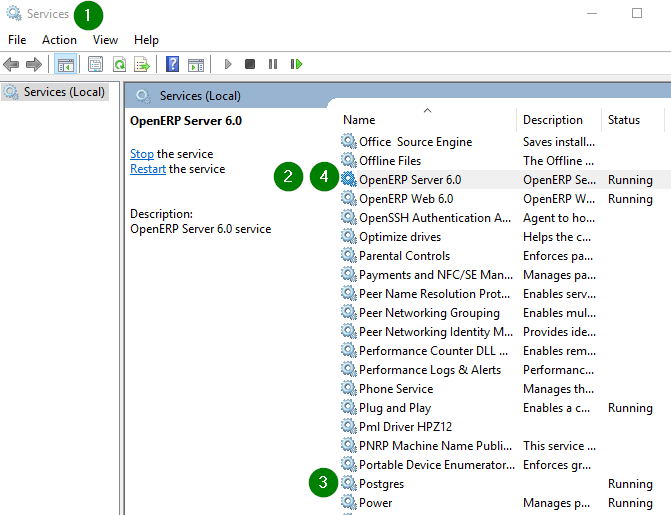
5. Restart services.
Open Services and restart
– openerp-server-py3
– Postgres

Before, restarting services, ensure no user is using Unifield.
You can check with the following method:
Go to ADMINISTRATION > Users > Users
Click on column “ LAST CONNECTION” to see the active one.
6. Log in UniField
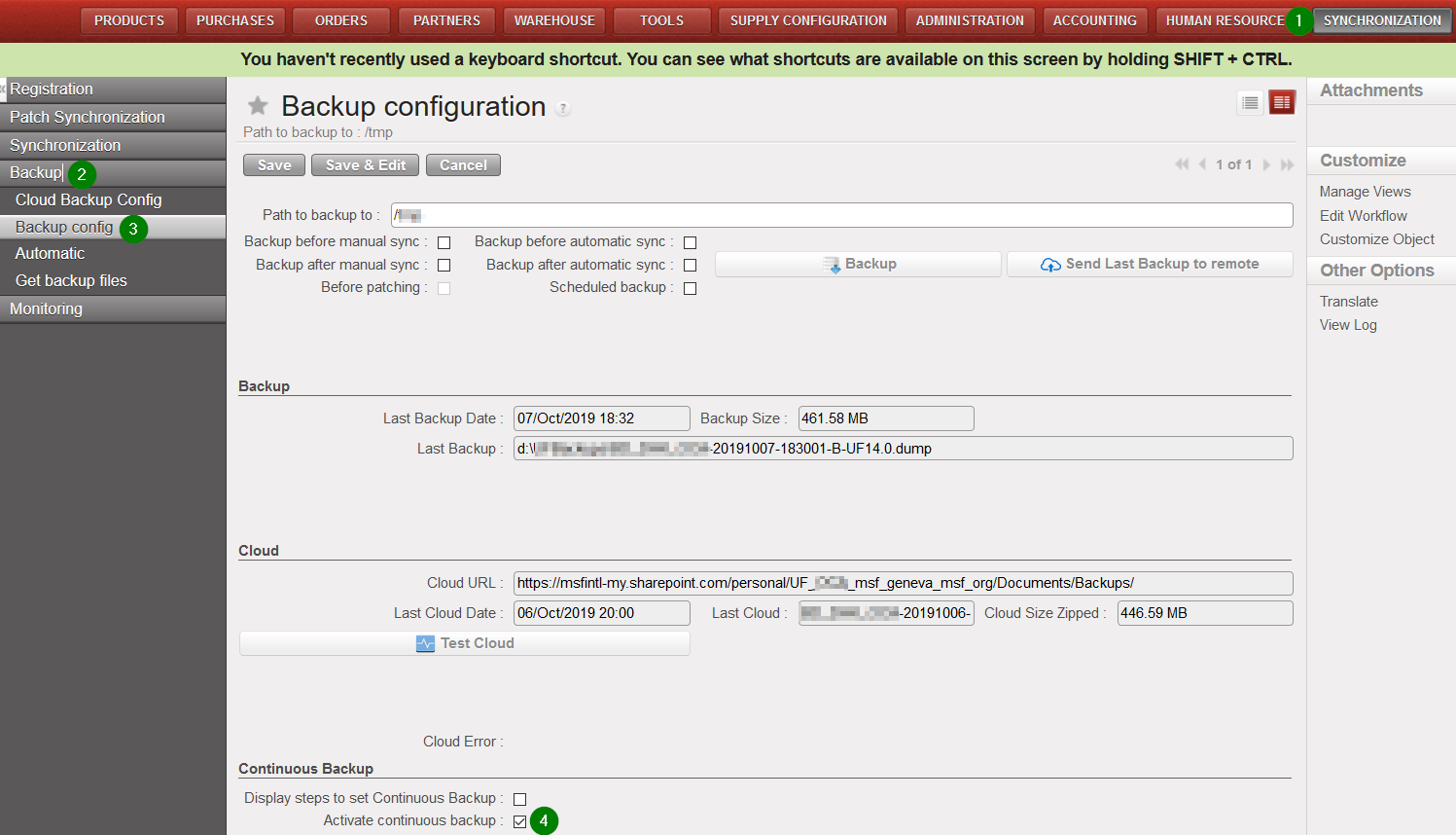
– Click on menu Synchronisation/Backup/Backup config
– In “Type of Back up”, select “Continuous backup”
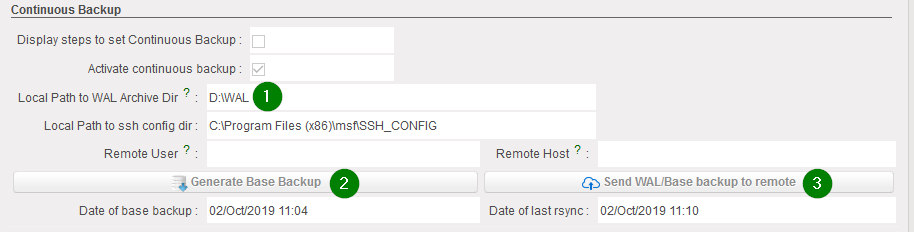
– Set “Path to back up to” with D:\WAL (or C:\WAL) to define the local Path to set the WALs.
7.a Click on Generate Base Backup => PostgreSQL will create D:\WAL\base\base.tar (or C:\WAL\base\base.tar) and Unifield will 7z the file.
Make sure that WAL files are generated in the WAL folder (D:\WAL or C:\WAL): after the creation of \WAL\base\base.tar a special WAL file XXX.YYY.backup.7z must have been generated, if not check the archive_command directive in the postgresql.conf file and go back to step 4.

If successful a new date will fill in ‘Date of base backup’

7.b Click on Send Wal/Base Backup to remote => rsync will push the content of D:\WAL (or C:\WAL) to the Continuous Backup Server.

If successful, a new date will fill in ‘Date of last rsync’

Successfully sent files are removed from D:\WAL (or C:\WAL)
Please note that by default the port 8069 would be used to send the backup via rsync
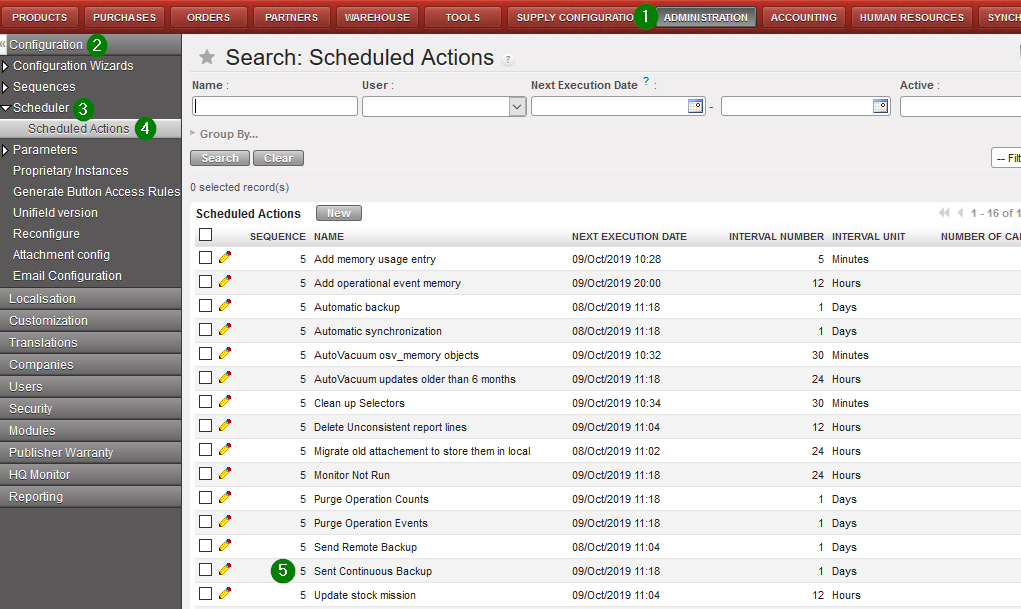
A scheduled task to sent files to remote is added on Administration/Configuration/Scheduler/Scheduled Actions

The task is called Send Continuous Backup and nothing is to be touched

FAQ

  • Does continuous backup impact instance performances?
    No lack of performances because WAL are always generated, even if they are not used. For the continuous backup we only copy and 7zip them. But as file sizes are max 16MB, compression time and cost are low.
  • What happen if there is more than one instance on the same machine?
    In this case, only one instance should be configured for continuous backup. Continuous backup captures all databases on a server. It means, in OD you will have X dumps for the X instances. Other instances should be configured as ‘Direct push to Sharepoint’ without credentials in the Cloud Backup Config. Providing credentials in the Cloud Backup Config for these additional instances would result in multiple overlapping backups, which may overwrite each other.
  • What happen if PostgreSQL crashes?
    No issues. Continuous backup is a PostgreSQL native feature and so well managed in case of crash.
  • Do we still have to send backups to OneDrive?
    No, continuous backups would be send automatically to OneDrive.
  • Can we switch-off the normal local backup (before/after patch, daily)?
    No. Normal backups must be done normally.
  • Can we consider continuous backup as the offsite backup solution?
    No, you are still responsible of your backups. Of course, the ST will help you in case of issue but we are not responsible of your backups.
  • What happen if the connection is broken during rsync?
    It will re-runn rsync next time until the synchronization completes normally. We especially chose rsync as reliability has been proven.

11.6 Automated Instances Creation.

11.6 Automated Instances Creation.

This feature has been developed in order to ease our work and decrease human error mistakes during the instance creation phase. In a nutshell it will create new instances from scratch (Coordination and project instances only) according to a configuration file (previously filled and approved by the Support team) and csv files needed for its initial configuration.

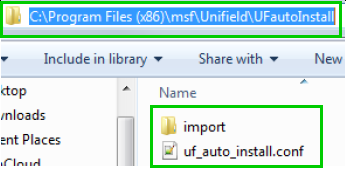
In C:\Program Files (x86)\msf\Unifield create a folder named UFautoInstall and insert the following files/folder:
1. A folder named import with the following files:


  • account.analytic.journal.csv
  • account.journal.csv

2. A file named uf_auto_install.conf

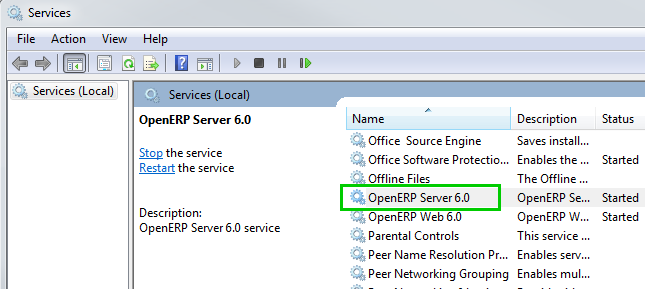
Open Services
Right click on OpenERP Server6.0 and restart
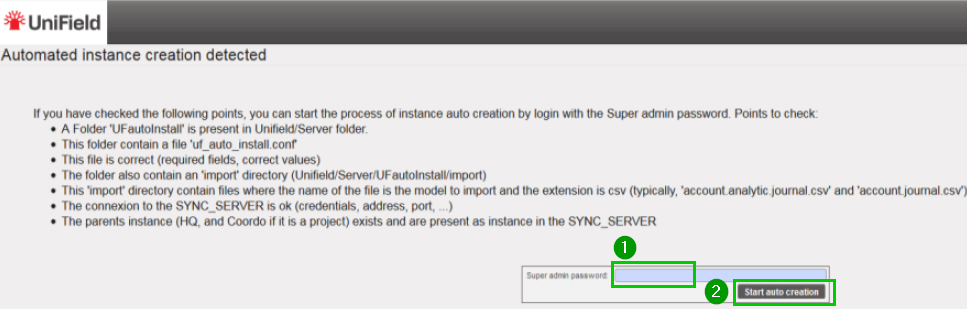
Refresh the UniField page in your browser and you would be redirected to the following page
Read the instructions
Fill in you Super admin password 1
Click on Start auto creation 2
Example of an uf_auto_install.conf file.
Please note that the information you will have to provide remain the same as if you were doing an install from scratch following the step by step procedure in this IT manual.
Fill the different line as per your OC specific configuration and according to your checklist validation
Data showed in this print screen is for an example purpose.


Each [sections] in the file represent specific data that is needed for the configuration of your instance. Below complementary information to keep in mind while filling the file (choices, syntax):

  • General file options:

yes OR no
false OR true
Date/time: 2020-08-01 22:00
Interval unit: days OR hours

  • [instance]

sync_port = 8069 OR 443
sync_protocol = xmlrpc OR gzipxmlrpcs
group_names = group1,group2,group3,group4
instance_level = coordination OR project
sync_host = sync.unifield.net (for production)

  • [reconfigure]

functional_currency = EUR OR CHF
delivery_process = complex (by default)


[instance]
sync_port =
db_name =
instance_name =
prop_instance_code =
admin_password =
sync_user =
sync_pwd =
sync_server =
sync_host =
sync_protocol =
oc =
parent_instance =
group_names =
instance_level =
lang =

[backup]
auto_bck_interval_nb =
auto_bck_interval_unit =
auto_bck_next_exec_date =
auto_bck_path =
auto_bck_beforemanualsync =
auto_bkc_aftermanualsync =
auto_bck_beforeautomaticsync =
auto_bck_afterautomaticsync =
auto_bck_beforepatching =
auto_bck_scheduledbackup =

[autosync]
active =
interval_nb =
interval_unit =
next_exec_date =

[stockmission]
active =
interval_nb =
interval_unit =
next_exec_date =

[silentupgrade]
active =
hour_from =
hour_to =

[reconfigure]
address_street =
address_street2 =
address_zip =
address_city =
address_country =
address_phone =
address_email =
address_company_website =
address_contact_name =
functional_currency =
import_commitments =
payroll_ok =
delivery_process =
previous_fy_dates_allowed =

[partner]
external_account_receivable =
external_account_payable =
internal_account_receivable =
internal_account_payable =

[company]
salaries_default_account =
scheduler_range_days =
default_counterpart =
reserve_profitloss_account =
rebilling_intersection_account =
intermission_counterpart =
revaluation_account =
counterpart_bs_debit_balance =
counterpart_bs_crebit_balance =
credit_account_pl_positive =
debit_account_pl_positive =
credit_account_pl_negative =
debit_account_pl_negative =

[accounting]
cost_center_code_for_fx_gain_loss =

11.5. Scheduled Actions Configuration.

11.5. Scheduled Actions Configuration.

In UniField you have the possibility to configure and manage the scheduled actions in a single place. Some are important to configure when you create a new instance such as Update stock mission in order not to be launched during the working business hours.

Click on Menu Administration 1, Configuration 2, Scheduler 3, Scheduled Actions 4
Click on the edit button 5 to open a scheduled action

Please note that some actions are active by default when you create a new instance and its execution time is set automatically at the creation time of your instance. We recommend checking the configuration and update the execution time of the scheduled actions in the system. In this way they won’t start in the middle of the day and use unnecessary resources while your end-users are working.

11.4 External Storage Configuration for Attachments.

11.4 External Storage Configuration for Attachments.

Currently all the attachments are saved in the database. This feature allows you to send all your attachments in the File System.
Before configuring and enabling it please have a quick look at your database size. Is it big? Is it because it contains a lot of attachments? If it’s the case you could activate the external storage.
Please be aware that it’s under your responsibility to put in place a backup solution for your attachments in the file system.
Before enabling this option please liaise with your team on site to warn them.

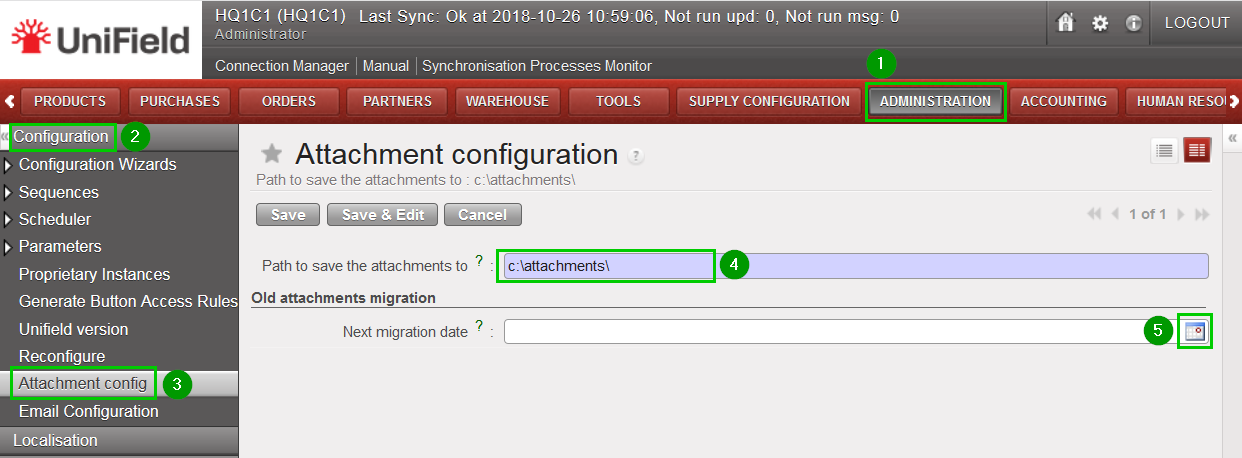
Click on Menu Administration 1, Configuration 2, Attachment config 3
Fill Path to save the attachments to 4
Set Next migration date by clicking on the calendar icon 5

Please note the initial migration will copy all your attachments in the File System (only if the migration goes well). In theory once the first migration is done it is not possible to revert it
The backup/management of your attachments will be then of your responsibility.