6.2 Automatic Patching of Instances – Silent Upgrade
Silent upgrade is a feature that allows an instance under specific configuration to upgrade automatically when a new patch is avaialbe. There is no human intervention during the upgrade process. Please note that the silent upgrade will be performed only if an automatic synchronization has been configured during the time slot defined in the silent upgrade. General note: the instance upgrade is detected during the initial process of the synchronization (manual or automatic).
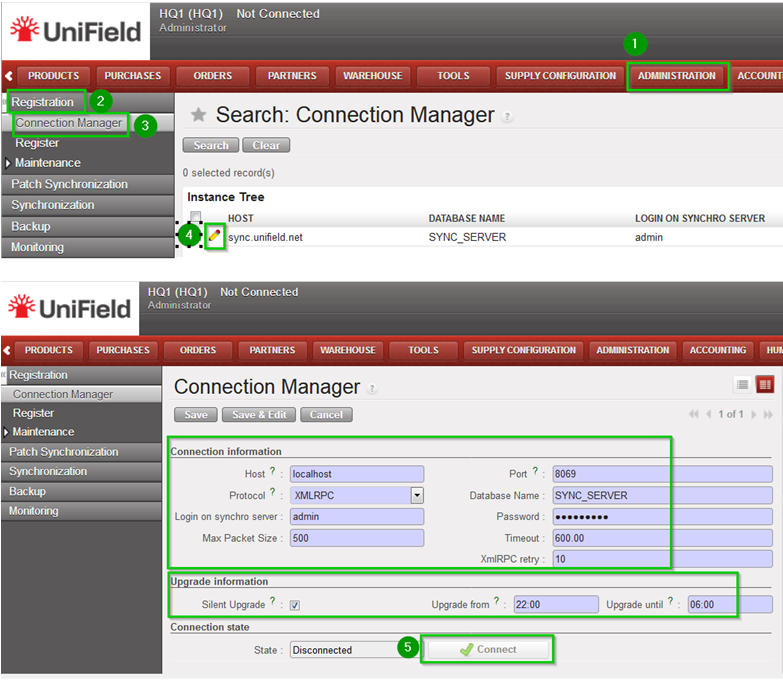
Go to Menu Synchronization, Registration, Connection Manager and click on the edit icon of your connection. Edit thefollowing fields:
Silent upgrade 1: tick the box
Upgrade from? 2: Start time of the slot during which the instance will be patched automatically.
Upgrade until? 3: End time of the slot during which the instance will be patched automatically.
Click on Connect 4 – state switches to connected Click on Save 5
When someone synchronizes an instance, he/she may be warned that an update is available. There are two kinds of updates:
Required: The synchronization feature is disabled as long as the update is not applied. Most of the time they are required.
Optional: The synchronization feature remains enabled and the update can be applied right away or later. In any cases, it will be applied when a required update is pushed to the instance.
Before the upgrade it is advise to:
back up the database (will be done anyway by the system befor the upgrade)
inform the users that an update is going to be installed and that they must stop working until further notice
Please keep in mind that we strongly encourage you to make a backup before and after any upgrade . If you don’t do that, it would be harder to recover from a crash during the upgrade. See backup configuration for an automatic backup before patching
When trying a manual synchronisation by pressing the Start All Synchronization in Background button 1 the following message will appear. Click OK 2 Back to the manual synchronization menu Close it.
You will notice the following message displayed on the top-right of your screen.
Click on Menu Synchronization 1, Patch Synchronization 2, Upgrade 3
A pop up window opens. Click on Download 1 Instance restarts when Upgrade is clicked. It would prevent users from going on with their work. As a result, you should warn your colleagues about the unavailability of UniField. Click on Upgrade 2
The instance is restarting to apply the changes.
When it is done you would need to log in again and re-connect back your instance to the SYNC_SERVER (unless you use the auto-connect feature) If you forget to do that, the automatic synchronization won’t be launched. Refer to the Connection manager configuration. Inform the users that they can resume their work
One of the main features of UniField is to deploy upgrades easily. To achieve that, the SYNC_SERVER acts as a patch repository. Every instance that is not up-to-date downloads the patches it needs and applies them locally. This check and the upgrade process are done every time an instance synchronizes.
5.6 Verify the Status of pull and push of Synchronized Entries (only at sync_server instance)
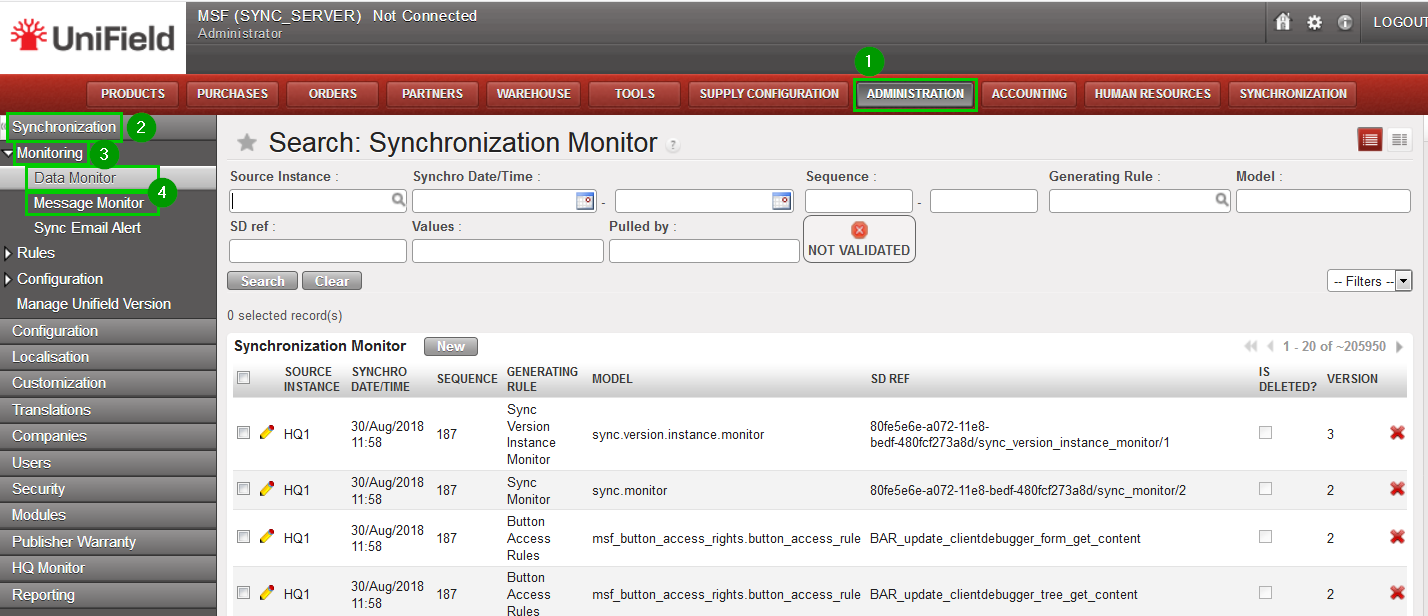
Click on the menu Administration 1, Synchronistaion 2, Monitoring 3, Data Monitor or Message Monitor 4. You will see all the data or messages that have been pushed and pulled between instances via the synchronization server.
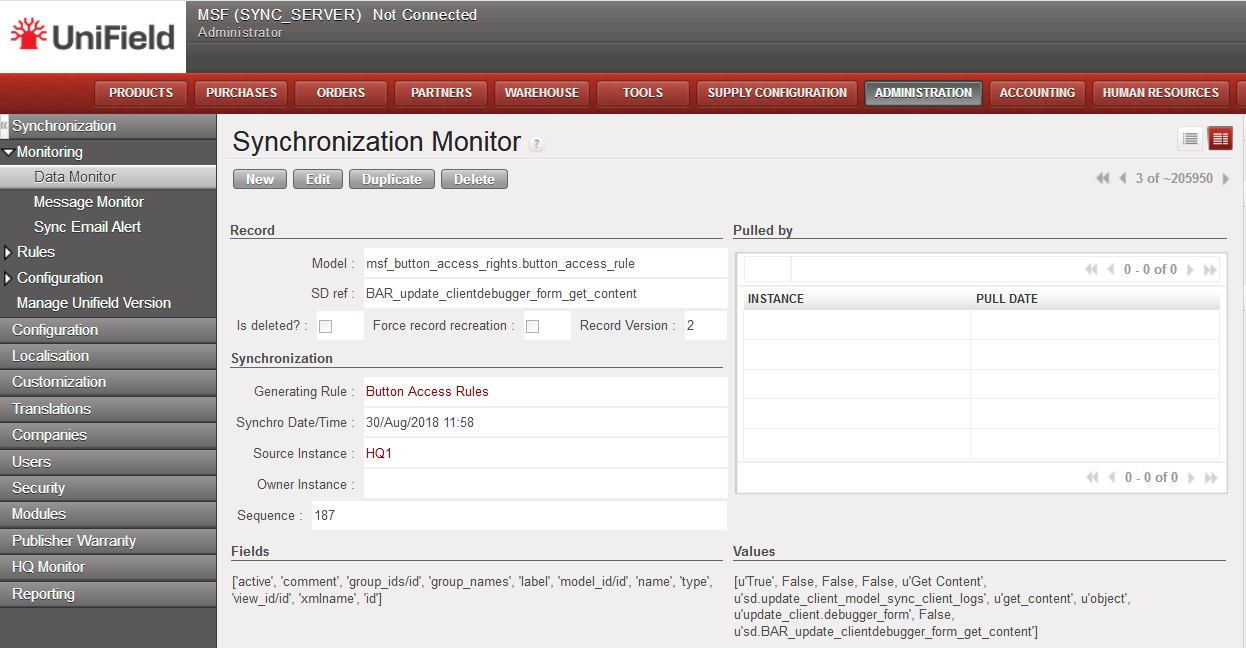
Click on a line in this list view to display the instance that pushed the entry to the server and the instances that pulled this entry from the server.
5.5 Monitoring the Data and Messages Exchanged (only at client instance)
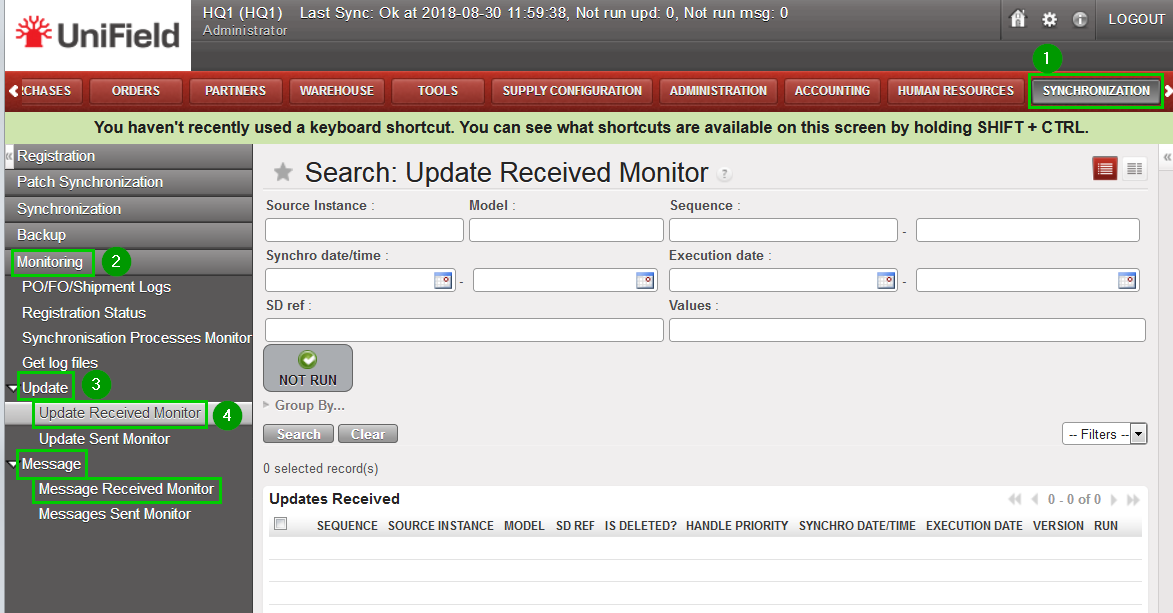
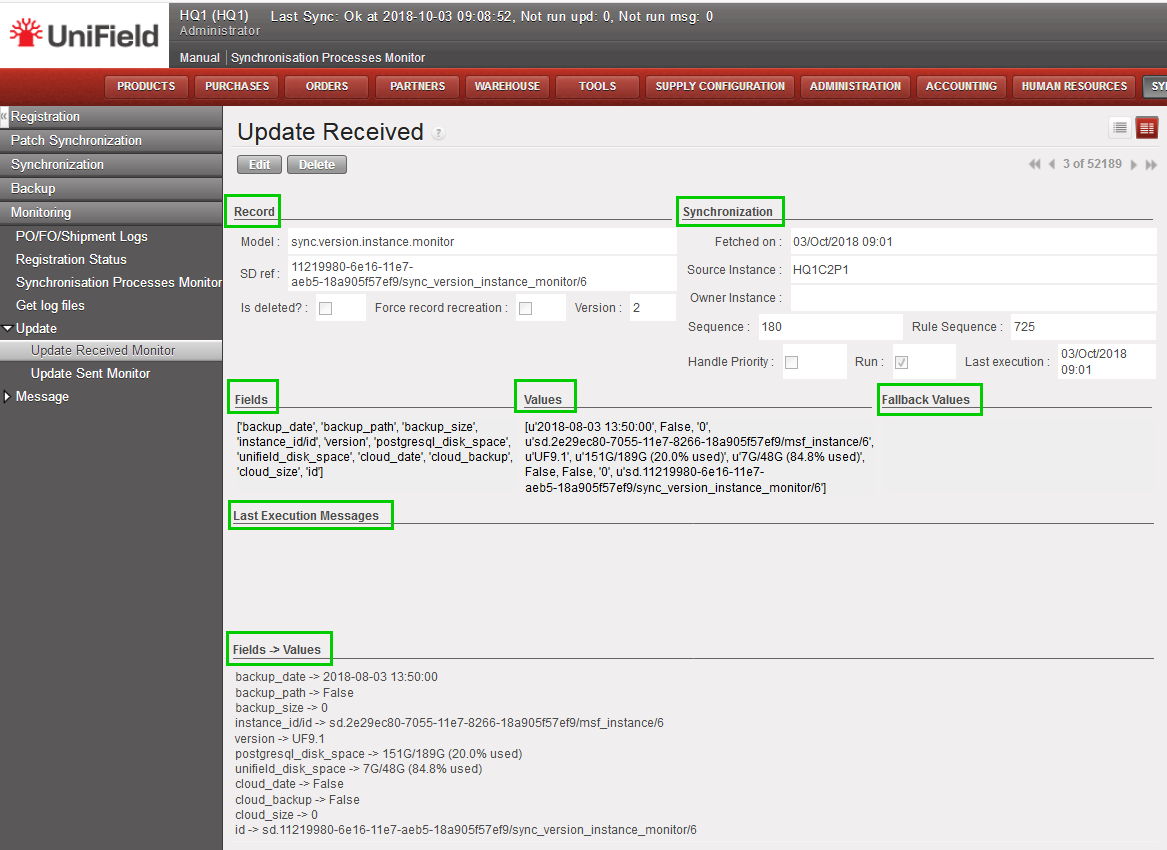
Click on menu Synchronization 1, Monitoring 2, Update or Message 3. The sub-menu Update Received 4 displays the data exchanged and Message display the messages exchanged between the current instance and other instances.
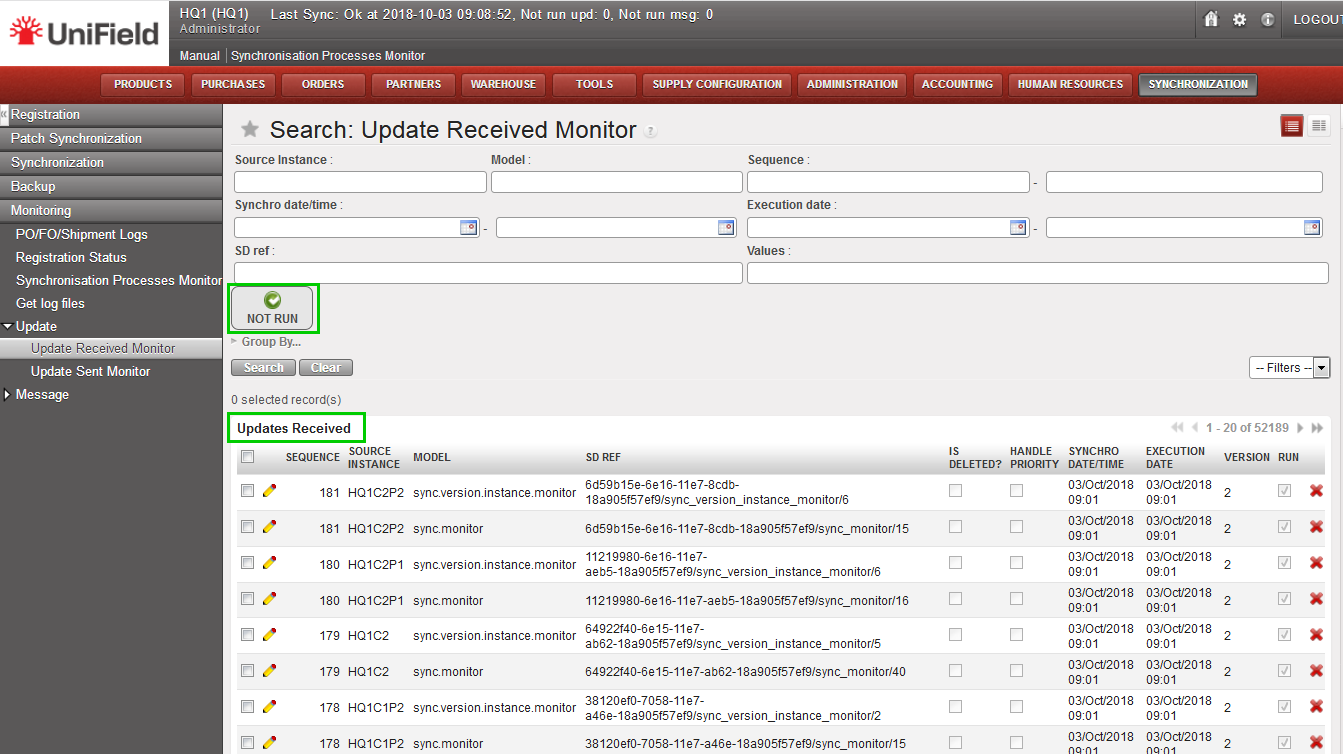
Click/Unclick the Not Run button 1 to show the lines that successfully executed or not; the entries that were exchanged but failed to be executed are highlighted in red.
Click on a line of this list to show the content of the data or message exchanged with all relevant information to the run status and error message. More information on what to do with the Not Run lines in the troubleshooting section.
5.4 Synchronization Task Status (only at client instance)
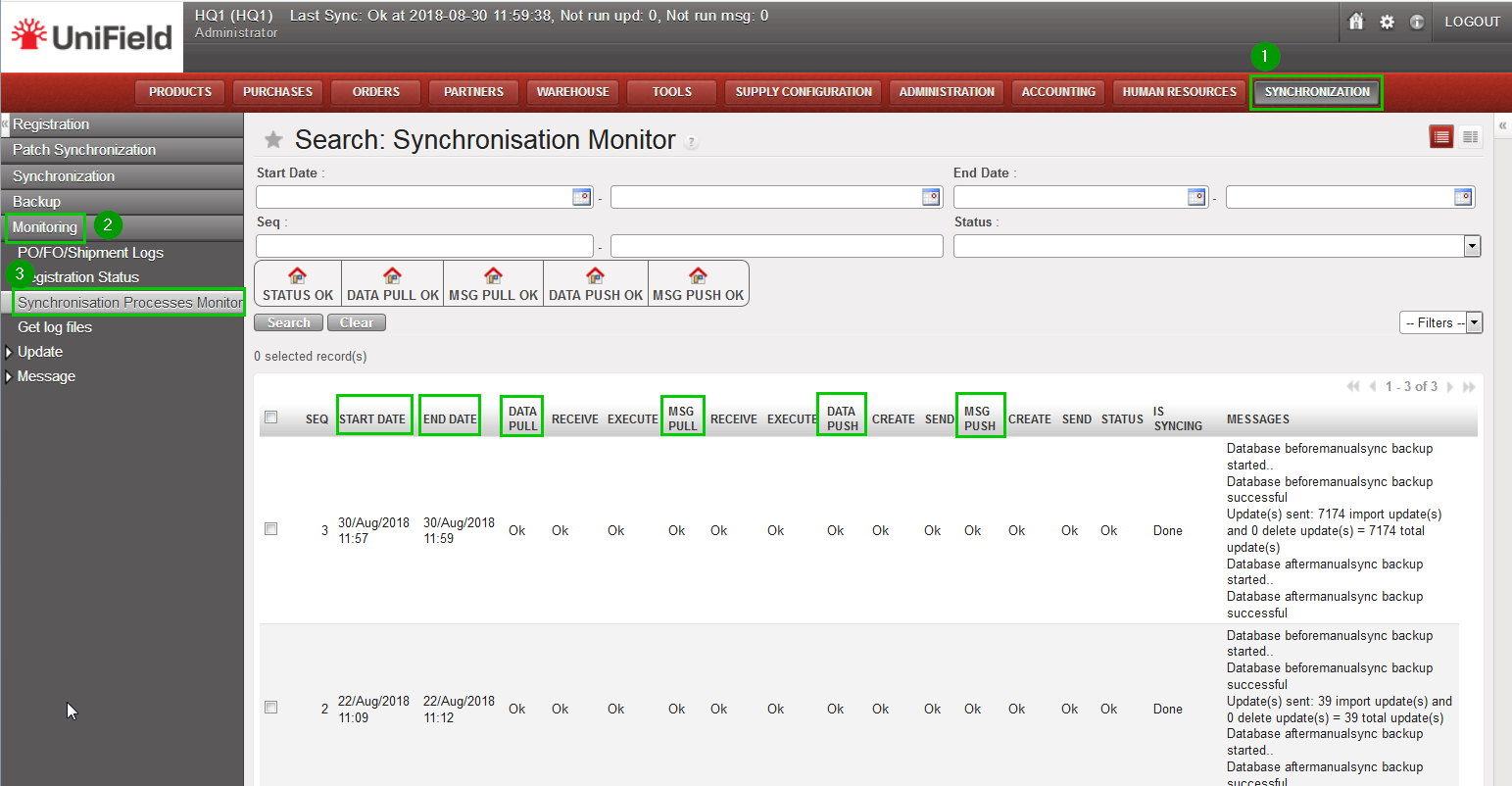
Click menu Synchronization 1, Monitoring2, Synchronisation Processes Monitor3. The Synchronization Processes Monitor shows a list of all synchronization rounds that have been made from this instance with the timestamp of the synchronization tasks. The first line in the list indicates the status of the very last synchronization round. For each synchronization round, there are 4 synchronization tasks and the order of the columns is also the order of executing the tasks: Pull Data, Pull Message, Push Data, Push Message.
There are 3 statuses’: Fail, OK and In Progress:
In Progress: the task is currently running.
OK: the task has been successfully executed.
Fail: some problem occurs during the execution of the task. An error message to explain the failure is also added in the Error Message column.
In some cases, there is another special status: “/” —not applicable . The Error Message is explained in the column. The column “Status” indicates the final result of the synchronization round: one of the 3 possible values will be shown for the single task described above.
5.3 Instance Hierarchy Information (only at sync_server instance)
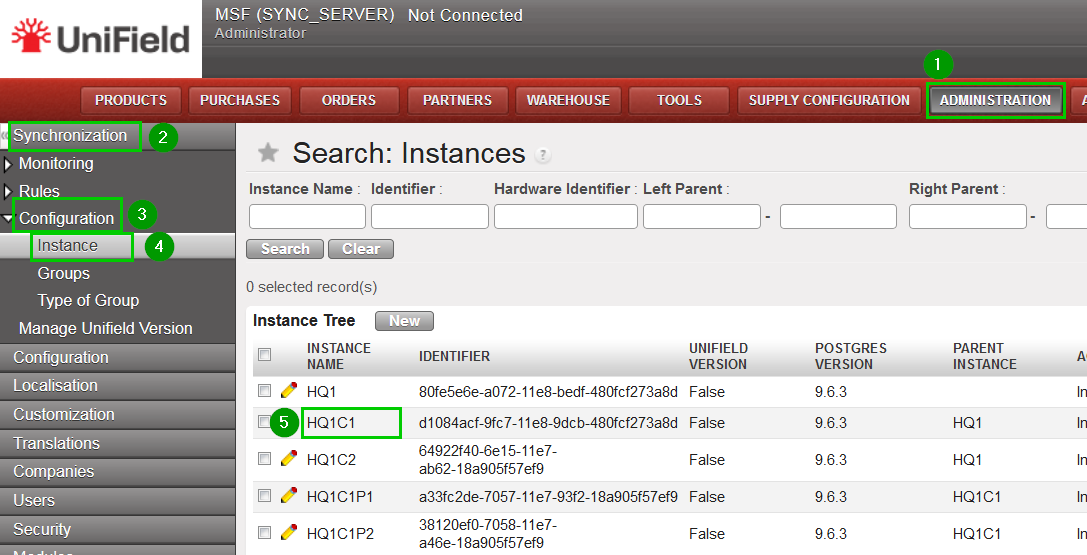
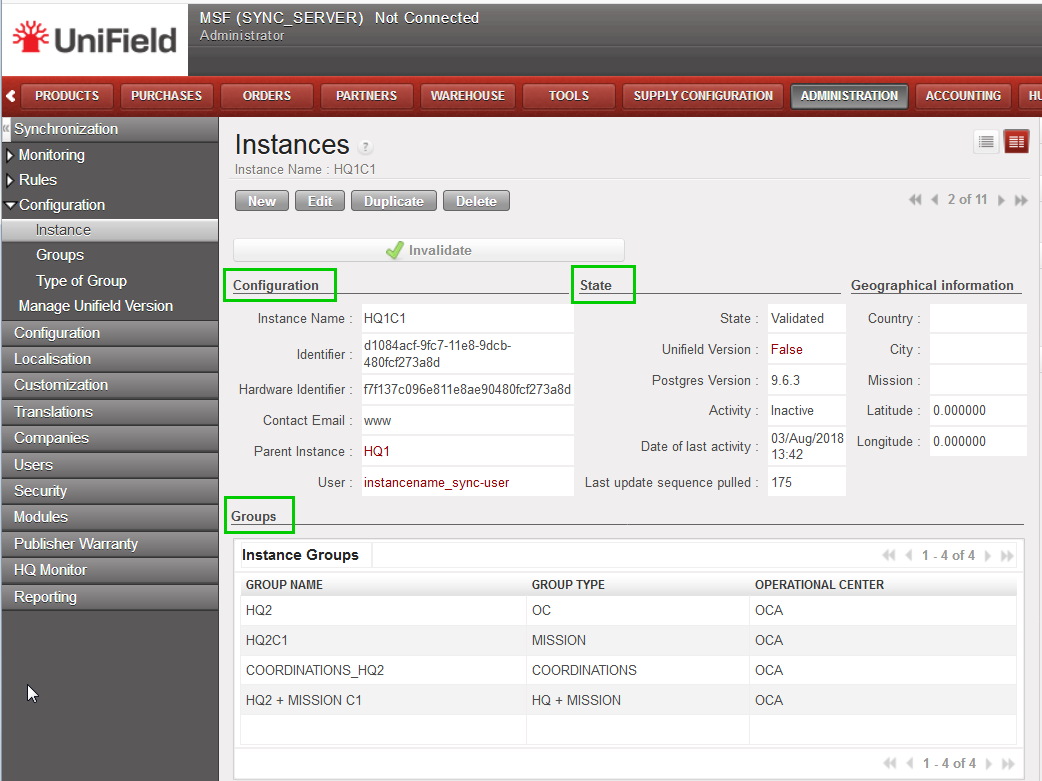
Click on menu Administration 1, Synchronisation 2, Configuration 3, Instance 4. This view shows different information about each instances. To have more detailed information about an instance click on the line of an instance 5
This print screen show you important information about an instance such as its state, parent instance, groups it belongs and children under it.
5.2 Connection Status of an Instance (ready to synchronize)
Click on menu Synchronization 1, Registration 2, Connection Manager 3 Click on the edit button 4 to see the details Among others you can see the connection status (connected, disconnected) and a button to allow connecting to or disconnecting from the server. You also have the possibility to enable the Silent Upgrade option to allow patching during a slot time defined.
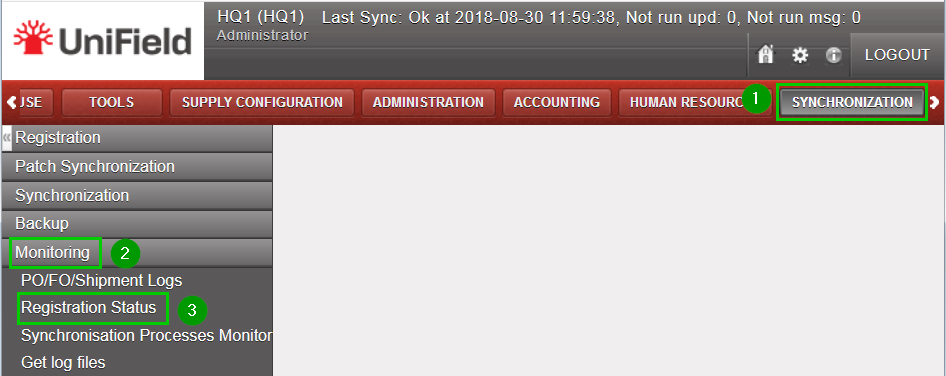
Click on menu Synchronization 1, Monitoring2, Registration Status 3
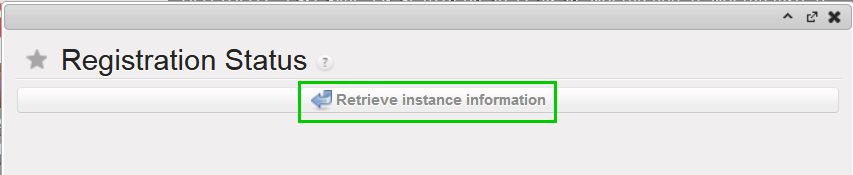
A new popup appears, click on Retrieve instance information button.
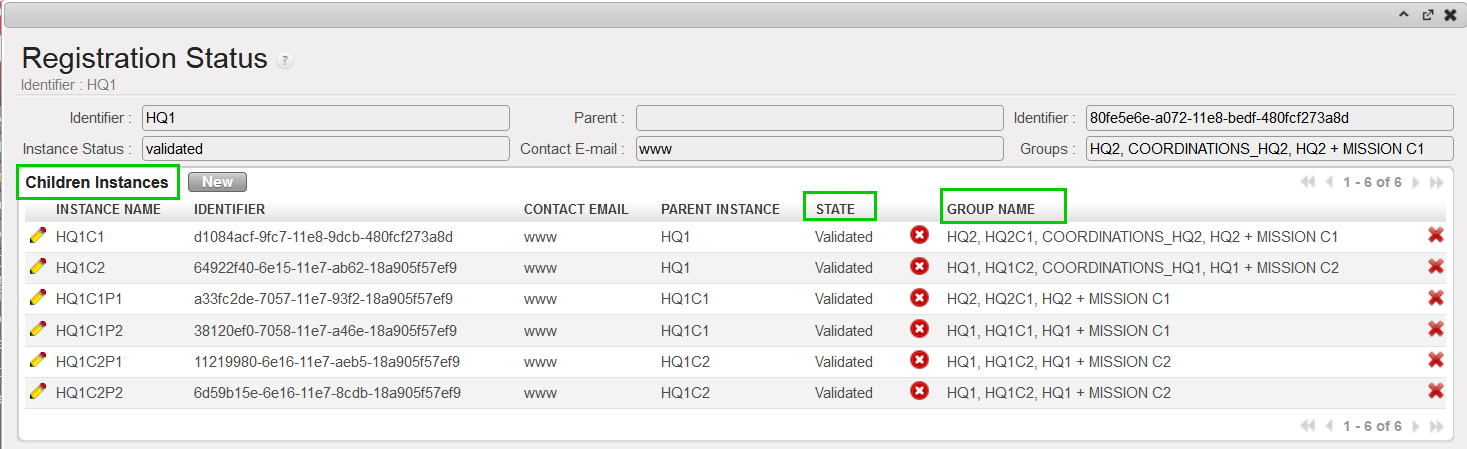
The result shows the registration status of the instance. It includes the validation status, the groups that the instance belongs to, the children instances, etc.
We use cookies to ensure that we give you the best experience on our website. If you continue to use this site we will assume that you are happy with it.