
Supply User Manual ENG -> 5. Warehouse
5. Warehouse
5.1 Chapter Overview: Deliveries, Stock Management and Reporting.
5.14 Quarantine and Scrap (Destruction)
The process of creation of a “Programmatic Donation” is the same as for the “Donation to prevent losses”., the difference is that when you select Programmatic Donation from order type it will pop up with warning message “Any products which leave the instance in Pick/OUT linked to this document will be included in Consumption calculation “then click on “Ok”
This type of Field Order can only have External type partner as customer. It can be sourced to any type of procurement document (PO), and as per warning (above) any movement out of the instance will be included in the consumption calculation. Any stock movement out linked to this FO type will have the corresponding Reason Type “Programmatic Donation”.
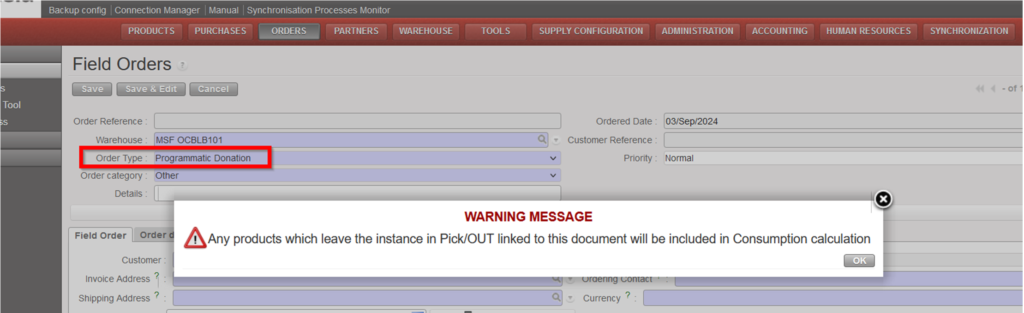
Creation FO with OT a Programmatic Donation
Supply User Manual ENG -> 4. Procurement -> 4.5 LU-SU3104: Field Orders (FOs) - Specifics.
B. How to create a “donation before expiry” FO
C. How to create a “Standard donation” FO
The below steps show how to cancel & resource a validated Purchase Order which has been generated by the OST following the sourcing of an FO on order.
Go to: Purchases / Purchase Management / Purchase Orders
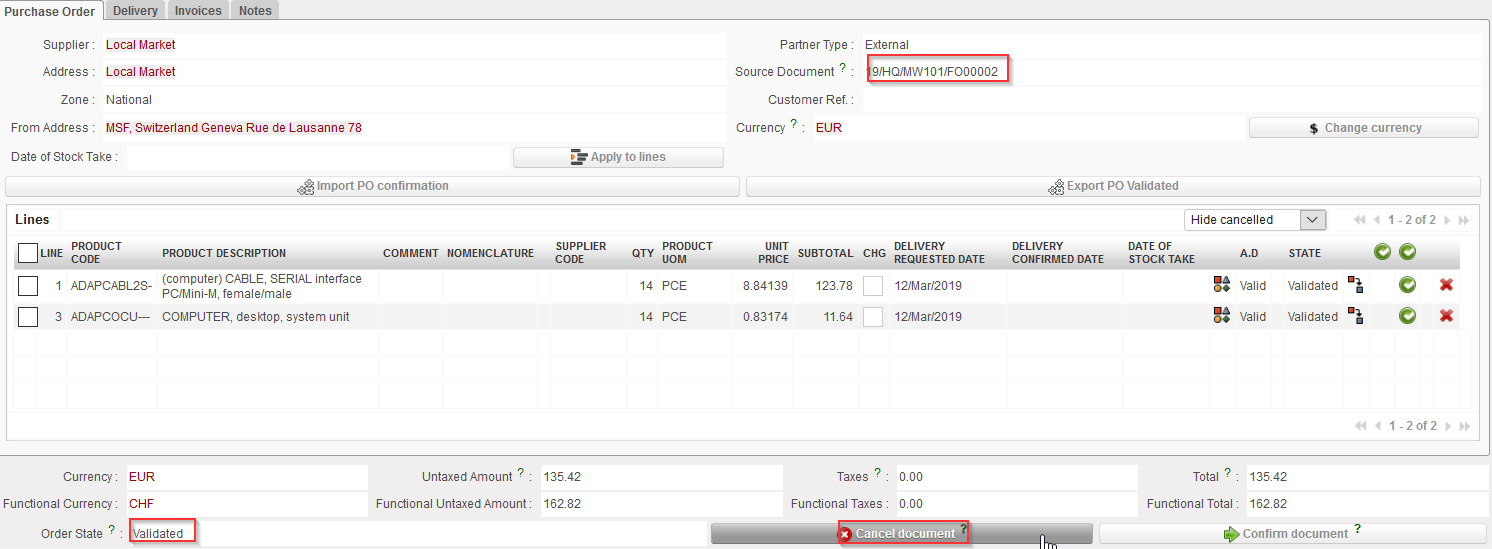 |
| Cancelling an entire PO |
3. Select “Cancel & Resource” on the pop-up window.
 |
| Cancelling & Resourcing an entire PO |
4. The PO switches to state “Cancelled” while the PO-lines switch to state “Cancelled-r” (use the filter at the top of the “Lines” table to see them).
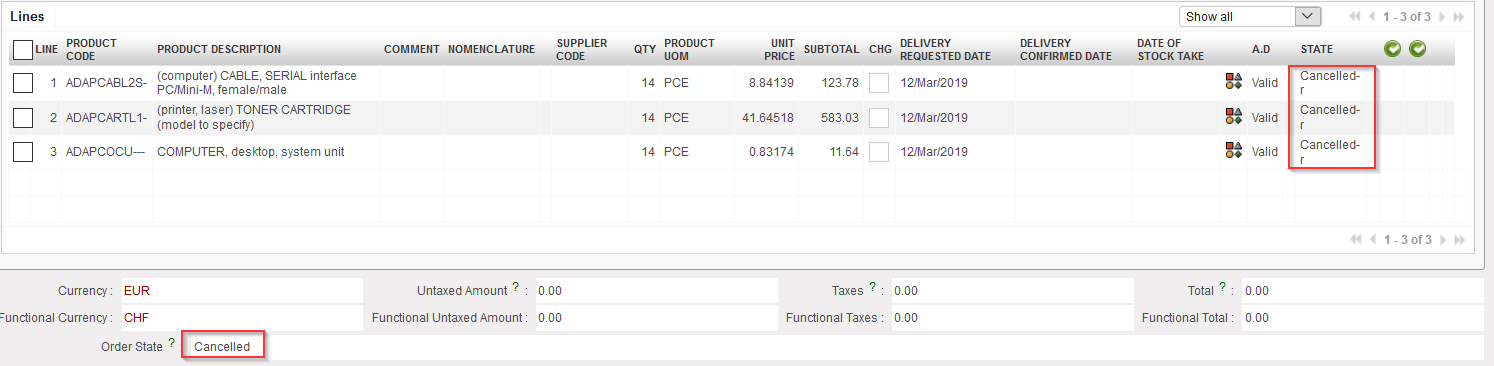 |
| Cancelled & Resourced PO |
5. On the FO which was sourced on order, the original lines switch to state “Cancelled-r” and new lines (copy of the original ones) are added in state “Resourced-v“. These lines can be resourced in the OST. Note that the FO is in state “Sourced-p“.
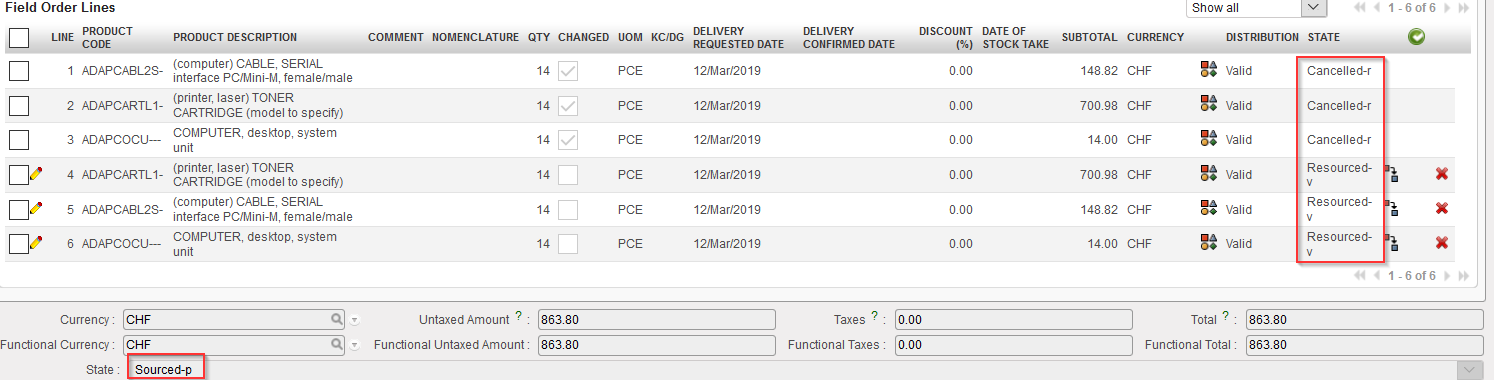 |
| FO after cancel & resource |
The below steps show how to cancel & resource 1 line of a draft Purchase Order which has been generated by the OST following the sourcing of an IR on order.
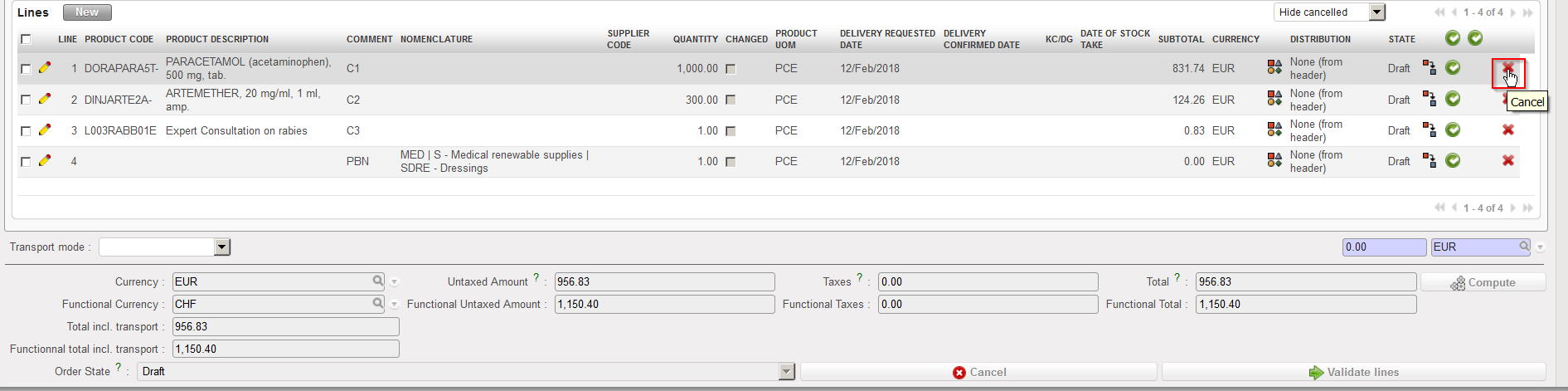 |
| Cancelling a PO-line |
3. Select “Cancel & Resource” on the pop-up window.
 |
| Cancelling & Resourcing a PO-line |
4. The cancelled & resourced PO-line switches to “Cancelled-r” state (you need to “Show all” lines to see this line) while the PO stays in state “Draft”.
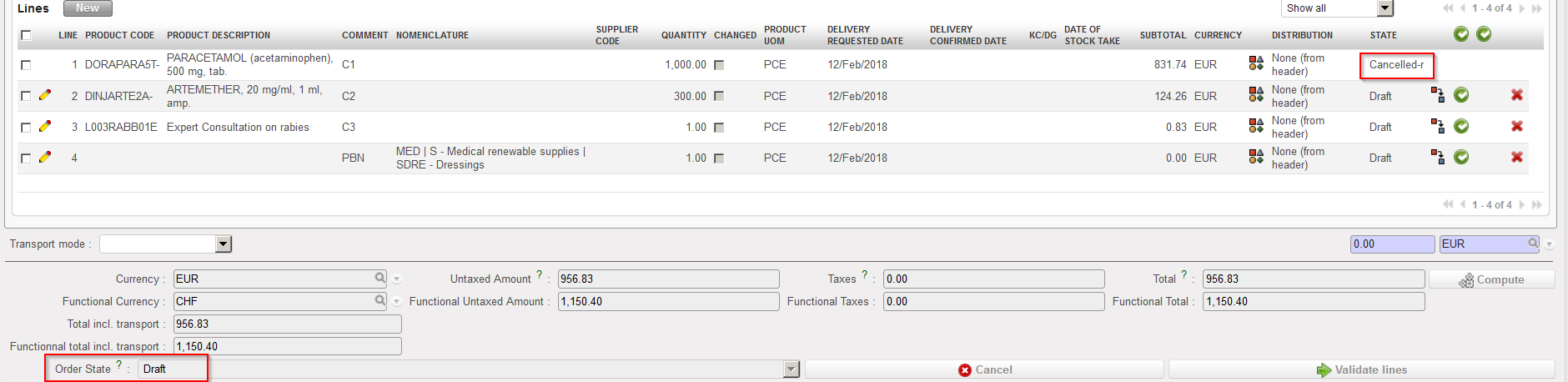 |
| Cancelled & Resourced line on a draft PO |
5. On the IR which was sourced on order, the original line switches to state “Cancelled-r” and a new line (copy of the original one) is added in state “Resourced-v“. The reference of the original Cancelled line number is displayed at line level in column “Original IR/FO line”. This line can be resourced in the OST. Note that the IR keeps the status “Sourced“.
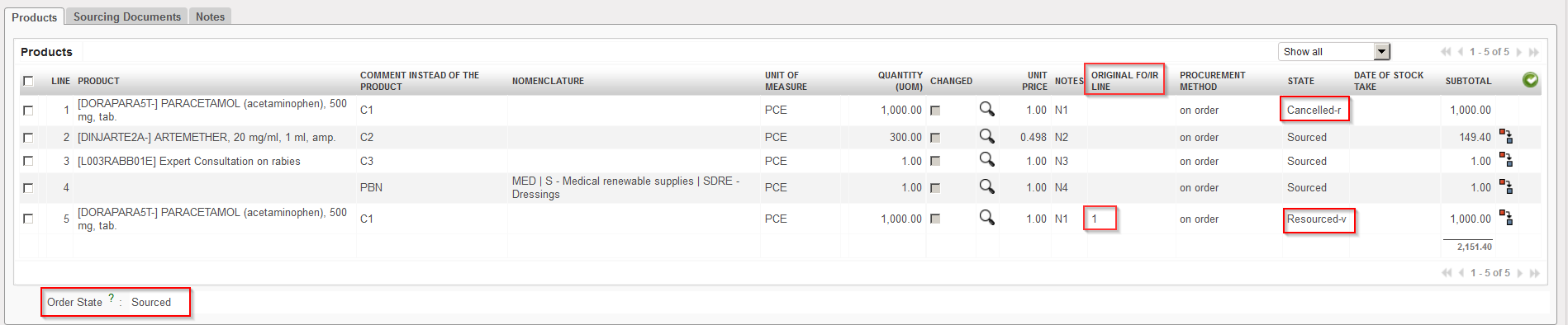 |
| Cancelled & Resourced line on the IR |
Note that cancelling & resourcing 1 PO line can also be done if the PO is validated. In this case, the scenario is the same but the PO header ends up in state “Validated” while the IR header is in state “Sourced-p“.
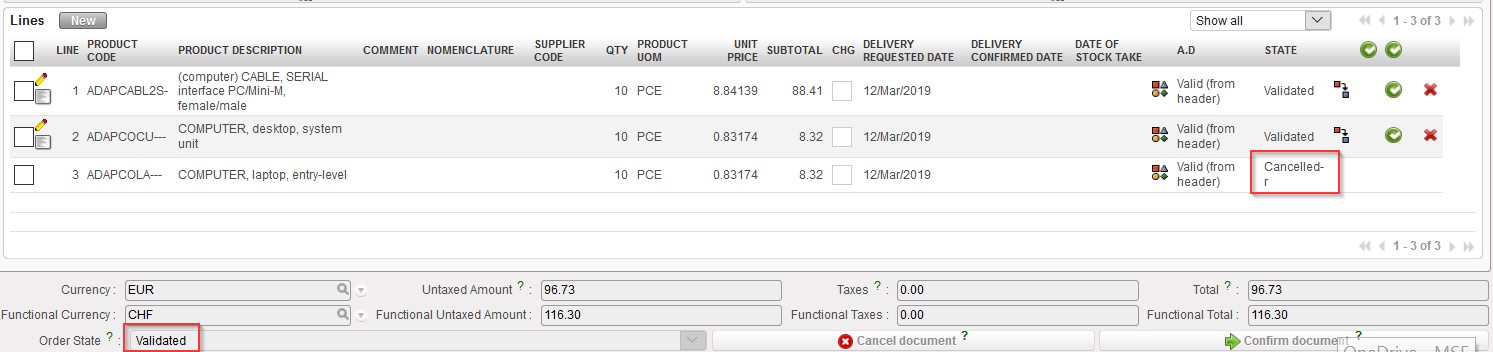 |
| Cancelled & Resourced line on validated PO |
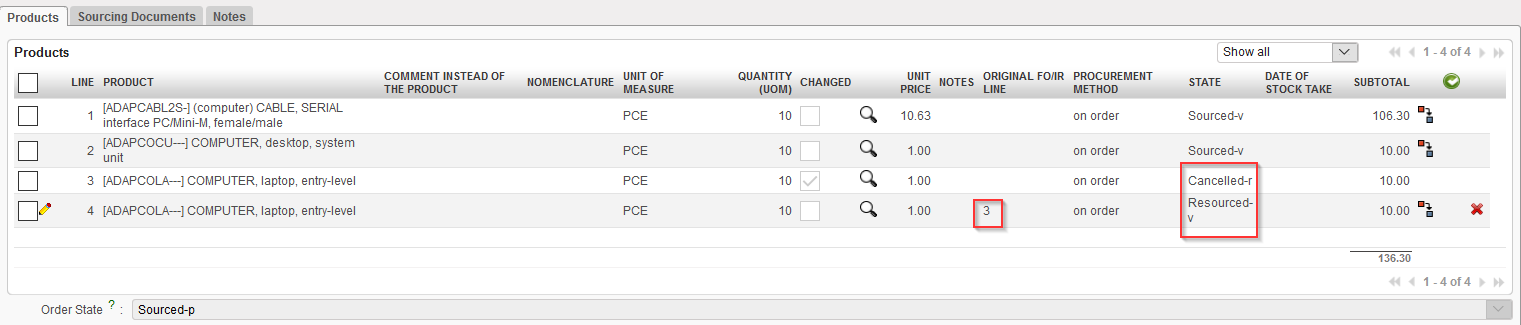 |
| Cancelled & Resourced line on the IR |
The below steps show how to cancel & resource 1 line of a draft Purchase Order which has been generated by the OST following the sourcing of an FO on order.
Go to: Purchases / Purchase Management / Purchase Orders
 |
| Cancelling a PO-line |
3. Select “Cancel & Resource” on the pop-up window.
 |
| Cancelling & Resourcing a PO-line |
4. The cancelled & resourced PO-line switches to “Cancelled–r” state (you need to “Show all” lines to see this line) while the PO stays in state “Draft“.
 |
| Cancelled & Resourced line on a draft PO |
5. On the FO which was sourced on order, the original line switches to state “Cancelled-r” and a new line (copy of the original one) is added in state “Resourced-v“. This line can be resourced in the OST. Note that the FO keeps the status “Sourced“.
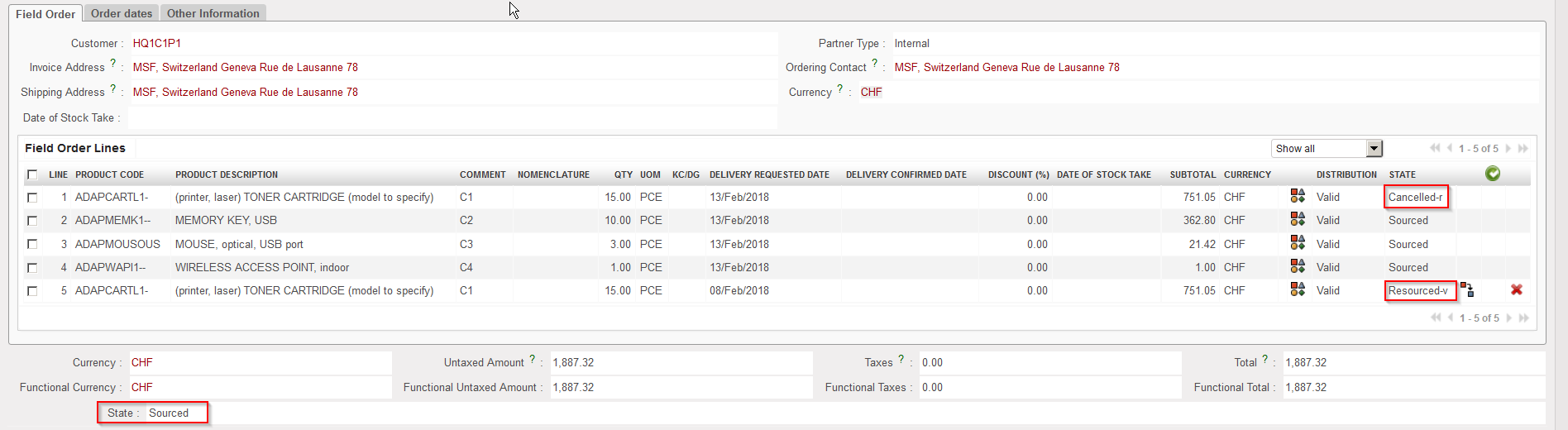 |
| Cancelled & Resourced line on the FO |
Note that cancelling & resourcing 1 PO line can also be done if the PO is validated. In this case, the scenario is the same but the PO header ends up in state “Validated” while the FO header is in state “Sourced-p“.
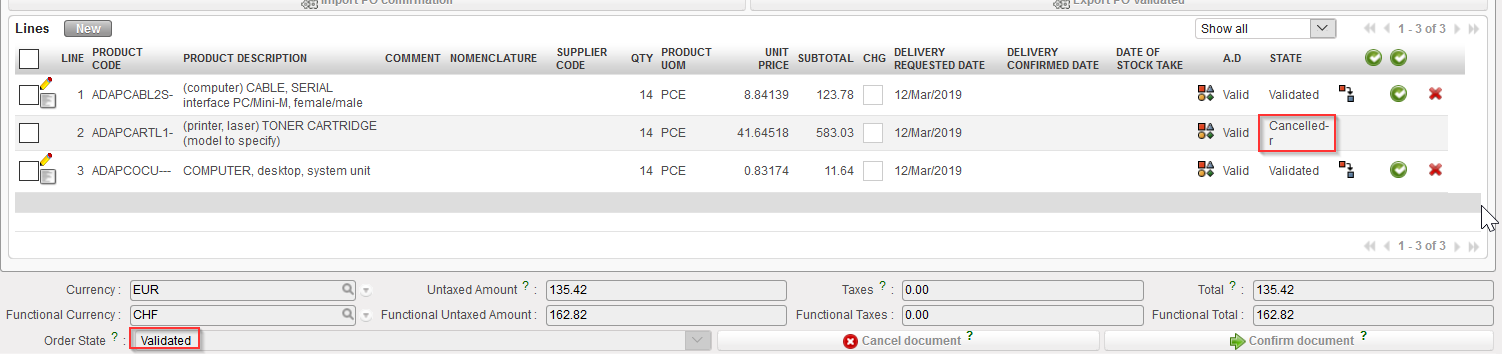 |
| Cancelled & Resourced line on validated PO |
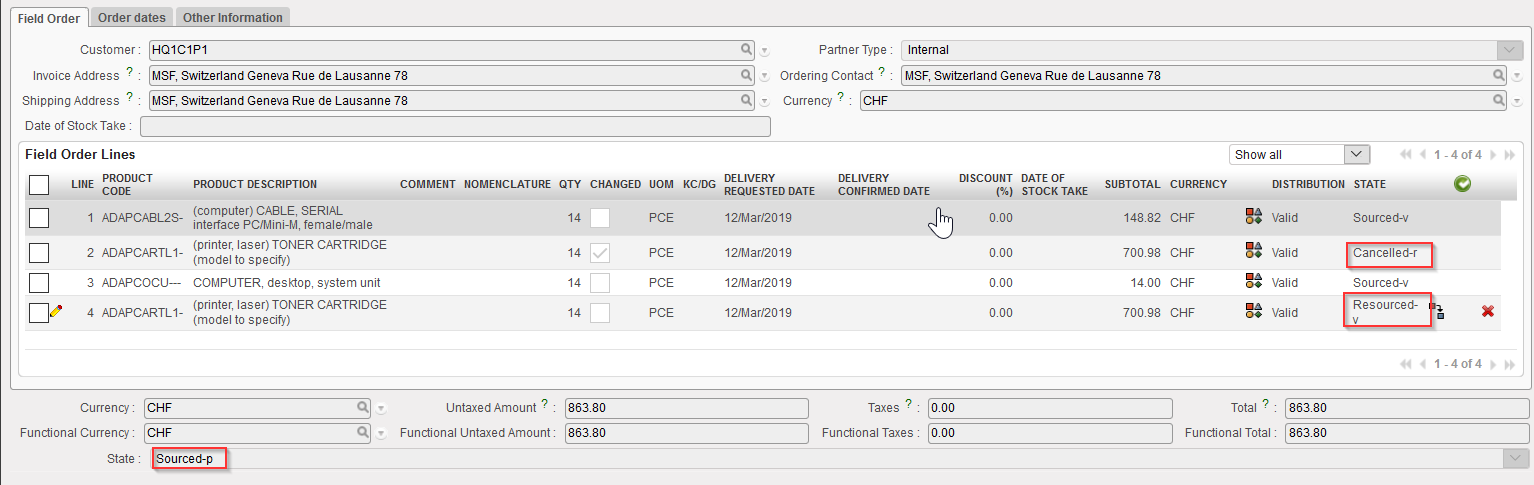 |
| Cancelled & Resourced line on the FO |
Go to: Purchases / Purchase Management / Purchase Orders
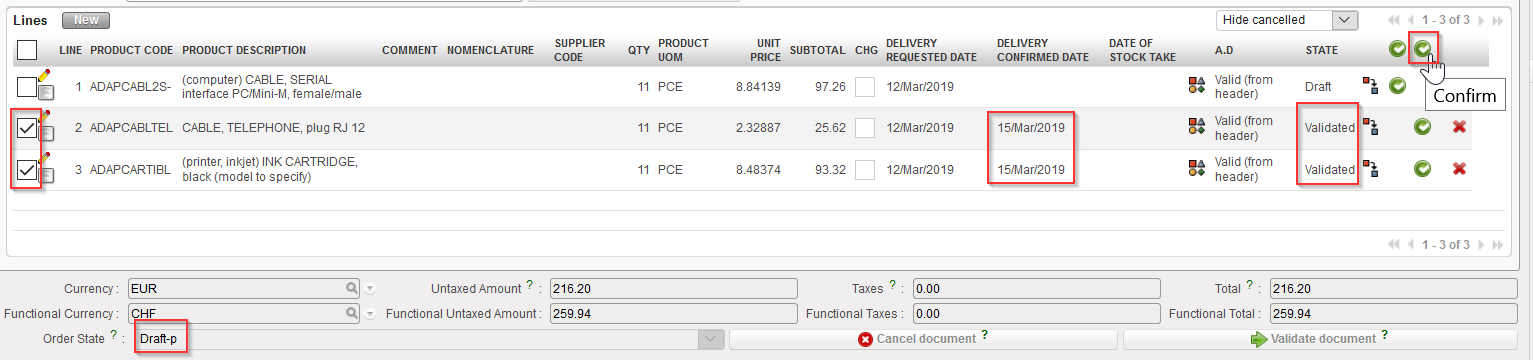 |
| Confirming several lines of a “Draft-p” PO |
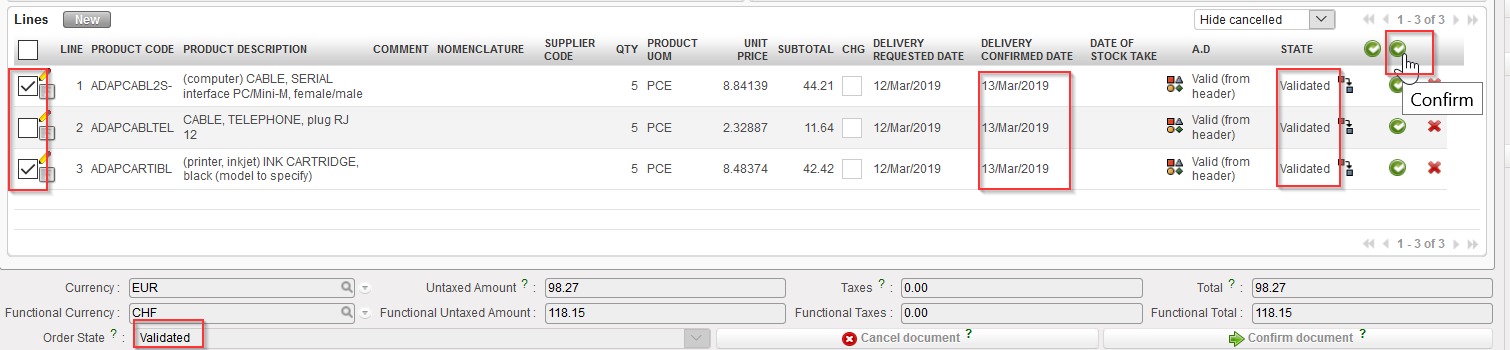 |
| Confirming several lines of a “Validated” PO |
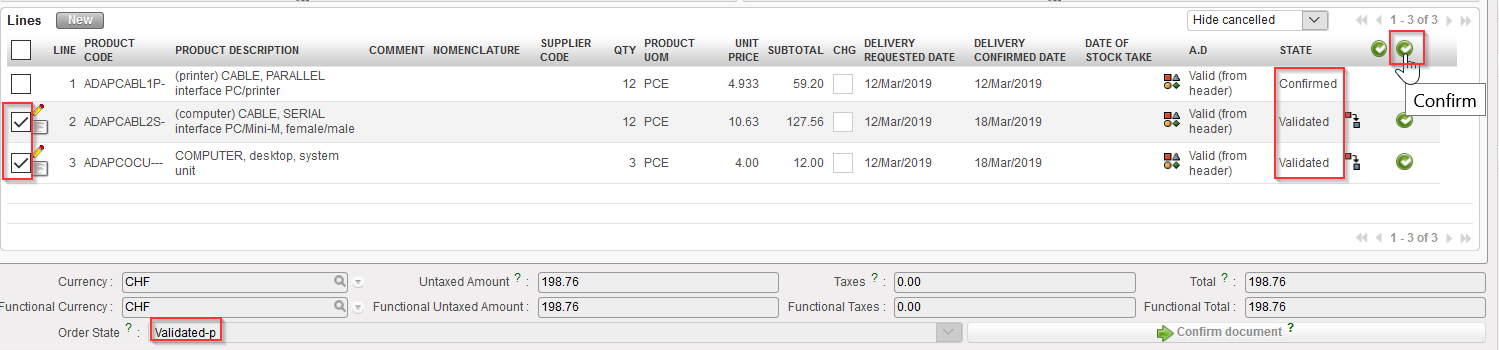 |
| Confirming several lines of a “Validated-p” PO |
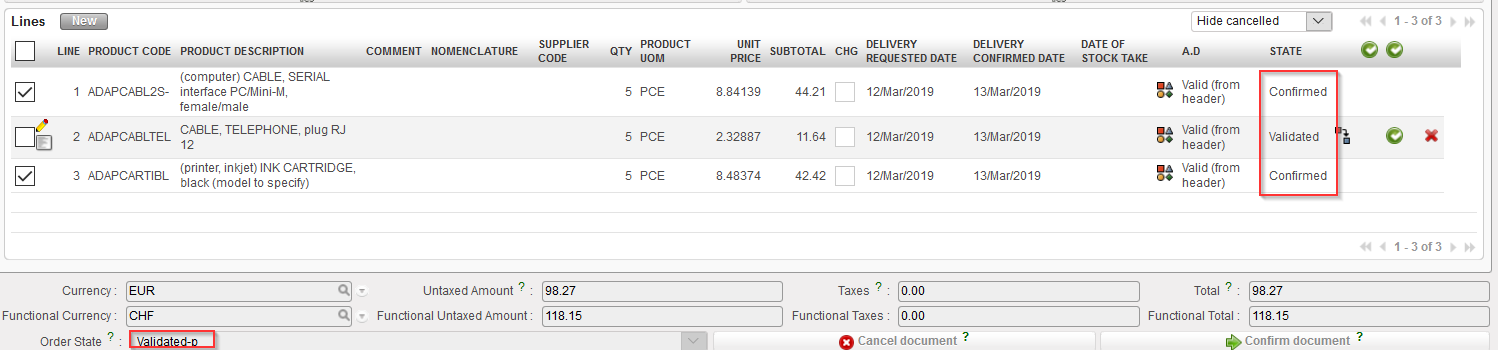
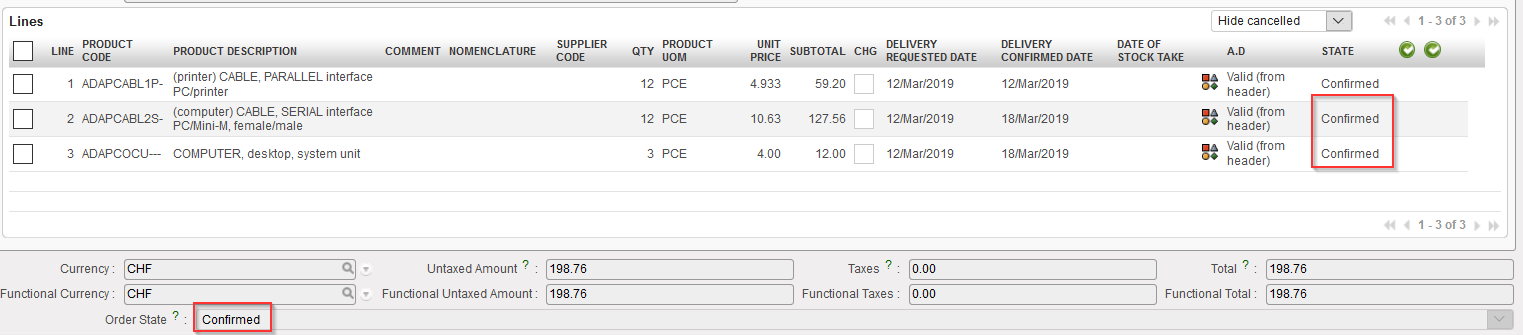
4. The confirmed PO-lines will switch to the status “Confirmed”. The PO (at header level) will switch status according to circumstances.
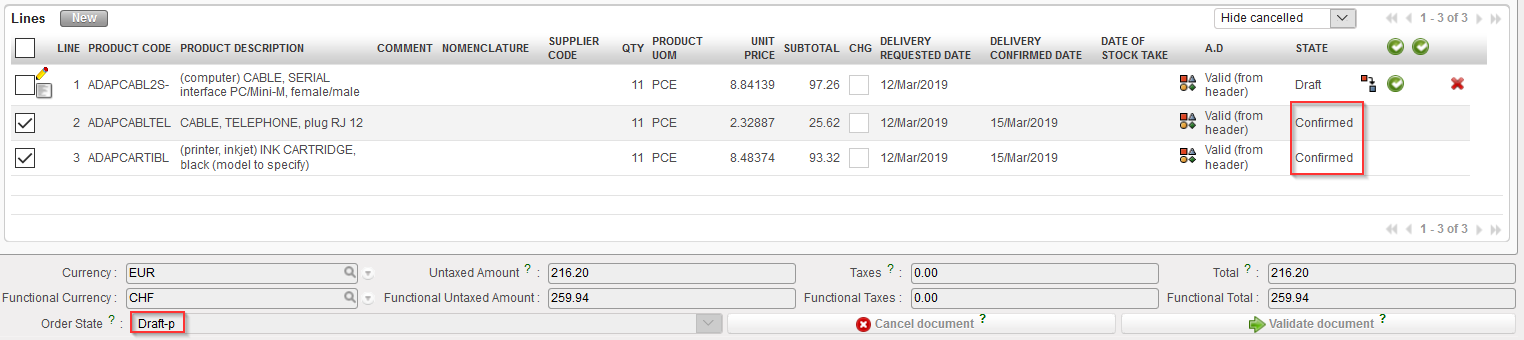 |
| Several lines of the “Draft-p” PO have been confirmed |
 |
| Several lines of the “Validated” PO have been confirmed |
 |
| Several lines of the “Validated-p” PO have been confirmed |
Note that as long as all the lines of a PO have not been confirmed, you still have the possibility to confirm the PO at header level, to confirm 1 (validated) line of the PO or to confirm several (validated) lines of the PO.
Once all lines are confirmed, the status of the PO (at header level) switches to “Confirmed” and confirmation at header level or line level is not possible anymore (neither Cancellation).
Go to: Purchases / Purchase Management / Purchase Orders
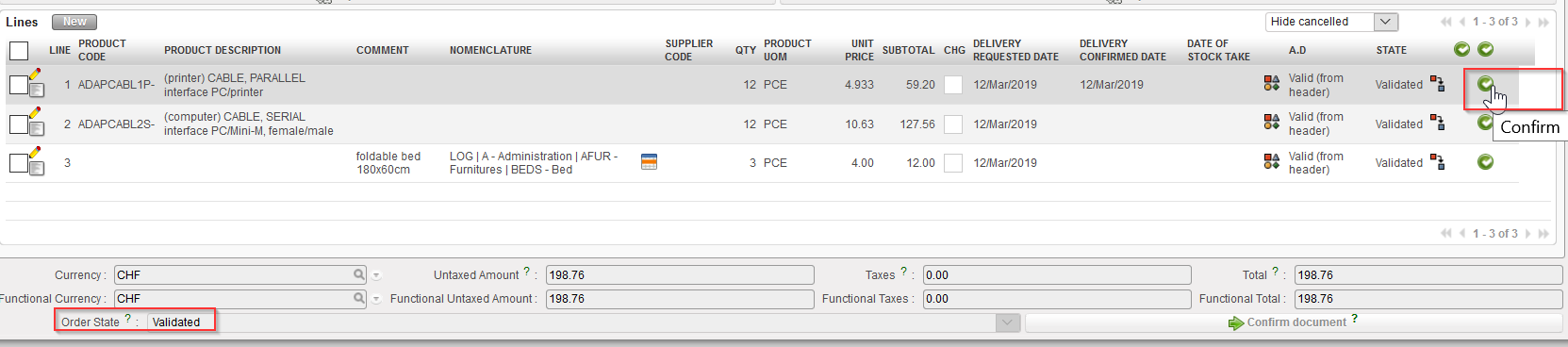 |
| Confirmation of 1 line of a PO in status “Validated” |
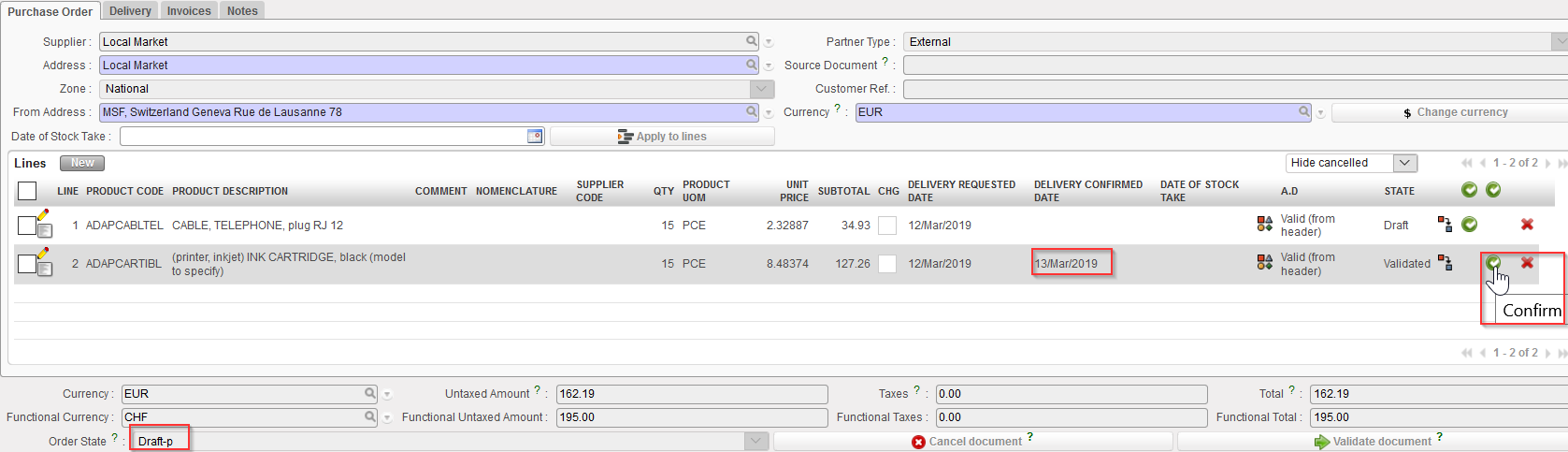 |
| Confirmation of 1 line of a PO in status “Draft-p” |
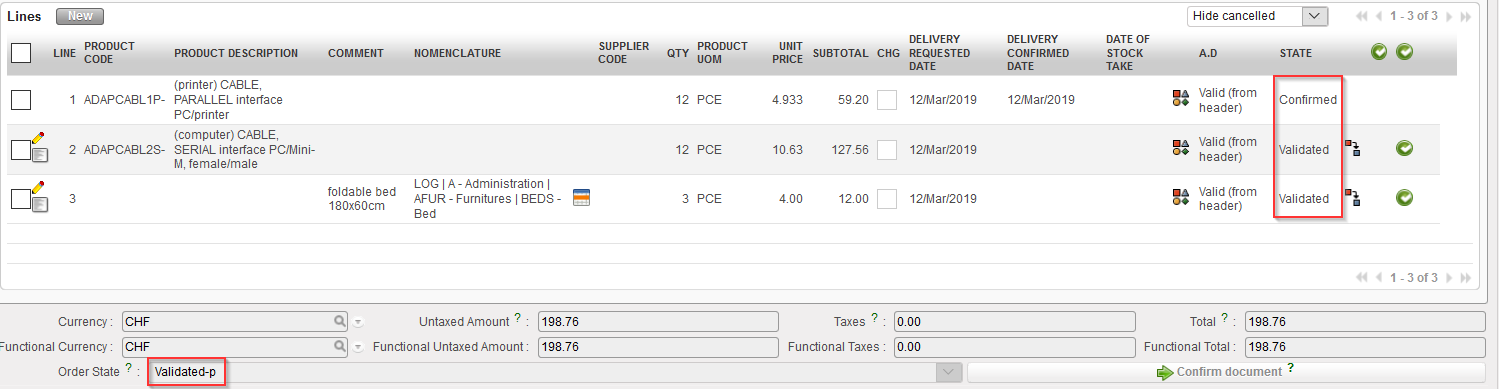 |
| The “Validated” PO on which 1 line was confirmed is now in status “Validated-p” |
 |
| The “Draft-p” PO on which 1 line was confirmed stays “Draft-p” |
A Purchase Order can also be confirmed at line level. The confirmation can be done for 1 single line or for several lines. The line which is confirmed should have a “Delivery Confirmed Date”.