Supply User Manual ENG -> 4. Procurement -> 4.10 LU-SU3401: Procurement Advanced Features -> C. How to configure the PO creation (Batch Configuration)
C. How to configure the PO creation (Batch Configuration)
By default, on every UniField instance, when requests (IR/FO) are sourced on order, POs will be directly created by the OST. This is because the “Auto POs creation” runs automatically as soon as a request is sourced on order.
Go to: Supply Configuration / Orders / PO Automation
 |
| PO automation in Supply Configuration |
The “Run scheduler automatically” is set to “Yes“, meaning POs will be created as soon as a request (order or line order) is sourced on order.
If this setting is set to “No“, POs won’t be created automatically as soon as the requests are sourced but the user will have to launch the “Auto POs creation” manually to trigger the creation of the POs (from the action menu in the OST). There is also the possibility to configure a batch so that the “Auto POs creation” will run automatically every X days or hours.
This feature is actually quite technical, but it is good for advanced users to know its existence. It will also be more relevant for “Replenishment rules” (see LU-SU4205 Replenishment rules) since POs created from replenishment rules will follow the same principle.
It can be good that the purchaser is at least aware of this tool and the frequency established, so that he/she knows when to expect new Draft POs.
Go to: Warehouse / PO Creation / POs Creation (Batch Configuration)
- Click on the “New” button to configure a new batch for the POs creation.
- Give a name to this batch.
- Select the “Type“:
- POs creation Batch (replenishment rules).
- PO creation Batch (from orders).
4. Set the “Interval Number” and “Interval Unit“. If you want that the system creates draft POs once per month, set the “Interval Number” as “1” and the “Interval Unit” as “Month”. However, it is recommended to set the frequency to at least once per day for the “from orders” option and at least once per week for the “replenishment rules” option.
5. Ensure that the Active checkbox is ticked.
6. Click on Save to save the setting.
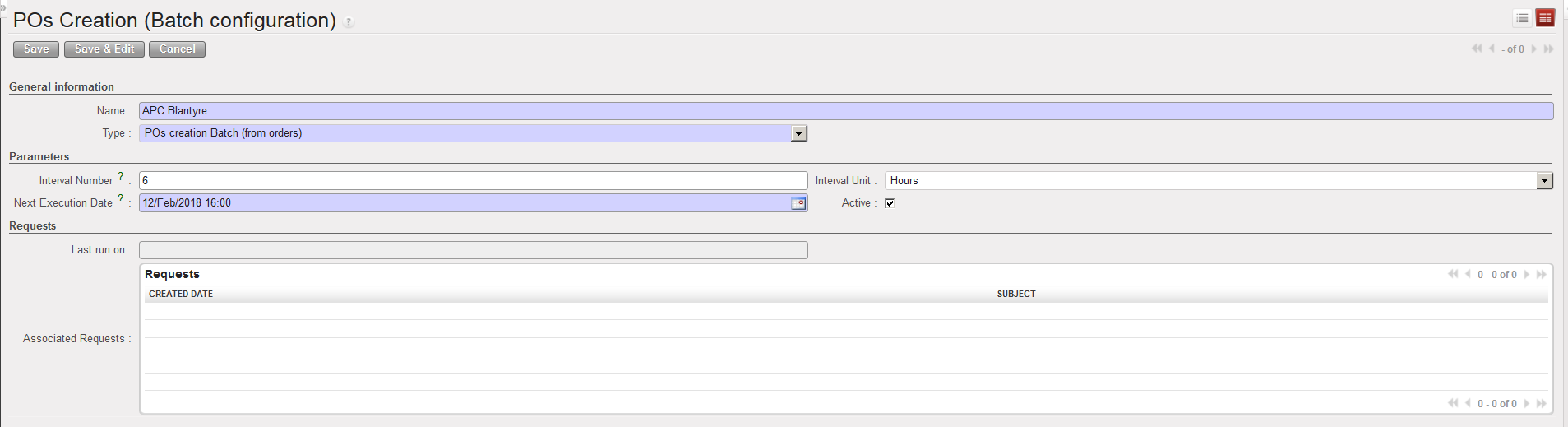 |
| PO creation Batch (from orders) |