A PO can be exported to Excel (XML 2003 format) or to PDF
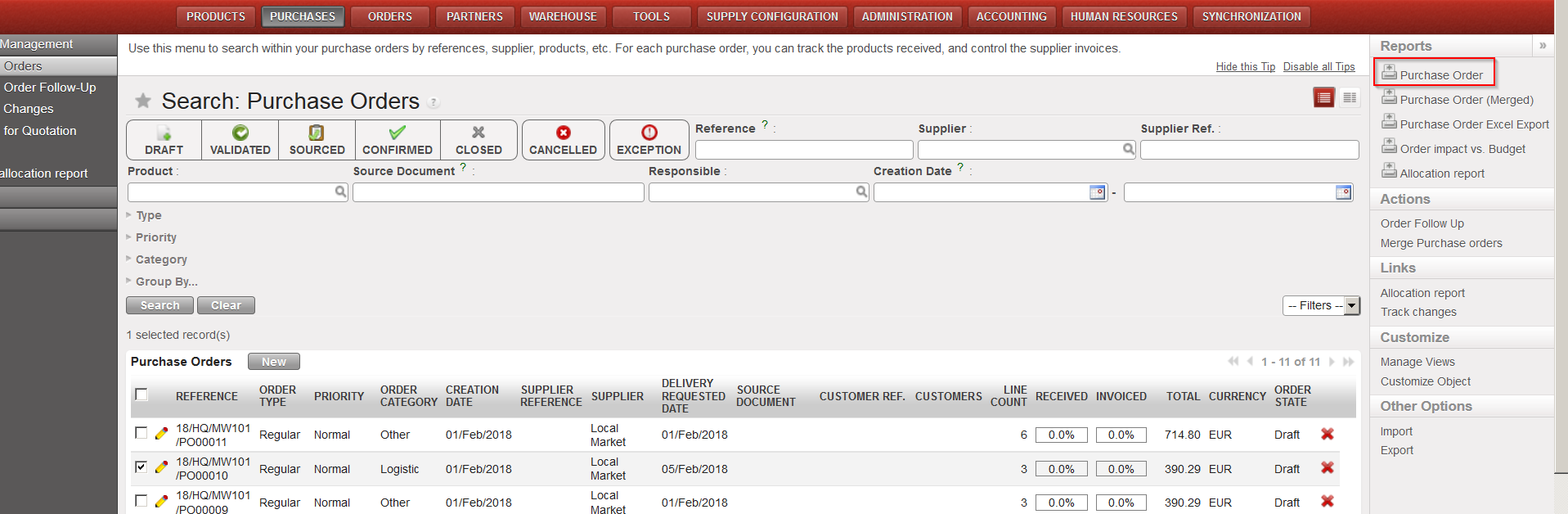
Go to:Purchases / Purchase Management / Purchase Orders
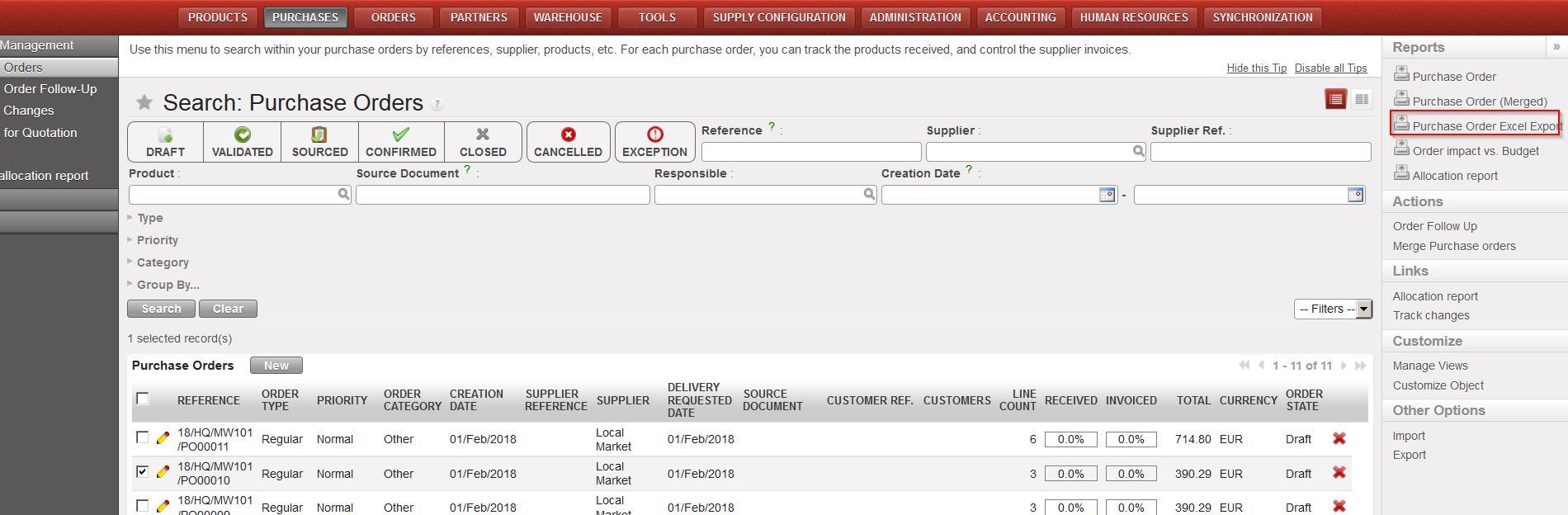
Click on the check box at the left of the line of the Purchase Order to export.
The Action Menu is displayed to the right of the screen.
Click on the “Purchase Order Excel Export” option.
The PO will be exported to Excel (in a similar format than the one used to import lines).
Export a PO to Excel
PO Exported to Excel
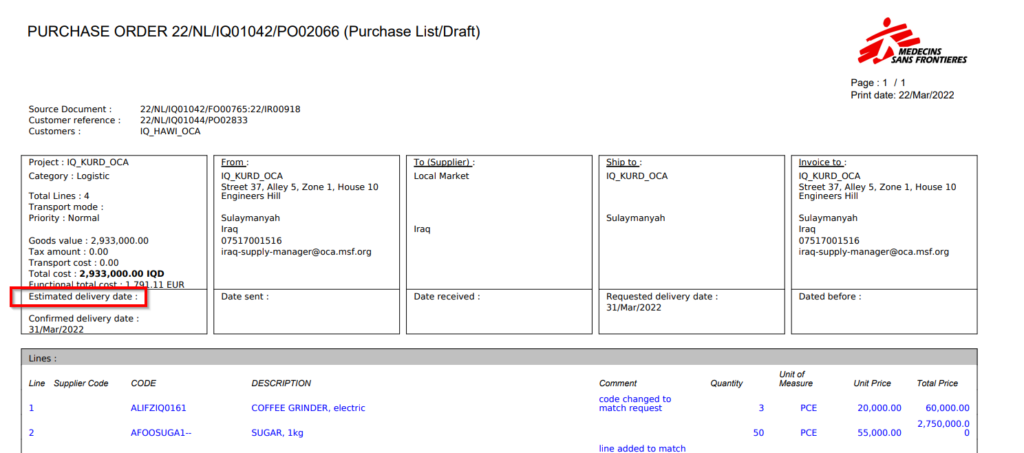
If you need to create a PDF version of a PO for validation purpose, select “Purchase Order” in the action menu, under “Reports“.
Export a PO to PDF
PO in PDF
Note 1: You have the possibility to export several POs to Excel in one click. You just need to select several POs via the check boxes on the “Search: Purchase Orders” screen and click “Purchase order Excel Export” in the action menu. You will have an Excel file containing several sheets with 1 PO per Excel sheet. Note that the export to PDF of several POs in one click is not possible (not working).
Note 2: The export to Excel and PDF is also possible from within the PO as the options “Purchase order Excel Export” and “Purchase Order” are also available in the action menu. If the export is done from within the PO, only one PO is exported.
Note 3: On the Excel, the comment included on the “Nomenclature Selection” tab of the PO-line will appear in the column “Comment“. Note that the notes included in the “Notes” tab of the PO-line column are not exported to excel.
Note 4: On the PDF, at header level, the notes included on the “Notes” tab of the PO will appear. Note that the “Details” field does not appear. Still on the PDF, at line level, the “Comment” included on each PO- line will appear. This is particularly useful for “products by nomenclature” lines. Note that the notes included on the “Notes” tab of the PO-line do not appear on the PDF.
If a default customized message is configure and “Show PO default message” is ticket, a default message will be displayed at the bottom of the “Notes” frame (seeLUSU3401 Procurement Advanced Features -J.How to configure a PO customized default text)
Note 5: Cancelled lines of the PO are not displayed in the PDF print out
It is possible to import all order lines at once instead of having to encode each order line manually. The purchase information (products, quantities, unit price) should be available in an xml 2003 file which will be imported on a PO.
To import the lines, the file should have the exact following format:
Go to: Purchases / Purchase Management / Purchase Orders
Open an existing PO or create a new one.
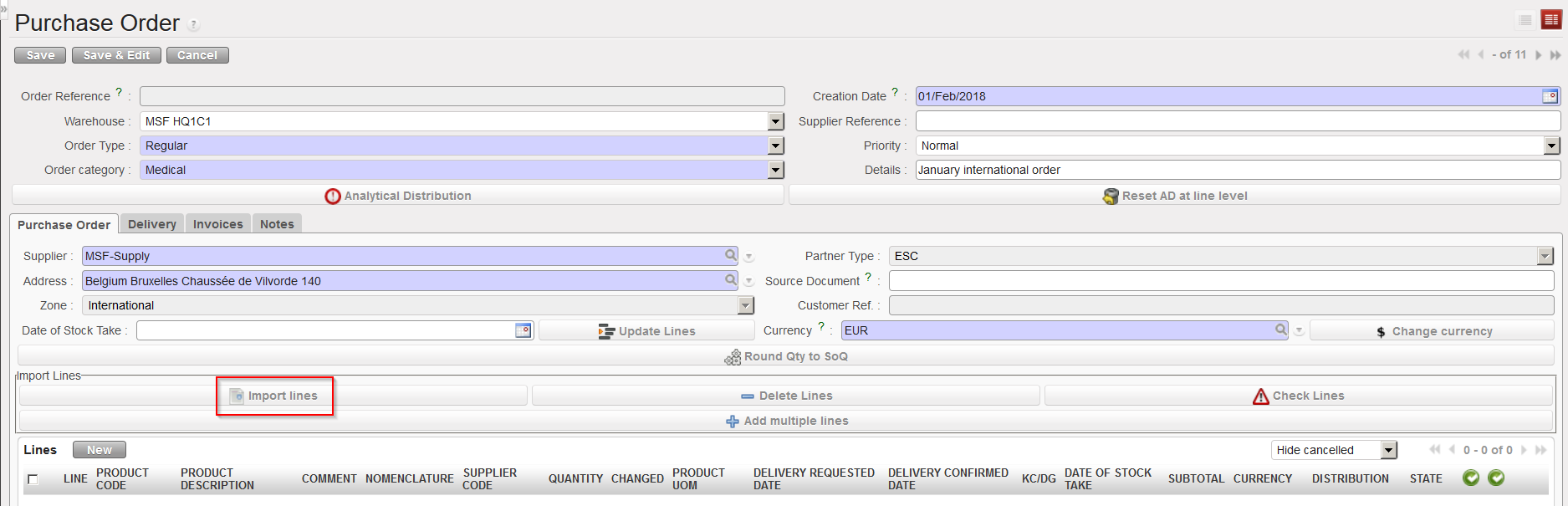
Click on the “Importlines” button.
Click on the “Add attachment” button then “Browse” and select the file you want to import.
Click “Open” on the browse window.
Click on the “Importfile” button to import the file, then click “Update” to follow the progress of the importation. A message will indicate if lines have been imported successfully.
Click on the “Closewindow” button.
The imported lines have been inserted on the PO, save the PO.
Purchase Order, Import lines
Note that comments can also be imported in the PO if you populate the “Comment” column of the Excel. These comments will then appear in the “Comment” column of the PO and be editable on the “NomenclatureSelection” tab of the PO-line.
Note that “productbynomenclature” lines cannot be imported from Excel into a PO. You need to enter these lines manually one by one.
To get a template of the correct Excel format needed, you may export an existing PO to Excel as explained below (see How to export lines from a Purchase Order). Note that you will have to delete the column “External Ref” of the Excel generated if you want use it as a template.
C. How to create an Internal Request with Products by Nomenclature.
There might be situations in which the mission needs to order unreferenced products (which may be called non codified products, NC products or * products): for instance at project level when the local products have not been created yet by the coordination for intra-mission orders or at coordination level when ESC suppliers are in a better position to determine the accurate products code required.
UniField now allows the ordering of products by nomenclature for all type of suppliers. The new product code will be created once the order is being managed at coordination or ESC level.
The new product code will then be synchronized to the instance and replace the unreferenced description. Note that UniField will require a correct codification at some point, i.e. you will not be able do a full supply process if the product is not correctly codified in a later stage ( at PO confirmation) .
These products can be ordered together with other referenced products on the same Internal Request. The only difference is in the way the product line is actually inserted in the IR.
1.Click on the “New” button on the “Products” tab to add a product line.
2. Fill the “Comment instead of the product” field with a clear product description.
3. Fill quantity and estimated unit price.
4. Save the product line by clicking on the floppy disk at the right of the line.
5. Click on the “Configurator” icon.
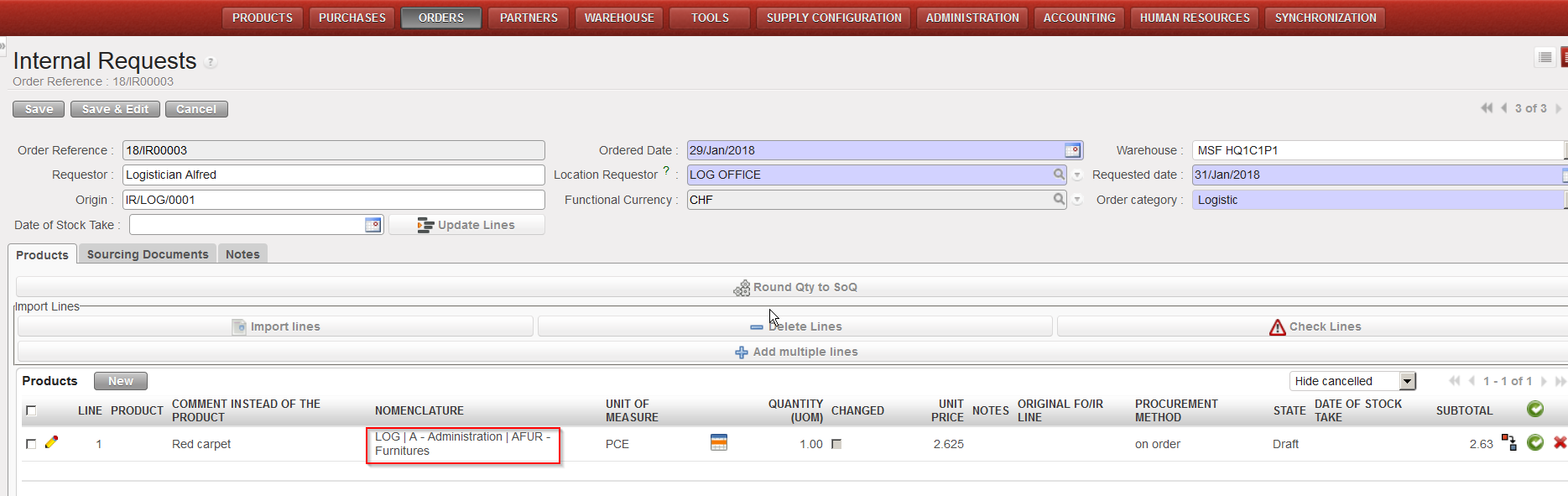
Internal Request by nomenclature – Configurator Icon
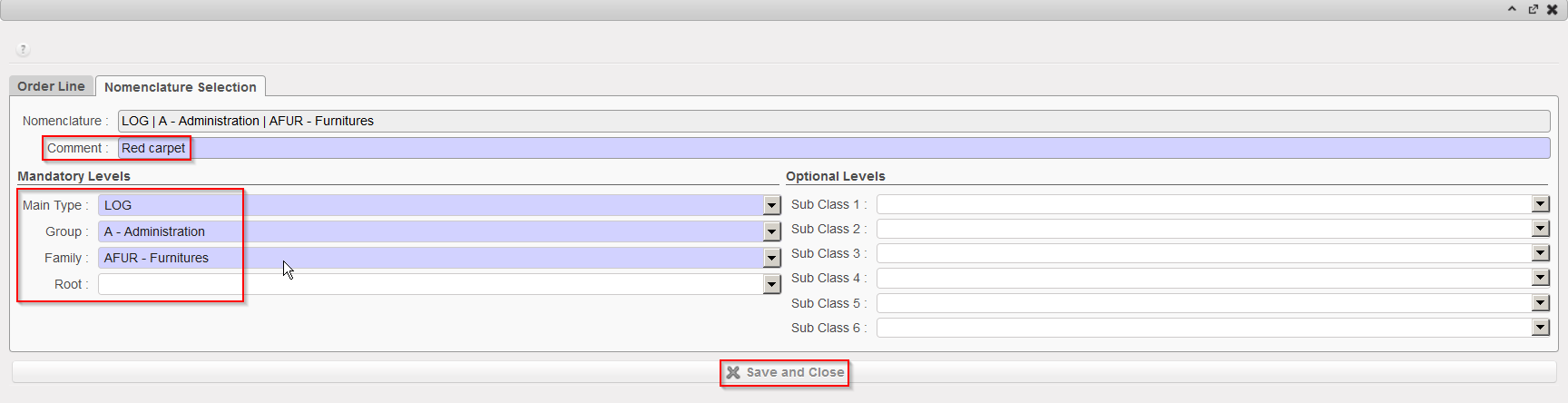
6. Open the “Nomenclature Selection” tab on the configurator pop-up.
7. Select the full nomenclature in the “Main Type“, “Group“, “Family” and optionally the “Root” fields.
8. Click on “Save and Close“.
Internal Request by nomenclature – Nomenclature selection
9. The product field will appear empty.
10. The Nomenclature levels together with the comment will help the coordination or the ESC supplier to define the requested product and create a new code for it if needed.
Internal Request – Product by Nomenclature
Note that the “Comment instead of the product” field can also be used for regular IR lines even if you have entered existing product codes. It will help to add complementary information to specify more requirements on the products. This comment will be carried out through all the Supply flow (this is also valid for comment added at FO or PO level).
A Purchase Order can be created from scratch (i.e. not by the OST). This is the scenario that we are introducing here.
Go to: Purchases / Purchase Management / Purchase Orders
1.Click on the “New” button.
2. Complete the header of the PO (Order Type, Order category, Priority, Details).The “Show PO Default Message” can be ticked only in Draft or Validated mode. If ticked a default message will be displayed on the PO PDF print out (see details to configure this message in LUSU3401 Procurement Advanced Features -J.How to configure a PO customized default text)
3. Enter a supplier on the “Purchase Order” tab. This can be done by typing directly in the “Supplier” field or by using the magnifying glass next to this field. The Address, Partner Type, Zone and Currency are automatically populated from the partner master data form. Note that for Internal Partner, currency cannot be changed manually once partner selected.
Purchase order header
Supplier selection
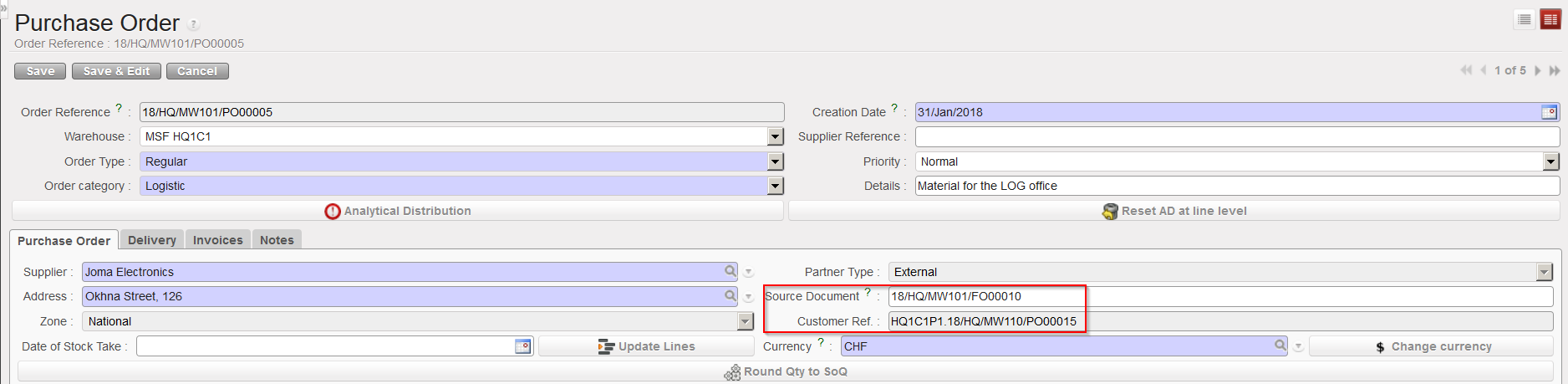
If the PO was created by the OST:
The “Source Document” will indicate the reference of the order that has been sourced (automatically populated when PO created by OST.
The Destination location at line level will be pulled from the destination in the IR or FO (Input, Crossdocking, Service, Non Stockable)
The “Customer Ref.” will indicate the reference of the document originating from the requesting instance (auto populated when PO created by OST via pulled-FO sourcing).
The “Details” will be pulled from the info filled in the source documents (IRs, FOs).
PO created by OST, after sourcing of FO which was created by synchronization
4. On the “PurchaseOrder” tab, click on the “New” button located on top of the “Lines” table to enter a product line manually. Note that you may also insert several lines in a few clicks if you use the “Addmultiplelines” button or import a file via the “Importlinesbutton“.
a) “New” button: enter (part of) the product’s code or (part of) the description in the “Product” field or click on the magnifying glass icon to open the “Search Products” screen. Search the product using the filters such as the description or by the nomenclature.
b) “Add multiple lines” button: click “Add” on the “Add multiple products” pop up screen and search for the products you want to add on the “Search Products” screen. Use the relevant filters: Nomenclature, Description, Code, Lists, Catalogues,… Select the products you need by ticking the box at the beginning of the product line and click on “Select“. Once you have all your products click on the button “Add products” on the “Add multiple products” pop up.
3 options to insert product lines on a PO
5) If you have selected the “New” option (to add product lines one by one on the PO), on the Purchase Order product Line , enter a product, a quantity and adjust the unit price if needed. Note that “Quantity” and “Unit Price” can not exceed a certain number of digits (but still quite large numbers are allowed and a warning message will be displayed in case you reach that maximal capacity).
Inserting a line on a PO
Note that the fields “Supplier Code” and “QTY” seemed to be merged, however only the “Qty” should be entered.
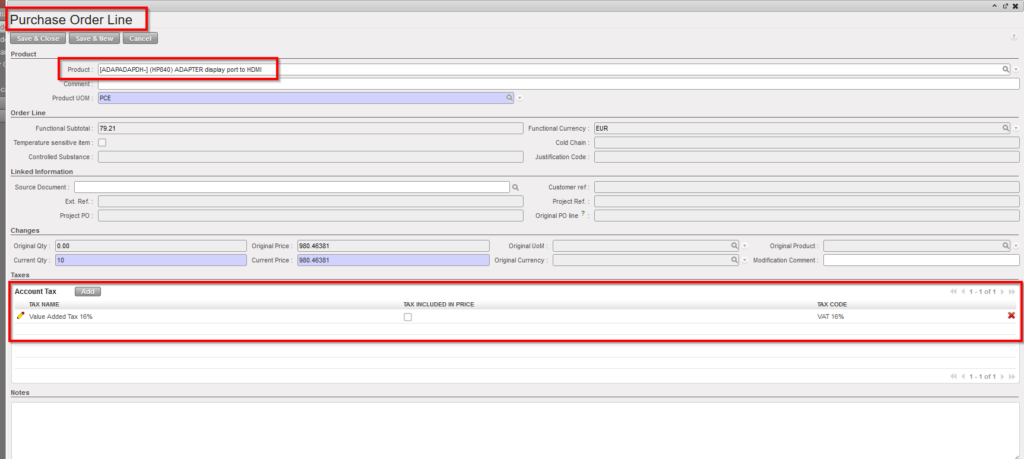
If Taxes needs to be added for any particular line, you can add them when the line pop-up is open, in the “Account Tax” section, see below explanation for adding Taxes for the whole document/all lines.
Add Tax on Line level
6) Click on the floppy disk if you want to save your line and enter another one.
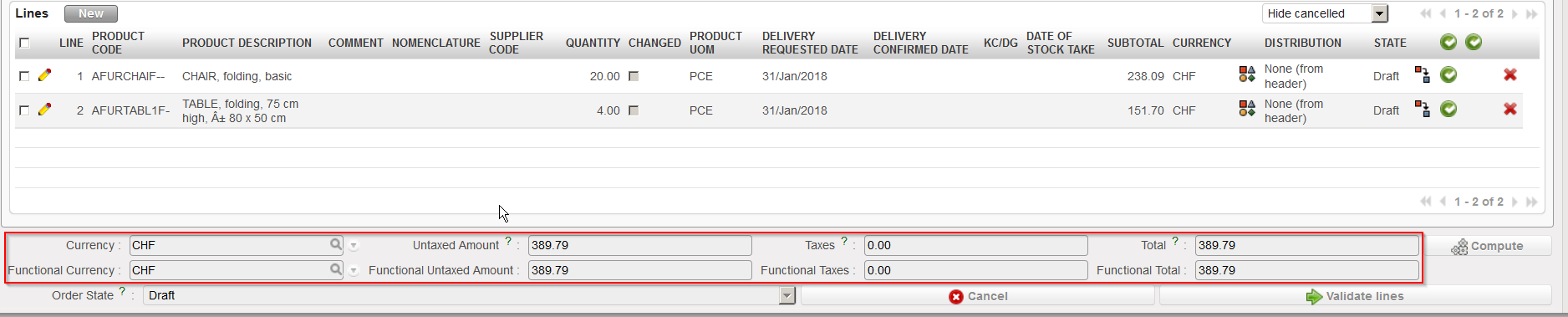
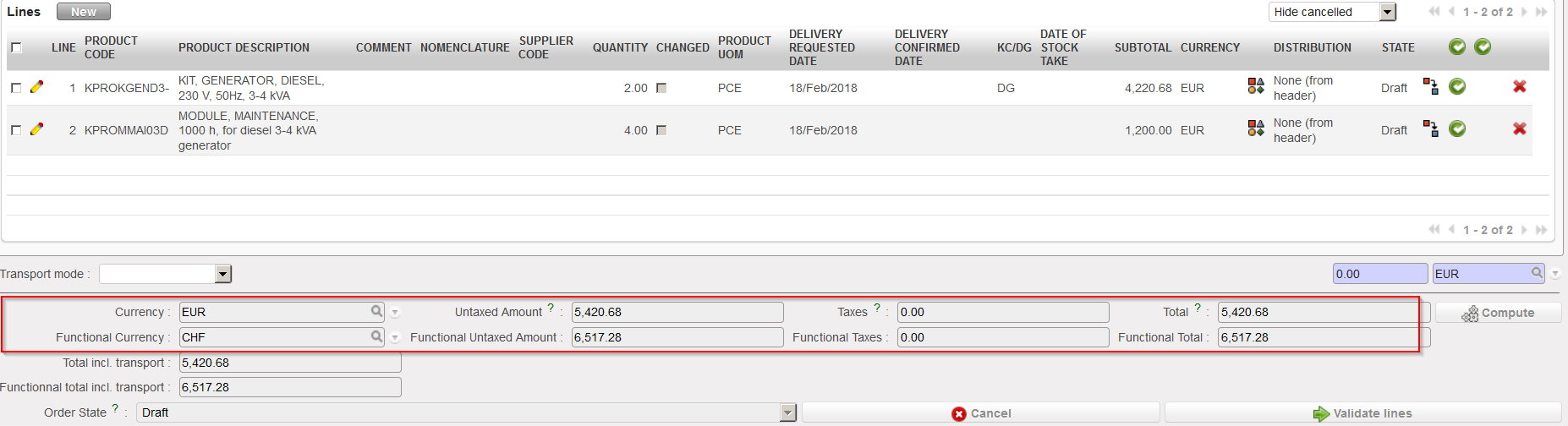
7) Click on “Compute” if you want to update the total fields.
PO lines inserted on PO, click “Compute“
The total costs related to the PO have been recomputed. Note that total costs always appear in the currency of your supplier and in the currency of your OC (also called functional currency).
Total costs updated – supplier currency and functional currency are the same
Total costs updated – supplier currency and functional currency are not the same
On the “Delivery” tab, you may include information such as the requested delivery date or the transport mode. Please note that the Delivery Requested Date can also be populated at line level and can be updated from the header to all lines using the « Apply to lines » button.
PO – “Delivery” tab
Please note that in order to facilitate the management of pipeline there are now 2 DRD. The pipeline used to be taken into account when PO line was confirmed and now it is done at after line validation. The first DRD is active until the PO lines are validated. After this the second DRD field “Delivery Requested Date (modified)” becomes active and can be used to push the RDD value down to the lines.
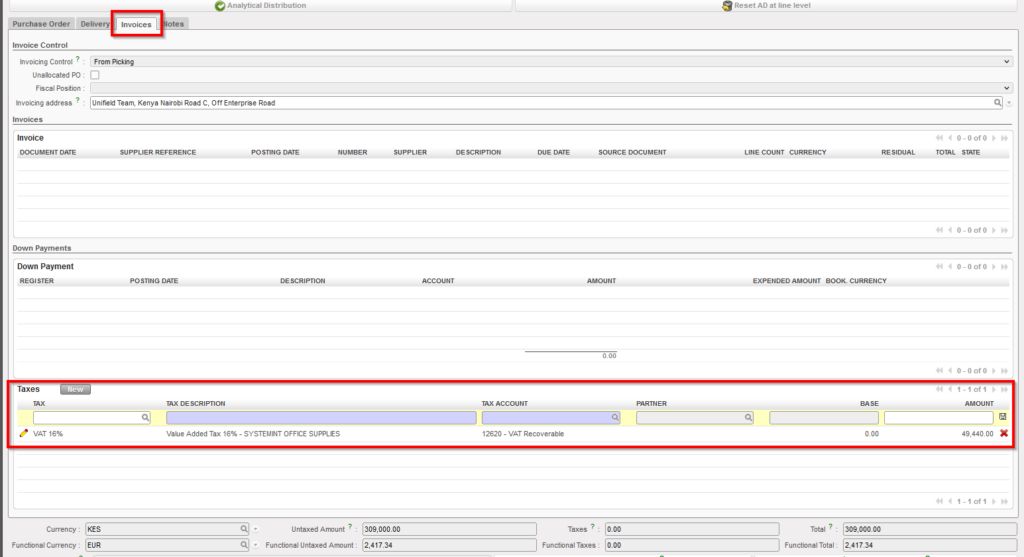
The “invoice” tab will be used to store financial (payment) information, and to add “Taxes” to the whole document/all lines for POs to external partners only. (ESC POs cannot have taxes applied).
In the “Taxes” section, you can add one or more types of taxes, and any type of added tax will be applied to all lines of the PO.
PO – “Invoices” tab – “Taxes” sectionAdd Tax line
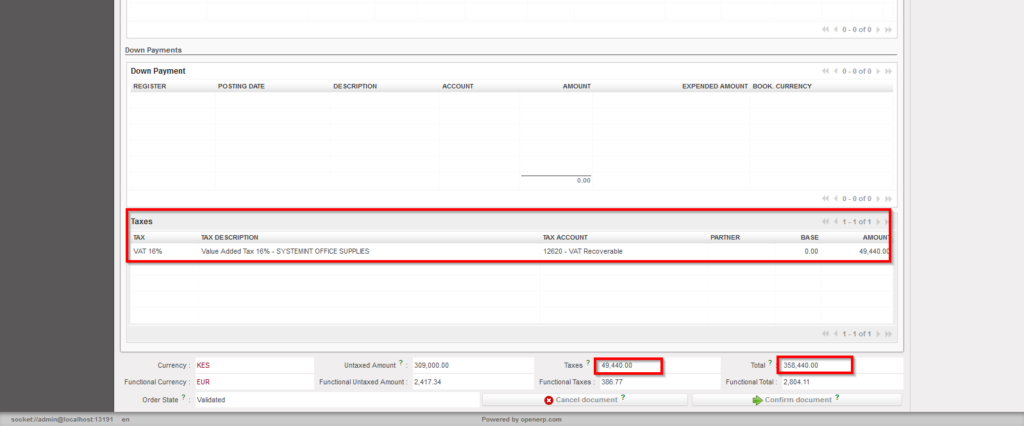
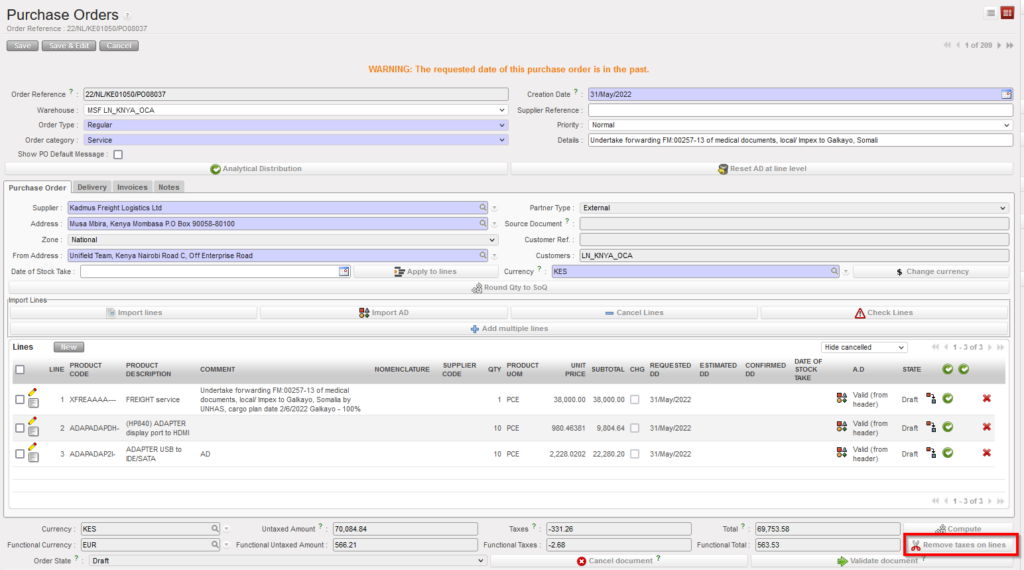
You can add/cancel the “Taxes” on whole document or on line level while the PO status “Draft” or ‘Validated“, Deletion of taxes can be done via red “X” or for line level taxes via the button “Remove taxes on lines”
To consider below points:
Adding tax line or removing will affect in the total amount of PO.
SI Tax corner is populated from PO Tax box.
After adding or removing taxes, “Compute” button should be used to insure the totals fields are up to date.
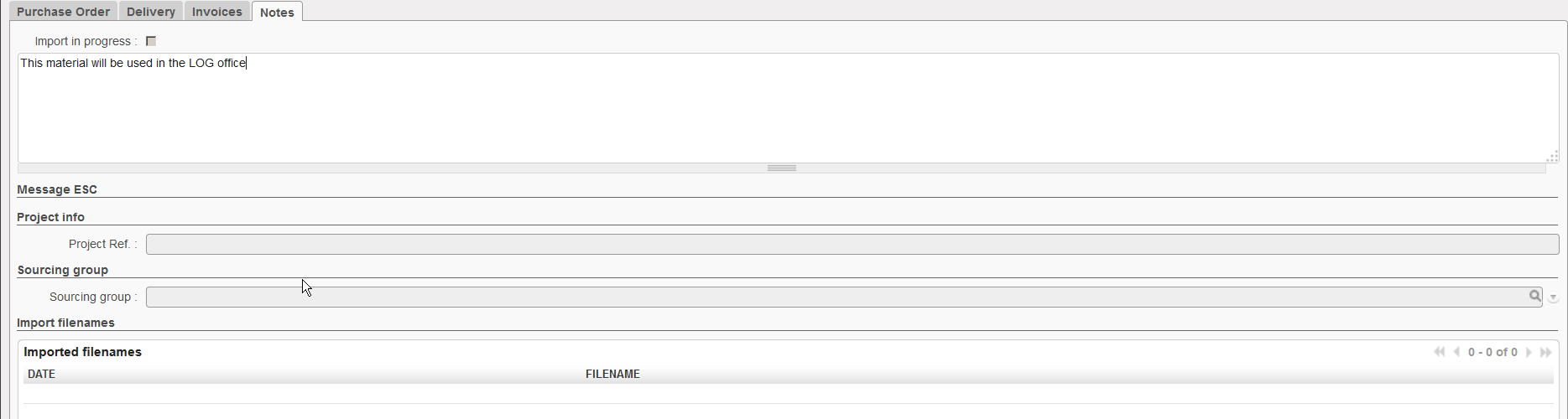
You may use the “Notes” tab if you want to insert additional information about the PO.
PO – “Notes” tab
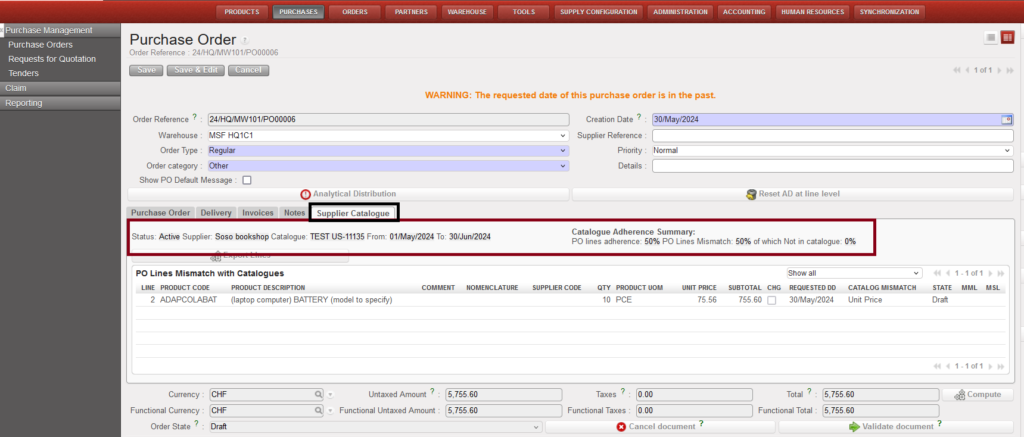
On the “Supplier Catalogue” tab, when the PO’s supplier has valid and confirmed catalogue, you will have immediate information about the conformity of the PO lines with the supplier catalogue, in the case that there are lines which do not conform (so adherence is less than 100%), adherence for lines which do not match and lines (Products) which do not exist in the catalogue will be displayed in this tab, as well as information for each of the lines which has a mismatch, and the reason for the mismatch (Unit price / Order Qty).
PO – Supplier Catalogue tab.
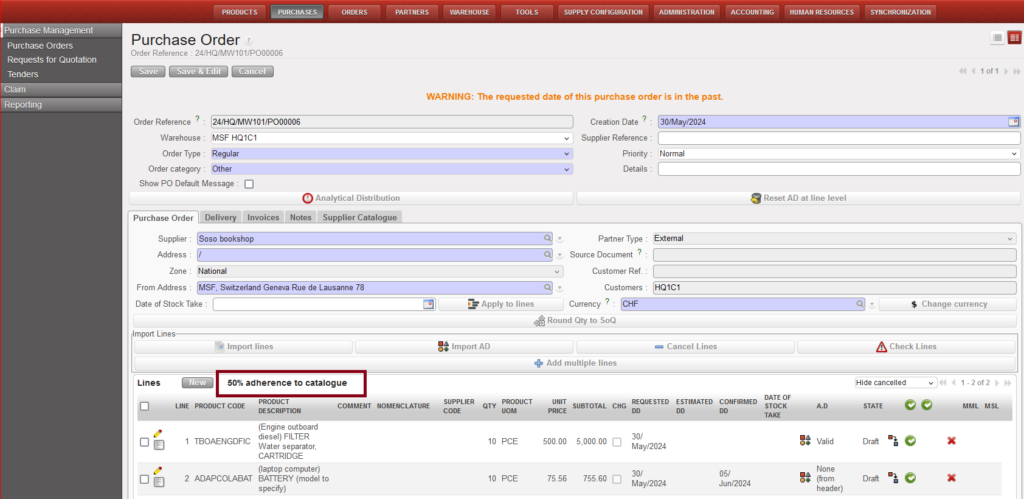
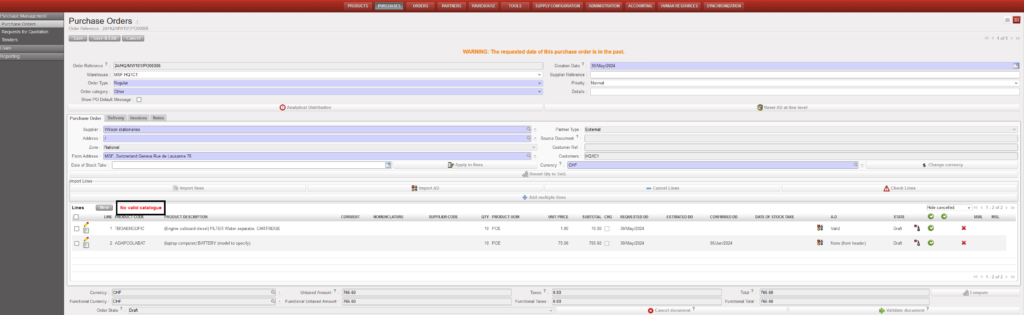
the percentage of the adherence lines to catalogue will be shown in the first tab “Purchase Order” on the top of the Lines section, if PO’s supplier doesn’t have valid/confirmed catalogue, “No valid catalogue” will be displayed.
The Percentage of the adherence lines to catalogue in the first tab “Purchase Order”PO Supplier with no valid Catalogue
The adherence information on the PO is automatically refreshed (rechecked) each time the PO is viewed or the new tab is clicked on.
8. Add the analytical distribution
In the header if all lines have the same analytical distribution.
At line level if the AD is different according to the line, click the icon.
Entering the Analytical Distribution on a PO
9. Save the PO by clicking on the “Save” button at the top of the screen.
10. The PO should be printed and signed for approval by the person responsible as per OC procedures. It can be printed by clicking on “Purchase Order” in the action menu.
Purchase Orders will usually be automatically created in “Draft” status through the Orders Sourcing Tool when the purchase will follow an expression of a need (through an Internal Request for example).
A Draft PO can also be automatically generated by the Replenishment Rules functionality (see Replenishment Rules LU in the Warehouse chapter).
However, a Purchase Order might also be created manually (from scratch) to replenish the stock or depending on the OC procedures.
Please note: A PO will be printed in the language specified in the Supplier master data form.
A Purchase Order document represents requirements to procure any goods from a party outside of the instance. A Purchase Order can be addressed to different partner types: internal, inter-mission, inter-section (PO will go through the synchronization engine); external or ESC (PO won’t go through the synchronization engine).
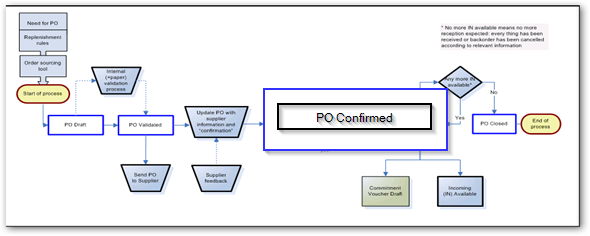
Process Flow for Purchase order to External / ESC Suppliers
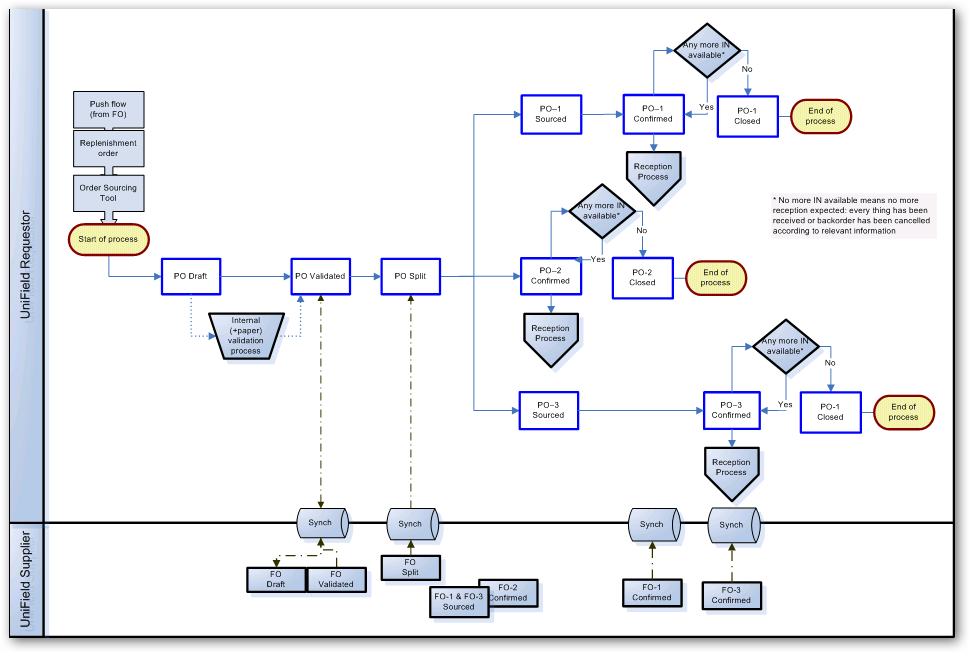
Process Flow for Purchase Order to Internal, InterSection or InterMission Suppliers
The order type can be:
Regular: General PO which must be attributed to a specific supplier, which can be internal, inter-mission, inter-section, external or ESC.
Purchase list: PO not attributed to a specific supplier, usually for products which will be bought at the local market with a cash advance (operational advance). By default, it will be addressed to “local market” but this can be changed if needed.
Direct PO: PO placed by an instance to the final supplier (which must be an external partner or an ESC), but delivered to another instance (from where the initial request originated). Note that Direct PO cannot be created from scratch but only through the OST.
In Kind Donation: In kind donation is a free supply from an external partner (e.g.plumpy-nut given by the WFP for a nutrition campaign). No invoice is managed but instead a “free gift certificate” is required and goods valuated. It is a PO with a specific accounting flow (accounting entries off balance sheet, recorded in an extra-accounting journal called in-kind donation journal).
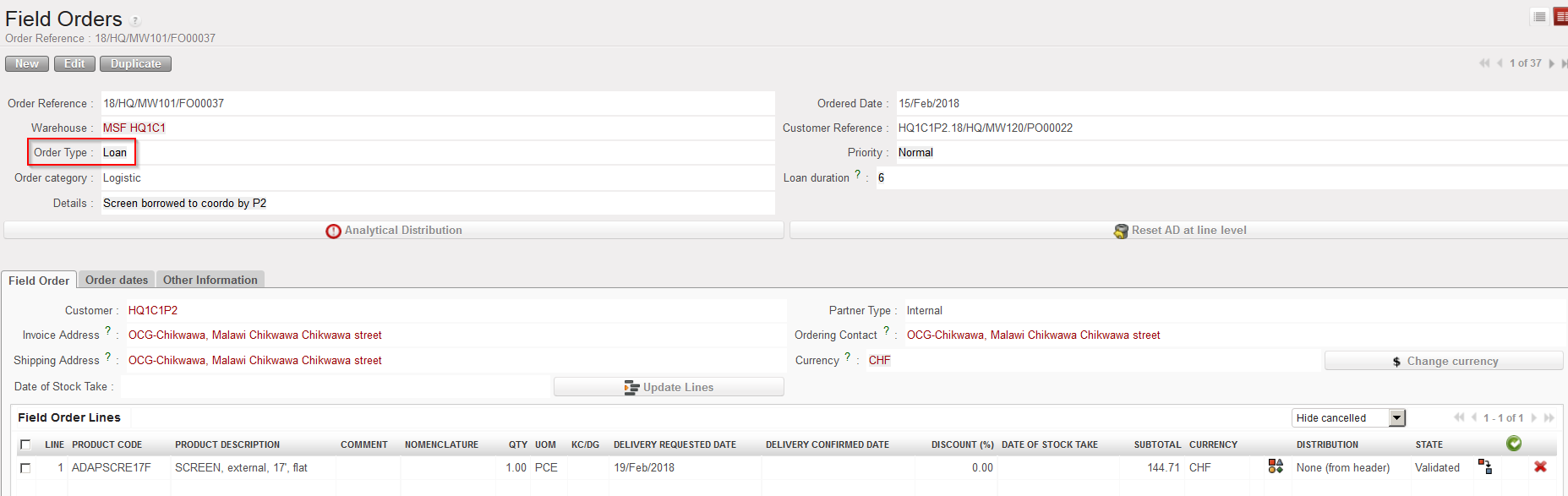
Loan: PO from A to B (A requesting to borrow goods from B) and an automated counter-order from B to A is scheduled in the future for reimbursement. There is no impact on finance from the lending side as goods are to be replaced.
Standard donation and Donation before expiry (which involve an internal partner) types of Purchase Orders are usually initiated via an FO of the instance which is donating the goods.
The order category can be:
Medical – for medical products.
Logistic – for logistic products.
Service – for products which are “services with reception”, and so will be automatically received into the virtual location for services.
Transport – for products which are services with reception and transport related.
Other – for other types of products.
Each time there is a mismatch between the Order Category and the Product MainType, a non-blocking warning message will be displayed.
Warning message if the product main type does not match with the order type
The Analytical Distribution is mandatory to validate a Purchase Order. The Analytical Distribution (AD) is a set of financial information which will be used in analytical accounting to classify expenses done on supplies. AD includes destination (reason for the purchase) and cost center (usually activity for which the purchased goods will be used). Analytical Distribution is mandatory in the system in order to process all POs except those which are type Loan, IKD, Standard donation and Donation before Expiry. For these cases check with your OC procedures regarding whether & how the AD should be added.
Analytical accounts enable MSF to track revenue and expense per project so that we can be accurate in our donors reporting.
The Analytical Distribution codes need to be allocated according to several analytical trees. In UniField finance terms, we call them account categories. These categories (of Analytical Distribution) are:
Destination (operations, support, national staff, expatriate staff)
Cost Center (OC / Mission / Project / Activities)
The Analytical Distribution for each line item (or for the whole Purchase Order if the same AD is valid for every line) must be added to every Purchase Order. As the creation of Purchase Orders is a supply related task, this must be added by the appropriate person of this department, however, the information about which Analytical Distribution codes should be used should come from the Budget holder or Finance at the request stage, and they are responsible for providing this information to facilitate the work of the Supply team. Similarly, it is the responsibility of the person authorizing the Purchase Order to check that the Analytical Distribution is correct, before the PO is authorized and validated.
Please note: For any Internal partner type (Internal, Inter-mission or Inter-section) it should not be possible to update the currency (only the one set in the partner form is authorized – see Chapter 2 Configuration/ -LU-SU1102 Partners (Customers and Supplier)/ B. How to create a new partner).
Internal partners can now be set with a local currency enabling PO/FO flow between instance of the same mission in local currency. The condition is that all internal partners within a mission must be set with the same currency (local or not), if not, PO/FO will not be synchronized.
Proper process shall be put in place if the change of currency is to be done in a mission. Advice is to change the internal partners currencies from coordination at a time when there are no pending PO/FO between Coo and projects in the sync = both PO and FO shall be created before to change the internal partners currencies.
Please note: If a Purchase Order is to be sent to an Inter-mission partner (i.e. another country), there is a particular Intermission cost center which must be added in the PO’s Analytical Distribution.
Please note: Purchase Orders must be signed and approved before being validated in the system. Analytical distribution is also mandatory before validation.
When an instance needs to borrow stock from another instance (e.g. to cover a shortfall while more stock is ordered, or to fulfill a temporary need), the requesting (borrowing) instance creates a “Loan” Purchase Order. Like other standard POs, when validated and synchronized, this PO will create an FO on the supplying (lending) instance. However, to act as a reminder to both sides, the system will also create a “Loan” PO on the side of the lender, to express their need to have the product returned by the agreed date, and the corresponding “Loan” FO will be created on the borrower’s side.
To learn more about How to create a Purchase Order for receiving a loan, see LU-SU3202 PO SPECIFICS.
Go to: Orders / Orders / Field Orders (we assume that the “Loan” FO has been created by the synchronization)
Enter the relevant criteria to find the “Loan” FO that you are looking for.
Open the FO in edit mode by clicking on the pencil at the left of the appropriate row.
Analyze the FO and change some information if needed.
Click on the “Save” button to save the FO.
Click on the button “ValidateDocument” to validate the loan FO (in this example the validation is done at header level, but validation at line level is also an option).
The FO is ready to be sourced (note that no analytical distribution is needed in this case).
When the FO line/lines is/are sourced, a “reminder” document will be automatically generated by the system (PO in this case), the system will add the reason type “Loan Return” to this document and all transport documents that follow.
Note that the FO needs to be sourced “from stock” as we can only lend something we have in stock.
After the sourcing of the FO a picking ticket is created to prepare the goods for shipping to the requesting (borrowing) instance. After shipment of the goods, you will have to synchronize in the supplying (lending) instance then in the requesting (borrowing) instance to confirm that the goods have been sent to and received by the requesting (borrowing) instance.
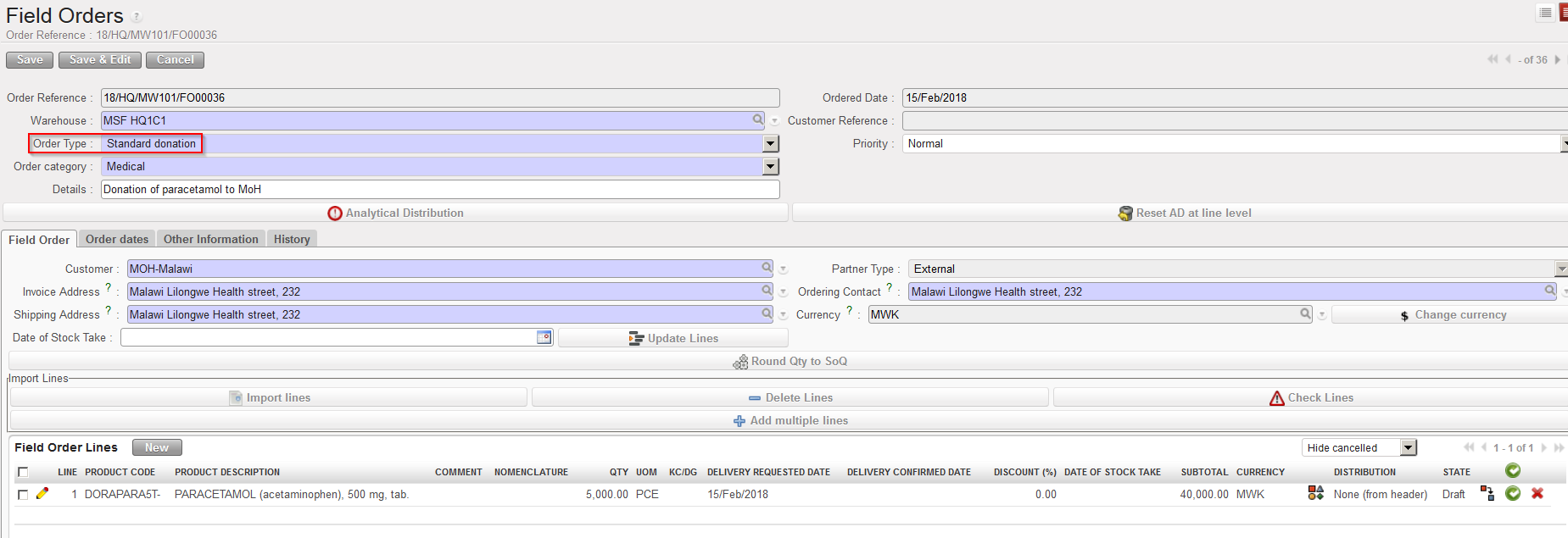
The process of creation of a “Standard donation” is the same as for the “Donation before expiry” seen above. The difference here is that the goods to be donated are not chosen based on their expiry date but on different criteria defined by the warehouse manager or any other person in charge (excess of products, lack of space in the warehouse, products not needed, donation required by third party, regular donation done to support a local partner,…).
To create a “Standard donation“, follow the same steps as for the creation of a “Donation before expiry” but select “Standard donation” as order type.
Standard donation
Note that the validation of a “Standard donation” FO does not require an Analytical Distribution.
B. How to create a “Donation to prevent losses” FO
This option is to be used to donate goods that are going to expire quite soon to another partner and are unlikely to be used in time by their current owner. To learn more about expiry dates and how to determine products likely to expire please see LU-SU4303 Management of Expiry Dates.
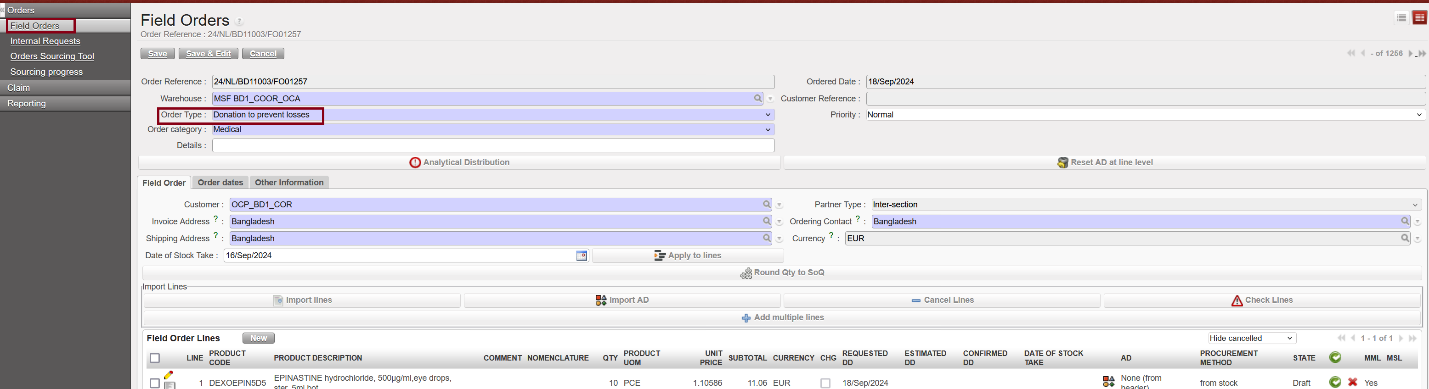
Go to:Orders / Orders / Field Orders
Create a Field Order manually (see “How to create a Field Order manually” in LU-SU3103 FO GENERAL). The process is exactly the same, besides the order type.
For the field “Order Type“, choose the option “Donation to prevent losses” instead of “Regular“.
Enter the partner (internal, external, inter-mission or inter-section) to who you wish to donate the goods.
Add the products that are going to be donated.
Validate the FO created. Note that at this stage, the system sets (if needed) the procurement method to “from stock“.
Source the FO in the Orders Sourcing Tool.
Donation to prevent losses
Note that the validation of a “Donation to prevent losses” FO does not require an Analytical Distribution.
Note that if the customer is another instance (i.e. an internal, inter-mission or inter-section partner), the validation of the FO will (after synchronization of the 2 instances) trigger the creation of a “Donation to prevent losses” PO on the instance where the goods will be received.
In the above example, the donation process is initiated by the “giver“. If the “receiver” is another instance, the donation process could also be initiated by the “receiver” through the manual creation of a “Donation to prevent losses” PO on its instance. However in most cases, the donation process is initiated by the “giver“.
It can happen that a project or coordination has an excess of goods that they don’t need (which can be costly in terms of warehousing) or that are going to expire. A solution to this problem can be to donate or to lend the goods to a partner that needs them and can use them before they expire.
To register these movements of goods in the system we have to use FOs because FOs are the documents to use when we need to get goods out of an instance. The specific FOs which can be used here are FOs with type: Donation before expiry, Standard donation and Loan.
These 3 types of FOs can have as customer internal partners, external partners, but also inter-mission and inter-section partners (but not ESC). To enable the inclusion of a partner as customer on an FO, this partner must be flagged as “Customer” on its partner sheet (master data).
We use cookies to ensure that we give you the best experience on our website. If you continue to use this site we will assume that you are happy with it.


 PO in PDF
 icon.
icon.


 to open the “Search Products” screen. Search the product using the filters such as the description or by the nomenclature.

 if you want to save your line and enter another one.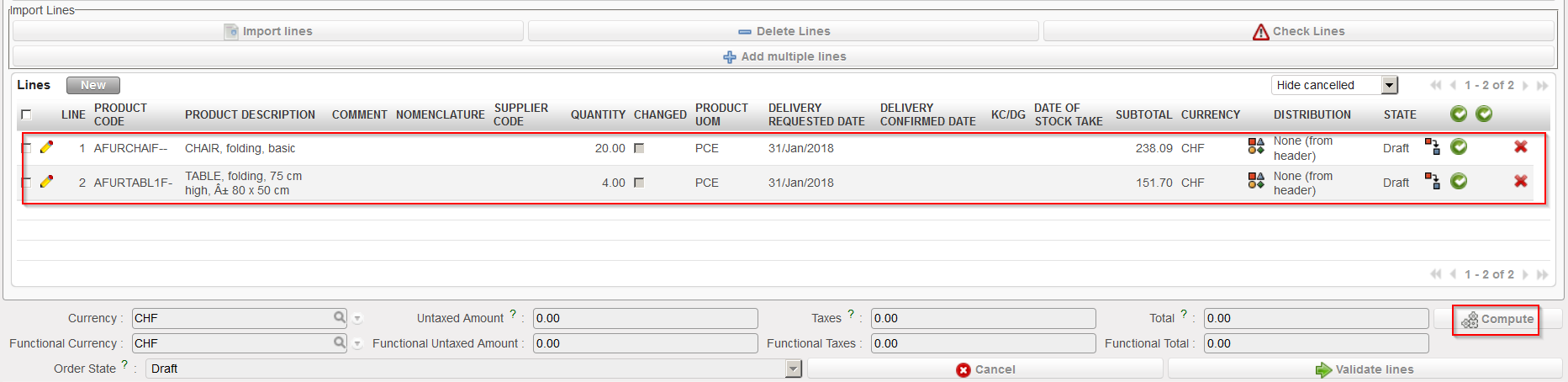

 icon.
icon.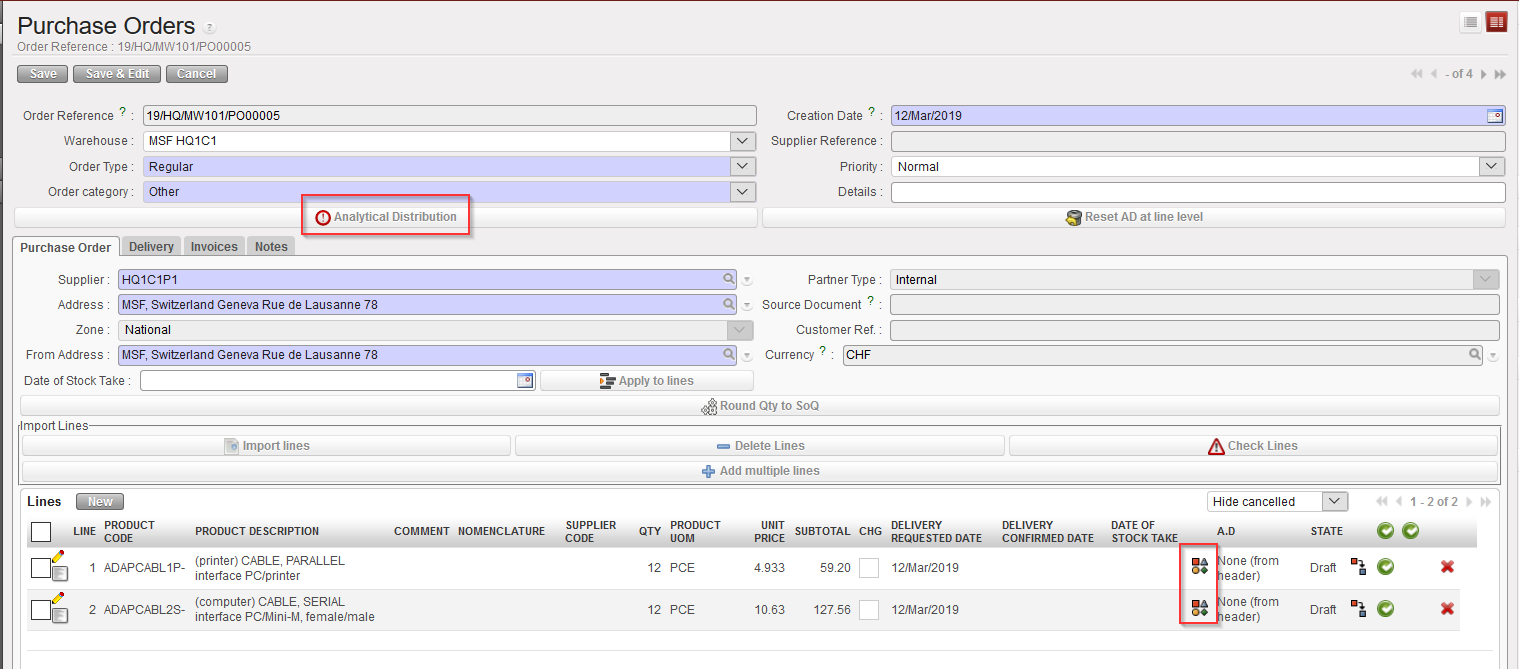



 Please note: If a Purchase Order is to be sent to an Inter-mission partner (i.e. another country), there is a particular Intermission cost center which must be added in the PO’s Analytical Distribution.
 at the left of the appropriate row.