Supply User Manual ENG -> 5. Warehouse -> 5.17 LU-SU4303: Management of Expiry Dates -> B. PRODUCTS LIKELY TO EXPIRE
B. PRODUCTS LIKELY TO EXPIRE
This tool shows the products with their respective quantities which are likely to expire, based on the defined Forecasted Monthly Consumption, Average Monthly Consumption, RR-Average Monthly Consumption or Real Average Consumption. This should be helpful in preventing products from expiring before being used or sent where they can be used by giving visibility.
Go to: Warehouse / Reporting / Expiry / Products likely to expire
- Click on the “New” button
- Define the “Period of Calculation“. In the “To” Field, enter the day till which you want to look at products which might expire.
- Tick the “Only products with total expired > 0” checkbox if you want to see only the products that might expire instead of all the analyzed products (recommended).
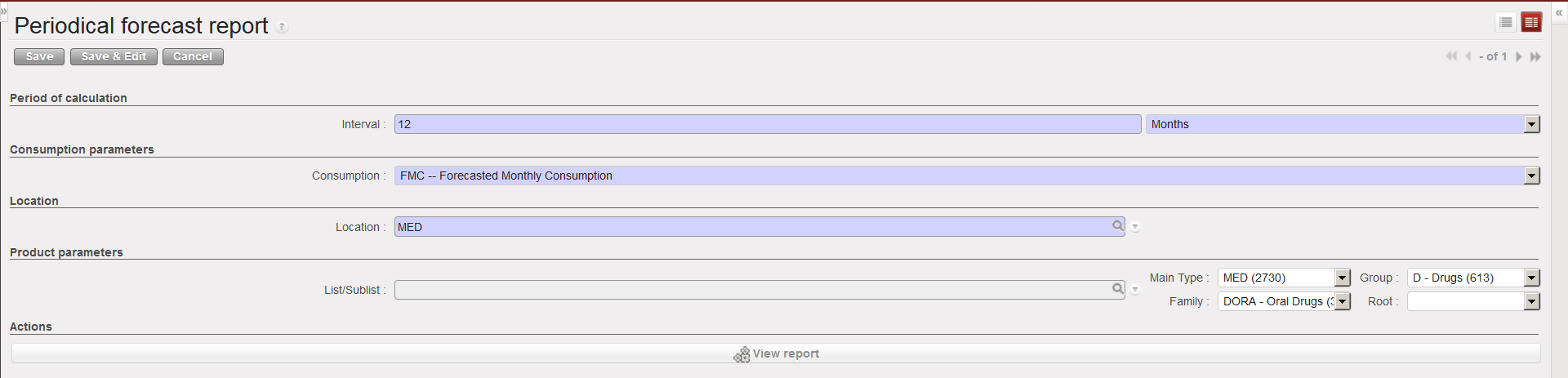
- Select one of the following “Consumption parameters” to define which consumption should be used in the calculation:
- Forecasted Monthly Consumption, to base the calculation on the FMC entered in a Monthly Consumption Report
- Average Monthly Consumption, to base the calculation on the AMC (define also the time frame in the “From/To” fields)
- The RR-AMC (Average Monthly Consumption) lets you choose one internal source location so you can view consumption based on that specific location (define also the time frame in the “From/To” fields)
- Real Average Consumption, to base the calculation on the RAC (define also the time frame in the “From/To” fields and a source location in the “Location” field)
5. Enter the location which should be investigated (if nothing is entered, all internal locations will be looked at).
6. You may exclude the “Input” and “Output” locations if you tick the corresponding checkbox.
7. Click on the “View report” button.
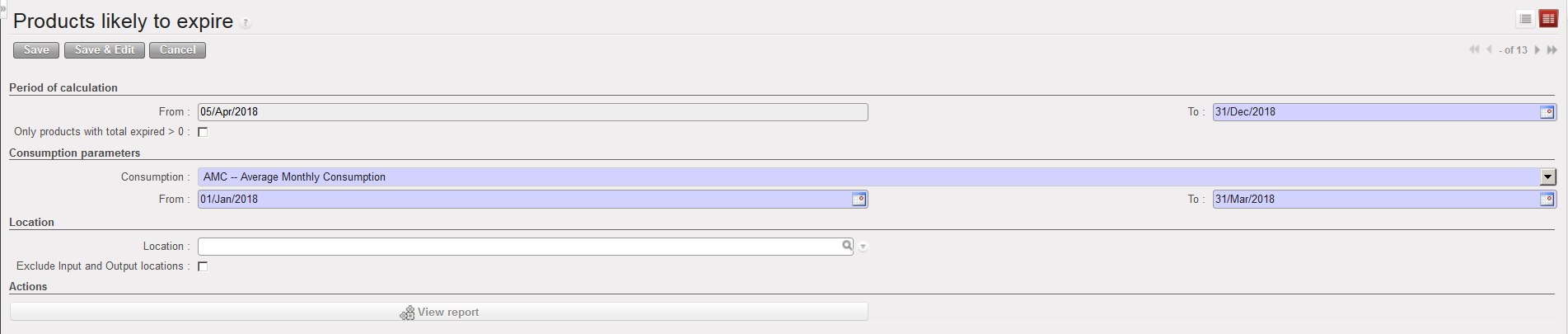 |
| Products likely to expire – selection screen |
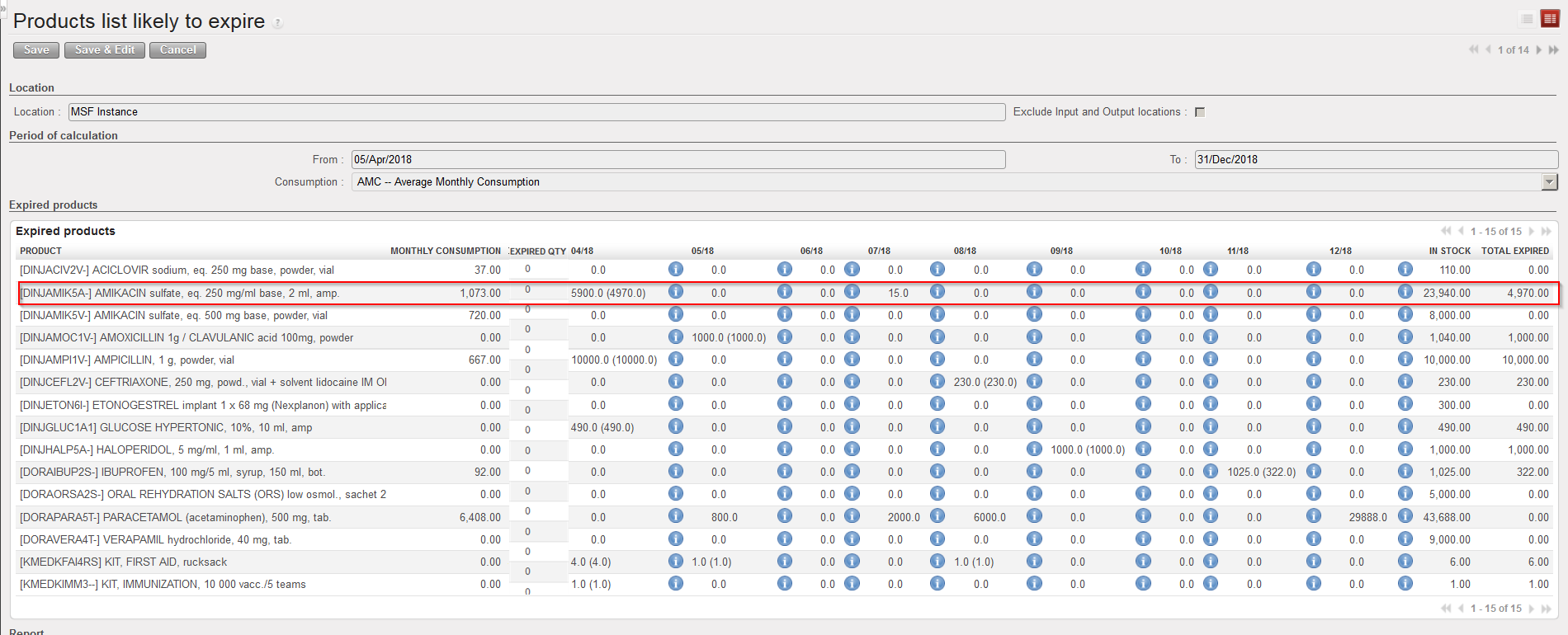 |
| Products likely to expire – report |
An on-screen report appears with the products which are likely to expire.
In the “Monthly consumption” column, the FMC/AMC/RR-AMC/RAC appear according to the choice done in the selection screen.
Note that the following column displays the “Already Expired Qty”. The next columns will show each month within the period of calculation entered in the selection screen. Under each month, you can see a first number and next to this, if relevant, another number (between brackets).
- The first number represents the quantity of products which will expire if there are no stock movements (i.e. no consumption).
- The second number (between brackets) represents the quantity of products which will expire if we consider that stocks will be used according to the indicated consumption rate.
If we look at the above example, this means that 5900 amps of DINJAMIK5A- will expire in April if nothing is consumed. But if we consider that some of this quantity will have been consumed by then (in this case using the AMC which is 1073 amps per month), then only 4970 amps of DINJAMIK5A- will expire in April because the rest will have been consumed.
Today is the 05/04/2018. This means that 26 days remain before the end of the current month.
The AMC is 1073 amps per month. This means that the daily average consumption is 35,77
During the 26 remaining days in April, we will consume 929,93 amps
We have a stock of 5900 which will expire on the 30/04/2018.
This means that at the end of the month, we will remain with 4970 expired amps not consumed.
The “In stock” column shows the real stock level which is currently in the selected location (or on the instance if no location was selected).
The “Total expired” column shows the quantities which are going to expire between today and the end of the period of calculation (considering that the products will be consumed according to the selected rate).
If you wish to see more information about a particular product which will likely expire, click on the  icon next to the numbers. A screen opens to display more information on the batch(es) which will likely expire.
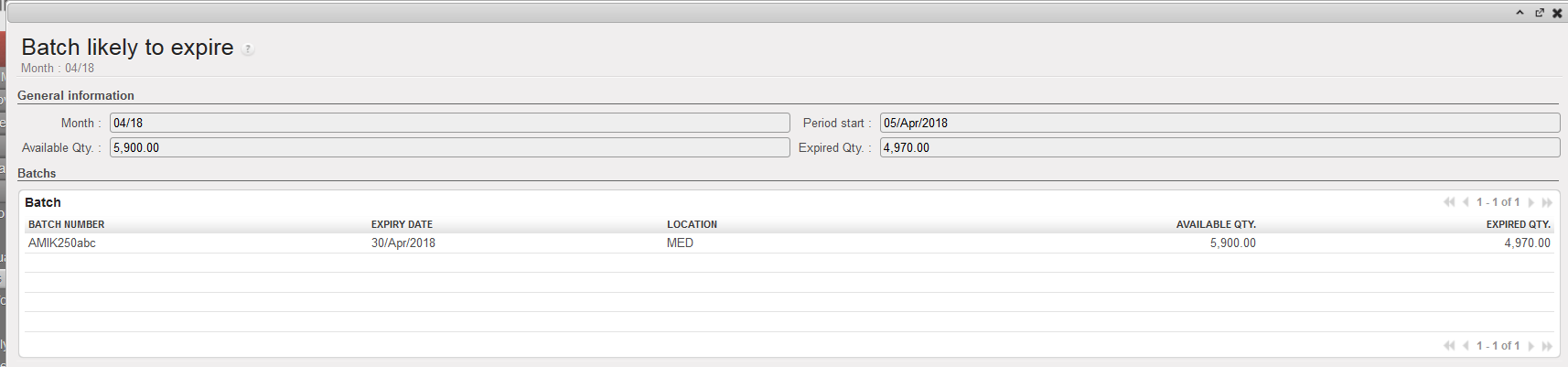 |
| Batch likely to expire |
The “Print report PDF” and “Print report Excel” allow to export the report in PDF/Excel.
 |
| How to export the report tin PDF or Excel |
Note that the Excel Export will present several tabs: the first one will display the same information as on screen “Products likely to expire” with an overall view, while the other tabs will be displayed by expiration month (except for the already “Expired” tab) and provide more detailed information (Location, BN and ED…).
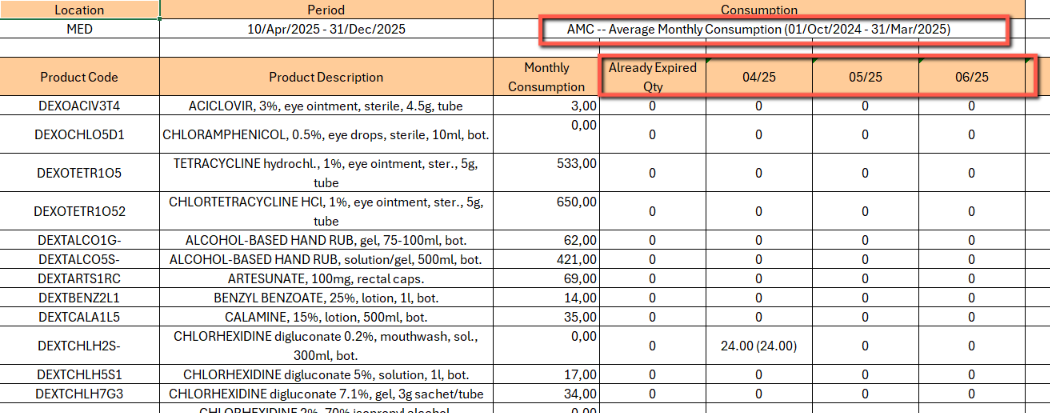 |
| Excel Export for Products likely to expire – overview tab |
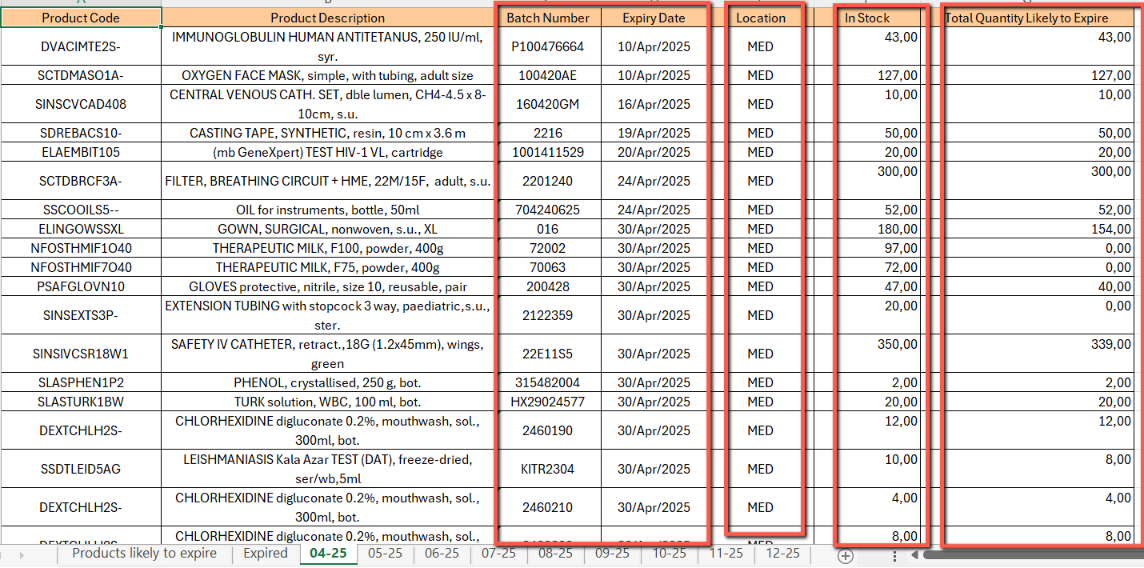 |
| Excel Export for Products likely to expire – view per expiration month |
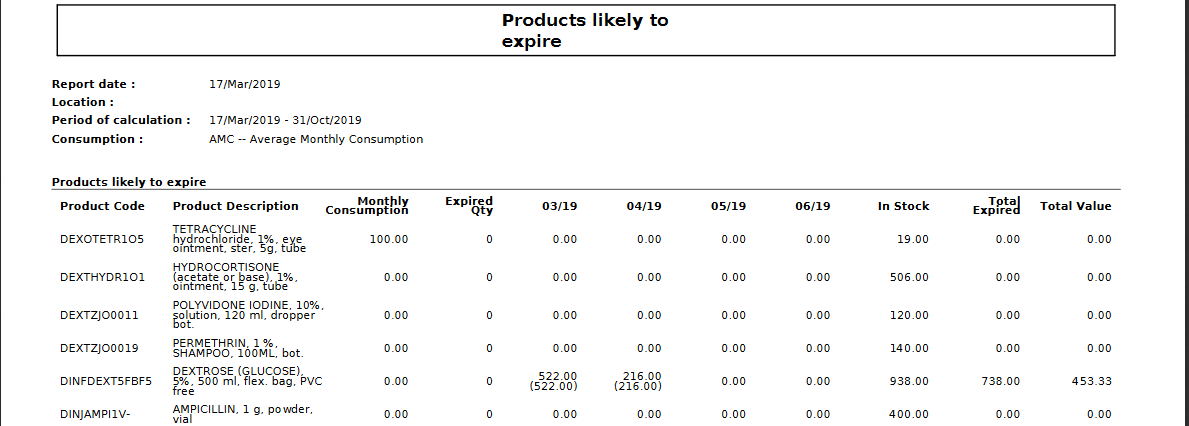 |
| PDF Export for Products likely to expire |